Adding WhatsApp SMS Templates
You add WhatsApp SMS templates to use the same WhatsApp SMS template again and again for multiple campaigns and events with different content.
To add an WhatsApp SMS Template, follow these steps:
-
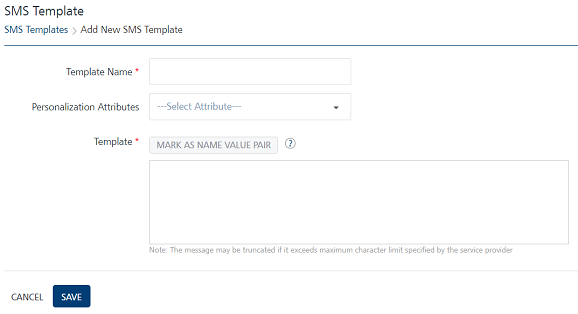
In the SMS Template home page, click Add SMS Template.
The SMS Template page appears.
-
Enter details for the following fields:
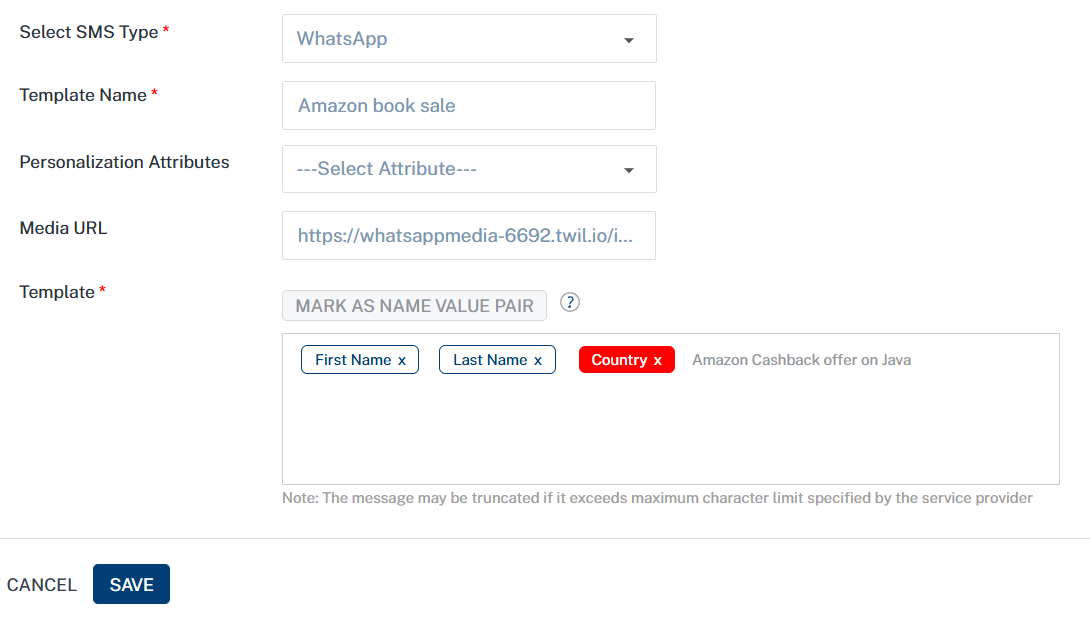
- SMS Type: Select WhatsApp for dropdown for WatsApp template creation.
- Template Name: Enter an appropriate name for the template.
-
Personalization Attributes: Select the required attributes from the drop-down list.
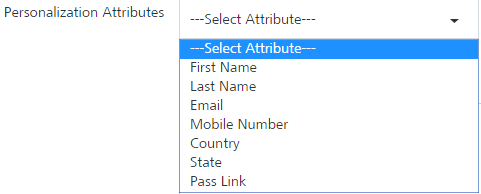
The system inserts the selected attributes at the cursor position in the Message Box text area.
-
To set the Name_Value pair, enter the key words in the SMS message text box and click the Mark as Name Value Pair button.
The marked text becomes highlighted. The text converts to a variable. * Media URL: Based on your requirement, provide a publicly accessible URL for multimedia files (images, documents, audio, video, or contacts) that Twilio's servers can access.
-
If you do not want to add the WhatsApp SMS template, click Cancel to close the window. The system displays the SMS Template home page.
- Click Save. The newly added WhatsApp SMS template appears in the list view with the confirmation message that SMS template created successfully.