Twilio WhatsApp Multimedia Support
The MediaUrl parameter handles WhatsApp multimedia messages (images, documents, audio, video, and contacts). It accepts a media URL that must be publicly accessible to Twilio’s servers. Maximum size limit: 16 MB (images limited to 5 MB).
Supported MIME Types:
- IMAGES: JPG, JPEG, PNG, WEBP*
- AUDIO: OGG**, AMR, 3GP, AAC, MPEG
- VIDEO: MP4 (H.264 video codec and AAC audio)
- DOCUMENTS: PDF, DOC, DOCX, PPTX, XLSX
- CONTACTS: vCard (.vcf)
Ways to upload a file and get a public URL:
- Twilio Assets: Upload files via the Twilio Console to generate publicly accessible URLs
- Cloud storage services: e.g., AWS S3, Google Cloud Storage, Azure Blob Storage
- Your own web server: Host files on your server and expose them via HTTPS
- File hosting services: Use third-party platforms (e.g., Dropbox, Google Drive, Imgur) that provide direct file URLs
About Twilio Assets:
Twilio Assets is part of Twilio’s Serverless platform that allows you to host static files (images, audio, video, documents, etc.) directly inside Twilio. Files can be uploaded via the Twilio Console or programmatically using the Serverless API. Once uploaded, Twilio provides a public HTTPS URL that can be used in the MediaUrl parameter for WhatsApp messages.
Steps to Upload Media file to convert into public URL using Twilio Assets:
-
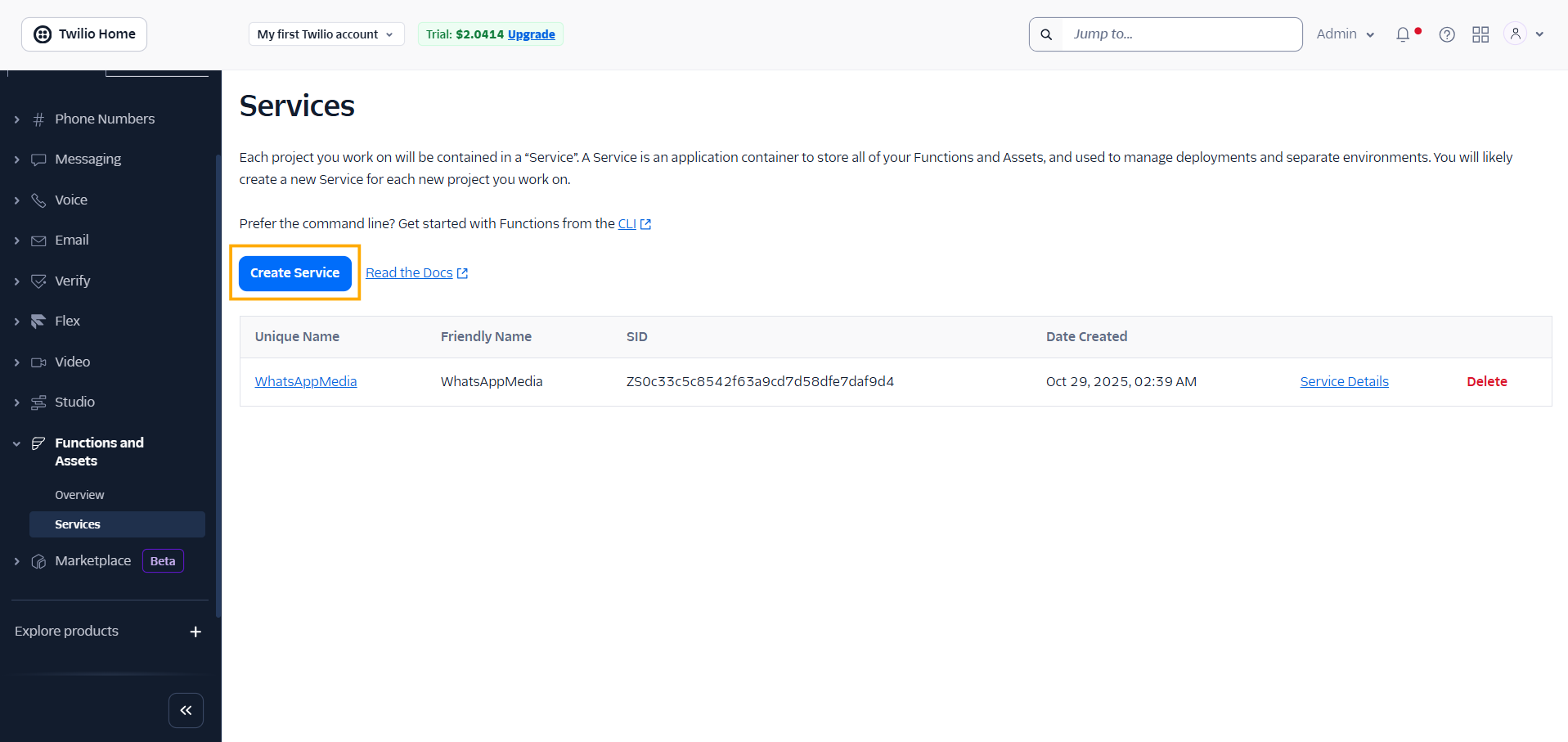
Login to Twilio , Navigate to Functions and Assets -> Services -> Click on Create Service
-
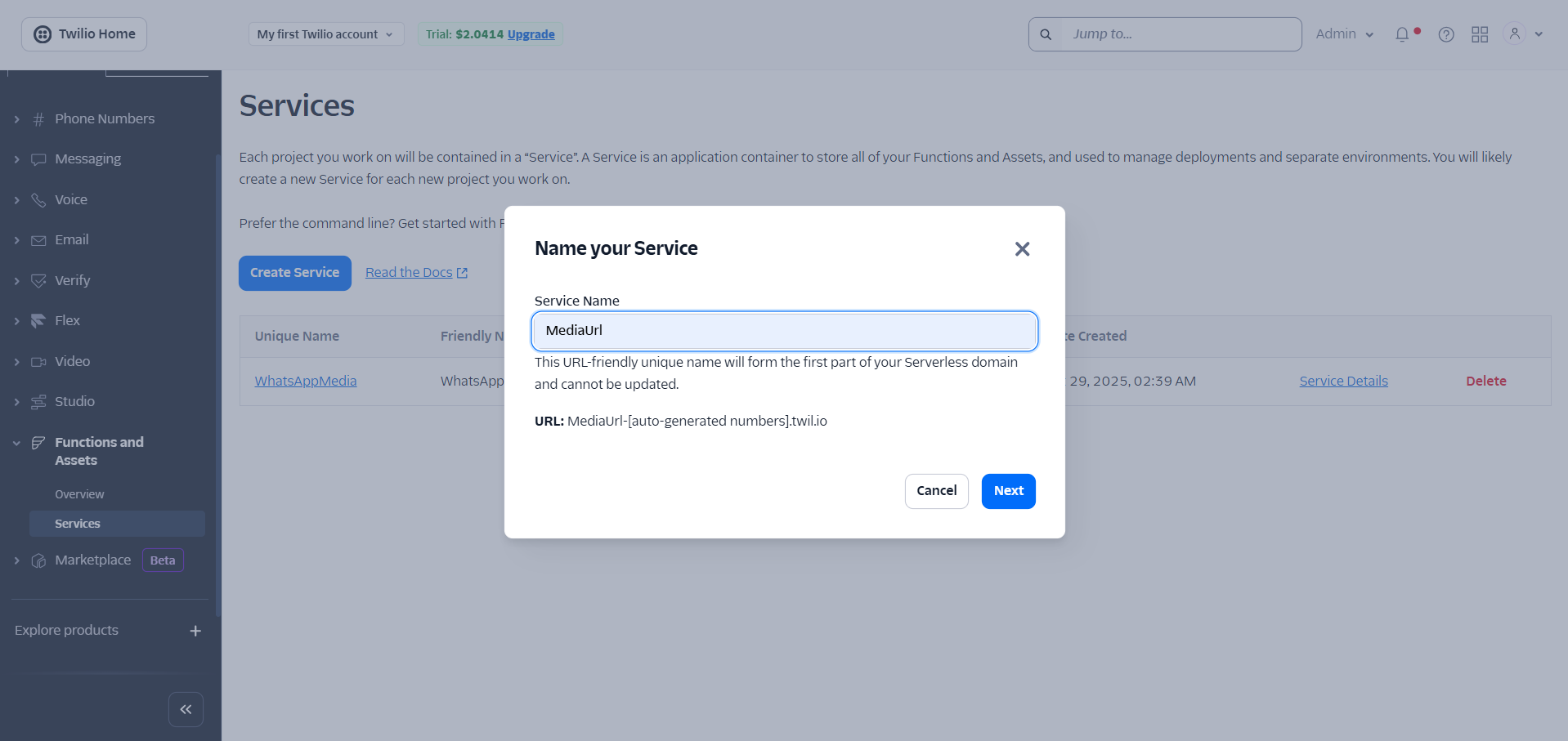
Enter the Service Name -> Click Next.
-
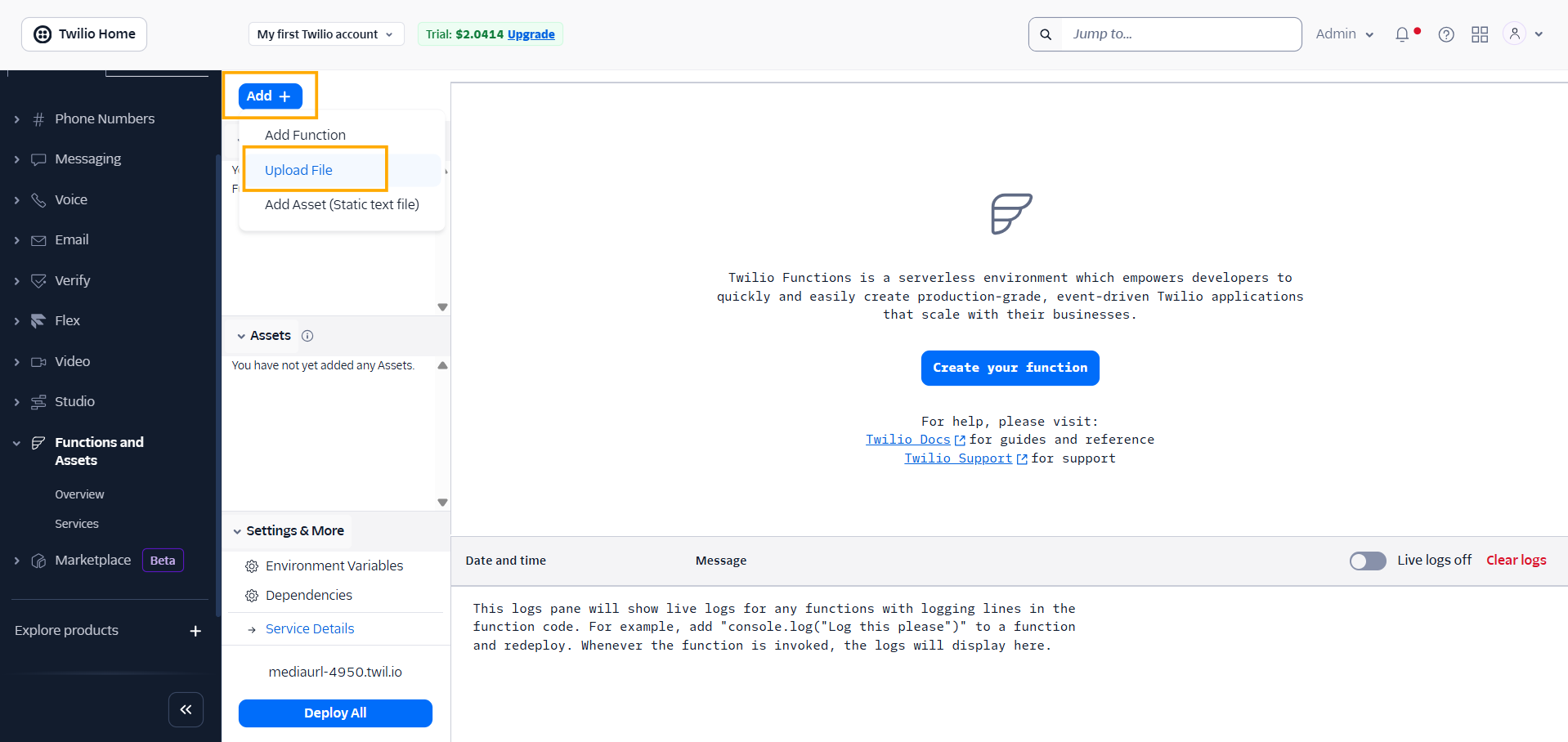
Click on Add -> Click on Upload File.
-
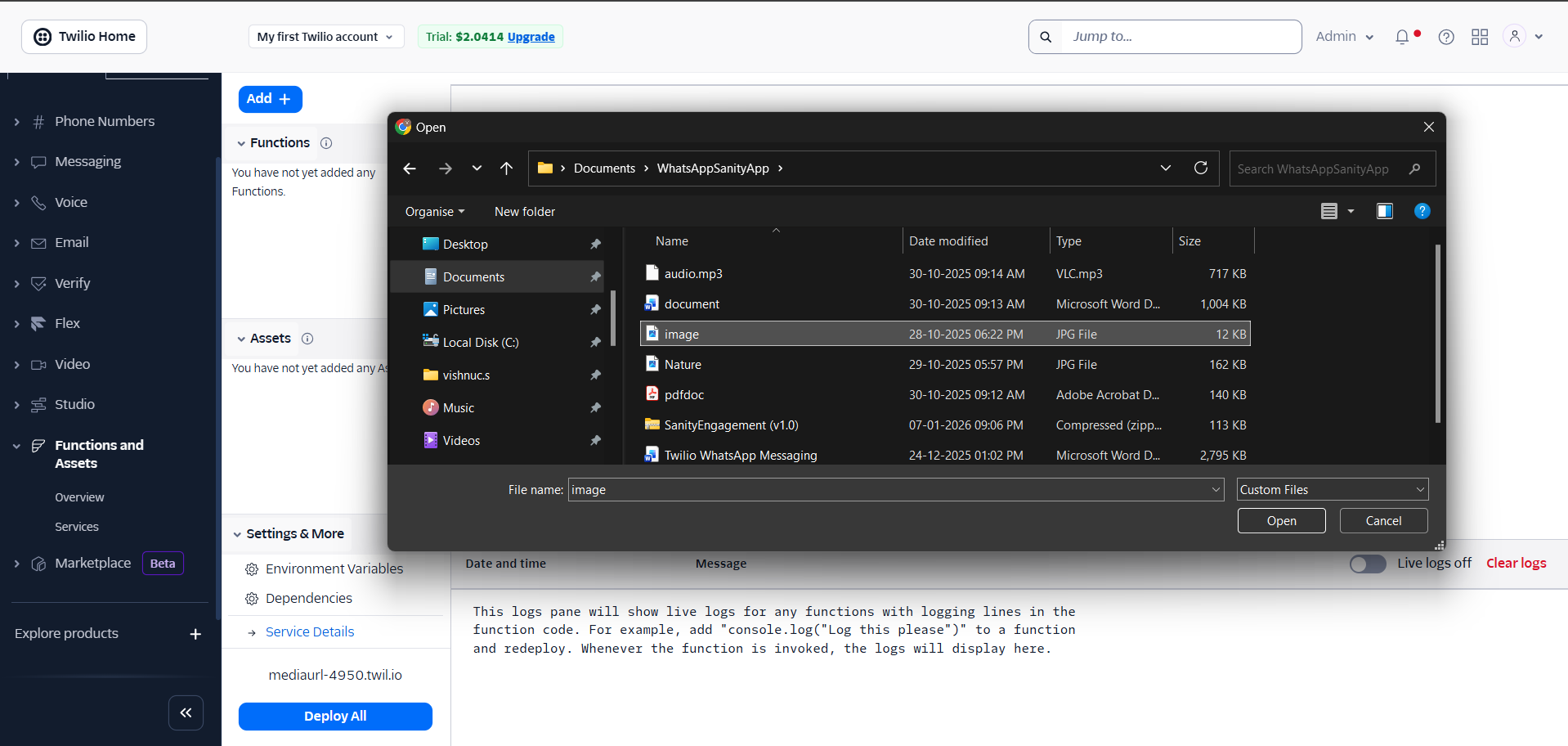
Select Media file and click on open.
-
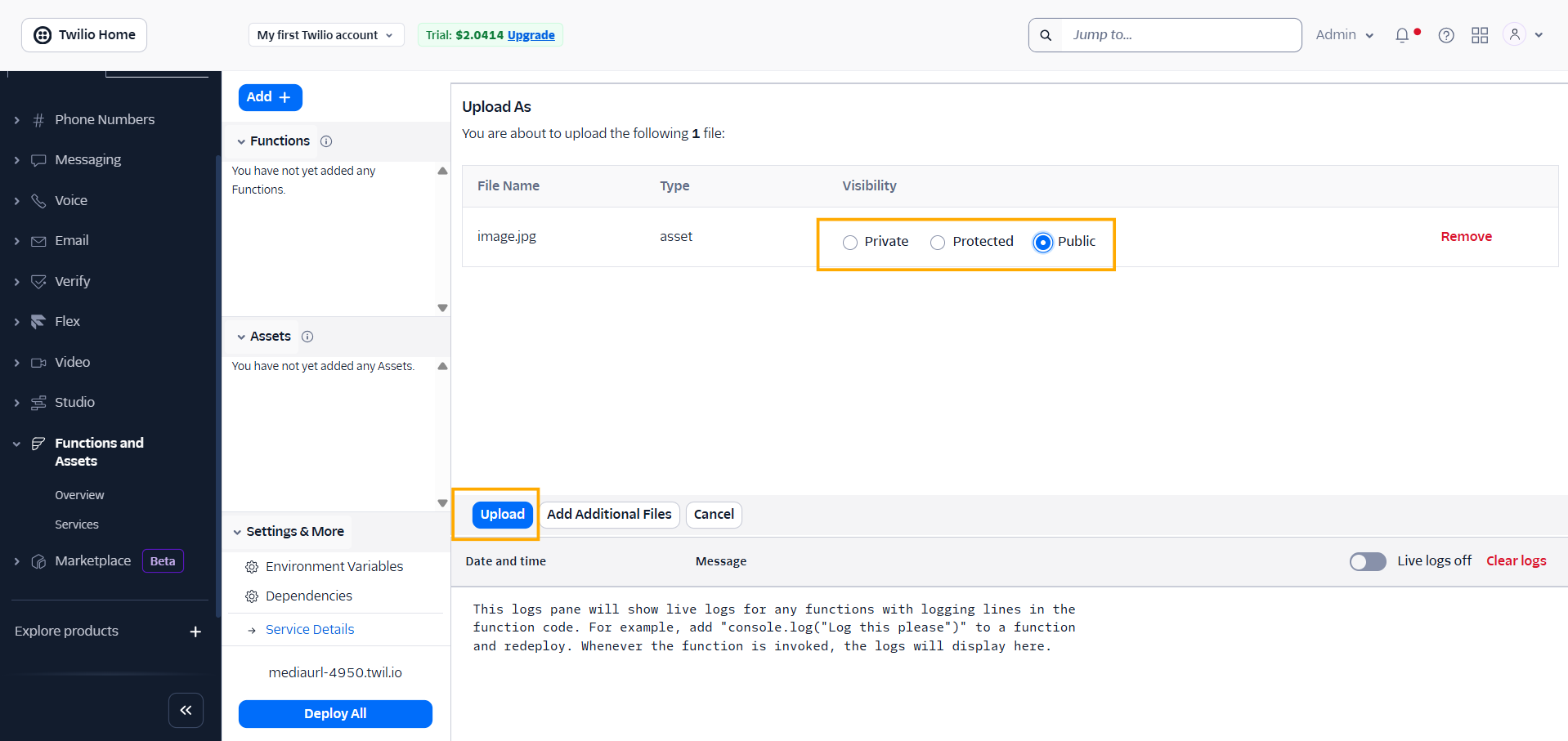
Select the Visibility(Private, Protected, Public) and Click on Upload.
-
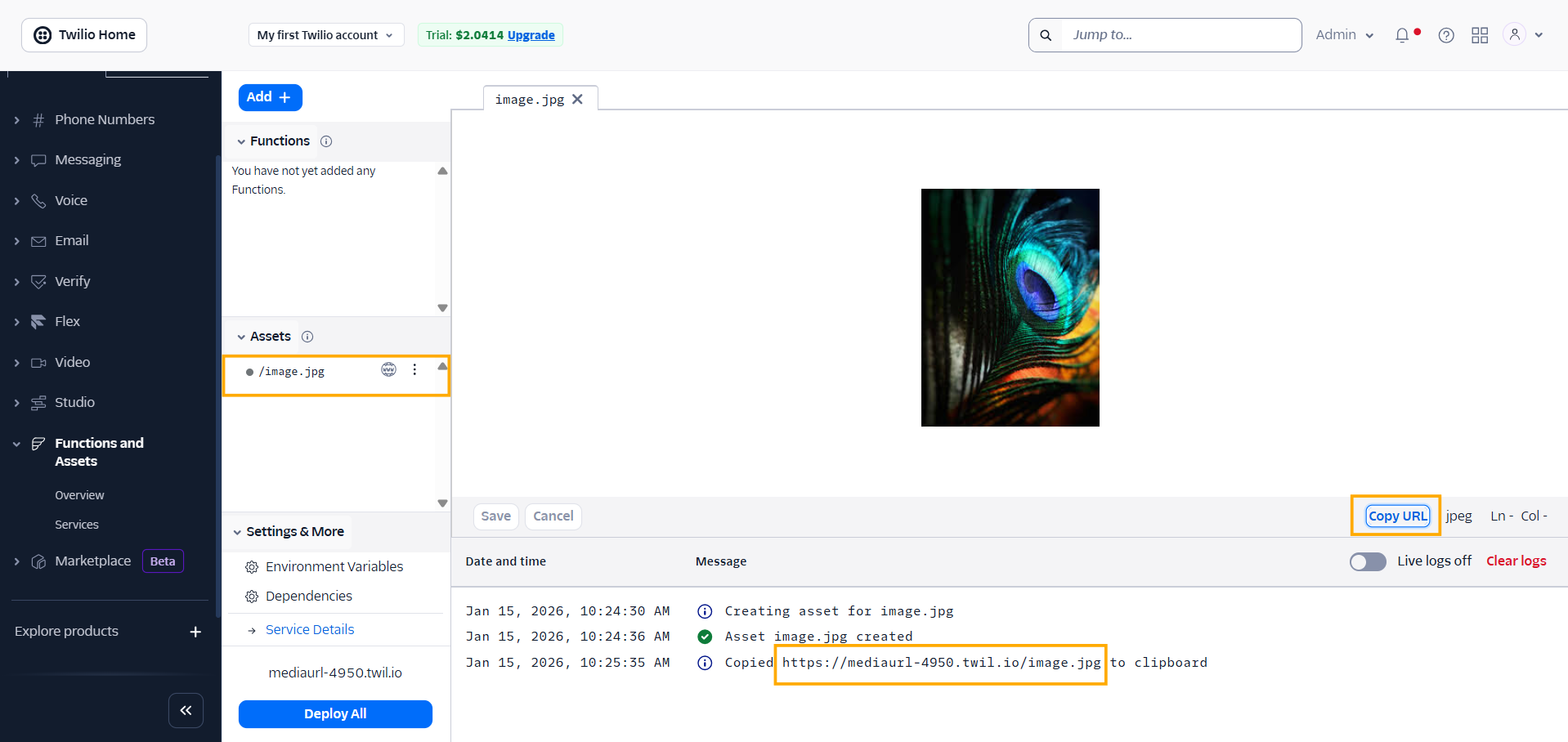
In Assets -> Click on uploaded image -> Copy URL.