The VersionVault Work Area Manager
The VersionVault Work Area Manager (WAM) offers designers an interface that presents the information in a format most suitable with the workflow of designers.
This a key highlight of the VersionVault-Cadence integration because the Work Area Manager allows users to carry out design management operations besides displaying VersionVault-specific information. You can open the Work Area Manager from either the Design Manager menu or from the Browse Library submenu item in Properties ().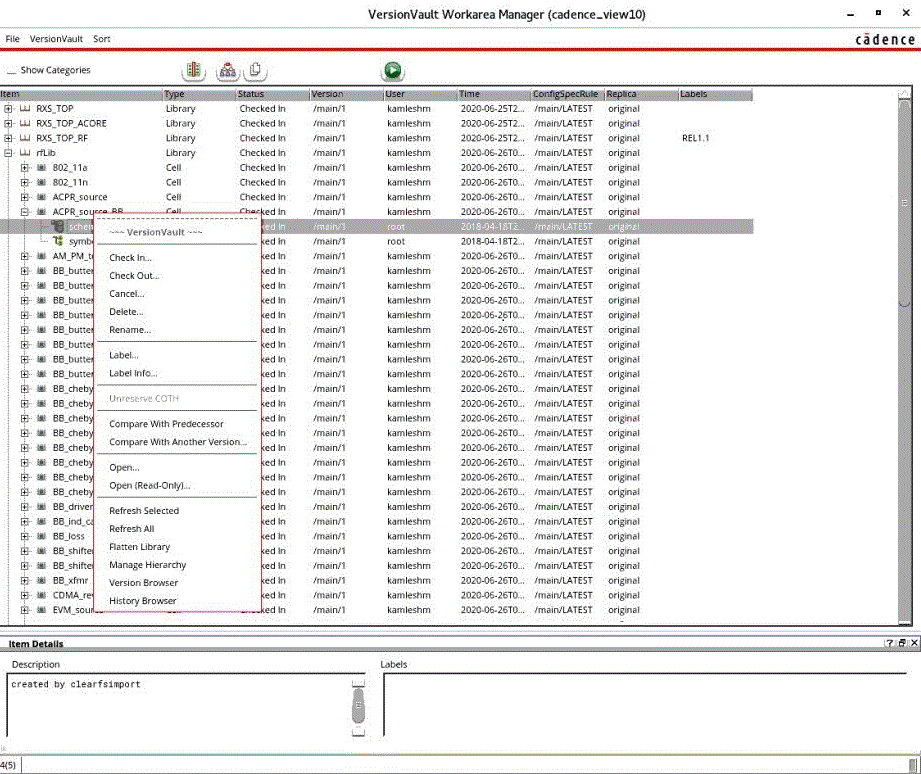
Features of the VersionVault Work Area Manager
- It provides an elaborated display for every design artifact, with status, user information, version identifier, replica name, and configuration specification selection rules.
- You can edit config spec rules to instantly change the configuration of the VersionVault view.
- The Flatten library feature gives a flattened view of all cellviews in the library so that cellviews can be sorted, based on attributes such as source control state, user, time stamp, replica, and version.
- You can select multiple library, cell or cellviews, and perform design management operations.
- Operations on design artifacts that are listed in a specific category can be aggregated by selecting the Show Category filter (for example, all designs that are listed under the Pin category can be listed and checked out at once).
- The Check in all checked out option allows designers to check in all of
the checked-out files in the workspace at once. Note: For more information about check-ins, see Artifact check-ins.
- In a VersionVault MultiSite environment, you can view the current mastered replica information and the check-out information across replicas.
- You can start VersionVault native user interfaces, namely the Version Tree Browser and the History Browser for library, cell, and cellview.
- Labels can be created and applied on library, cell, and cellview.
- The Browse hierarchy submenu item in the Library Manager starts the Work Area Manager and shows all of the cellviews that is referenced from the selected cellview in a hierarchical manner.
- You can recover items with a version as checkedout but removed in a dynamic view. To do this, use the Recover checkedout but removed files option from the VersionVault menu.
Note: To open a design, you must use the Library Manager.