Interacting with Clara
You can chat with Clara through the following user interfaces:
-
Clara web interface, available at the following link https://<IP:PORT>
where:
IP is the IP address of Clara machine.
PORT is the port of Clara machine. You can skip it if you use the default port (443).
-
Clara integrated in the Dynamic Workload Console. For details about configuration instructions, see Installing and configuring Clara.
-
Slack and Teams messaging tools. For details, see Installing and configuring Clara.
Clara avatar
Clara avatar has been redesigned to show emotions, so users can immediately understand the status of an action.
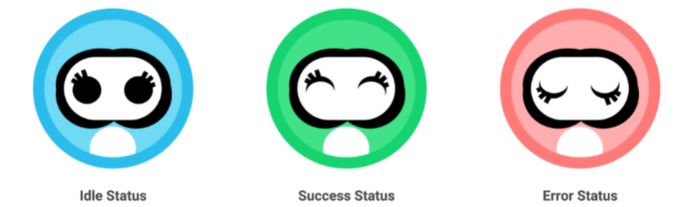
Clara can switch from a status to another of the following:
-
Idle status is used when Clara is in neutral status or there are no errors to show.
-
Success status is used for actions that complete successfully (for example, "Monitoring a job").
-
Error status is used for actions that cannot complete or complete with errors.
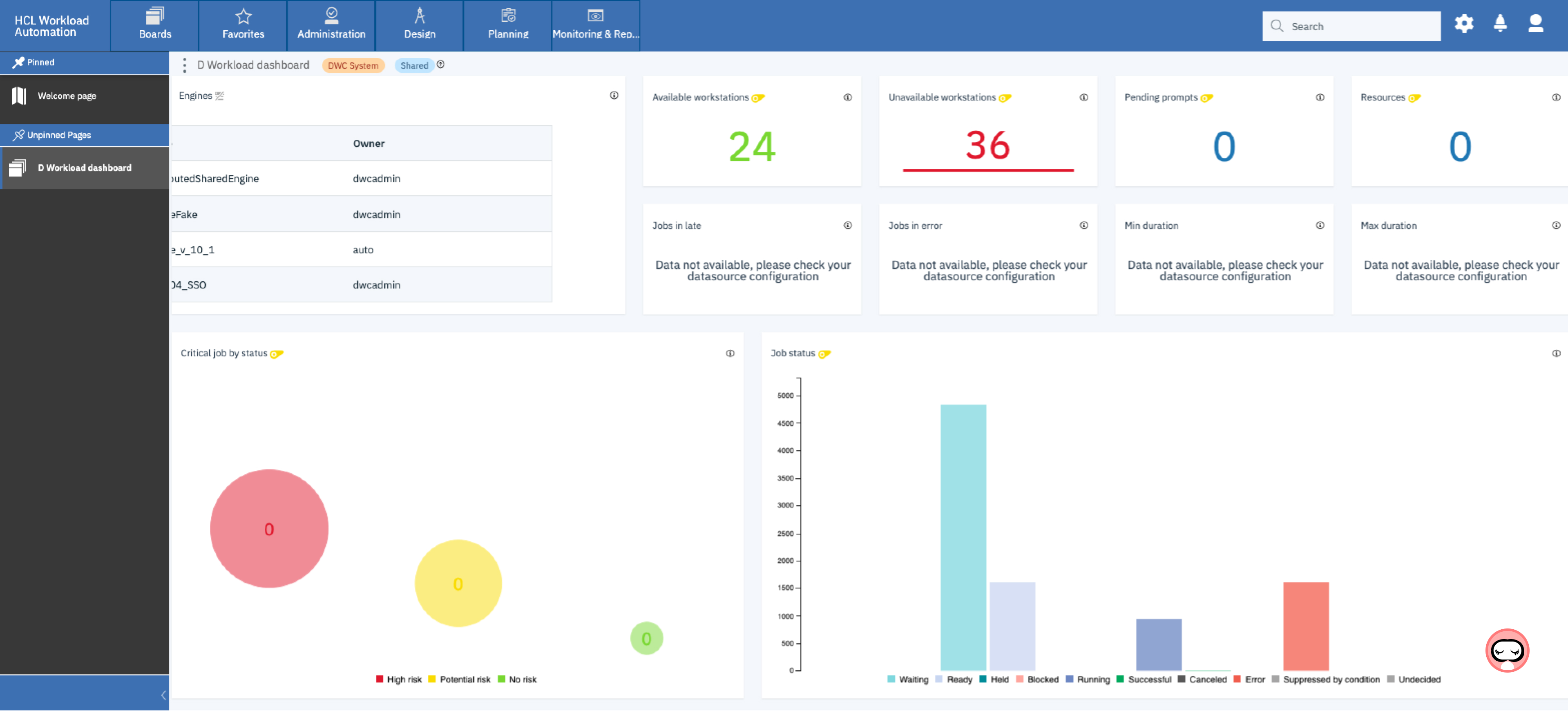
When integrating Clara in the Dynamic Workload Console, even when Clara's chat window is closed, the avatar can show you if an action completes successfully or anything goes wrong in the background.
Selecting a conversation language
After the installation, to enable the availability of multiple languages with Clara, you must configure the translation service of your choice (see Translations). The first time you chat with Clara, she asks you to select a conversation language from the set of languages defined during the configuration steps.
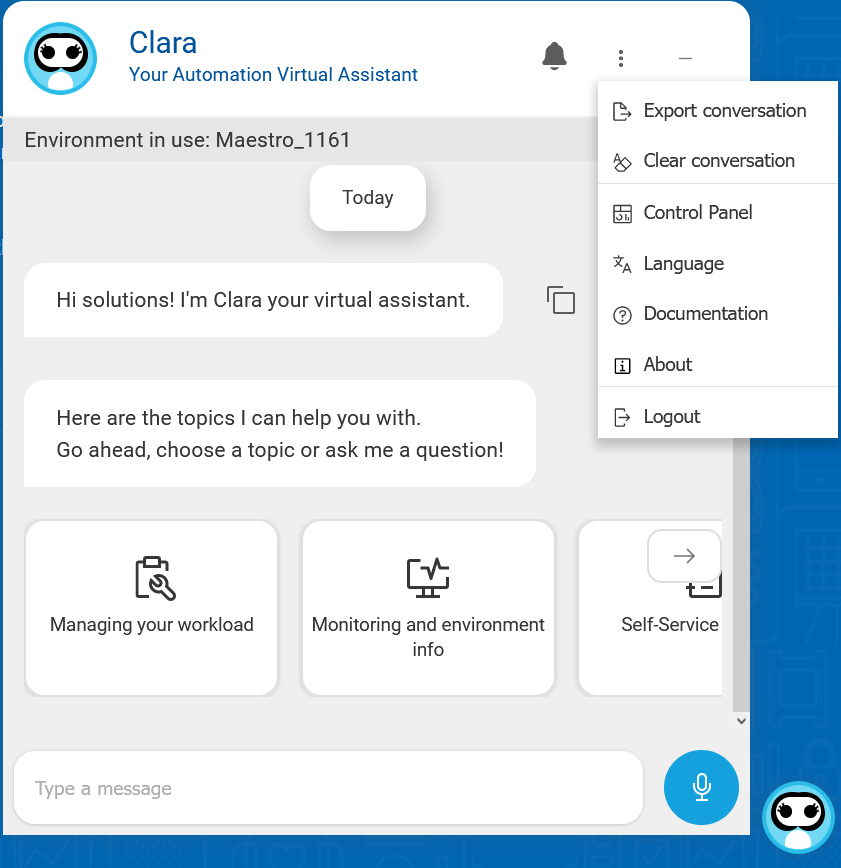
You can change the conversation language at any time, by selecting Language in the drop-down menu of Clara chat window.
If you are using a language other than English, you can view the English version of a message by clicking Show in English in the message box.
Changing the working environment
From Clara Control Panel > Environments page, Clara administrator can set the default environment for Clara to use. You, as a Clara user, might want to work with a different environment.
Clara chat window shows you information about the environment in use. It can be either the default environment selected by the administrator, or an environment you have previously selected.
Click the Change button to select a new environment.
Clara shows you the environments for which you have an access defined in the Clara Control Panel > Access Manager page. Select the environment that you want to use.
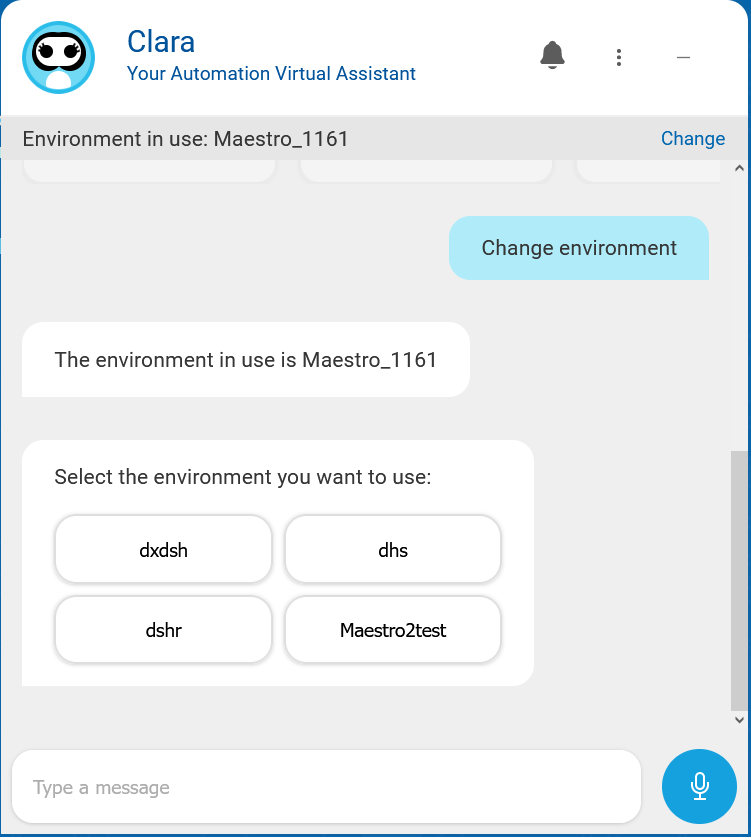
Once you have changed the environment, it will remain set as environment in use until you clear the conversation with Clara.
How to start a conversation with Clara
To start a conversation with Clara on a specific topic, proceed as follows:
-
When you login to Clara, select one of the topics suggested by Clara. For an overview of the topics, see Running actions on your behalf.
-
When the conversation flow about a topic completes, type "What can you do?" to view other topics Clara can assist you with.
-
Simply ask your free question (for example, What is a job? or Current plan status). For details, see Clara replies to your questions.
-
Ask Clara to help you solve a problem (for example, Why a job does not start?). For details, see Clara helps in problem determination.
Clara maintains a history of the messages you have entered. By using the up and down arrow keys, you can recall previously-entered messages to the input field.
By clicking the three dots menu on the upper right corner of Clara chat window, you can find the following options:
-
Export conversation - to export the current conversation with Clara into a .txt file.
-
Clear conversation - to reset the current conversation with Clara.
-
Control Panel - to open Clara Control Panel for configuration.
-
Language - to select a conversation language other than English.
-
Documentation - to open Clara documentation.
-
About - to get information about Clara version, release, and terms of license agreement.
-
Logout - to log out from Clara.
During a conversation, Clara provides tips, in the form of action buttons, to suggest the next action you can run.
To quit a conversation, type Cancel.
Copy and share Clara's messages via email
When chatting with Clara, by hovering over Clara's messages, two options are available for each message: Copy and Send email
By selecting Copy, you can copy the message to clipboard, and paste it later on.
By selecting Send email, the message text is copied into a new e-mail in your default e-mail program.