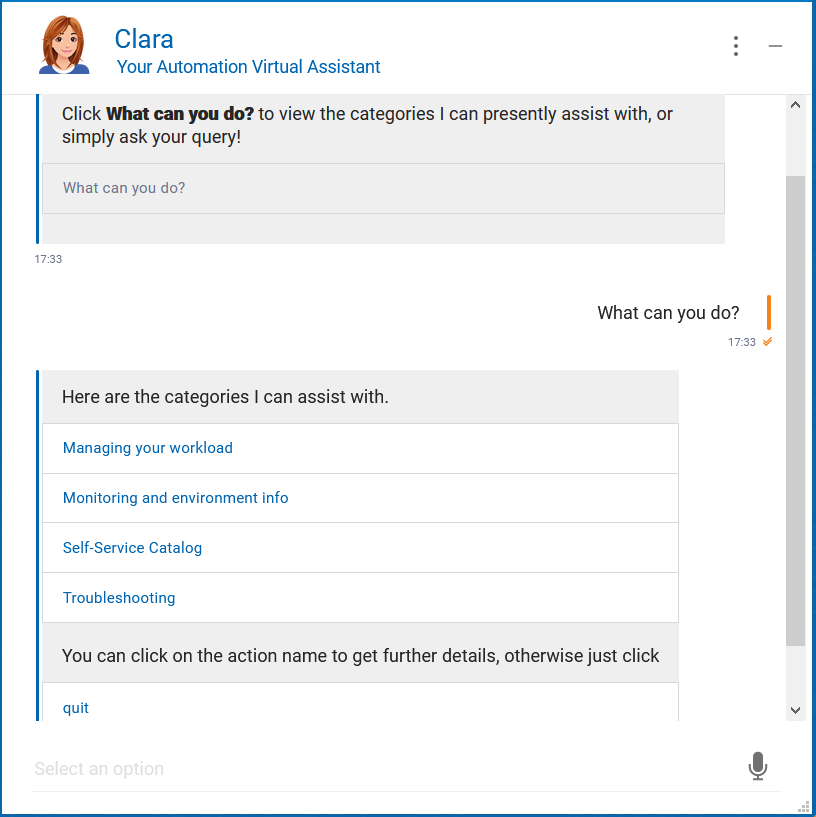
At Clara startup, by entering the "What can you do?" conversation flow, you can view the actions that Clara can run on your behalf.
The actions that Clara can run on your behalf, for WA and WAz, are grouped in the following categories:
Managing your workload - You (as an operator) can submit a job or modify a job execution
Rerun a job - rerun a job that is in error status (available for WA only)
Submit a job - submit a predefined job (available for WA only)
Submit a jobstream - submit a predefined jobstream for processing (available for WA and WAz)
Cancel a job - cancel a job before it is launched (available for WA only)
Release a job - release a job from dependencies (available for WA and WAz)
Put a job in HELD status - put a job in HELD status, awaiting for dependencies resolution (available for WA and WAz)
Monitoring and environment info - You (as an administrator) can get information about scheduled jobs
Monitoring the scheduling environment - to get information about your jobs and the daily plan
Get the status of a job - retrieve information about the current status of a job (available for WA and WAz). For details, see Get the status of a job.
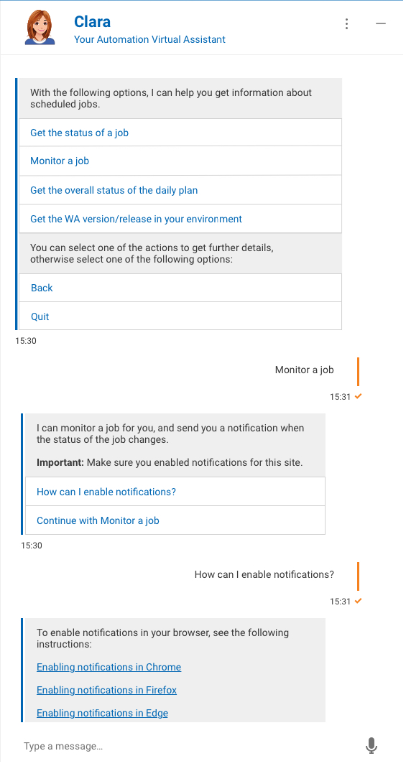
Monitor a job - monitor a job and receive a notification when the job status changes (available for WA only). For details, see Monitor a job.
Get the overall status of the daily plan - retrieve information about the actual status of all the jobs in the daily plan (available for WA and WAz). For details, see Get the status of the daily plan.
Monitoring WA servers through HERO - to monitor and get information about your WA servers through HERO (available for WA only). For details, see Clara monitors servers through HERO.
Get the WA version/release in your environment - retrieve information about the current version or release of Workload Automation installed in your environment (for WAz, the information retrieved are related to the Dynamic Workload Console)
Self-Service Catalog - You (as an operator or administrator) can manage workload from Self-Service Catalog
Submit a service from the catalog - (available for WA and WAz). For details, see Submit a service from Self-service Catalog.
Troubleshooting - You (as an operator or administrator) can speed up troubleshooting WA issues. For details, see Clara helps in problem determination.
Why a job doesn't start? - You can understand why a job is not starting (available for WA only)
Are there any jobs in error? - You can find any jobs in error in the daily plan (available for WA and WAz)
Are there any jobs in late? - You can find any jobs in late in the daily plan (available for WA and WAz)
Open a ticket - Clara provides you with a link to the Service Platform of your choice (available for WA and WAz). For details, see Open a ticket.
When you run an action, Clara asks you in which Workload Automation environment you want to run it. If you have only one environment configured, Clara will choose that one.
For each action in the Managing your workload category, Clara asks for a justification. This helps store information in the audit store of Workload Automation where the administrator can check who is the operator that performed a specific action.
Also, Clara leverages the authentication mechanism of Workload Automation. If the user is not authorized to run an action, Clara returns an error. You can also extend to Clara the authorization to run actions in your place. For details, see Managing User Credentials.
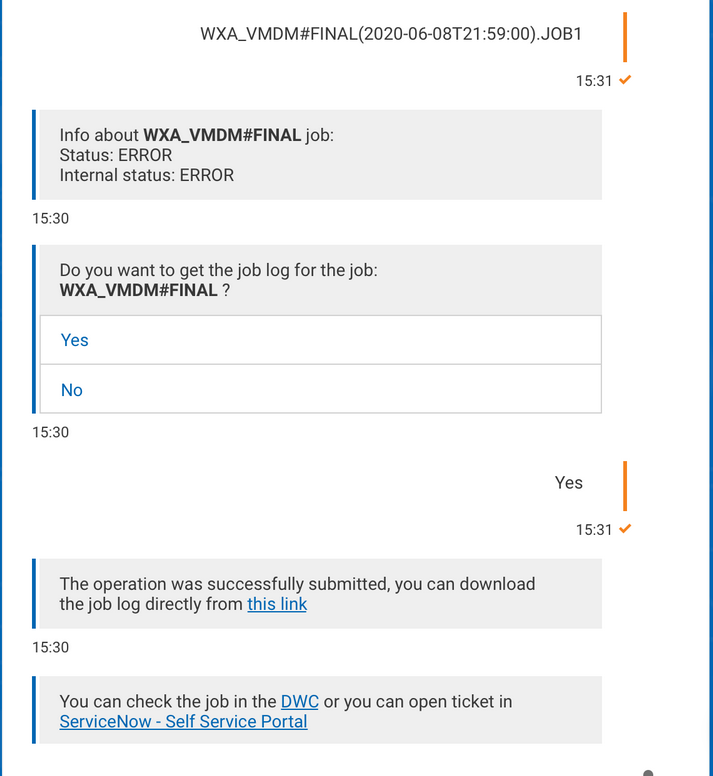
By selecting this action you ask Clara to provide the current status of a job.
After providing the job status, for job statuses different from SUCCESSFULLY COMPLETED, Clara provides you with a link to download the job log. Also, Clara provides you with a link to the Service Portal of your choice in case you need to open a Service Ticket. For details, see Open a ticket.
For all job statuses including SUCCESSFULLY COMPLETED, Clara provides you with a direct link to the Dynamic Workload Console - Monitoring Workload - where a pre-set query will show you details about the job. This Clara functionality prerequisites the DWC V9.4 or the DWC V9.5 (only FP3 or higher).
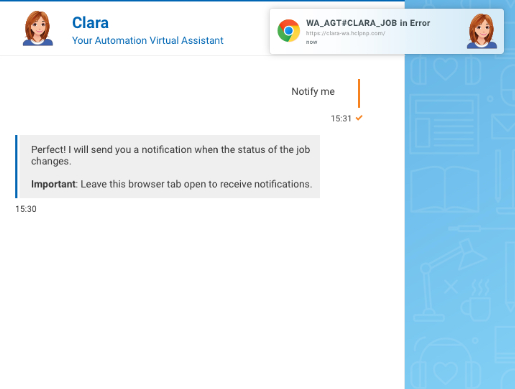
Clara can monitor a job and send you a notification when the job status changes.
The first time you open Clara UI from a browser, you will be asked to allow Clara to send notifications. See instructions about How to enable persistent notifications.
Clara checks the job status at time intervals, depending on the estimated duration of the job in Workload Automation, and notifies you when the job status changes. An e-mail with the new job status is also sent to the e-mail address you specified in the Add User flow, in the User Credential Manager interface.
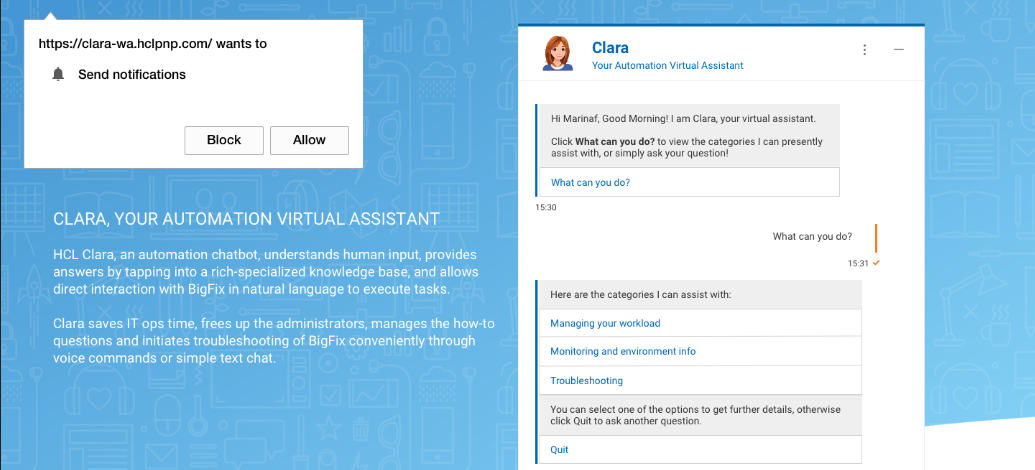
If you don't allow notifications when opening Clara UI, Clara will assist you to enable notifications in you browser later on.
To monitor a job and receive Clara notifications, run the following steps:
In the "What can you do?" conversation flow, select Monitoring and environment info > Monitor a job
If not already done before, enable notifications in your browser by following the instructions provided by Clara.
When required by Clara, provide the job name, the job stream name, and the workstation name for the job you want to monitor.
Clara will return the job status.
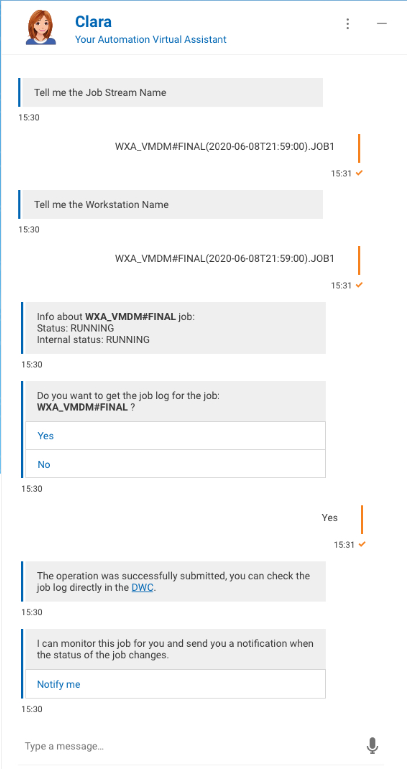
Leave the browser tab open. When the job status changes, Clara will send you a notification.
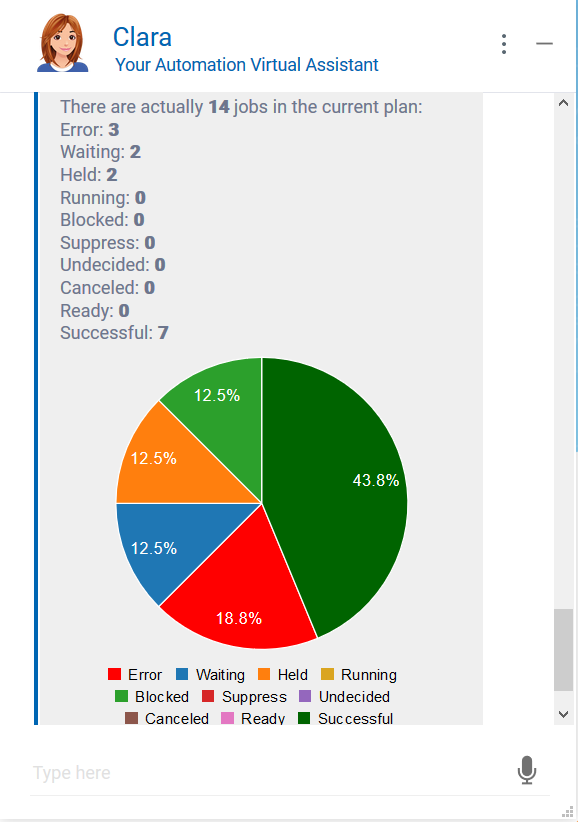
As a Workload Automation administrator, you might need to check the status of the daily plan. Run the following steps:
In the "What can you do?" conversation flow, select Monitoring and environment info > Get the overall status of the daily plan
Clara provides an intuitive graphical representation of the status of jobs in the daily plan.
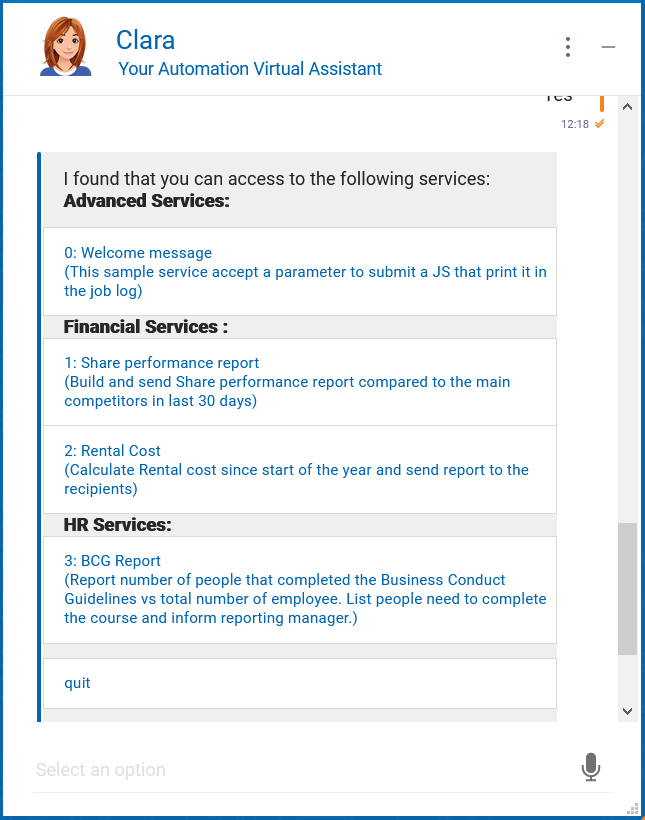
To select this action, ensure you have access to Self-Service Catalog, otherwise contact WA administrator.
When you select this action, Clara shows the services available to you in the Self-service Catalog.
Select the service that you want to submit.
Mandatory and optional parameters are displayed by Clara with default values, if any.
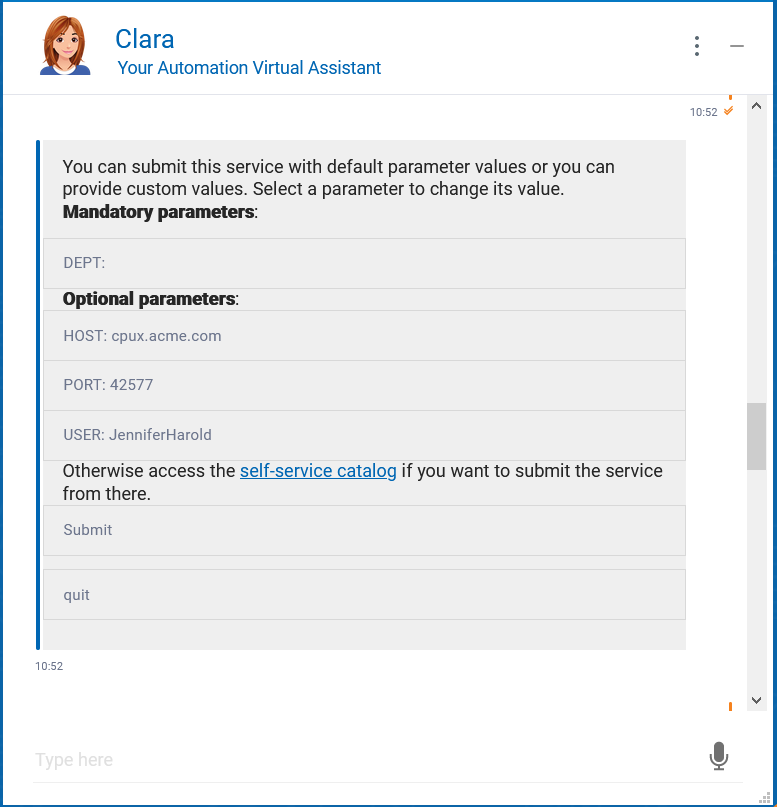
You can submit the service with default parameter values or you can provide custom values. Select a parameter to set or change its value.
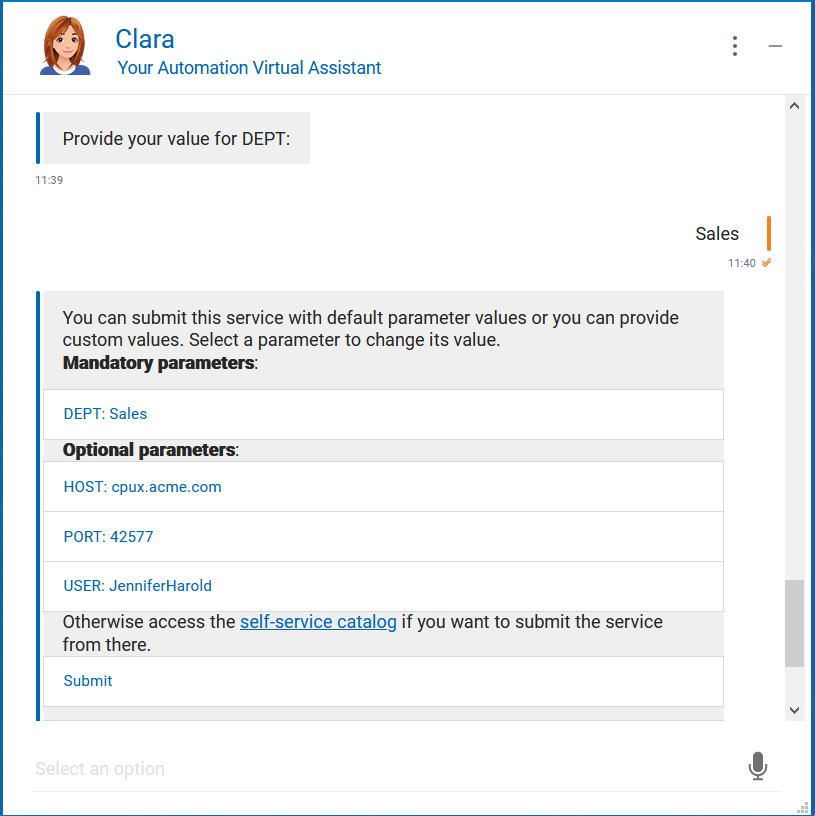
Click Submit to submit the service. When Clara asks for confirmation, click Yes. Also, Clara provides a link to the Self-service Catalog if you want to modify the parameters and submit the service from there.
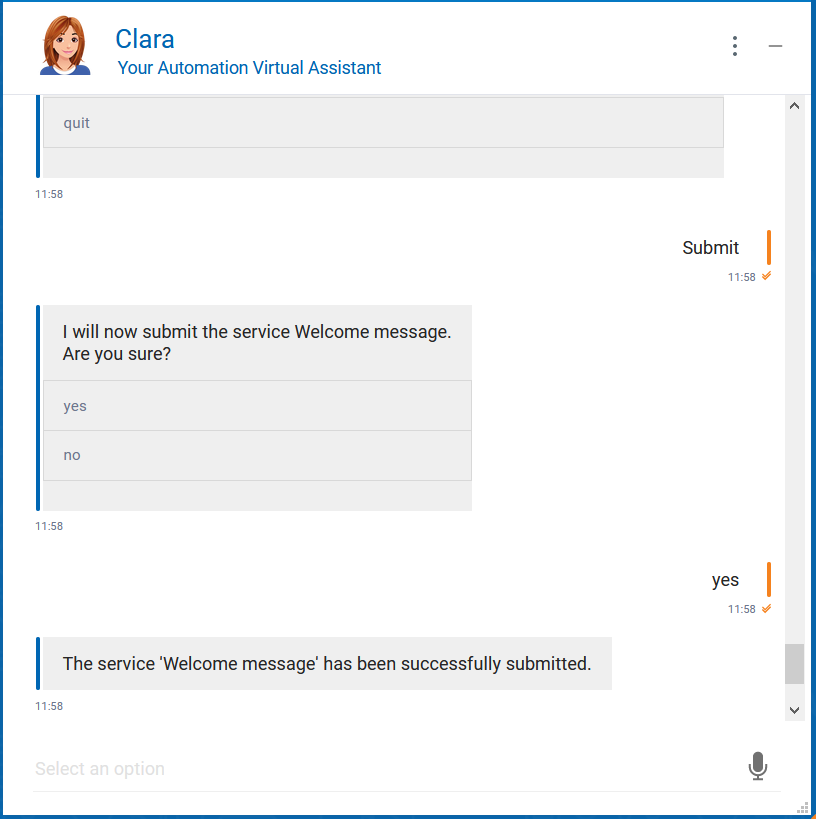
Clara can monitor the service execution for you and, optionally, can send you a notification when the service status changes. Click Yes to receive notifications.
Note: Remember to allow Clara to send notifications. If you don't allow notifications when opening Clara UI, Clara will assist you to enable notifications in you browser later on.
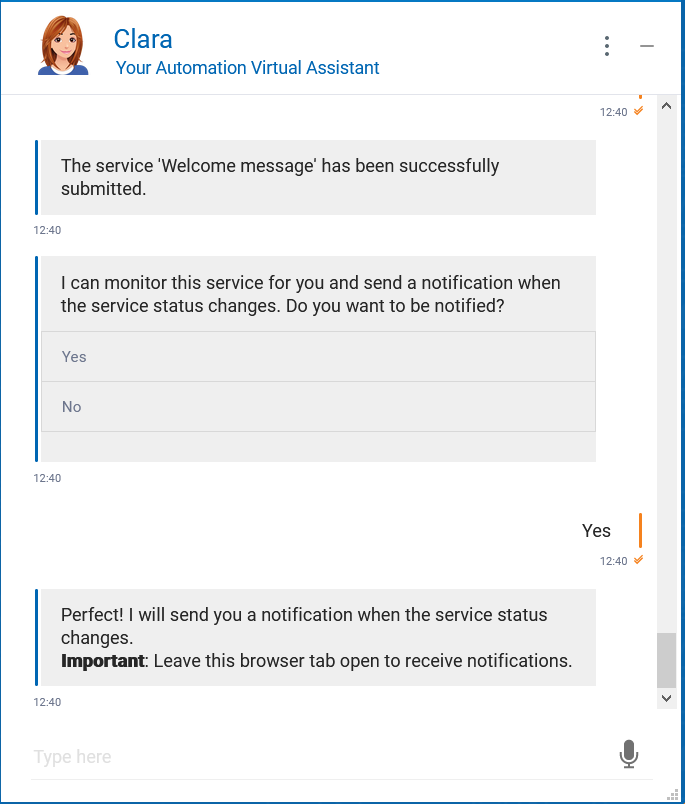
Clara will notify you when the status of your submitted service changes into:
Started
Completed successfully
Completed with errors
Error
In late