
Installation Procedure
- Download the folder jdk-23.0.1.zip from the path mentioned in the source field of Java Details
- Create a folder with the name ‘Java’ in the desired path
C:\Program Files
and extract zip file inside Java Folder. It should contain the extracted cont ent only.
(Refer below image).
Figure 1. Java Installation 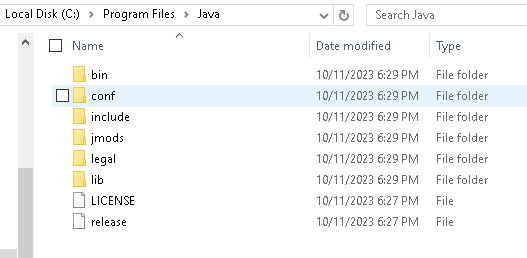
- Please perform the following steps to set environment variable for Java:
- Open File Explorer, go to This PC,
right-click and select Properties
Figure 2. Java Installation (Cont.) 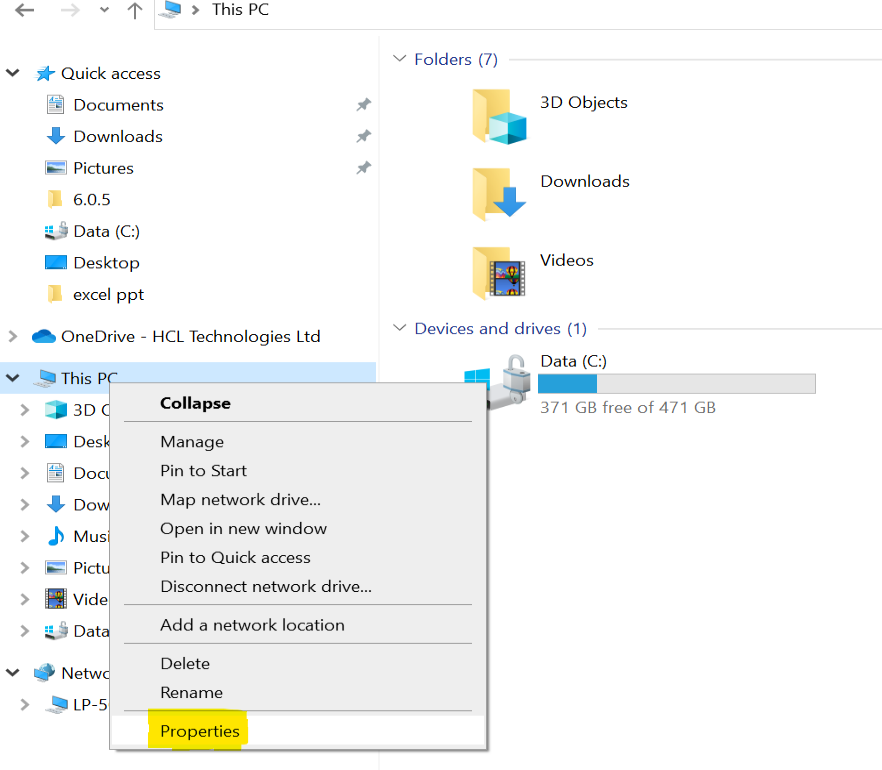
-
Click on Advanced tab in System Properties window.
Figure 3. Java Installation (Cont.) 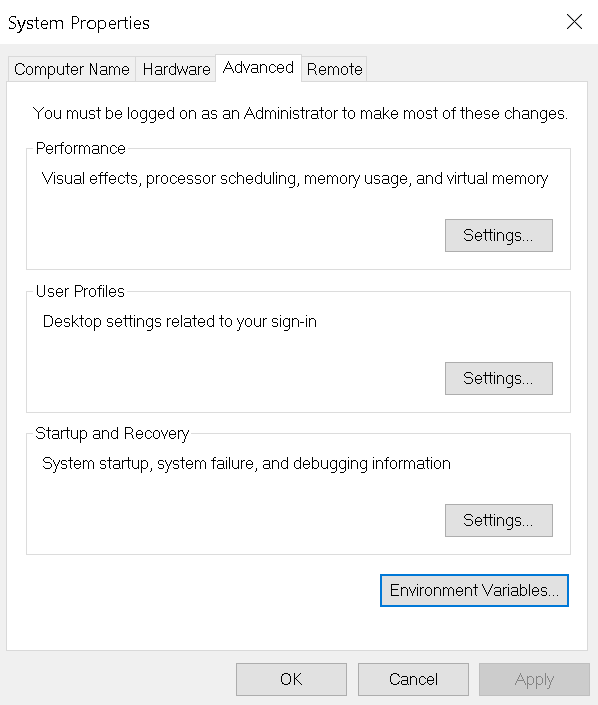
-
Click Environment Variables.
-
Click New under System Variables section.
-
Enter ‘JAVA_HOME’ in the Variable name section and the path where java is extracted eg: ‘C:\Program Files\Java’ in Variable value section.
-
Click OK to close the box.
Figure 4. Java Installation (Cont.) 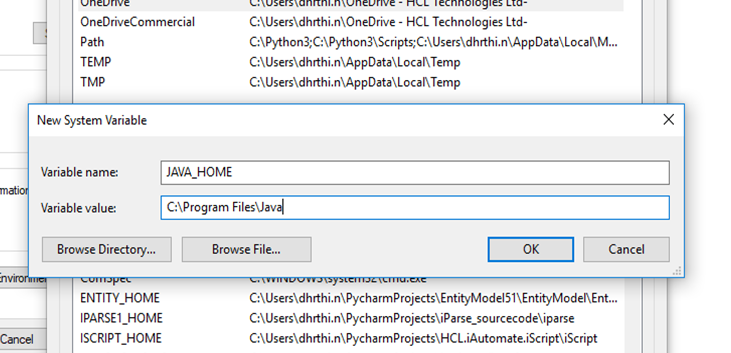
-
Under System variables section, find the variable named Path, select that variable and click the New button.
Figure 5. Java Installation (Cont.) 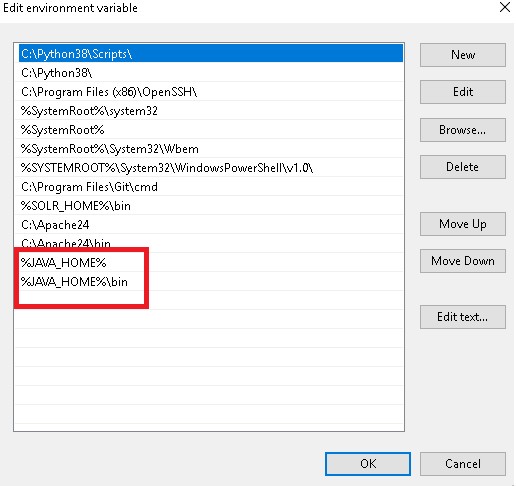
-
Add %JAVA_HOME% at the end of the Variable value.
-
Further add %JAVA_HOME%\bin at the end of the Variable value.
-
Click OK to close the dialog box.
- Open File Explorer, go to This PC,
right-click and select Properties
- To validate successful installation of Java, open Command Prompt as Administrator, and type java –version and press Enter on the keyboard.
- On successful Java installation, Java
Version will be displayed.
Figure 6. Java Installation (Cont.) 