
Installation Procedure
- Open Control Panel.
- Search for ‘Windows feature’. It will feature under Programs.
- Click Turn Windows Features On or Off.
Figure 1. IIS Installation Procedure 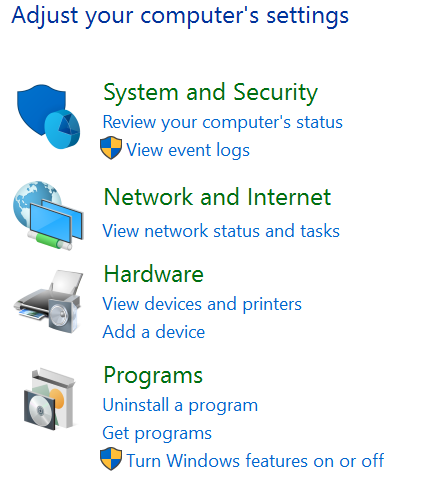
- Click Next.
Figure 2. IIS Installation Procedure (Cont.) 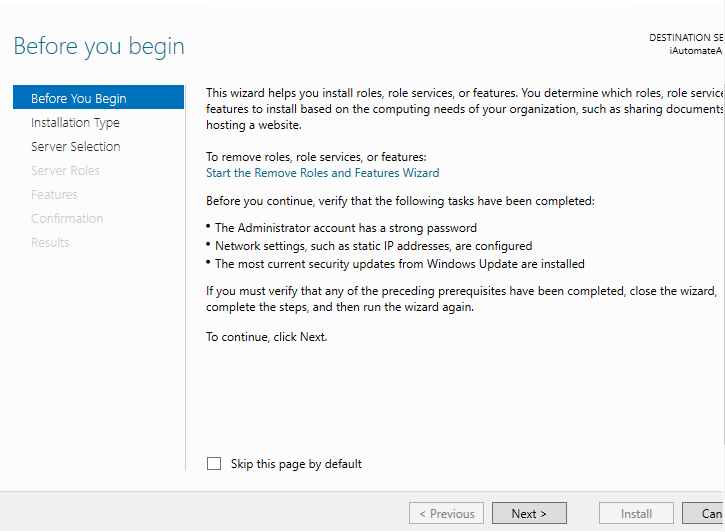
- Click Next
Figure 3. IIS Installation Procedure (Cont.) 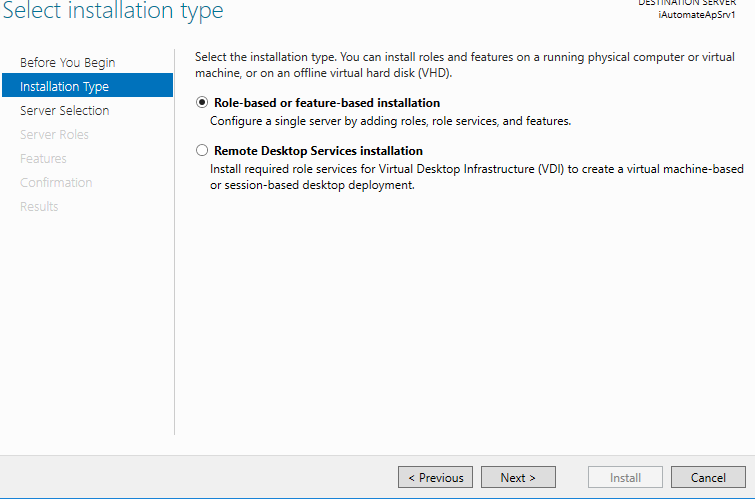
- Click Next.
Figure 4. IIS Installation Procedure (Cont.) 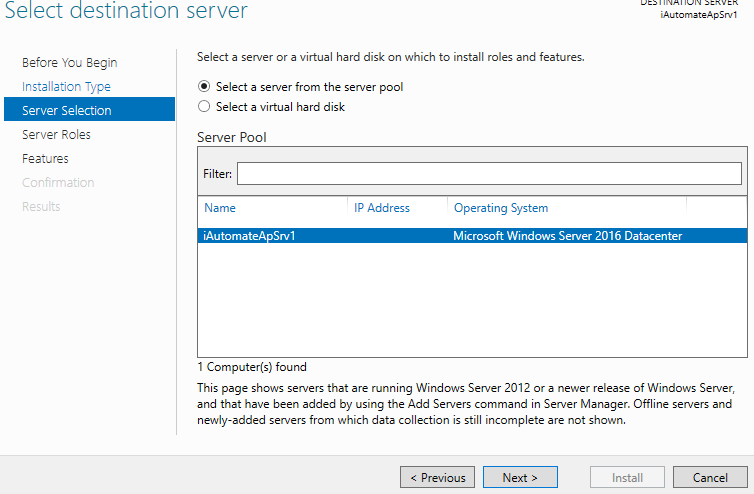
- Select Web Server (IIS) and click Next.
Figure 5. IIS Installation Procedure (Cont.) 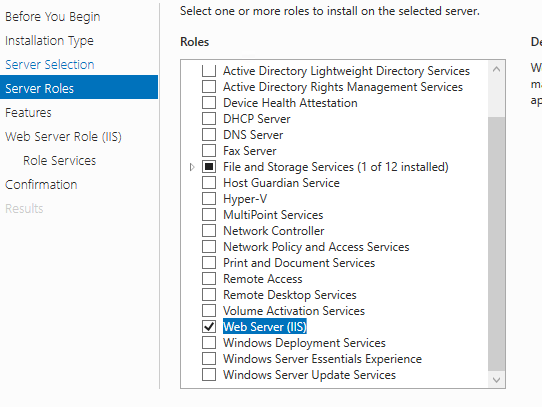
- Select .NET framework Features.
Figure 6. IIS Installation Procedure (Cont.) 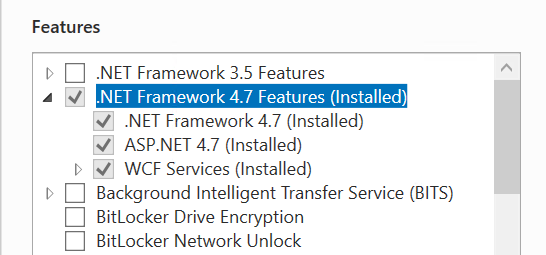
- Click Next for installing IIS.
Figure 7. IIS Installation Procedure (Cont.) 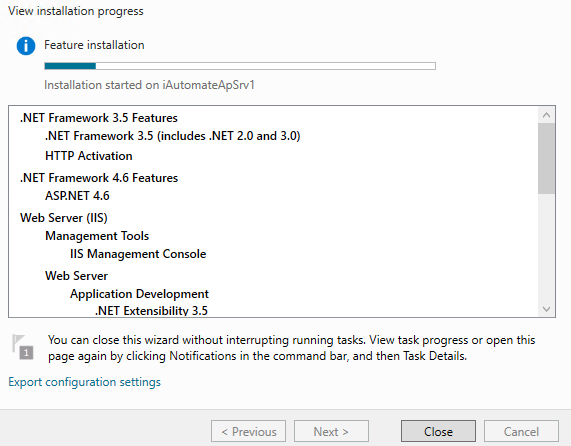
- Open Control Panel and search for ‘Windows feature’. It will feature under Programs.
- Click Turn Windows Features on or off.
Figure 8. IIS Installation Procedure (Cont.) 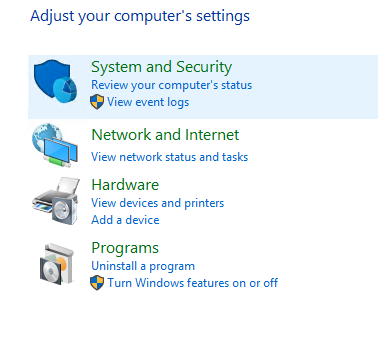
- Click Next and expand the Web Server (IIS).
Figure 9. IIS Installation Procedure (Cont.) 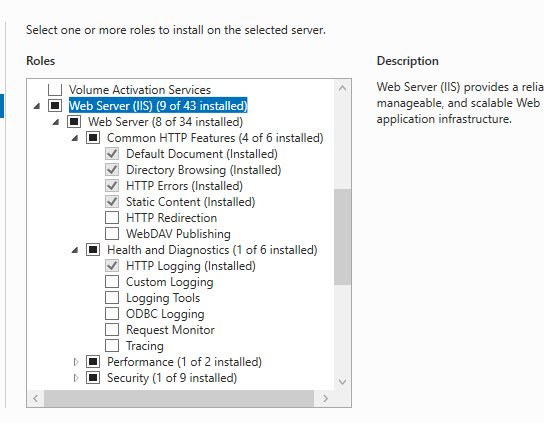
- Expand Application Development and select features as shown in the image below.
Figure 10. IIS Installation Procedure (Cont.) 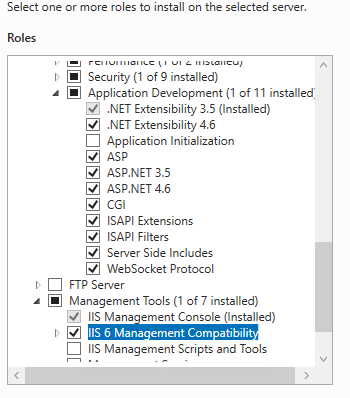
- Click Next to proceed with installation.
Figure 11. IIS Installation Procedure (Cont.) 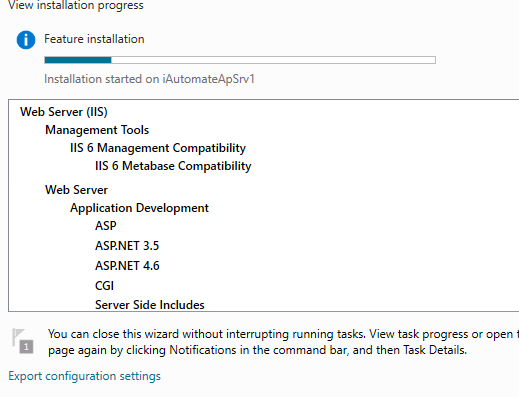
- To validate successful installation of IIS, type Run in Windows Search Bar and Press Enter.
- Type ‘inetmgr’ and click Enter. Once the installation is successful, the
following screen pops up to confirm the installation of IIS.
Figure 12. IIS Installation Procedure (Cont.) 