
Integration with Broadcom CA ITPAM
To manage / onboard Broadcom CA ITPAM as the RBA tool, perform the following steps:
- On the left menu bar, click Runbooks, 🡪 click Manage Runbook Tool. The Manage Runbook
Tool appears.
Figure 1. Manage Runbook Tool 
- It lists the available runbook tools in a tabular view and
lets the user to add a new runbook tool using
 Add New button. Users can also edit or delete the existing runbook tools.
 - Click Add New to add a new tool or click
 to edit an existing runbook automation tool.
 - Select an organization for which you need to create runbook tool in the Organization Name field.
- Type the runbook tool name in the Runbook Tool Name field.
- Select ITPAM from the Runbook Tool Type drop-down
- Select SOAP API as the integration method for ITPAM for the Integration
Method field.
Figure 2. Manage Runbook Tool (Cont.) 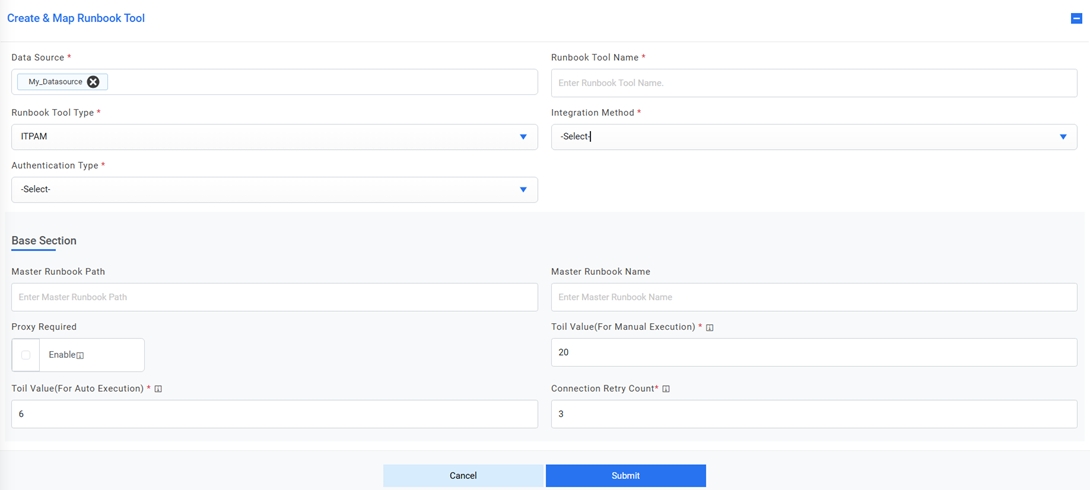
- Select one of the Authentication Type from BasicAuth / WindowsAuth.
- Selection of from BasicAuth / WindowsAuth requires you to enter –
- User Id
- Password
- Selection of from BasicAuth / WindowsAuth requires you to enter –
- Integration Section:
- Type the URL in the API URL. field.
- Sample URL - http://<url>:<port>/itpam/soap
- In the Integration Method Type field select ‘POST’.
- Type the return code key in the Return Code Key field to identify the success or failure of runbook execution. E.g. status
- Type the return message key in the Return Message Key field to display the success or failure of runbook execution. E.g. errormessage
- Authentication Section:
- Type the username and password in the User ID and Password field to get access to API web services.
- API URL, User ID, and Password are dependent on the selected integration method.
- Base Section:
- Specify the path to get the consolidated scripts for the execution of runbooks in the
Master Runbook Path field. This will be provided by respective Runbook
Tool teams if they have a master runbook.Note:This is not a mandatory field. Users can change and run these scripts at any time.
- Select Proxy Required, if the environment needs access to content from servers outside a firewall.
-
Type the Toil Value (For Manual Execution) which implies the manual execution time of runbook under this tool (in minutes).
-
Type the Toil Value (For Auto Execution) which implies the auto execution time of runbook under this tool (in minutes), if available else it’s a non-mandatory field.
-
Enter the connection retry count to try connecting to RBA Tool in case of connectivity failure.
Figure 3. Manage Runbook Tool (Cont.) 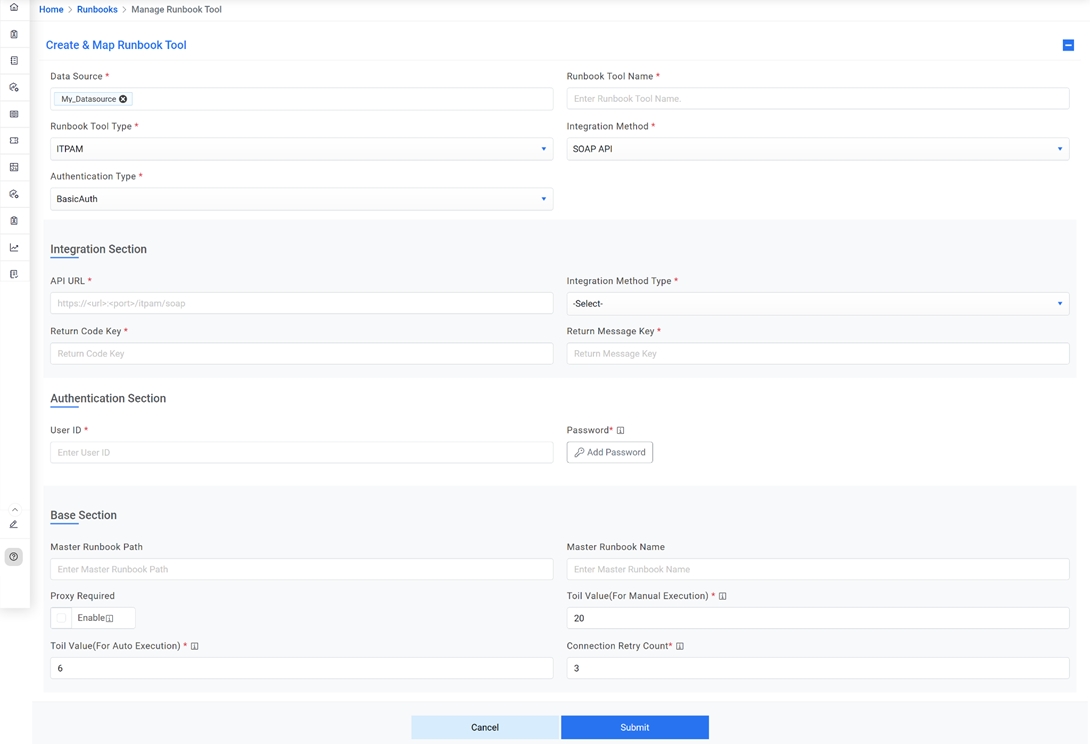
- Specify the path to get the consolidated scripts for the execution of runbooks in the
Master Runbook Path field. This will be provided by respective Runbook
Tool teams if they have a master runbook.
- Click Submit / Update for adding a new tool or making changes to an existing tool. An appropriate success message will be displayed.