
End to End Execution
- Create a new Incident in Service now in BigFix Runbook AI Assignment group. Fill in
the details as Required. If runbook parameters are not found in the ticket description,
BigFix Runbook AI will use the default values stored in runbook configuration. The
Assignment Group should be the same as configured in BigFix Runbook AI.
Figure 1. Creating Incident 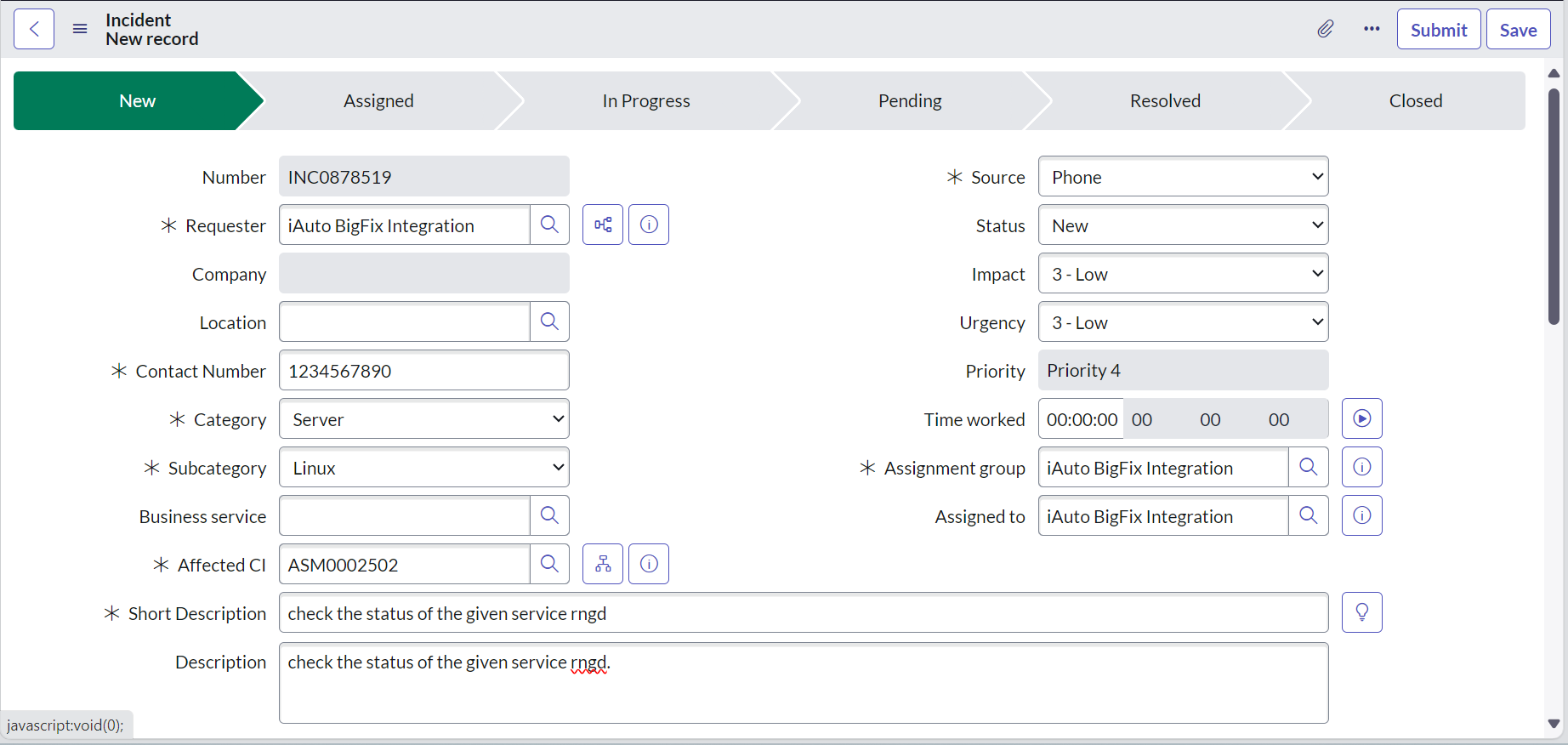
- The tickets will now be collected by BigFix Runbook AI and added to the queue for
recommendation.
Figure 2. Ticket Added for Recommendation 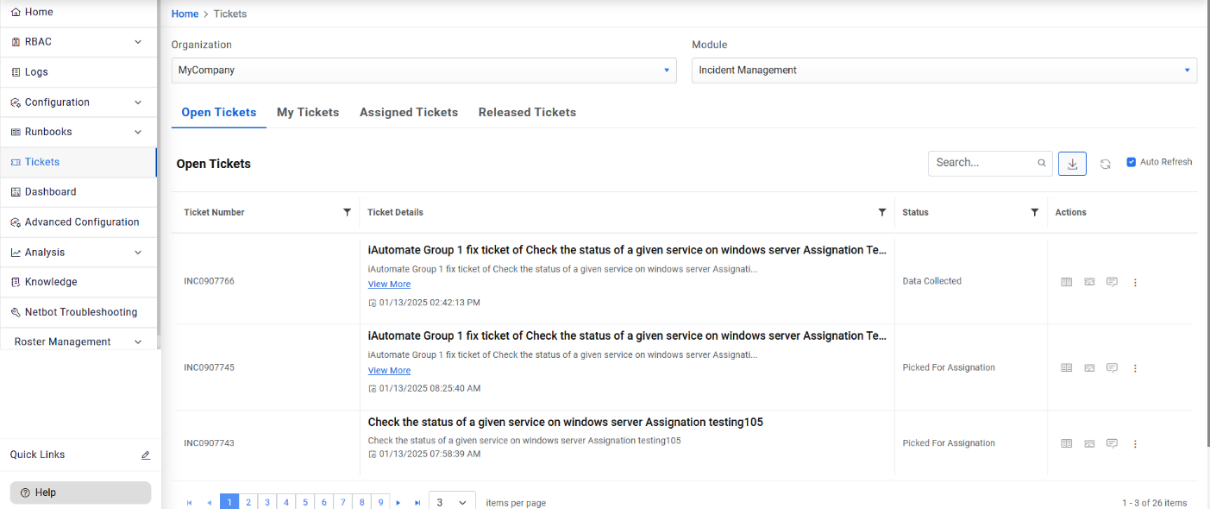
- The Recommended Runbooks which have a confidence score above the threshold will be
displayed when clicking Select Runbook. Select the suitable runbook to execute.
Figure 3. Selecting Runbook 
- After selecting the runbook execution will start and the interaction id will be
generated by the Ansible Inside / CLI tool.
Figure 4. Interaction ID Generation by Ansible Inside / CLI Tool 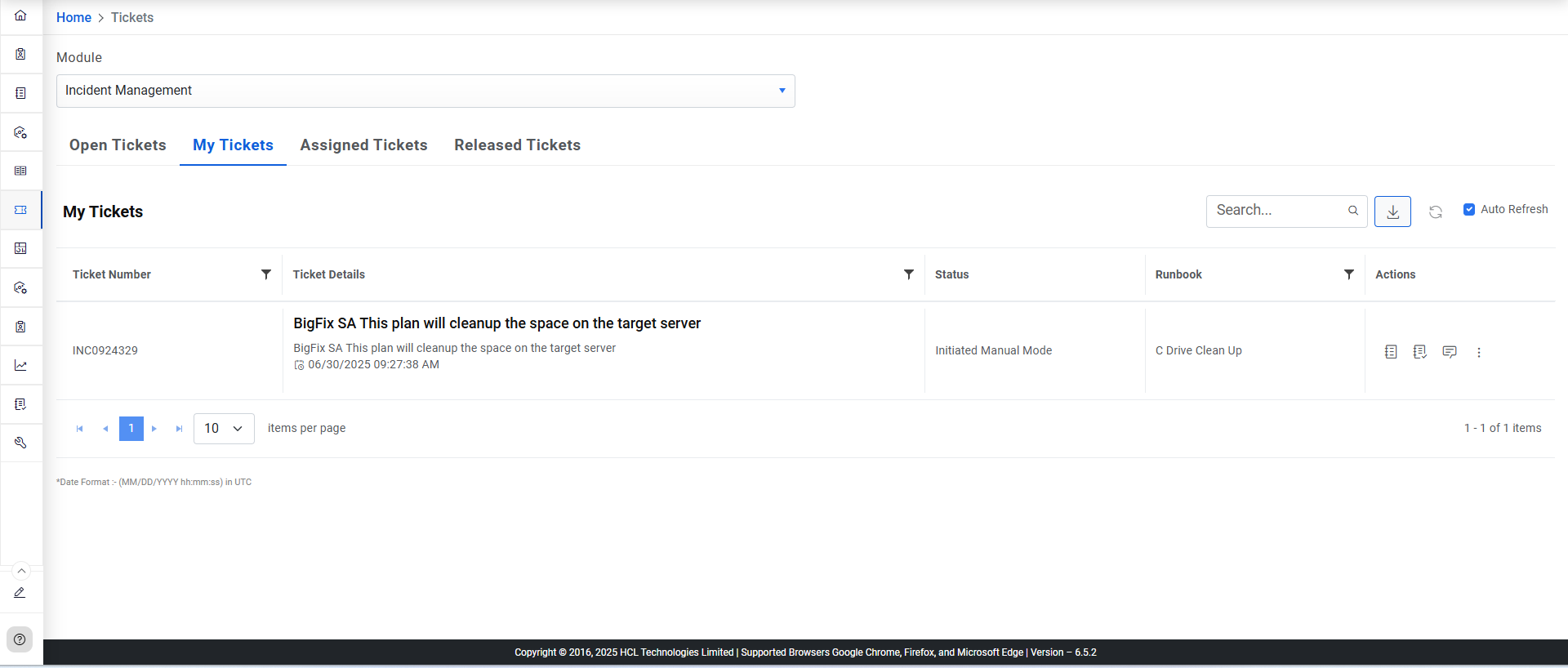
- Check the logs by clicking the log button on the right side of the ticket. The ticket
is now set to InProgress state.
Figure 5. Viewing Logs 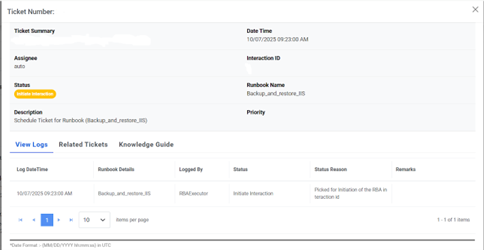
- BigFix Runbook AI will update the Incident Ticket on ServiceNow to InProgress Mode.
Figure 6. Incident Ticket – In Progress Mode 
- Work notes will be updated by BigFix Runbook AI.
Figure 7. Work Notes updated by BigFix Runbook AI 
- Check the Ticket logs again to see if the execution is successful.
Figure 8. View Logs 
- Tickets are now successfully resolved by BigFix Runbook AI and
the same will be updated on ServiceNow.
Figure 9. Ticket Status -Resolved 
- These final work notes contain the results of Runbook execution in Ansible Inside/CLI
RBA tool.
Figure 10. Final Work Notes 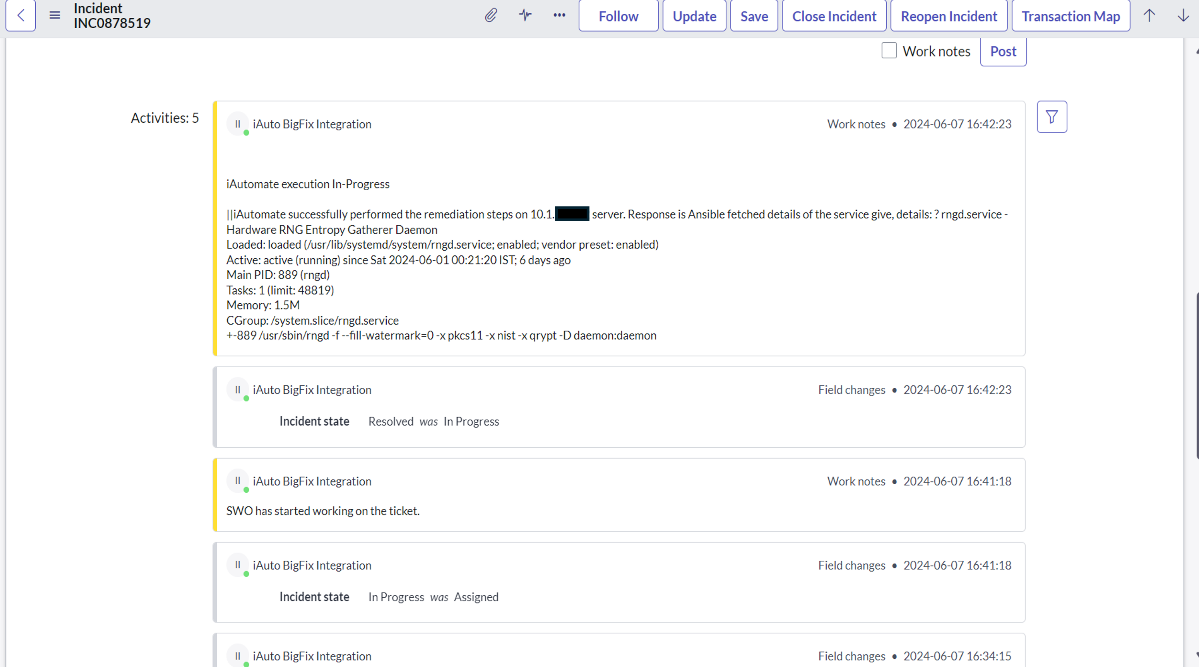
- Finally, Ansible Inside/CLI Logs can be checked in the Logs section of BigFix Runbook AI.
