MCP Client Functionality
An MCP (Model Context Protocol) Server is the implementation that exposes external tools and data sources, like databases or APIs, to an AI client. Its purpose is to act as a secure, standardized bridge, translating requests from the client into a format the tool can understand and returning the results in a format the client can use.
This allows AI agents to perform real-world tasks without needing to know the intricacies of the backend systems, which are handled by the MCP server's code
Once the MCP Server endpoint is added in the Gateway, the corresponding MCP server tool is automatically created and becomes part of the available toolset in AEX.
Note: Gateway Client application is only supported on Windows currently.
Steps to Install the BigFix AEX Gateway application on the user's machine.

- Download the Bigfix AEX Gateway-setup build.
- Extract all files.
- Open the extracted file
- You will get a windows warning popup
- Click on “Run anyway”
- Click on “install”
Figure 1. Select destination folder during Gateway setup. 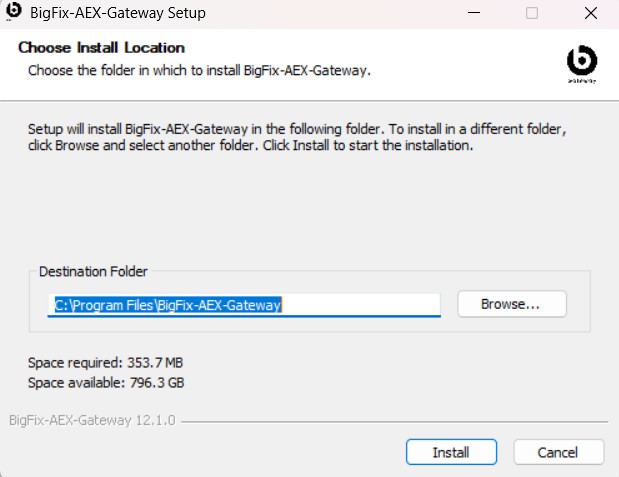
- The application starts installing on the user’s system.
Figure 2. Final step of Gateway setup wizard. 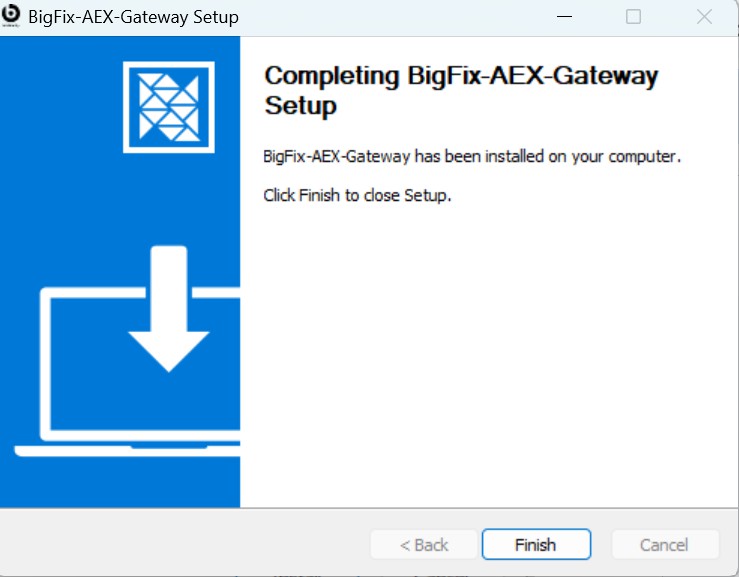
- Clicking Finish will install the application on the user desktop.
Follow the steps below to login to Gateway Client Application
- After installation, open the application, enter the product key and region, and then
click Verify.Note:- Product Activation key will be provided by the AEX team.
Figure 3. Enter product key and region 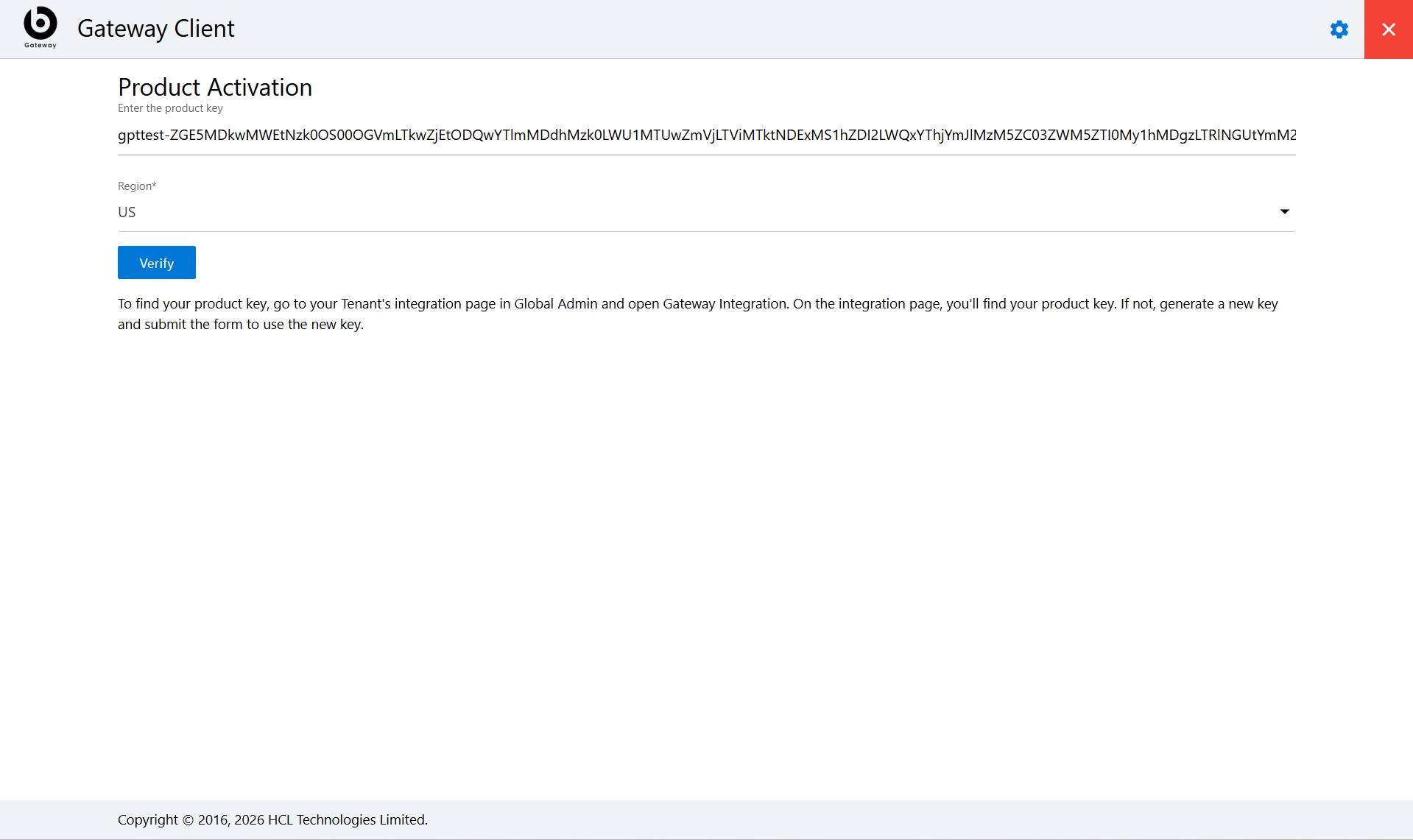
- After clicking Verify, you will be redirected to the Endpoints page.
Figure 4. Endpoint Page 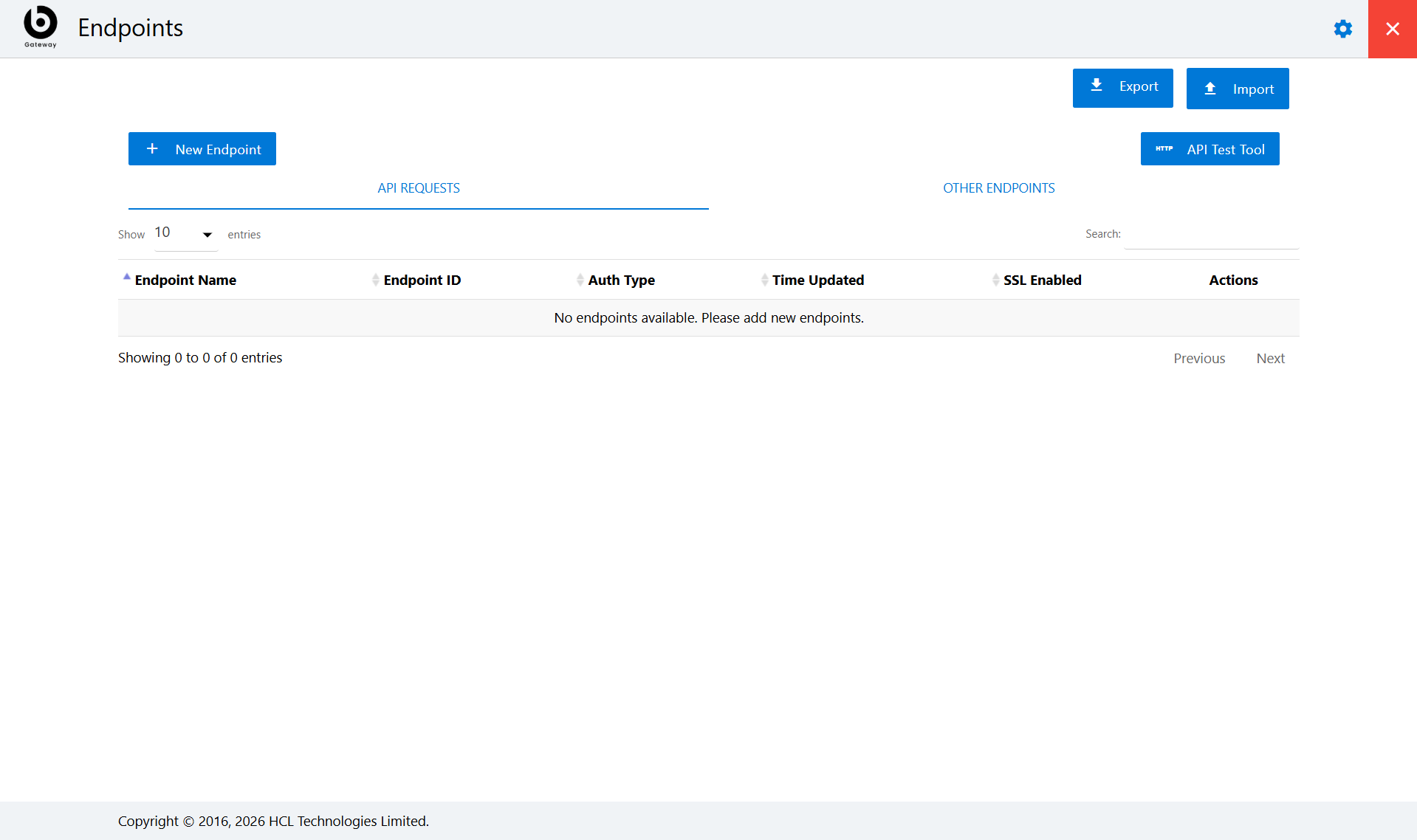
- Select New Endpoints.
.png)
- Select MCP from the Endpoints list.
Figure 5. Select MCP Endpoint 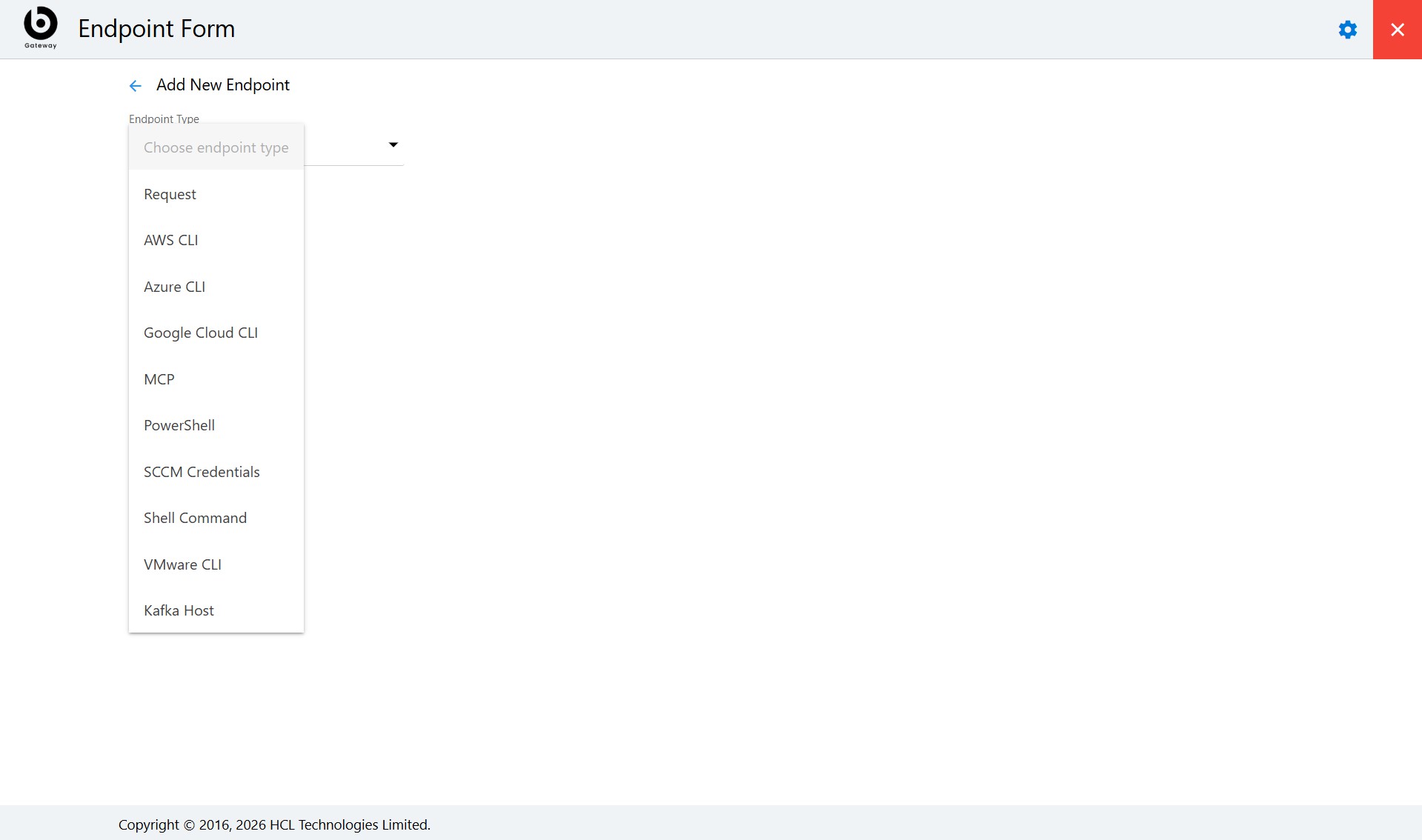
-
Steps to add MCP server endpoint URL
Open the Command Prompt and Use the command cd “path of postman mcp-server path.
-
Streamable-http MCP Type - Node mcpServer.js
Streamable HTTP supports MCP servers whether they are hosted on Windows or on a Linux machine as long as its IP is reachable through your machine where the gateway application is installed.

Figure 6. Node mcpServer.js - streamable-http 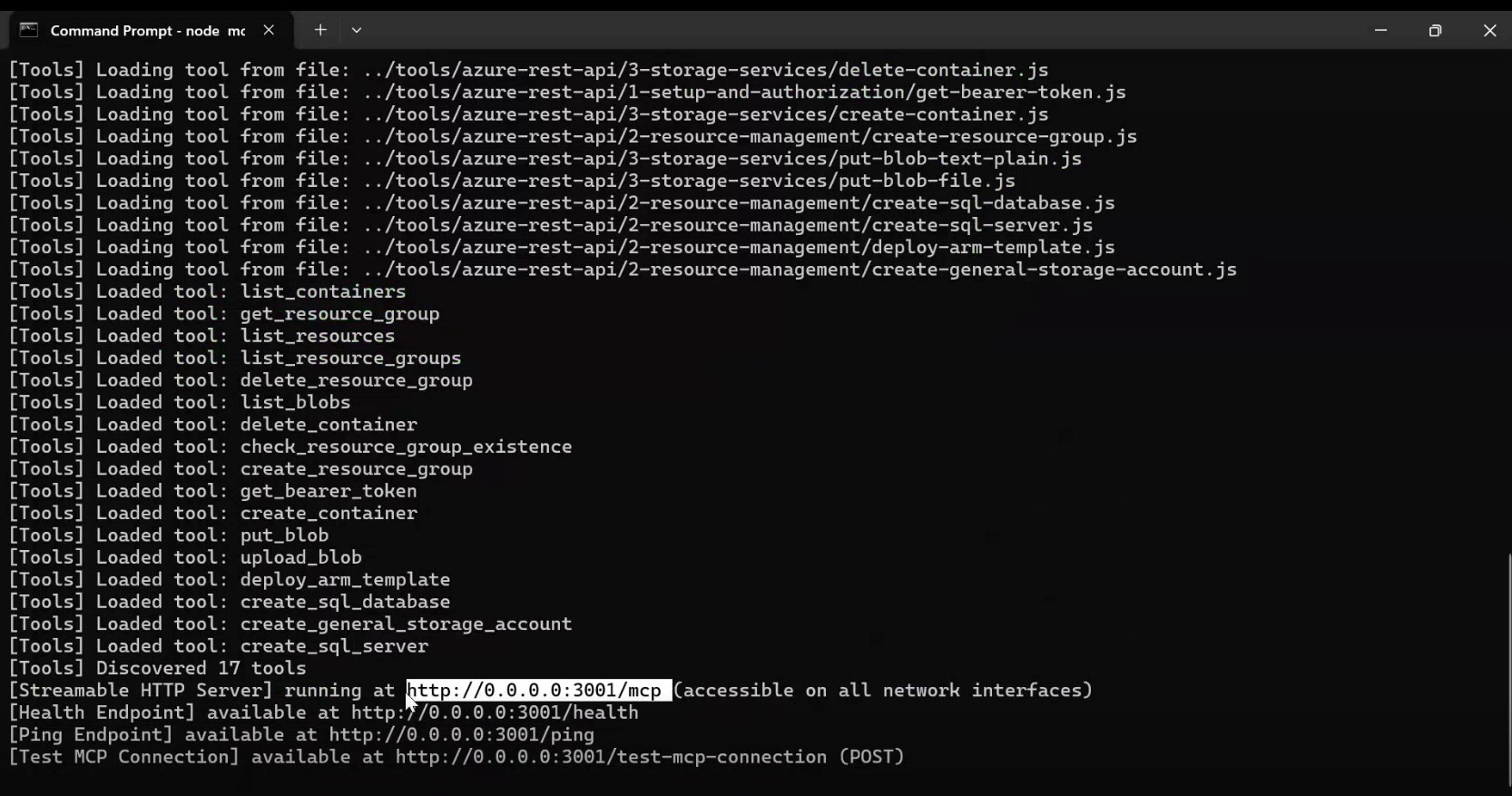
Copy the MCP Server URL (http://0.0.0.0:3001/mcp) from the Command Prompt and paste it into the MCP Server URL field in the Gateway application.
Once all required fields are filled, Click Add Endpoint to proceed.
Figure 7. Adding streamable-http endpoint 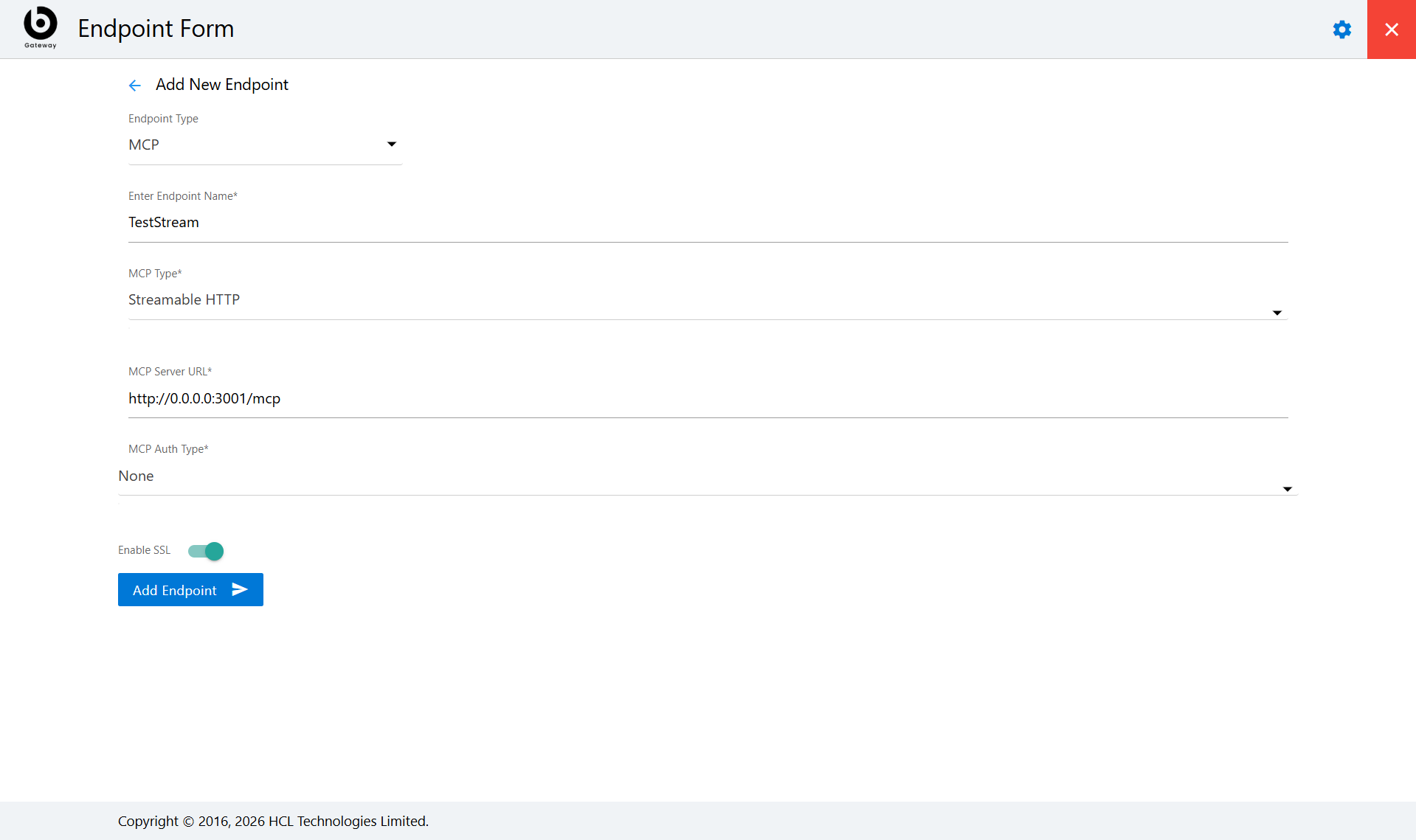
The endpoint name must be unique across all existing endpoints.
When a user attempts to add an endpoint with a name that already exists, the system should prevent duplication and display an error message.
Figure 8. Figure Error Message 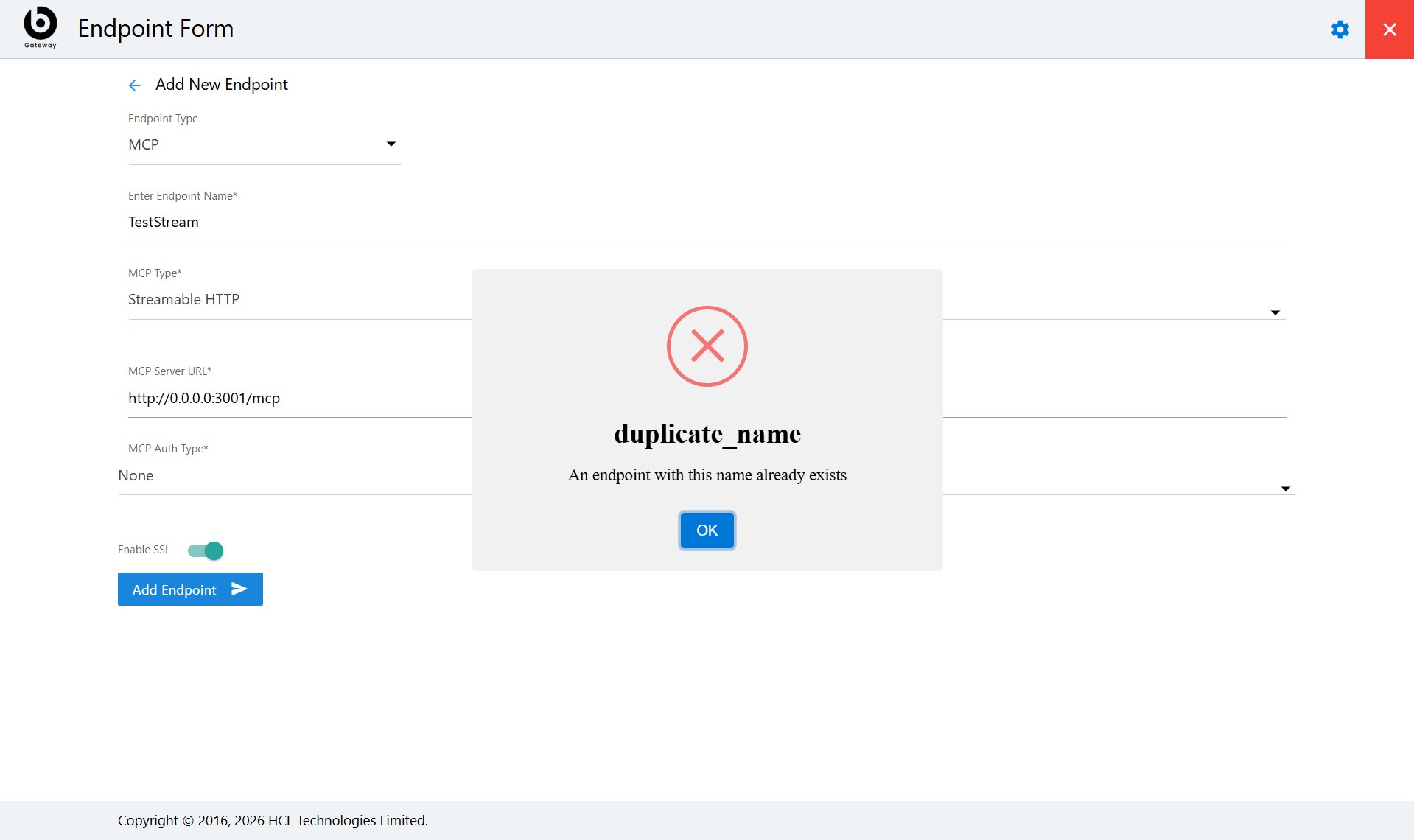 The added endpoints will be listed in the Other Endpoints section.
Figure 9. Other endpoints 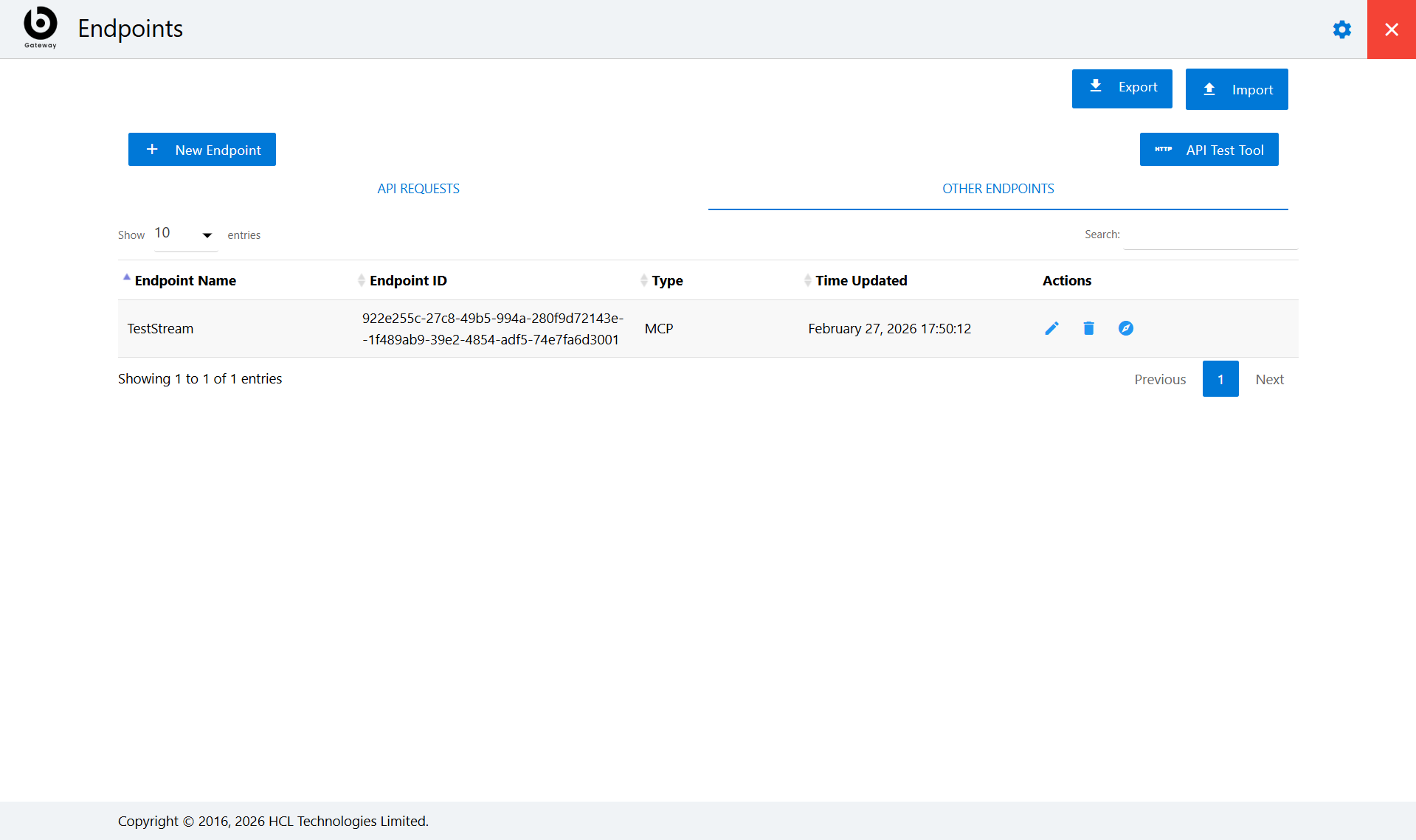
Once the MCP Server endpoint is added in the Gateway, the corresponding MCP Server tool is automatically added to the Tool Library in Agentic Studio.
Go to Tenant URL: https://tenanturl/admin#/genai
In the Agentic Studio console, go to the Tool Library and search for the MCP Server name entered in the Gateway client application. It will appear as a custom tool.
Figure 10. Tool Library 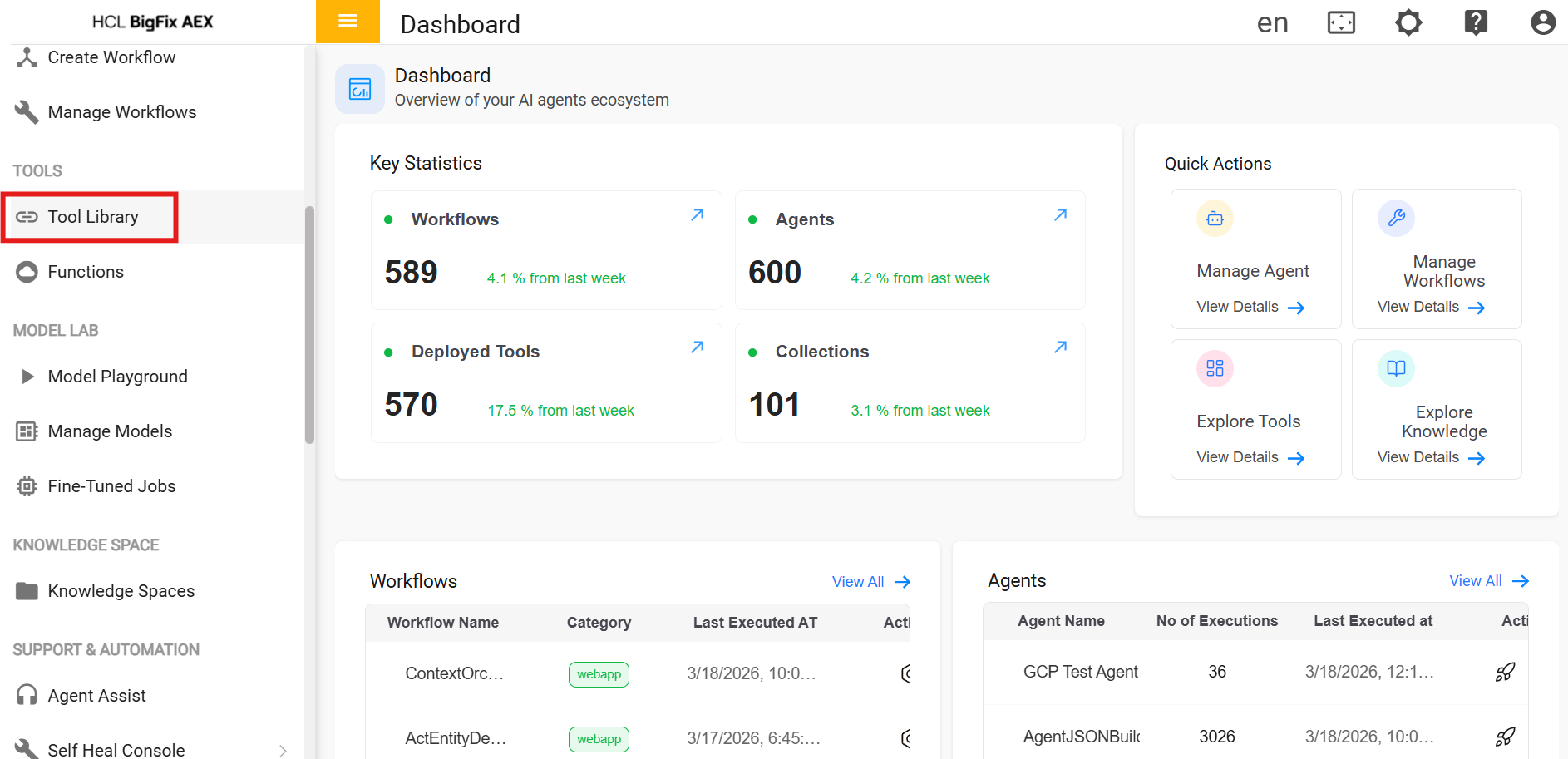
Figure 11. MCP Tool 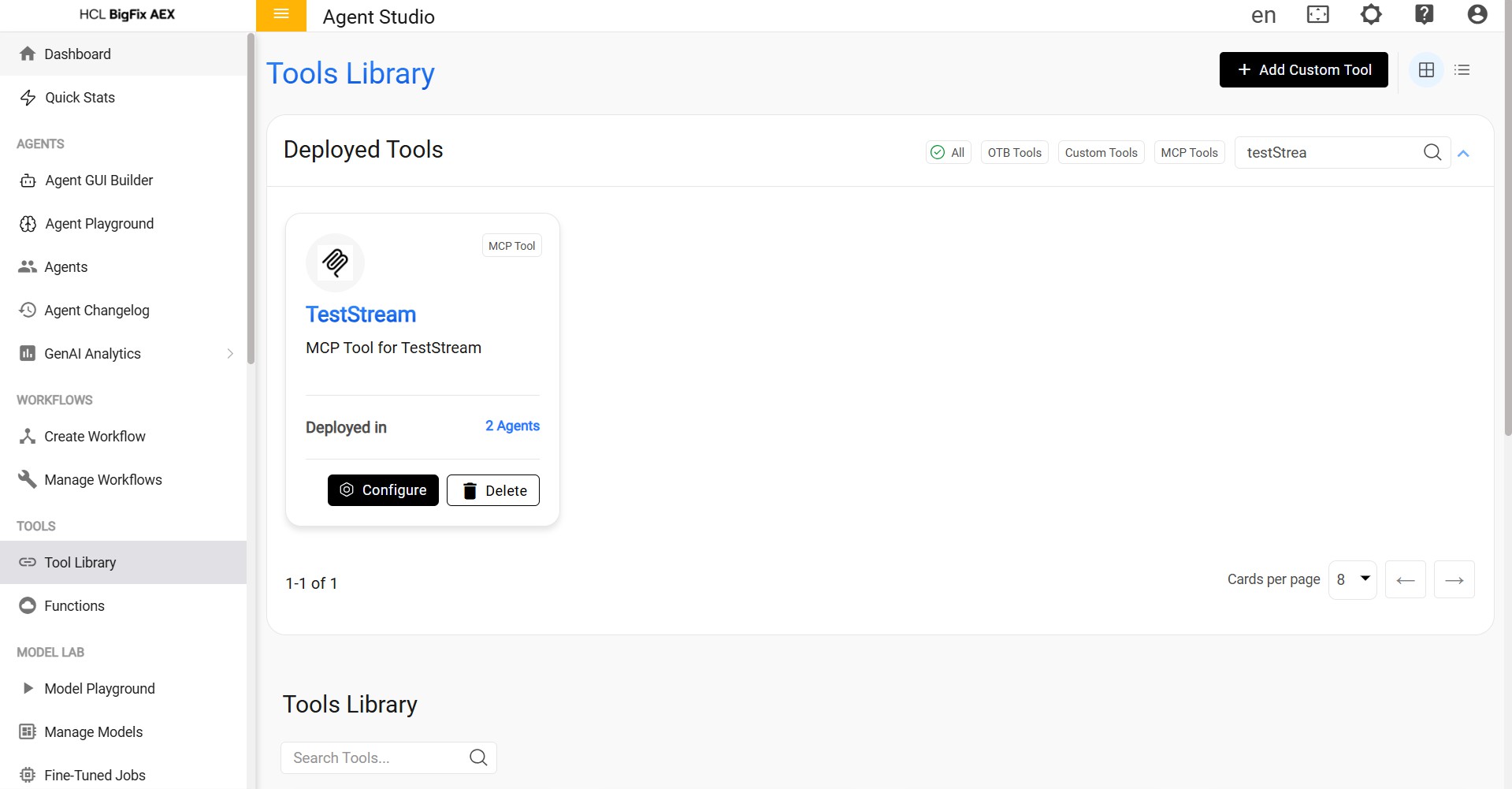
If an endpoint is deleted from the Gateway application, the corresponding MCP Server tool will automatically be removed from the tool list in the Agent Studio console.
This is a warning prompt that appears before deleting an MCP endpoint, informing the user that deleting the endpoint will also remove all associated tools used in agentic studio.
Figure 12. Warning Message 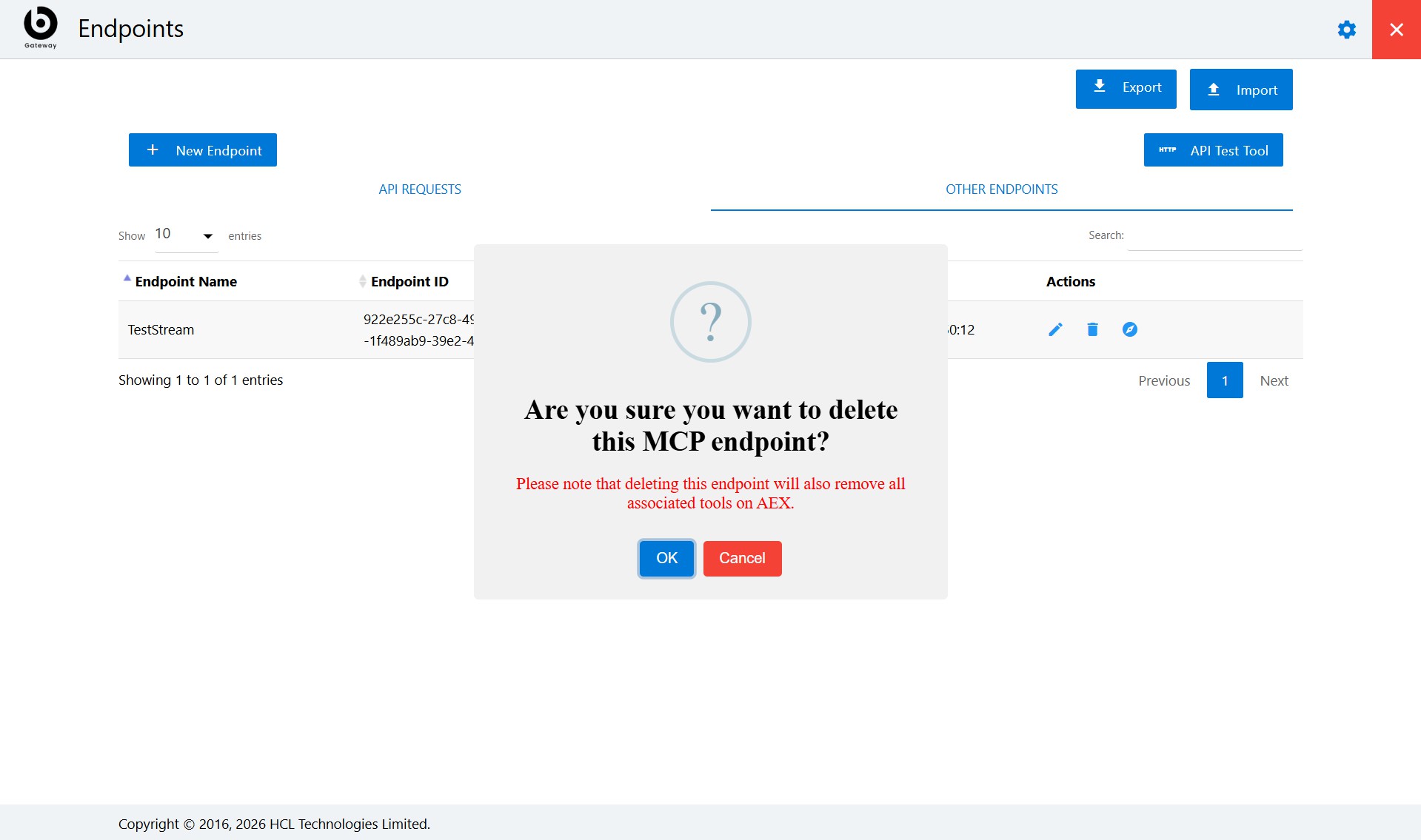
-
SSE (Server Sent Events) MCP Type - Node mcpServer.js
SSE supports MCP servers whether they are hosted on Windows or on a Linux machine as long as its IP is reachable through your machine where the gateway application is installed.

Figure 13. mcpServer.js–sse 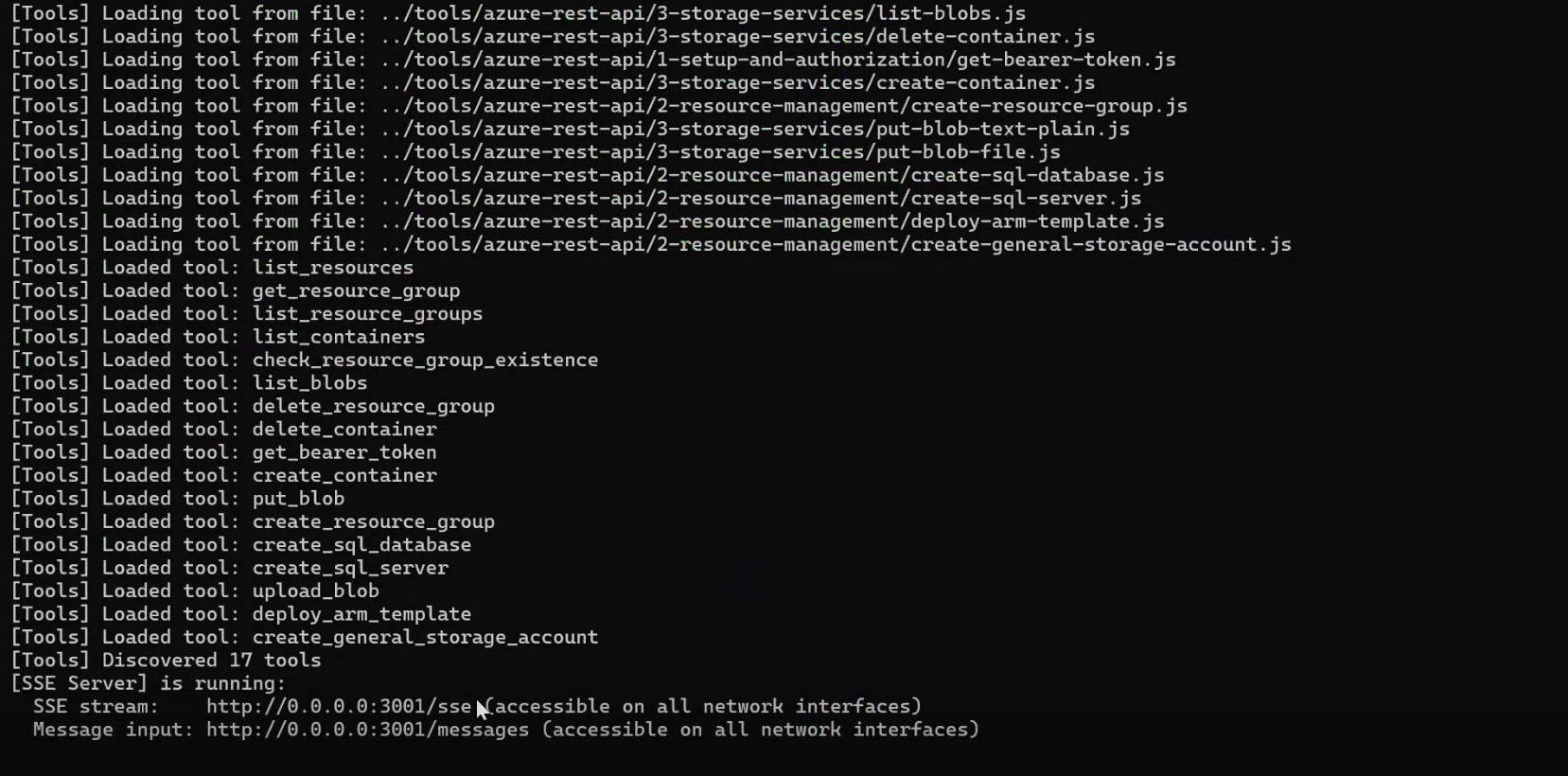
Copy the MCP Server URL (http://0.0.0.0:0001/sse) from the Command Prompt and paste it into the MCP Server URL field in the Gateway application.
Once all required fields are filled, Click Add Endpoint to proceed.
Figure 14. Adding mcpServer.js–sse endpoint 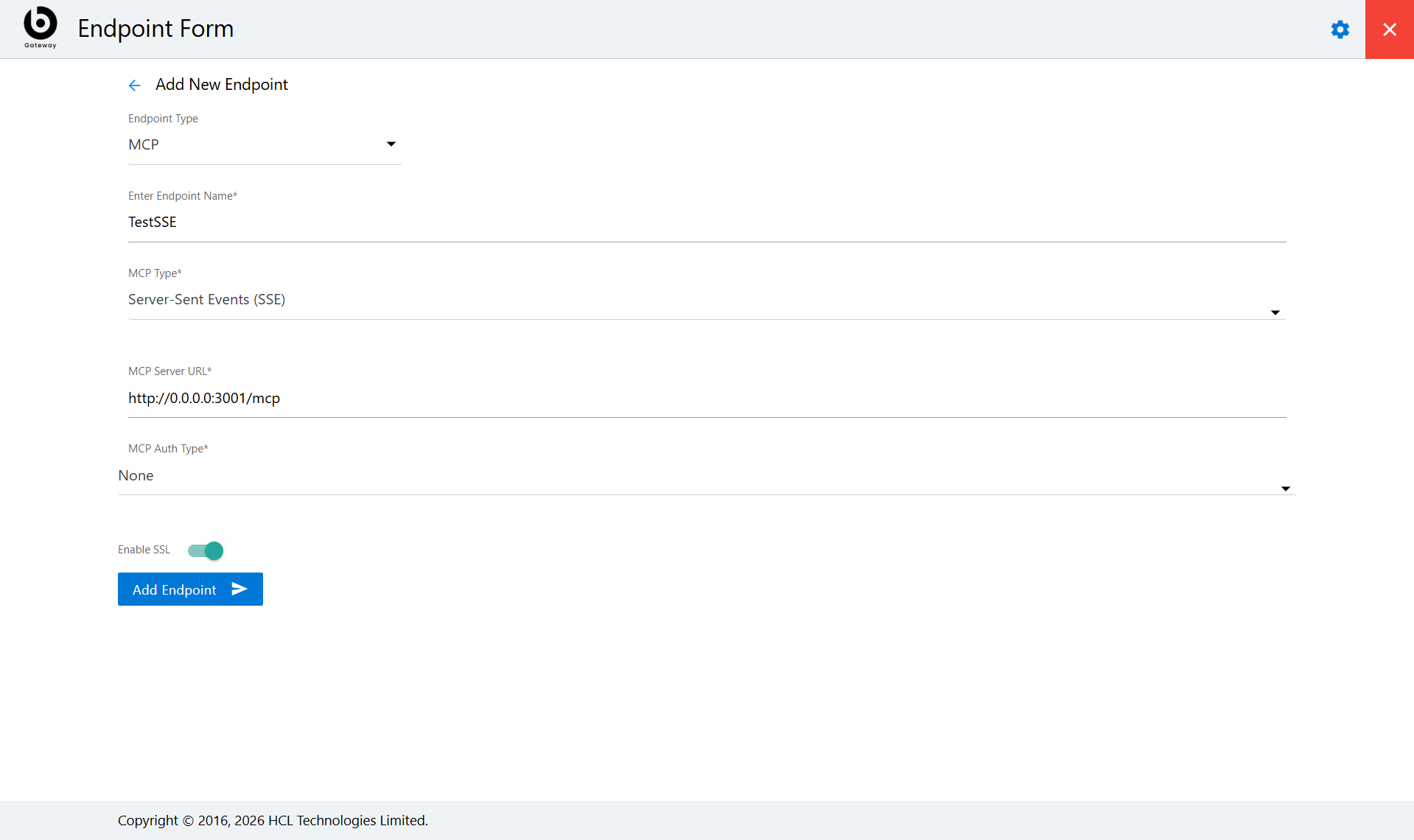 The added endpoints will be listed in the Other Endpoints section.
Figure 15. Other endpoints 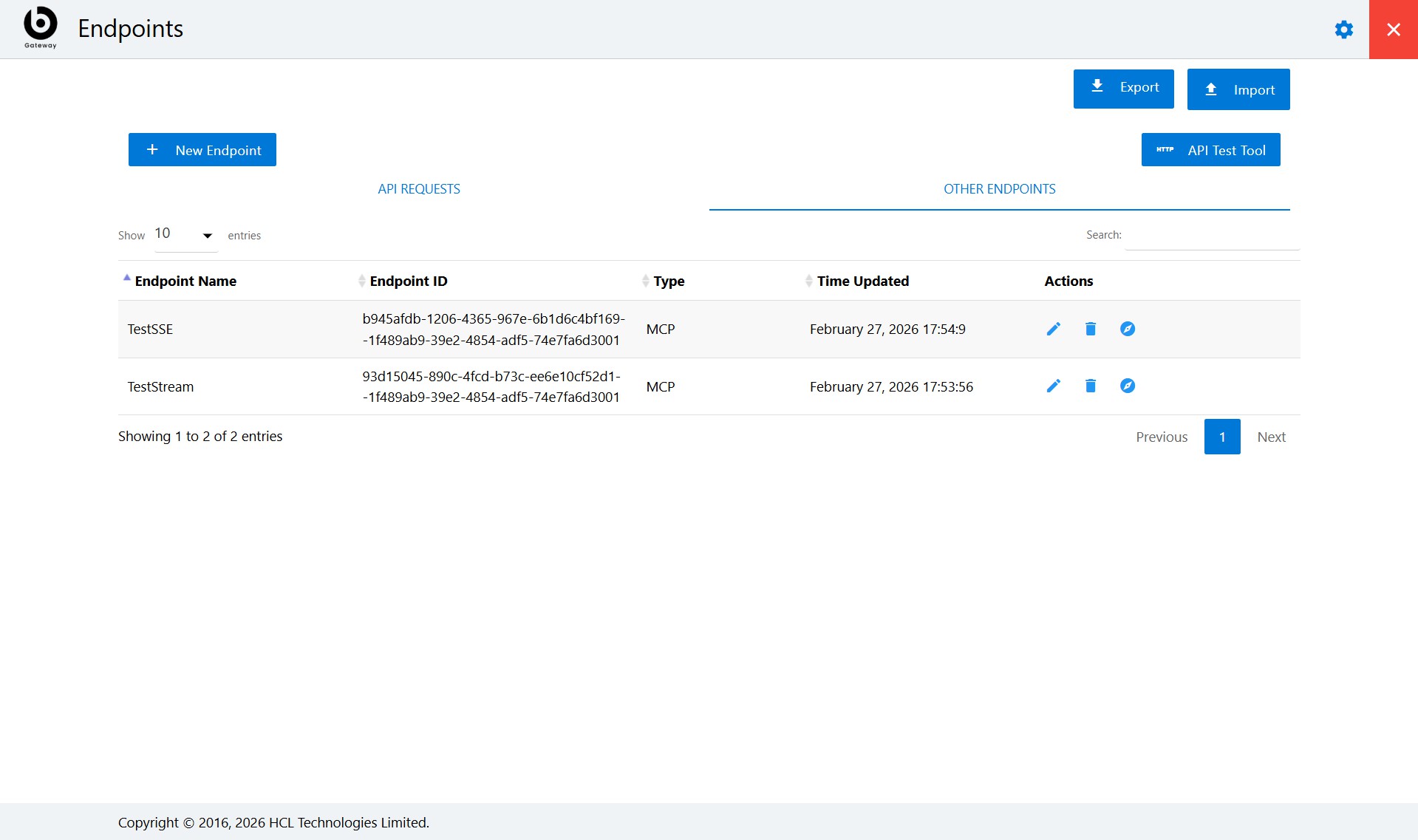
Once the MCP Server endpoint is added in the Gateway, the corresponding MCP Server tool is automatically added to the Tool Library in Agentic Studio.
Go to Tenant URL: https://tenanturl/admin#/genai
In the Agentic Studio console, go to the Tool Library and search for the MCP Server name entered in the Gateway client application. It will appear as a custom tool.Figure 16. Figure select Tool Library .png)
Figure 17. mcpServer.js–sse Tool 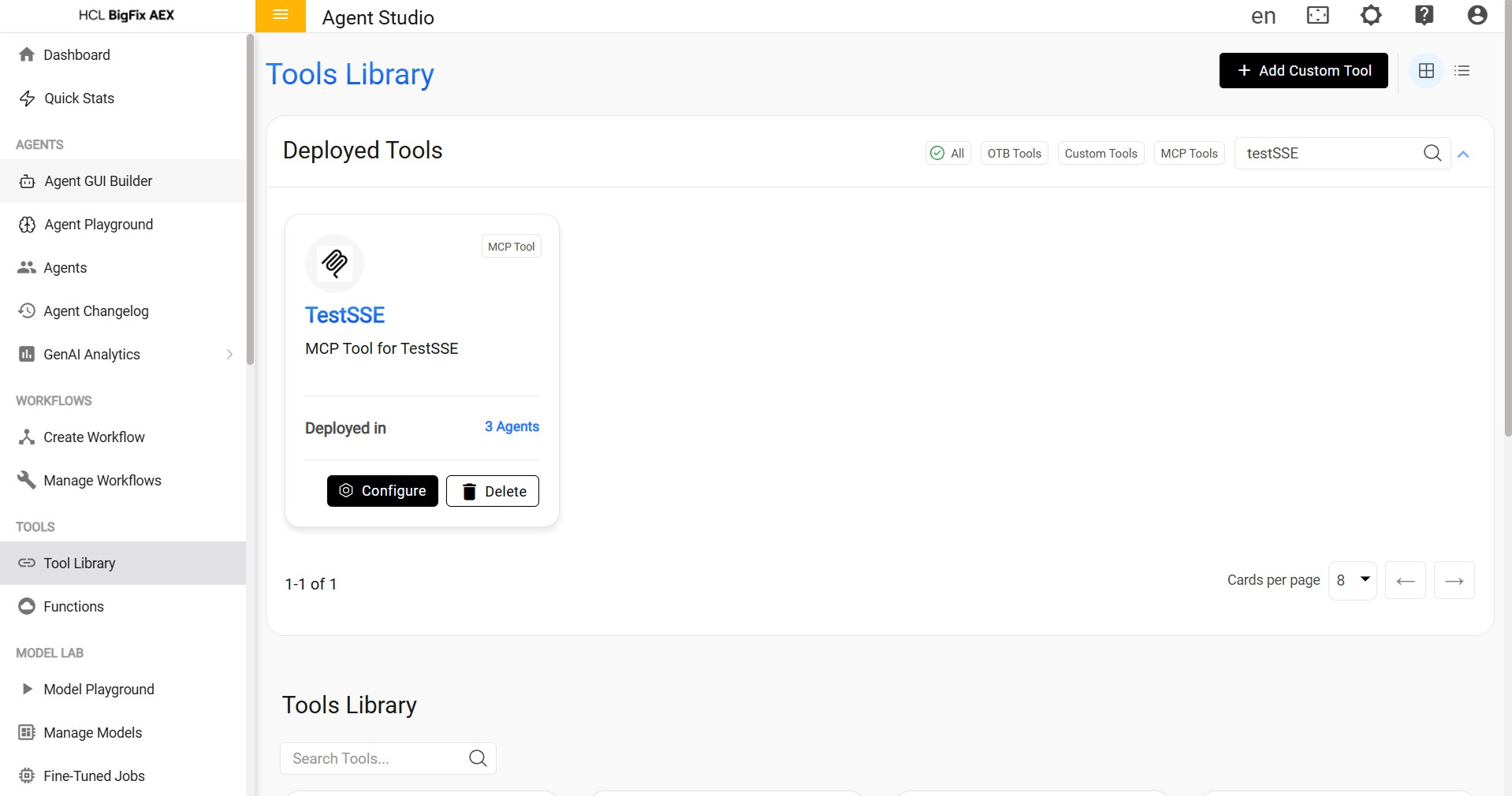 If an endpoint is deleted from the Gateway application, the corresponding MCP Server tool will automatically be removed from the tool list in the Agent Studio console.
Figure 18. Confirmation message 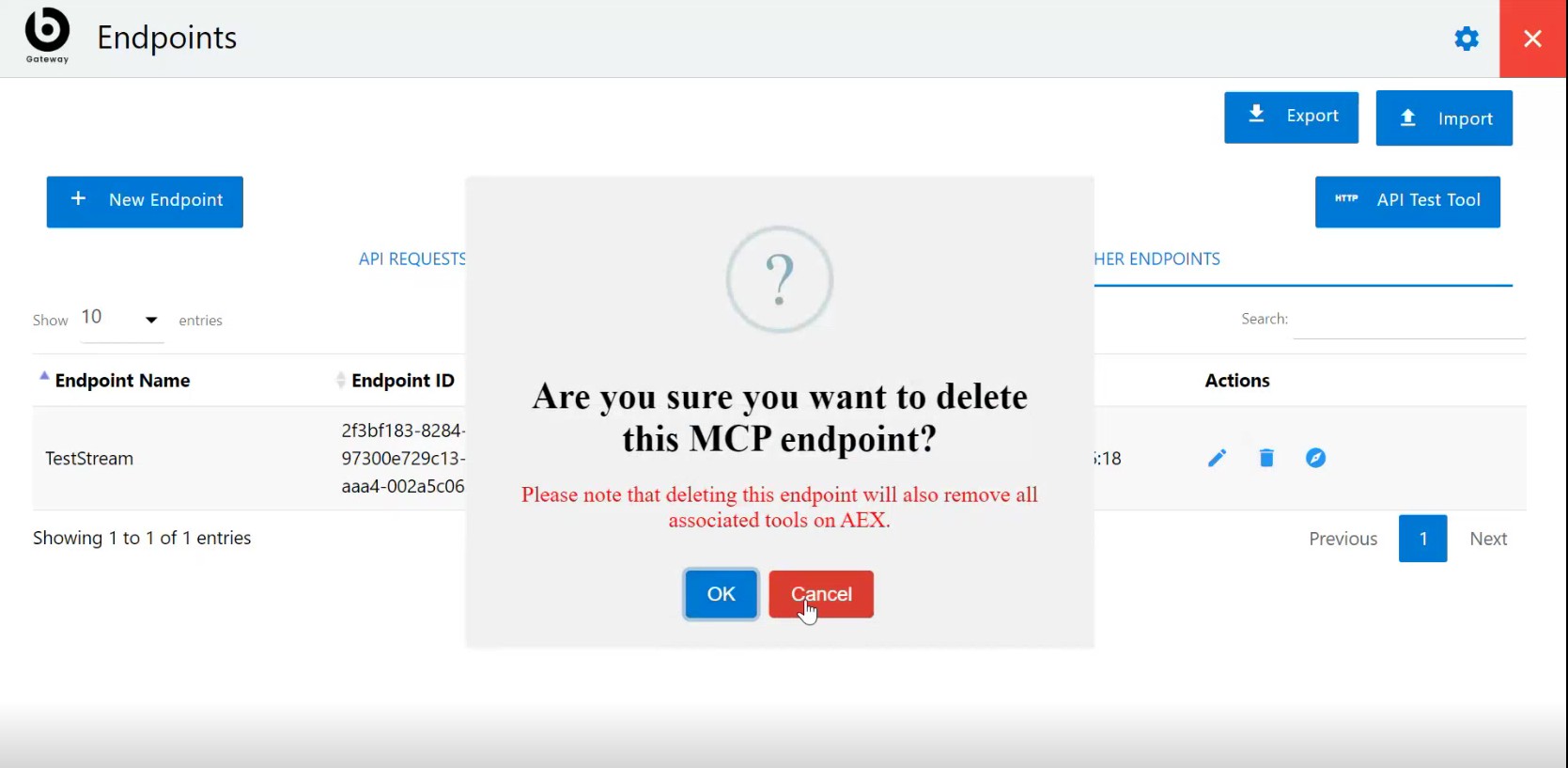
-
Node.js(js)
Copy the Node.js MCP server entry file path and paste it into the MCP Server URL field in the Gateway application. Once all required fields are filled, Click Add Endpoint to proceed.
Figure 19. Node.js(js) endpoints 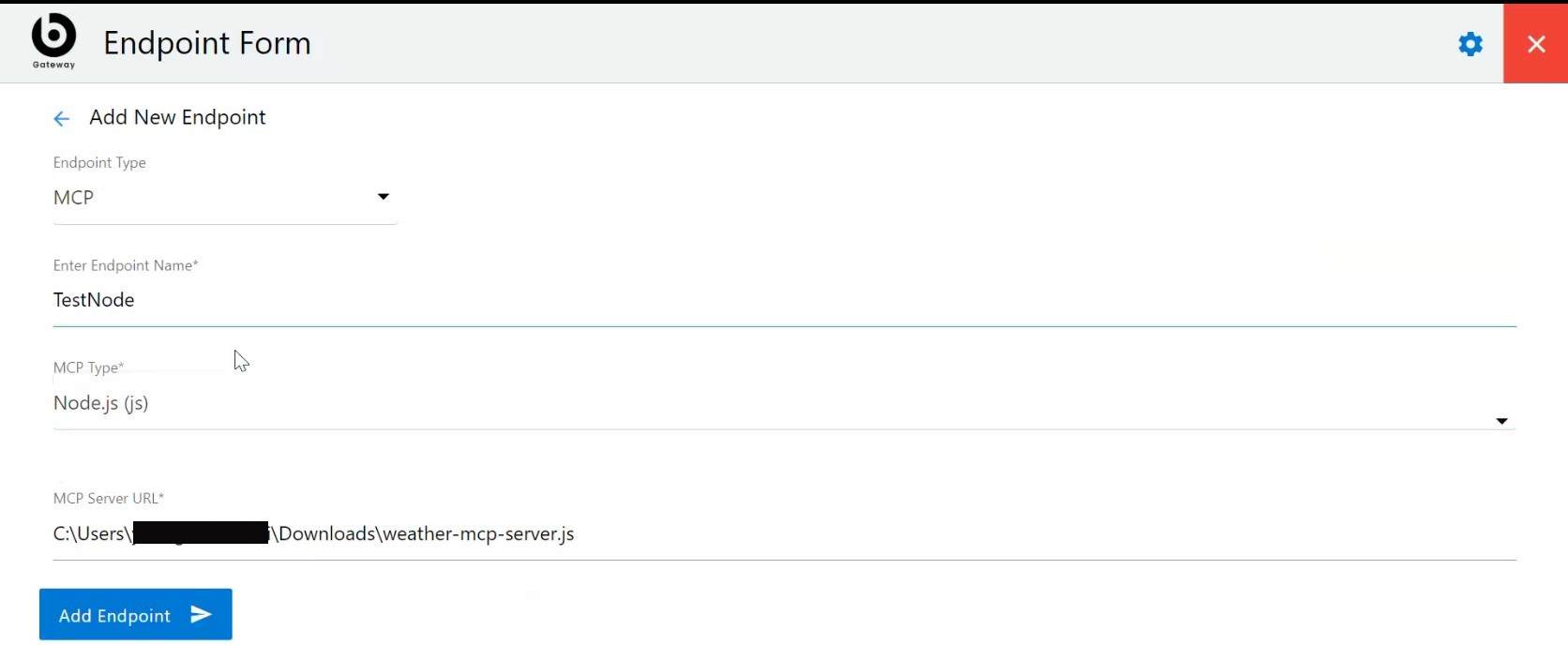
The endpoint name must be unique across all existing endpoints.
When a user attempts to add an endpoint with a name that already exists, the system should prevent duplication and display an error message.Figure 20. Validation Message 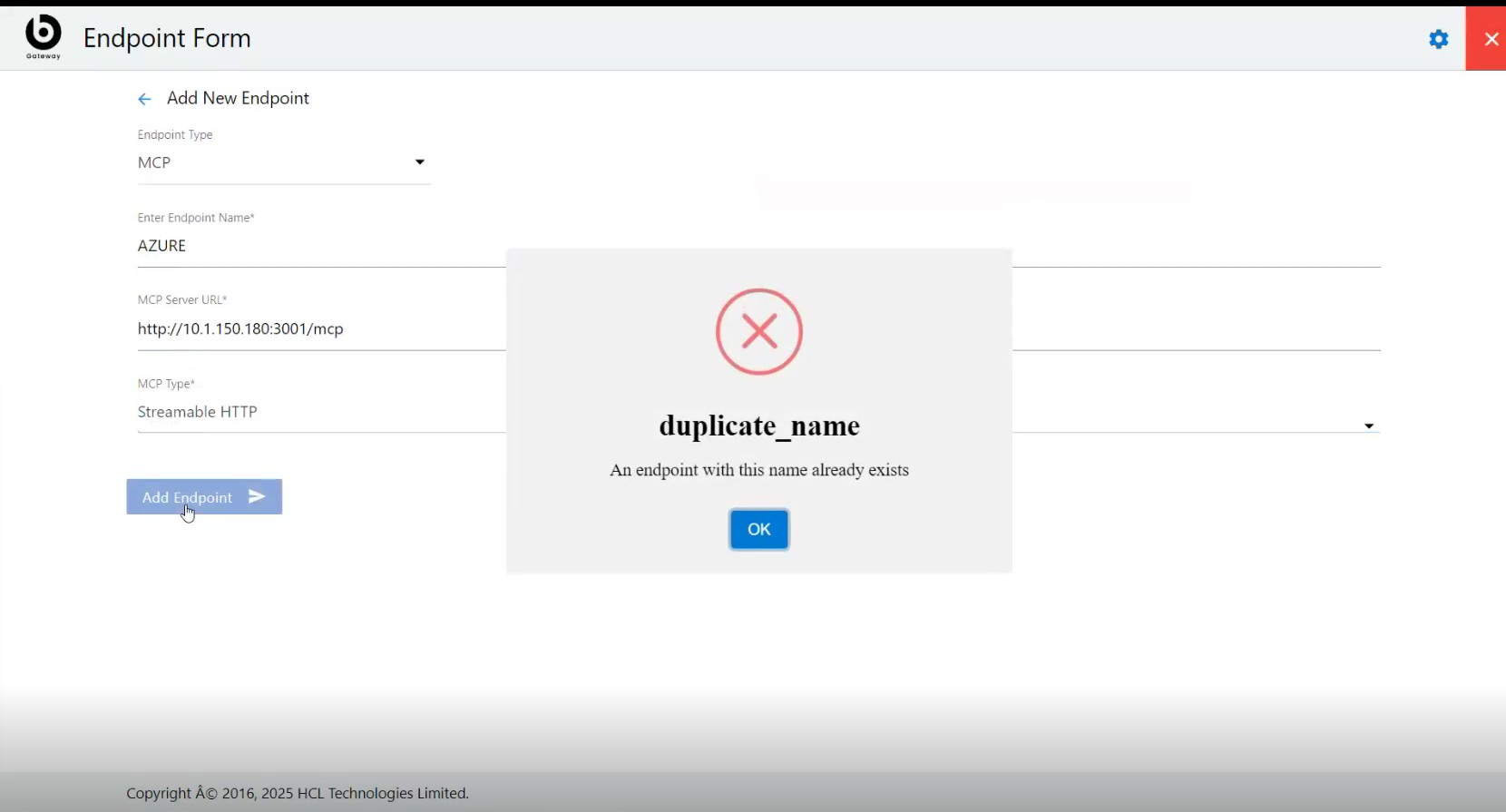 The added endpoints will be listed in the Other Endpoints section.
Figure 21. Other Endpoints 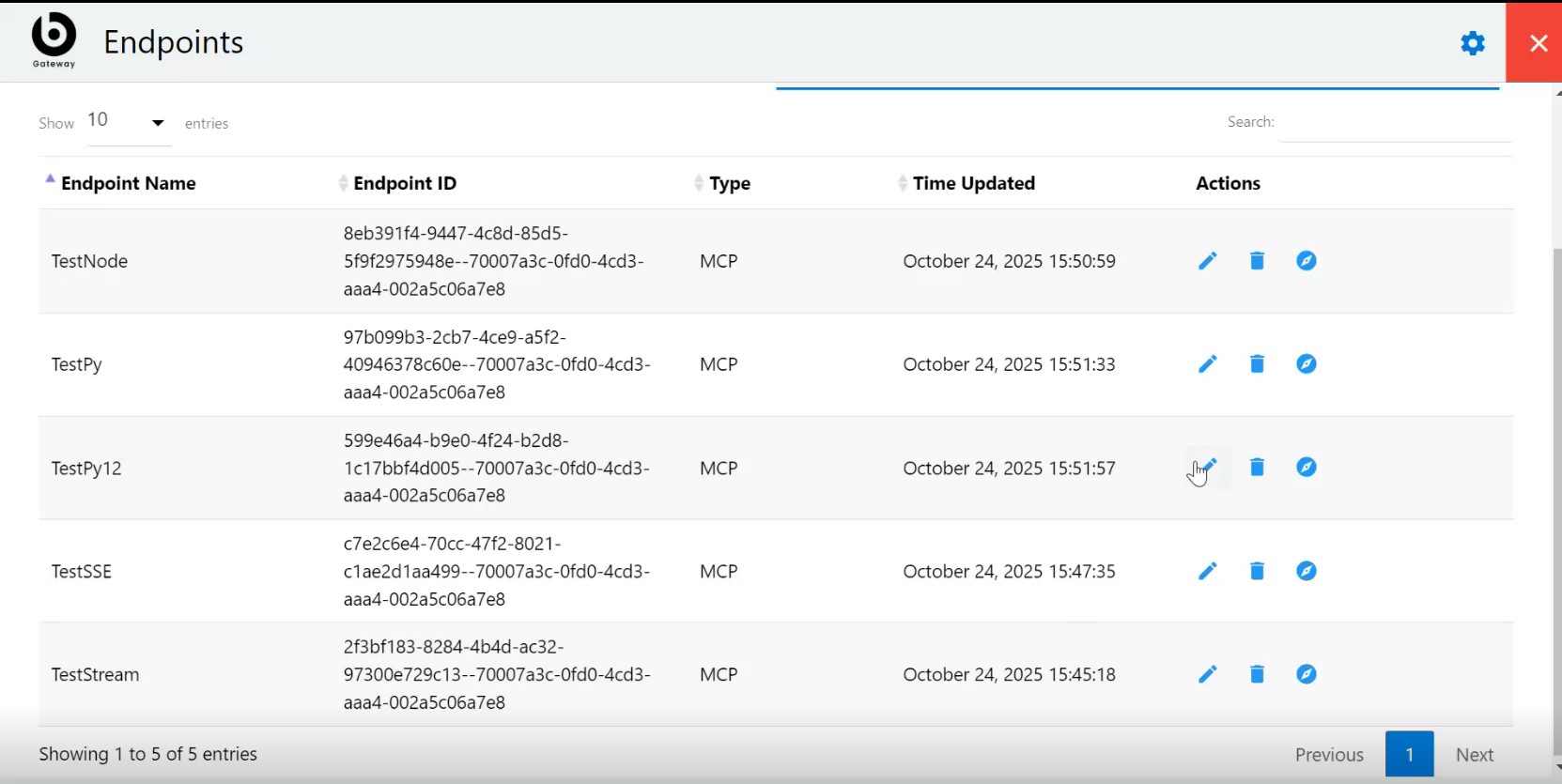
Once the MCP Server endpoint is added in the Gateway, the corresponding MCP Server tool is automatically added to the Tool Library in Agentic Studio.
Go to Tenant URL: https://tenanturl/admin#/genai
In the Agentic Studio console, go to the Tool Library and search for the MCP Server name entered in the Gateway client application. It will appear as a custom tool.Figure 22. Select Tool Library .png)
Figure 23. Nodejs MCP Tool 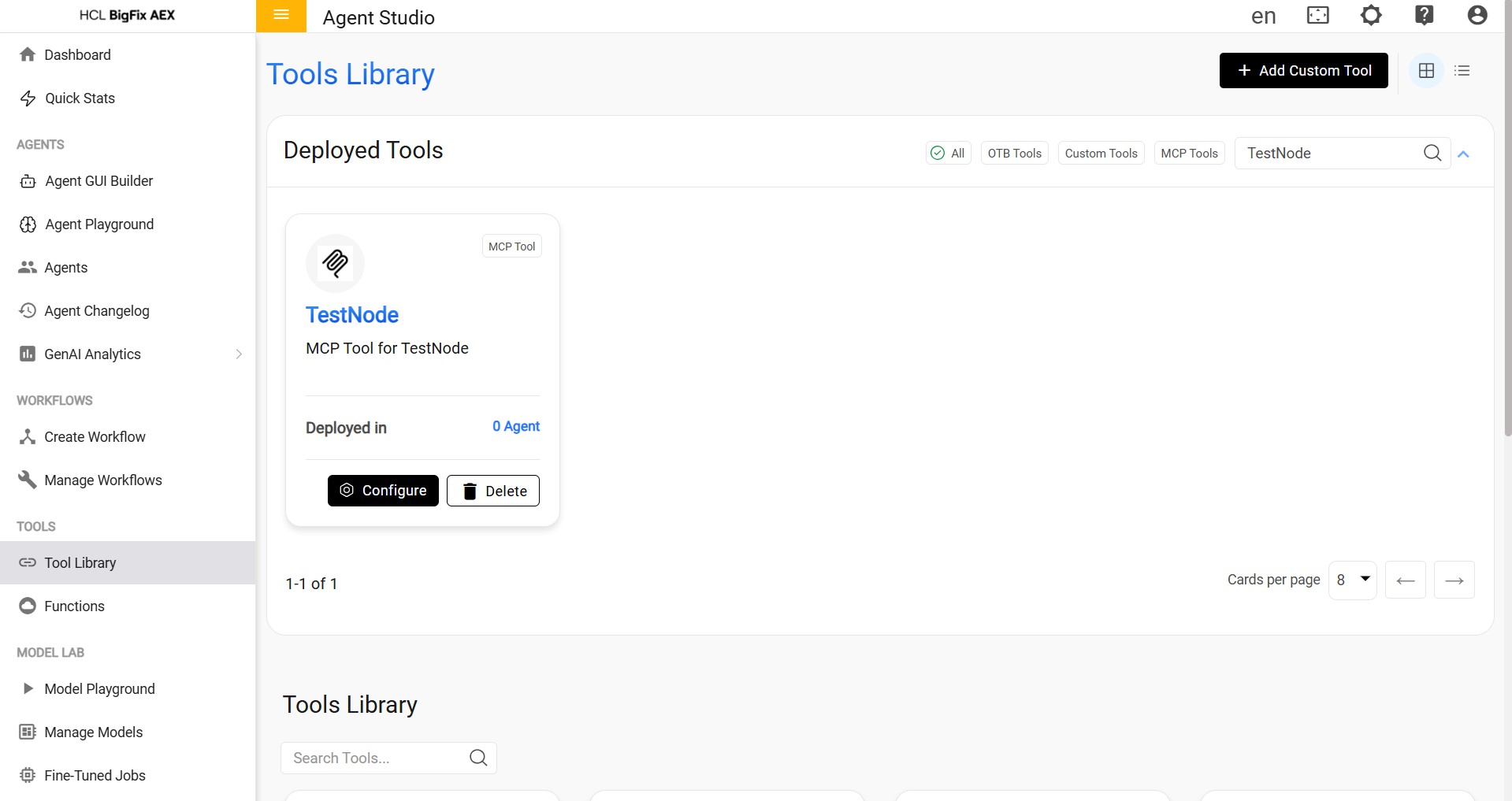
-
Python.py(py)
Copy the downloaded file’s path and paste it into the MCP Server URL field in the Gateway application. Once all required fields are filled, Click Add Endpoint to proceed.
Figure 24. Python.py (py) MCP endpoints 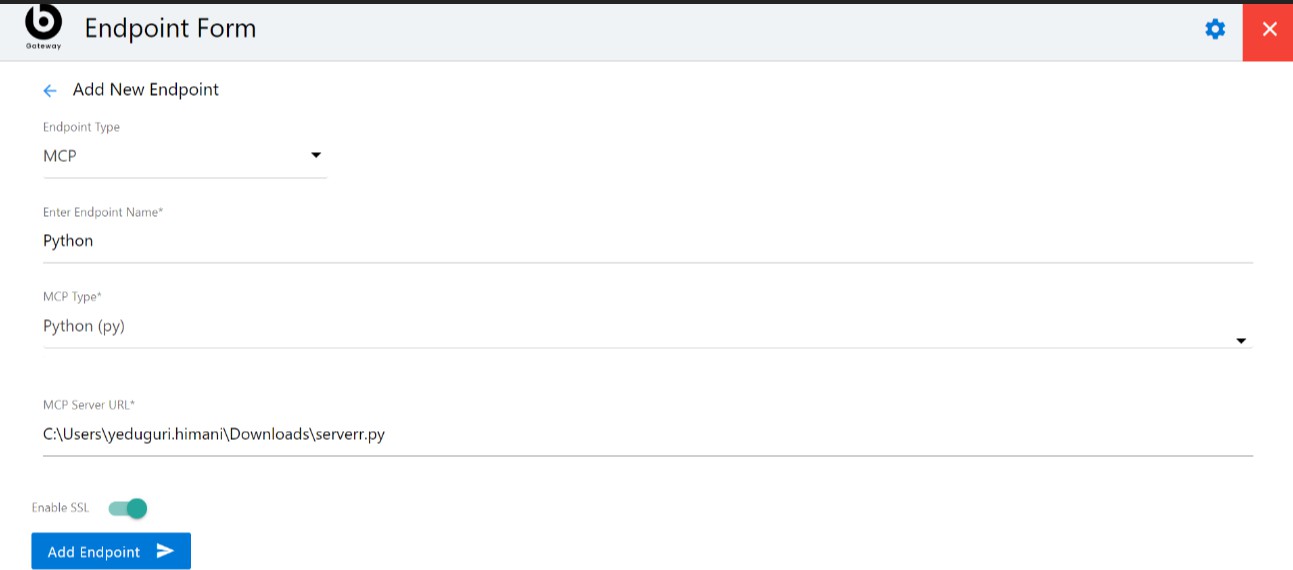 The added endpoints will be listed in the Other Endpoints section.
Figure 25. Other points .jpeg)
Once the MCP Server endpoint is added in the Gateway, the corresponding MCP Server tool is automatically added to the Tool Library in Agentic Studio.
Go to Tenant URL: https://tenanturl/admin#/genai
In the Agentic Studio console, go to the Tool Library and search for the MCP Server name entered in the Gateway client application. It will appear as a custom tool.Figure 26. Select Tool Library .png)
Figure 27. MCP Tool 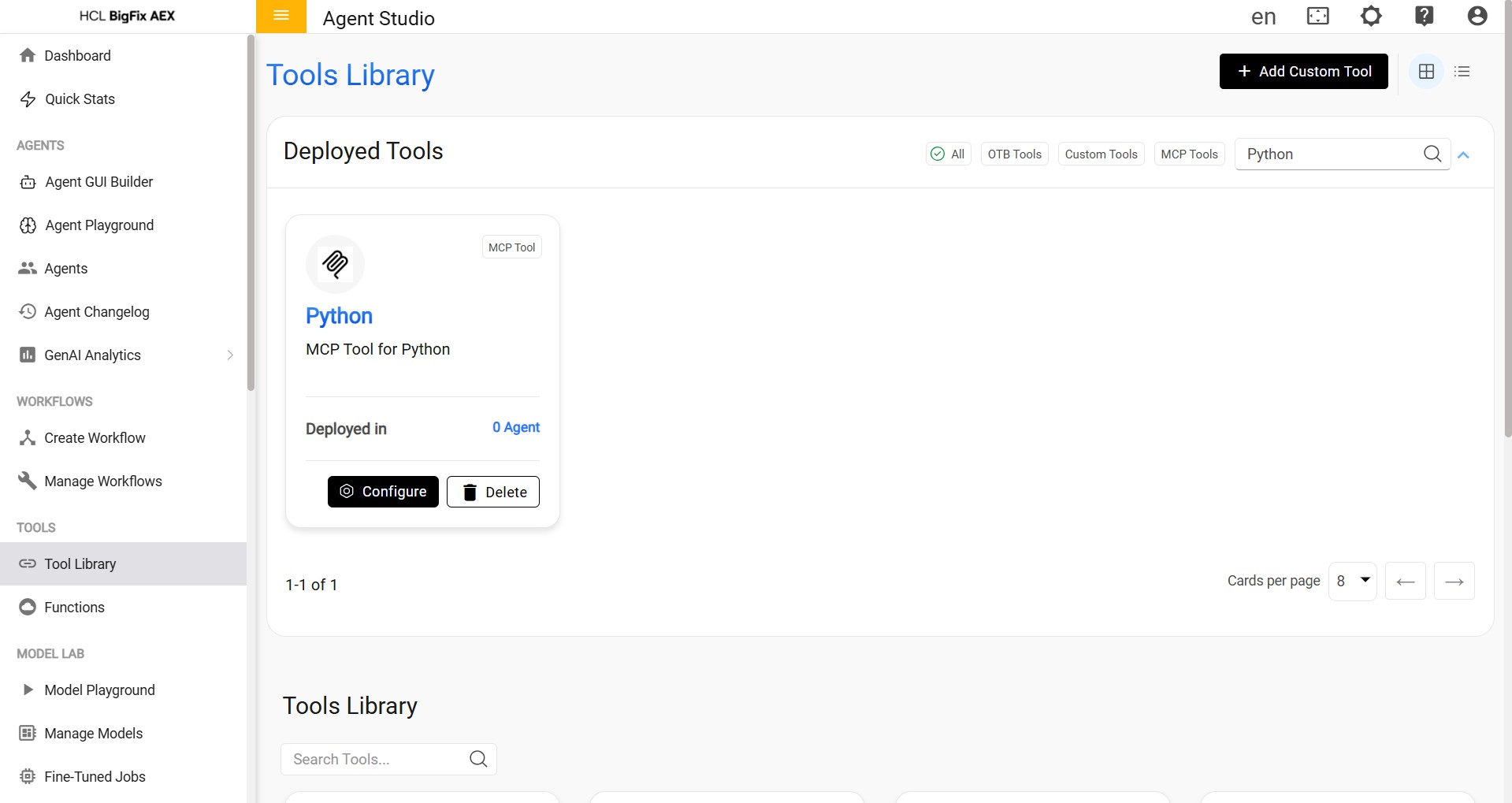
-
Streamable-http MCP Type - Node mcpServer.js
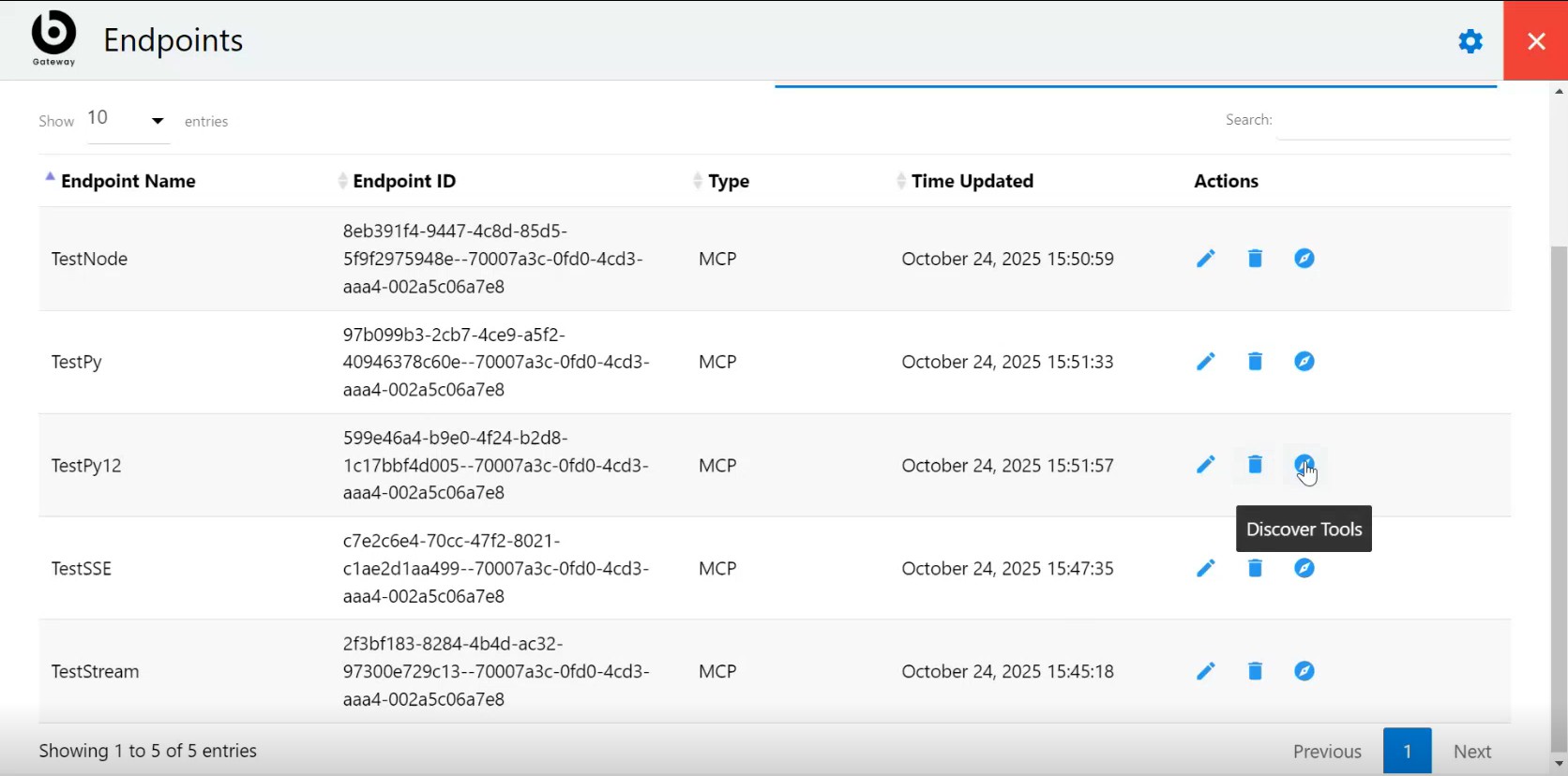
Discover Tools
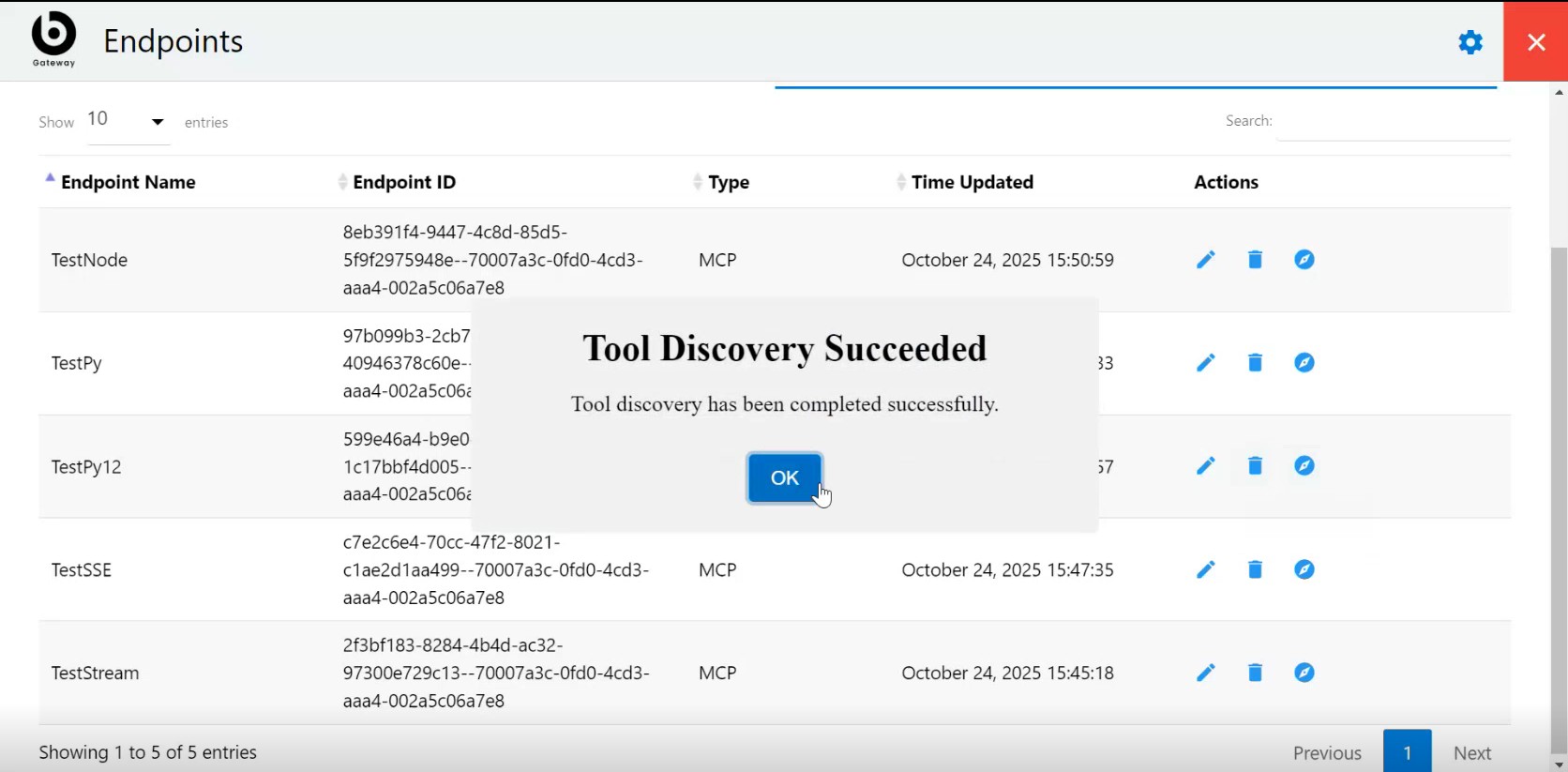
Functionality of “Discover Tools”
The Discover Tools option is used to refresh and synchronize the list of tools available for a specific MCP (Model Context Protocol) endpoint.
When clicked, the Gateway client communicates with the MCP Server to fetch the latest set of tools exposed by that endpoint.
Upon clicking Discover Tools, the functions will be updated under the specific tools section of AEX.
How It Works
- Fetches Latest Tool Definitions
When you select Discover Tools, Gateway sends a request to the MCP server asking:
- What tools does this endpoint currently expose?
- What capabilities are added, updated, or removed?
The Gateway then updates its local list accordingly.
Use Cases
Case 1: New Tools Added on the Server
If developers add new tool methods/functions on the MCP Server:
- Discover Tools fetches the new tool list.
- Newly added tools automatically appear under that endpoint in Gateway.
- No uninstall/reinstall or manual configuration is required.
Example:
A new tool called “Generate Report” is introduced in the MCP server module → Clicking
Discover Tools makes it visible immediately.
Case 2: Existing Tools Updated
If a tool’s parameters, logic, or configuration change on the MCP Server:
- Clicking Discover Tools forces the Gateway to refresh the metadata.
- Gateway updates input fields, schema, or execution rules according to the new definition.
Example:
The tool “GetDeviceInfo” now requires an additional parameter →
After Discover Tools, the updated requirement is reflected in the workflow designer.
Case 3: Tools Removed on the Server
If a tool is deleted or deprecated on the server:
- Discover Tools removes it from the endpoint’s available tool list in Gateway.
- Any workflow using that tool will show validation errors, letting the user fix or replace it.
Example:
Tool “SyncConfig” is removed →
After Discover Tools, Gateway no longer shows it and flags workflows that used it.
Case 4: Tool Version Mismatch
If the client tool version does not match the server implementation:
- Discover Tools re-syncs the version.
- Ensures Gateway always uses the latest, correct tool definitions.
Case 5: Server Restart or Deployment
After deploying new server code or restarting the MCP server:
- Tools may not appear automatically.
- Discover Tools forces a full rescan and re-population of tools.
The Discover Tools button serves as a refresh and synchronization mechanism, ensuring that the Gateway always reflects the most up to date:
- tool list
- tool definitions
- added or removed capabilities
- server-side changes
It eliminates the need for manual configuration and keeps workflows aligned with the current server state.