Bring Your Own Model
This feature enables administrators to integrate and use their own custom Large Language Models (LLMs) for both chat completions and document embeddings within the platform. Instead of relying only on the platform’s default built-in models, users can connect proprietary, fine-tuned, or external AI models through a configurable workflow.
This allows organizations to deliver customized AI responses, specialized data processing, and improved control over how AI models are used.
Currently, the platform supports only standard out-of-the-box LLMs. With this enhancement, enterprise users can connect external model APIs through a web-app workflow, enabling organizations to maintain strict data governance, integrate domain-specific models, and avoid vendor lock-in.
The platform routes chat and embedding requests to the configured workflow, which then communicates with the external model service.
- Custom LLM Configuration A new “Custom LLM” section is introduced under GenAI Configuration. Administrators can select a web-app workflow from a dropdown that will be responsible for handling requests to external AI models.
-
Chat Completion Routing
Administrators can add custom models in Manage Models and select them in the agent model dropdown. When a user interacts with an agent configured with a custom model, the request is automatically routed to the configured Custom LLM workflow for processing.
-
Workflow Processing
The web-app workflow handles external API calls using an action node. Incoming requests are differentiated by evaluating the parameter params.triggerBody.type, which identifies whether the request is for embedding or chatCompletion.
For chat completions, params.triggerBody includes type, messages, model (the custom model selected in the agent), temperature, top_p, frequency_penalty, presence_penalty, max_tokens, and tools, For embeddings, it includes type and query
-
Embedding Routing
The General Instructions module allows administrators to set the Default Similarity Model to Custom LLM. When selected, document search and knowledge base embedding requests are dynamically routed to the assigned workflow for embedding generation
- Configure a Custom LLM workflow.
- Create custom models for chat completion or embedding.
- Manage and edit model deployment names.
- Route AI requests through workflows for external API integrations.
- A Web-App workflow is created if external LLM API integration is required.
- In this section, the user can write their own API call for the LLM used by the agent.
- The user must create a workflow of type Web App, select the Action node, user should write API calls to the LLM model in the Action node, and then save the workflow.
- Navigate to GenAI Configuration.
Figure 1. Configure the Action node with LLM API calls 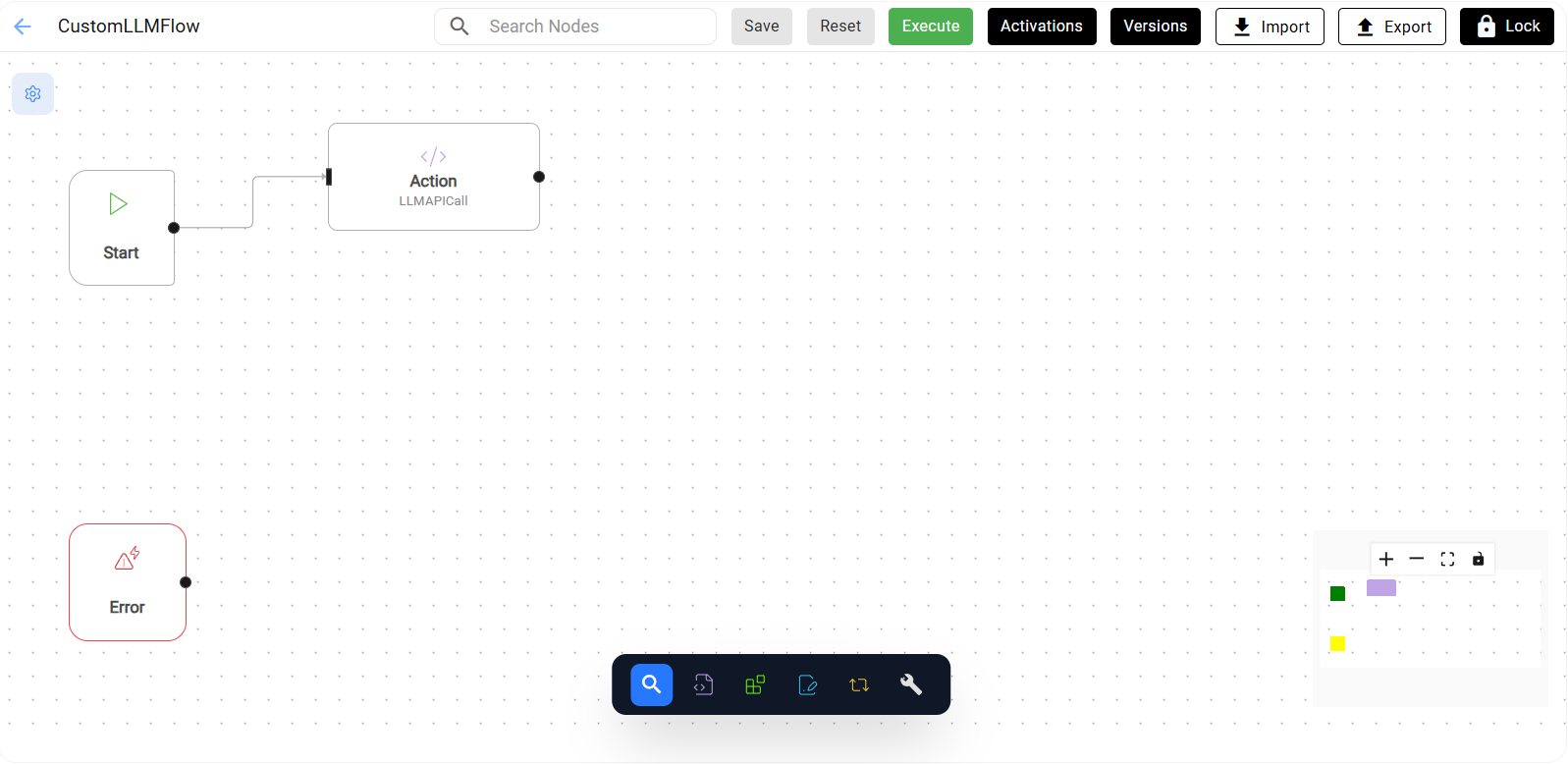 Note:Only the WebApp type of workflow is supported
Access to Gen AI Configuration
Steps
- Open the Admin Console. <https://tenant-url/admin#/>
- Click GenAI Configuration from the navigation panel.
- Locate the Custom LLM option.
Figure 2. Custom LLM 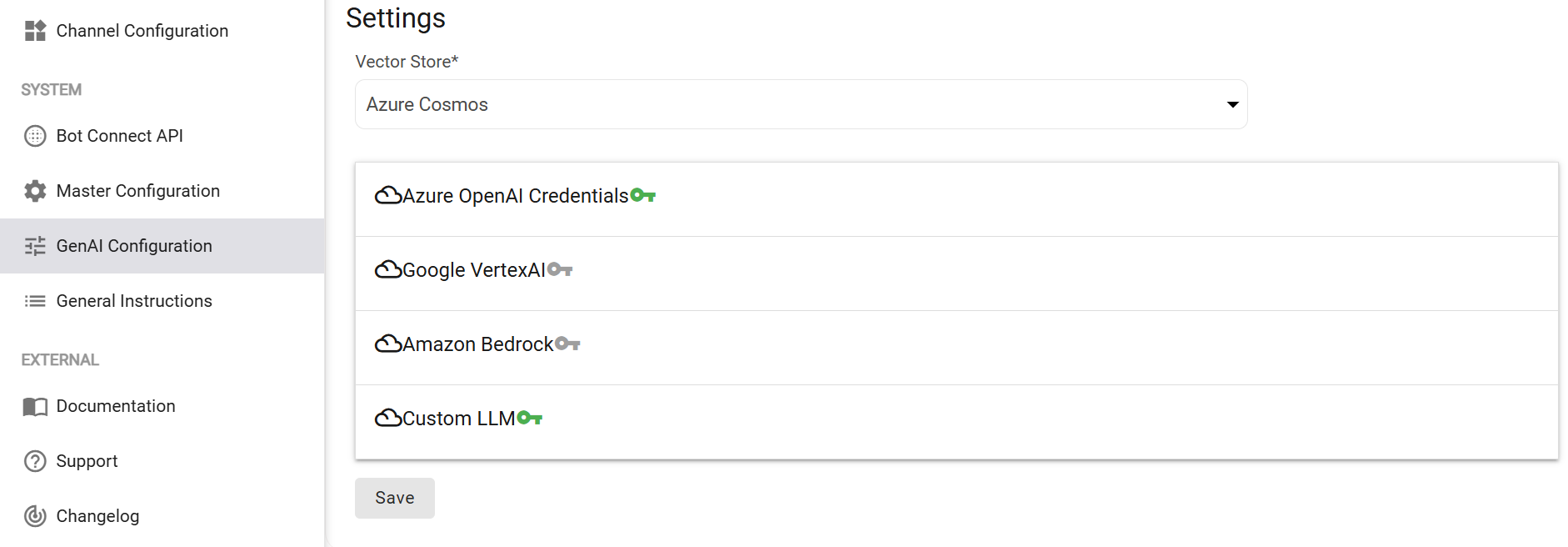
- Click the Custom LLM section and select the Web App workflow from dropdown that you have created in the Workflows console
- Click Save.
- Settings saved successfully message will be displayed.
Figure 3. Select Web App Type workflow 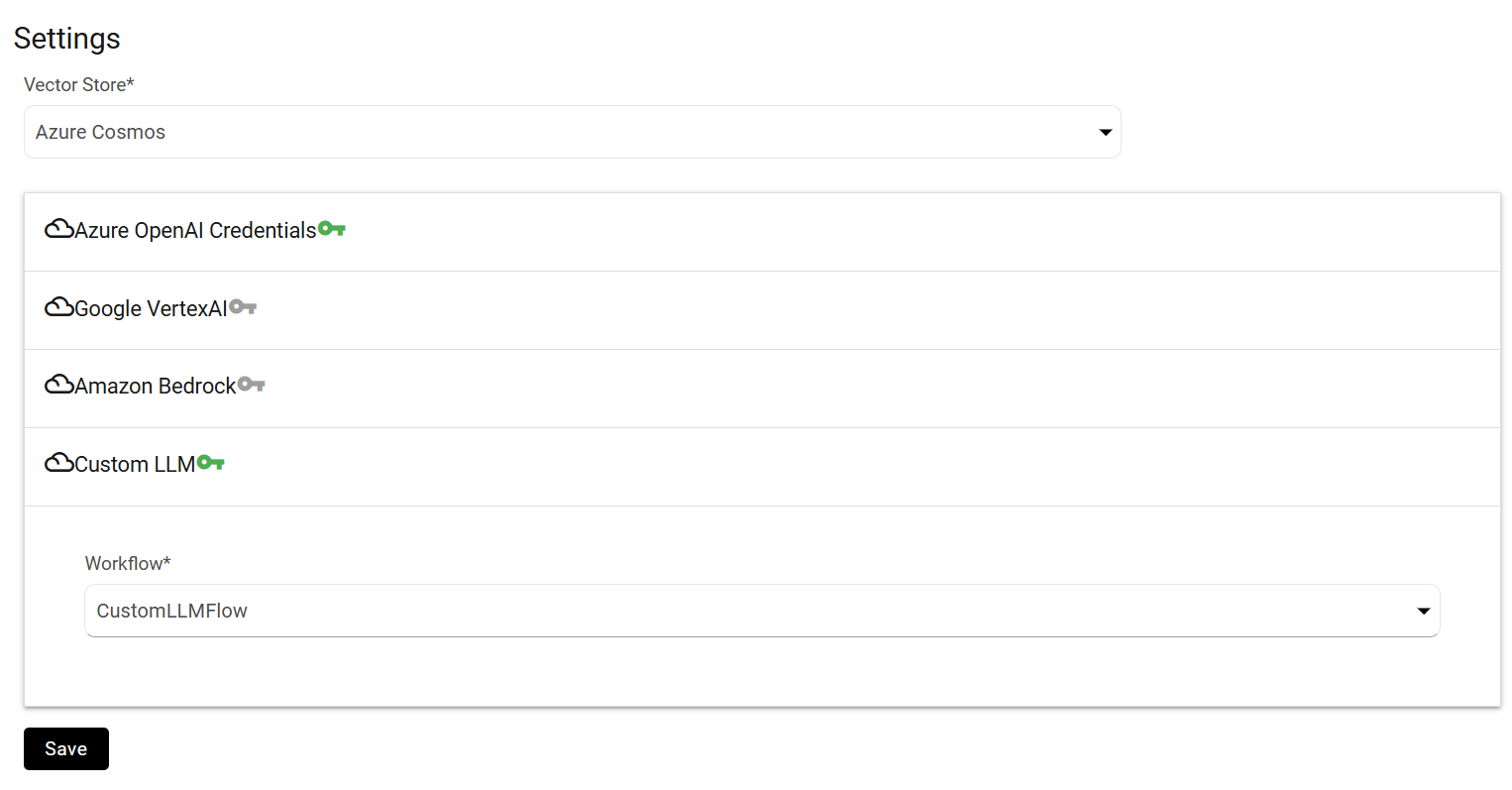
For Embedding Routing update, the General Instruction Configuration
Steps
- Open the General Instructions module.
- Click the Default Similarity Model dropdown, select Custom LLM
Figure 4. Default similarity Model - Custom LLM 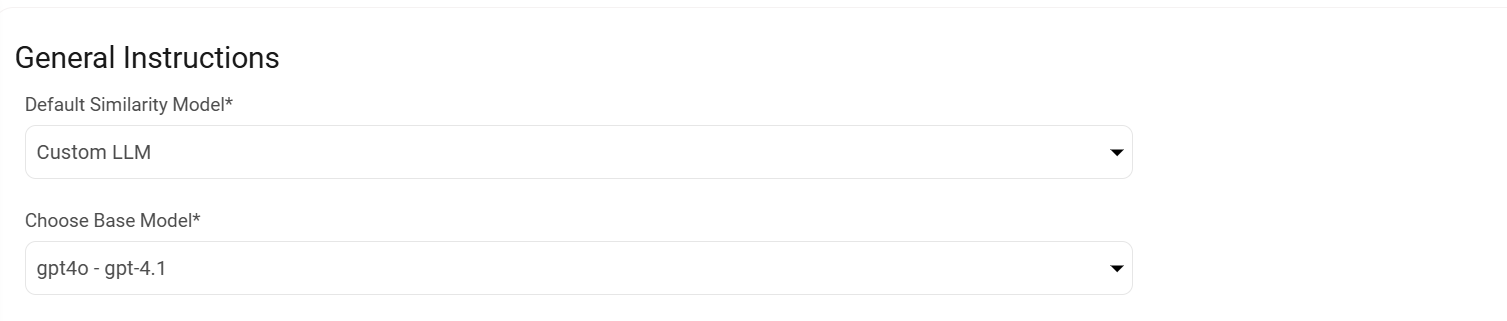
Creating a Custom LLM Model
Steps
- Navigate to Manage Models.
- Click Add New Model.
- Select Custom LLM from the Platform dropdown.
- Choose the Model Type:
- Chat Completion
- Embedding
- Enter:
- Model Name
- Deployment Name
- Click Save.
- The new model should be saved and added to the Models List.
Figure 5. Select Platform- Custom LLM 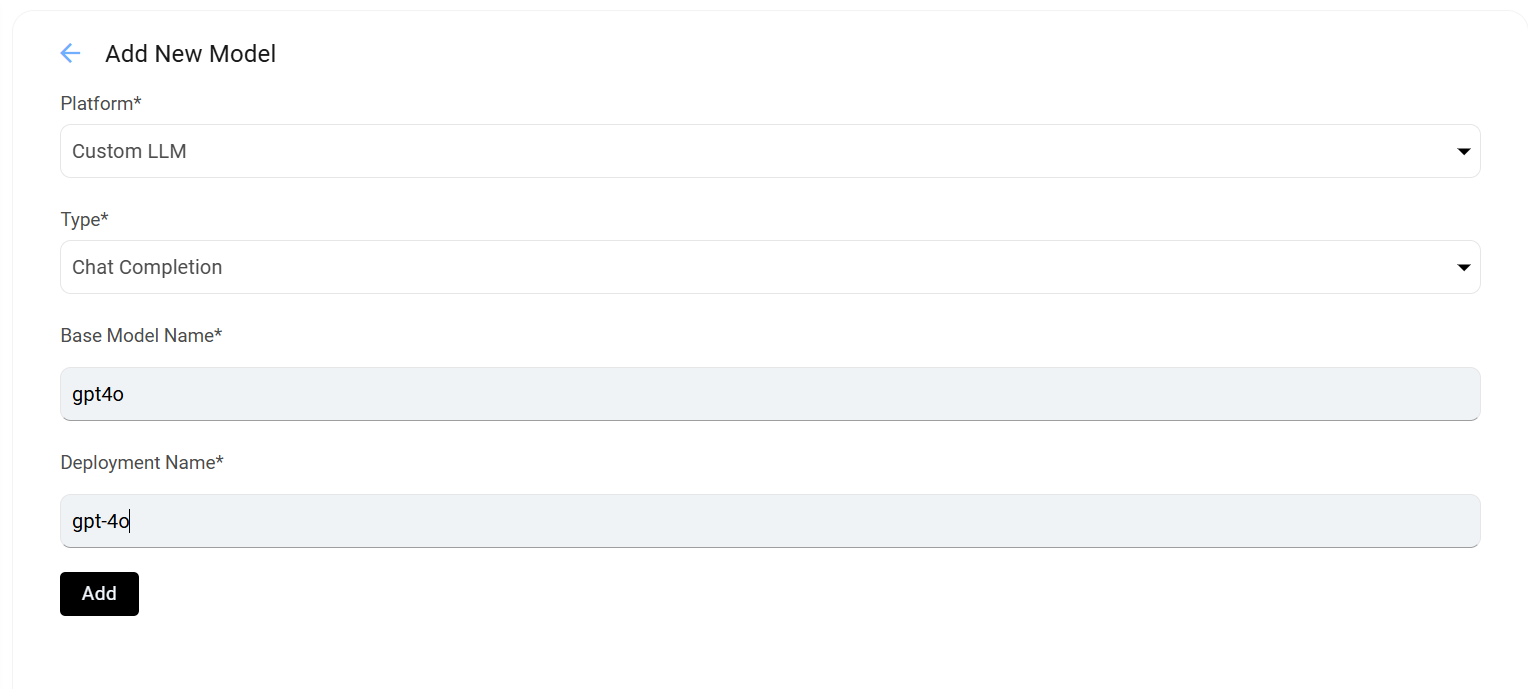
Chat Response
Steps
- Create an agent using the Custom LLM model.
Figure 6. Select Custom Model 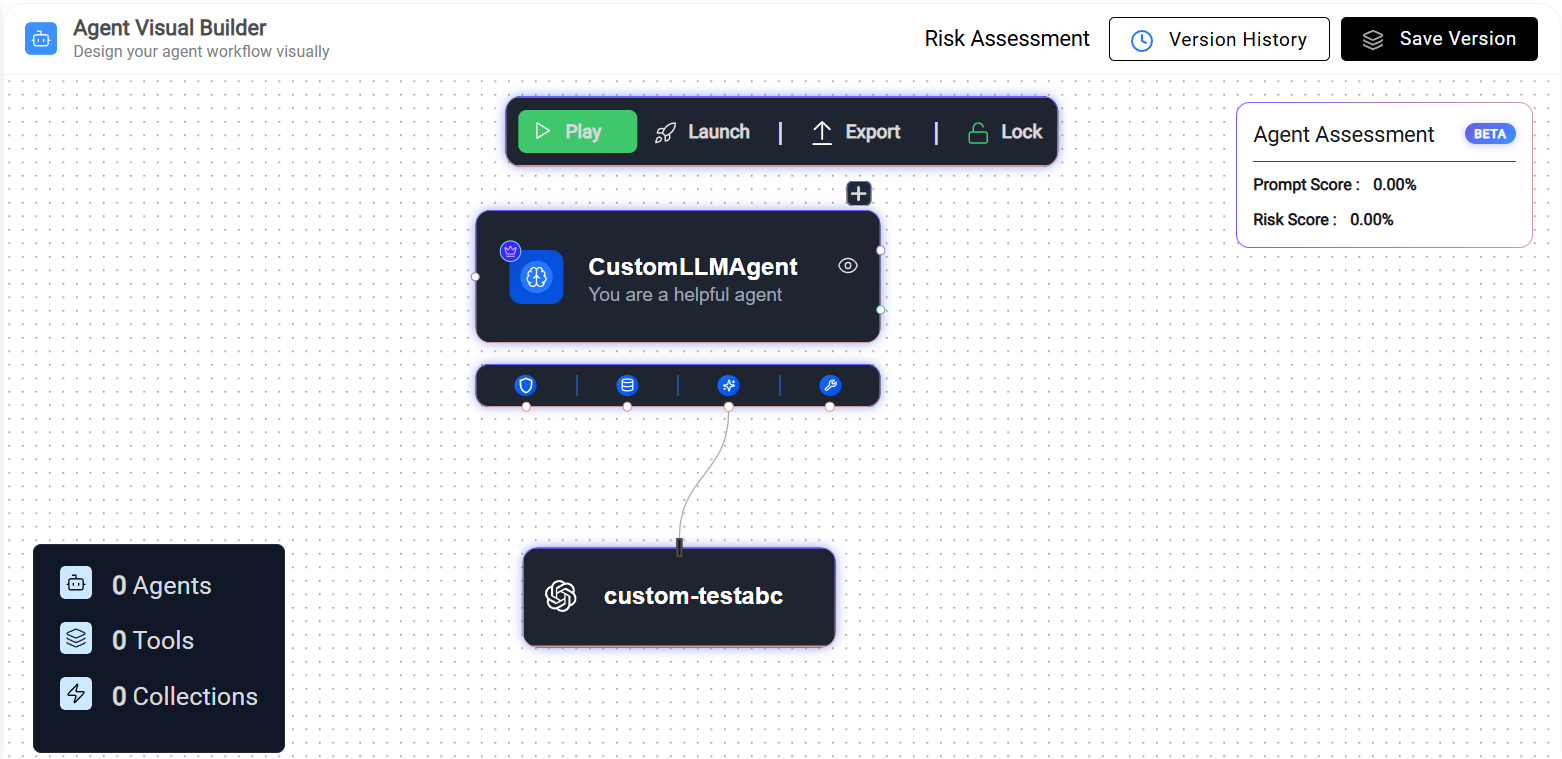
- Open the chatbot interface.
- Send a message to the agent.
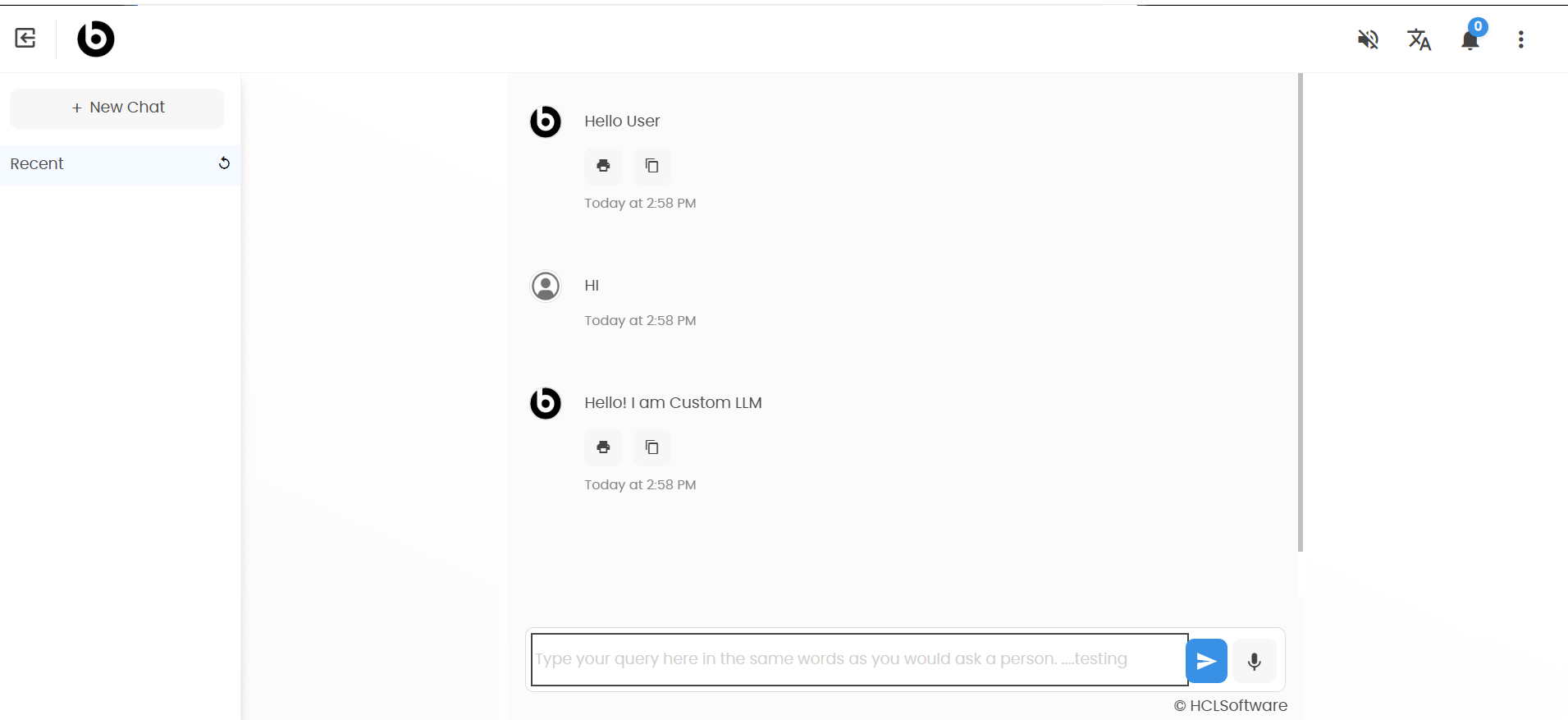
- The response should be generated from the configured workflow or external LLM
API.
Figure 7. Response generated from the configured Custom LLM.