This section describes how to manage the bills and create
billing templates for the provider. These templates are customized
based on the services offered to a provider.
To manage the billing template,
In the left navigation bar, click Billing Management. It opens the Billing
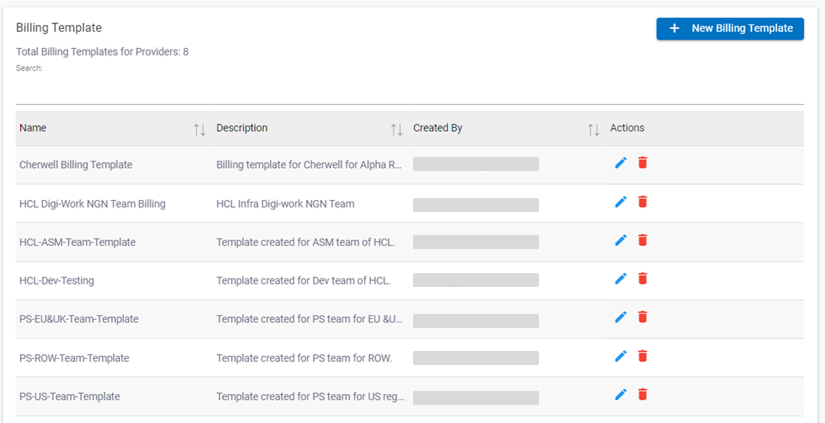
Template screen on the right pane.Figure 1. Manage Bills and Billing Template
The screen includes the list of existing billing templates and button to create a new template.
Description - Brief explanation about the template
Created By - Owner of the template
Action - Option to edit or delete the template
Adding New Billing Template
To add a template,
On the Billing Template screen, click .
It navigates you to the screen which consist of the following billing template
sections:
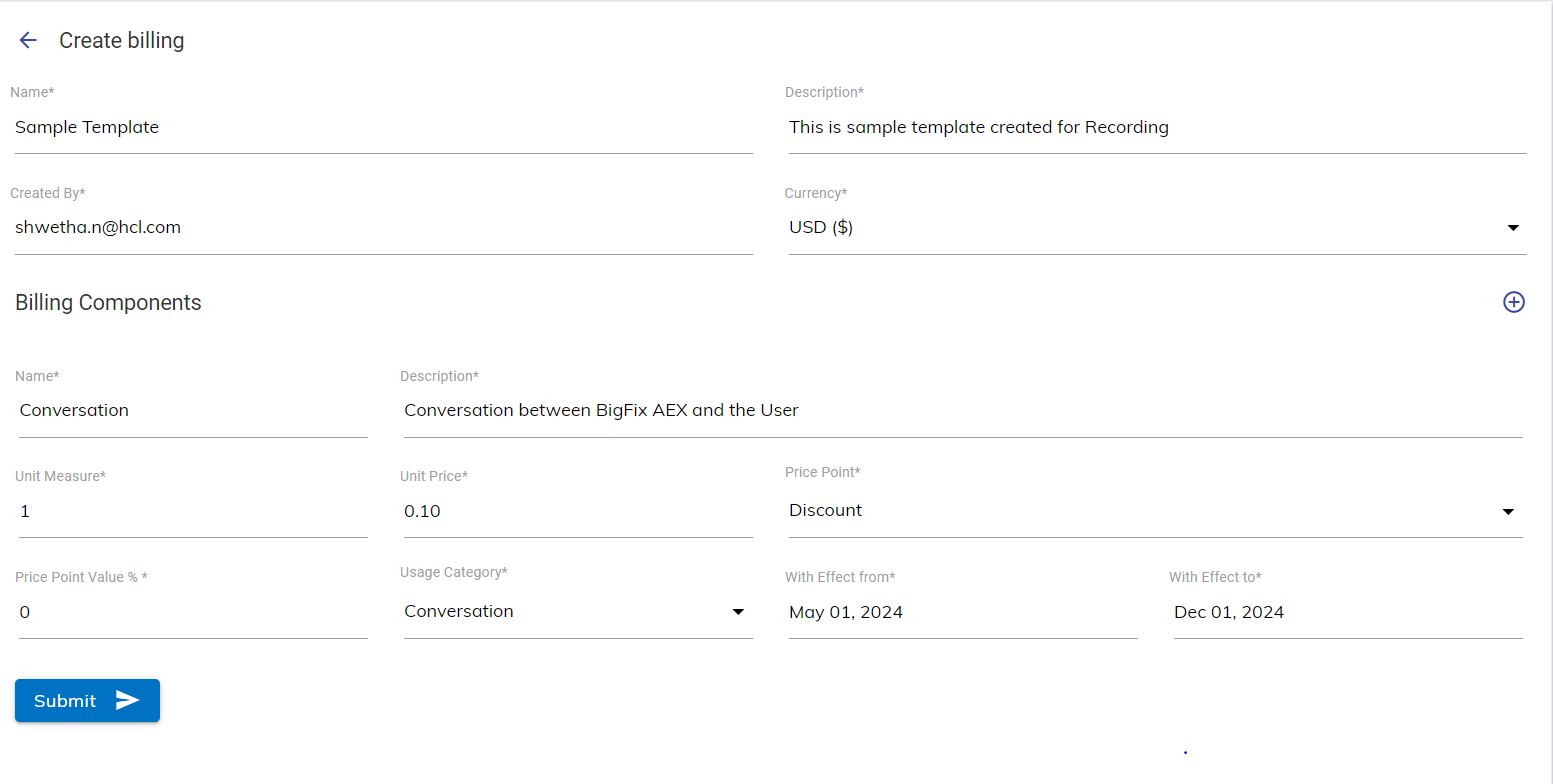
Create Billing – General information about the billing template.
Billing Component – The basis on which the provider is billed. The BigFix AEX
admin console provides you with various billing components such as Conversation,
Ticket Created Tenant/Monthly and so on.Figure 2. Adding New Billing Template
In the Create Billing form, specify the following information:
Name - Enter the name of the new template.
Description - Enter the description of the new template.
Created By - Email ID of the current user. This field is auto populated and
non-editable.
Currency - Select the currency in which it bills the provider.
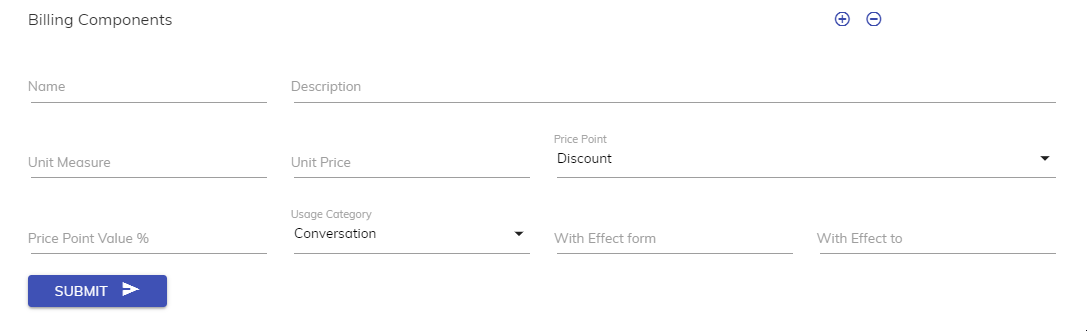
In the Billing Component form, specify the following information:
Table 1. Billing Components Fields
Field
Description
Name
Name to distinguish the templates created by selecting the different usage
categories. For example, enter the conversation’s name to identify the billing
component added by selecting “Conversation” as a usage category.
Description
A description of the billing component.
Unit Measure
Specify the number of units that can be consumed. For example, 1000
conversations with BigFix AEX can be consumed.
Unit Price
Price of each unit measure. For example, $5 for each conversation.
Price Point
Discount or Mark-Up on the unit price.
Price Point Value%
Percentage of the discount or mark-up value to be applied on the unit
price.
Usage Category
Billing components that are used to generate the bill. It includes the
following categories:
Conversation: Every chat (new session/successful conversation) between
BigFix AEX and an individual user.
Successful Conversation: Chat that concludes with positive feedback from
the user.
Failed Conversation: Chat that concludes with negative feedback from the
user.
Unrated Conversation: Chat that concludes without any feedback from the
user.
Ticket Created: Support ticket generated by BigFix AEX during or at the
end of a conversation.
SOP Rendered/Delivered: SOP shared with the user during the
conversation.
Tenant/Monthly: Any monthly recurring charge levied on a tenant.
Tenant/ Yearly: Any yearly recurring charge levied on a tenant.
Provider/One Time: Set-up or any one-time charge levied on a
provider.
Provider/Monthly: Any monthly recurring charge levied on a provider.
Provider/Yearly: Any yearly recurring charge levied on a provider.
With Effect From
Billing Start Date
With Effect To
Billing Close date
Figure 3. Add Billing Components
To add more billing components to the same template, click on . It adds a new billing component form
below the current form.Figure 4. Addition of Multiple Billing Components
Follow the above steps to create multiple components in a single template to levy
charges.

 button to create a new template.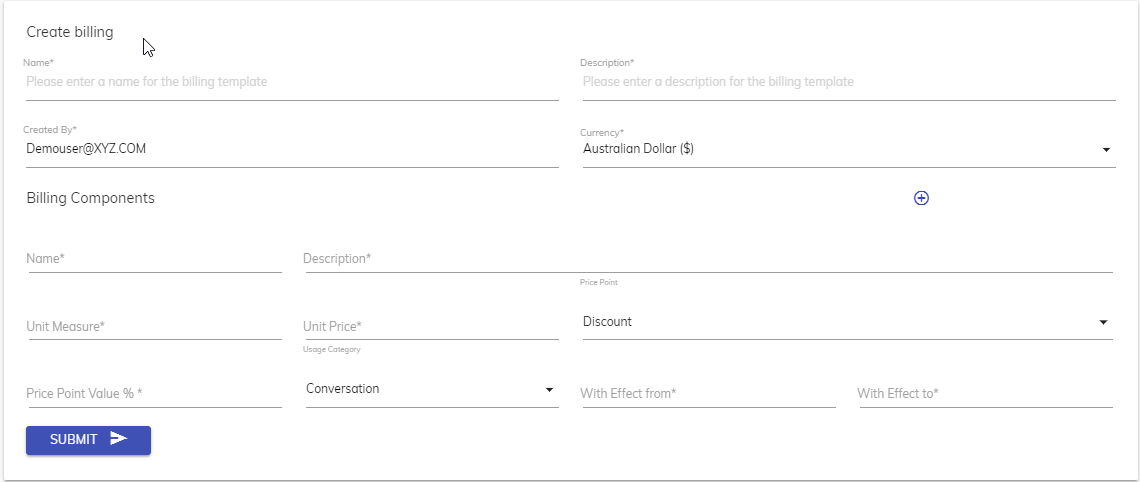
 . It adds a new billing component form
below the current form.
. It adds a new billing component form
below the current form.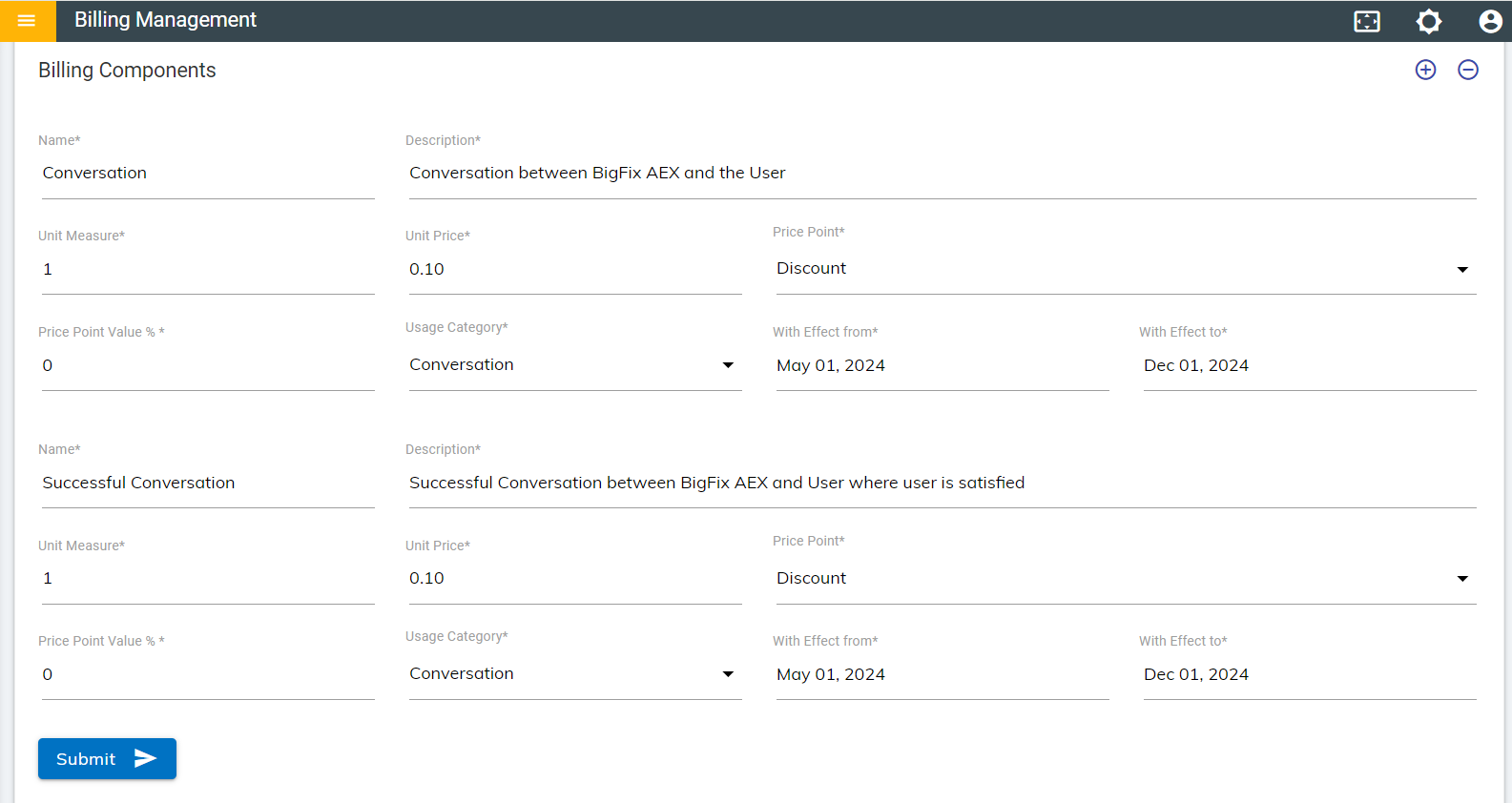
 next to a column heading to sort the
template’s parameters under each column in alphabetical order.
next to a column heading to sort the
template’s parameters under each column in alphabetical order.  )
icon. It shows the details of the current template.
)
icon. It shows the details of the current template.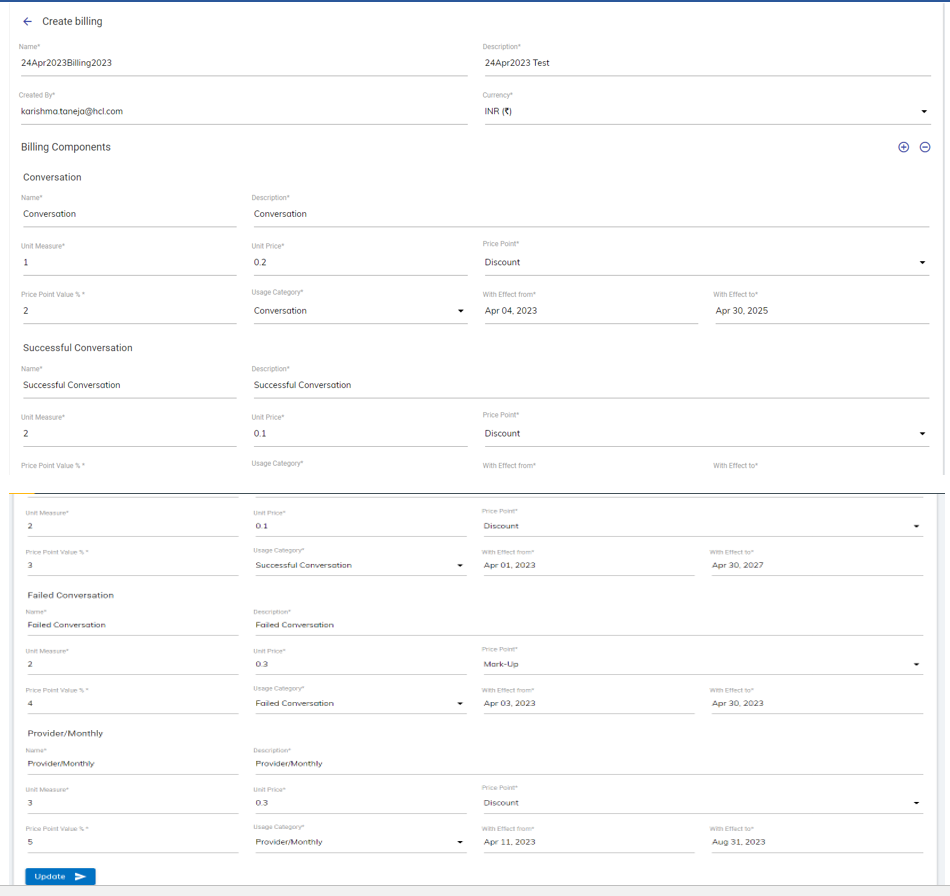
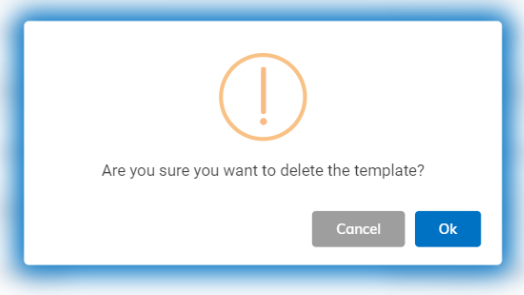
 ) icon next to the template you want to delete.