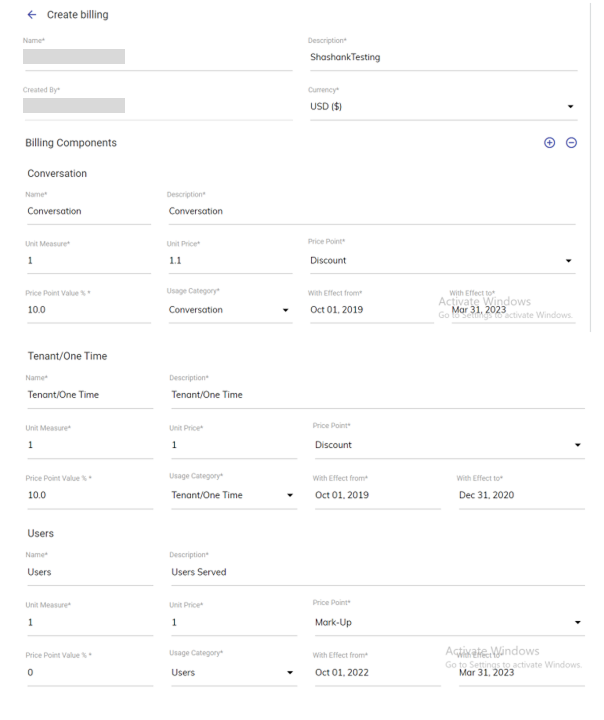
User based Billing Model
The main objective of this user-based billing model is to implement the user feature in the billing model, which is based on how many users access the BigFix AEX bot. The billing feature shows the number of messages, SOPs, and conversations displayed on the BigFix AEX bot.
Managing Bills and User Billing
This section describes how to manage the bills and create billing templates for the provider. These templates are customized based on the services offered to a provider. To manage the billing template:
- Click on Billing Management in the left navigation bar.
- It opens the Billing Template screen on the right pane.
Figure 1. Billing Management 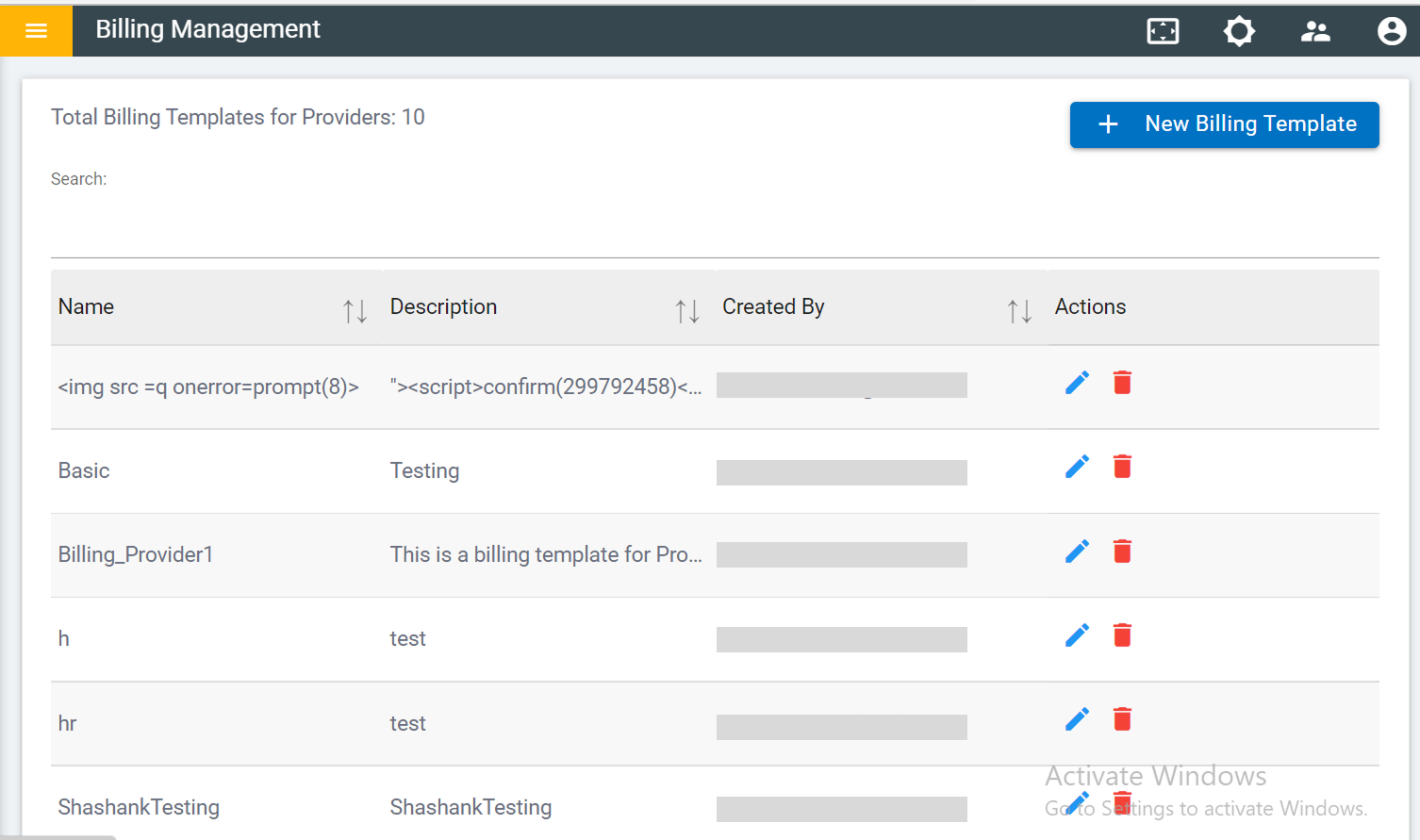
The screen includes a list of existing billing templates and a
 button to create a new
template.Listed below are the details of the columns displayed in above Figure Billing Management:
button to create a new
template.Listed below are the details of the columns displayed in above Figure Billing Management:- Name - Name of the template
- Description - Brief explanation about the template
- Created By - Owner of the template
- Action - Option to edit or delete the template
Adding New Billing Template
- Click on the Billing Template screen
- It navigates you to the screen which consists of the following billing template
sections:
- Create Billing - General information about the billing template.
- Billing Component - The component basis on which the provider is billed. The BigFix AEX admin console provides you with various billing components such as Conversation, Ticket Created Tenant/Monthly and so on.
Figure 2. Billing Management 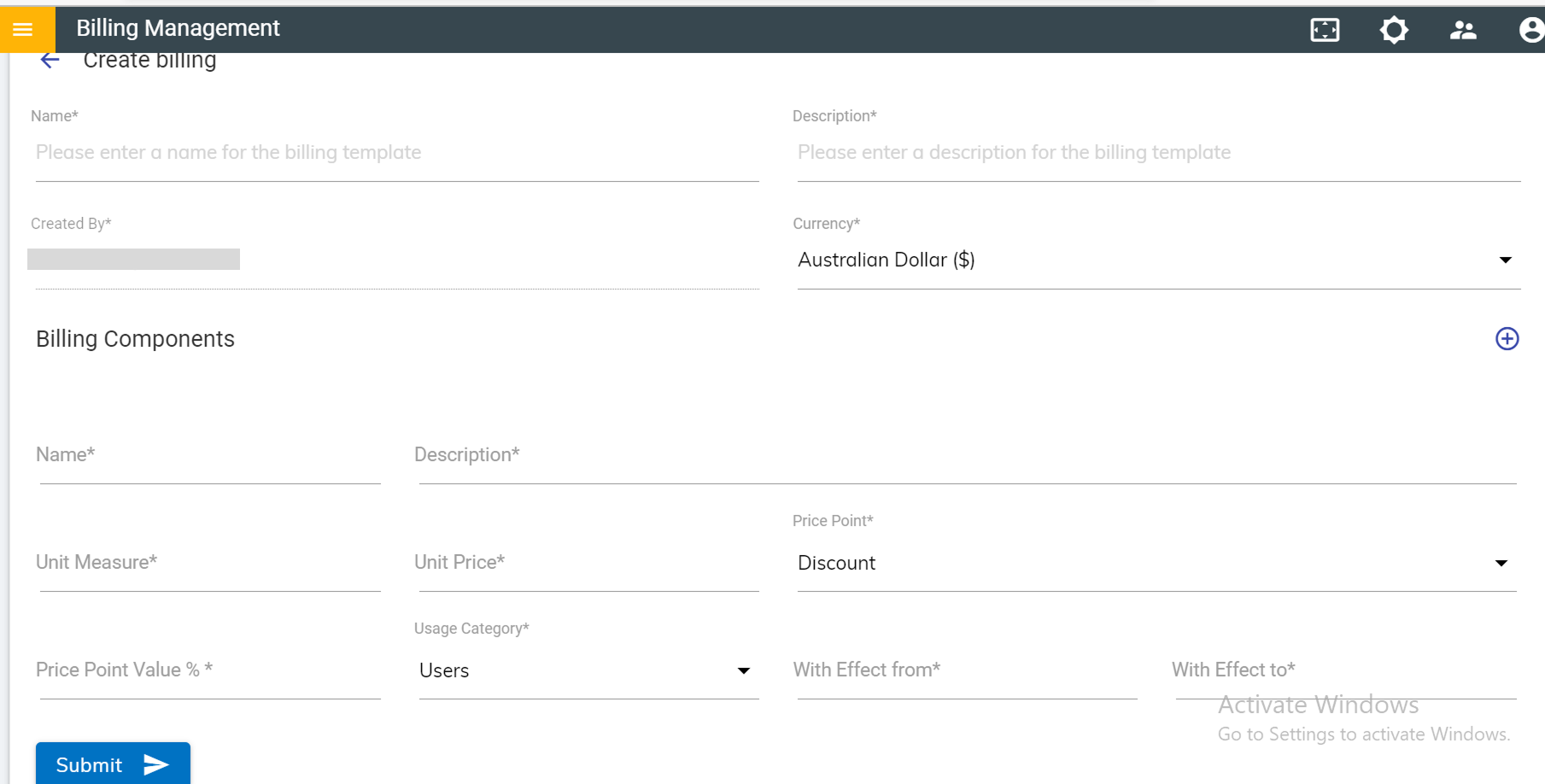
- In the Create Billing form, specify the following information:
- Name - Enter the name of the new template.
- Description - Enter the description of the new template.
- Created By - Email ID of the current user. This field is auto populated and non-editable.
- Currency - Select the currency in which it bills the provider.
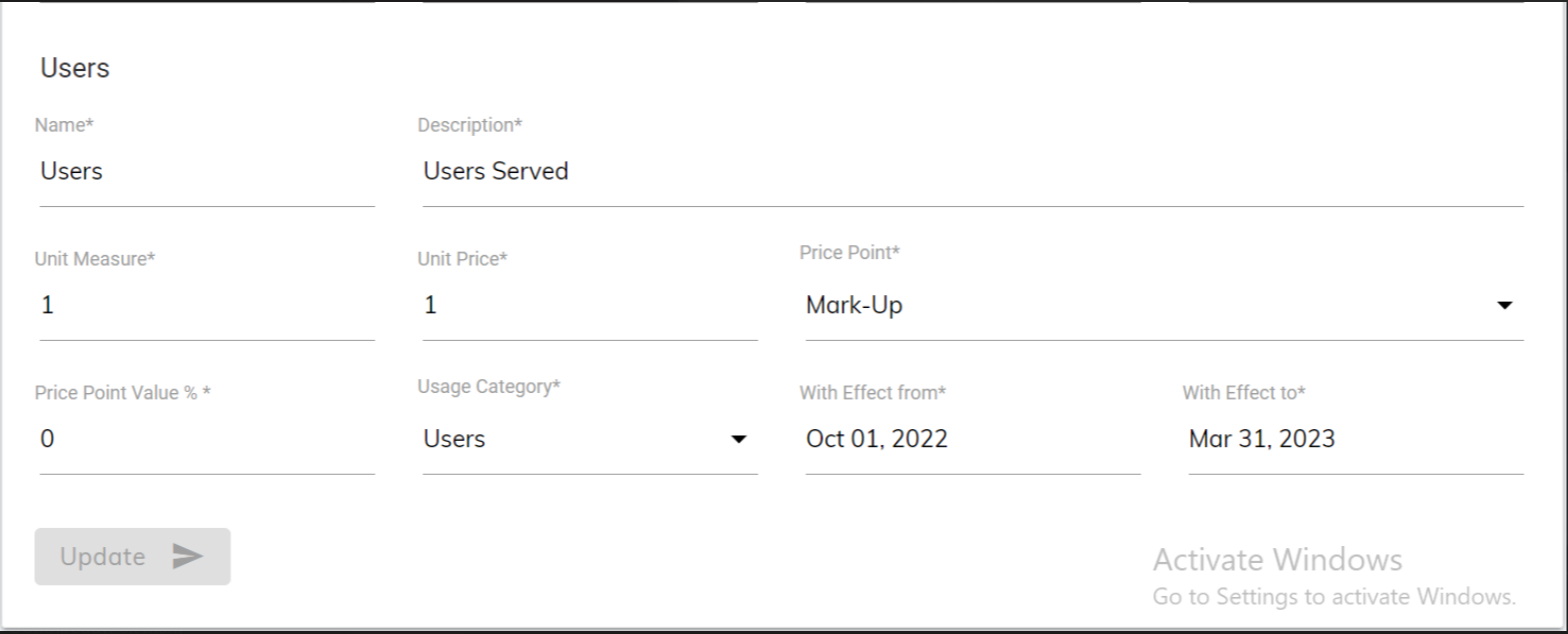
In the Billing Component form, specify the following information:
| Field | Description |
| Name | Name to distinguish the templates created by selecting the different usage categories. For example, enter the conversation’s name to identify the billing component added by selecting “Conversation” as a usage category. |
| Description | A description of the billing component. |
| Unit Measure | Specific number of units that can be consumed. For example, 1000 conversations with BigFix AEX can be consumed. |
| Unit Price | Price of each unit measure. For example, $5 for each conversation. |
| Price Point | Discount or Mark-Up on the unit price. |
| Price Point Value% | The percentage of the discount or mark-up value is to be applied to the unit price. |
| Usage Category |
Billing components that are used to generate the bill. It includes the following categories:
|
| With Effect From | Billing Start Date |
| With Effect To | Billing Close date |
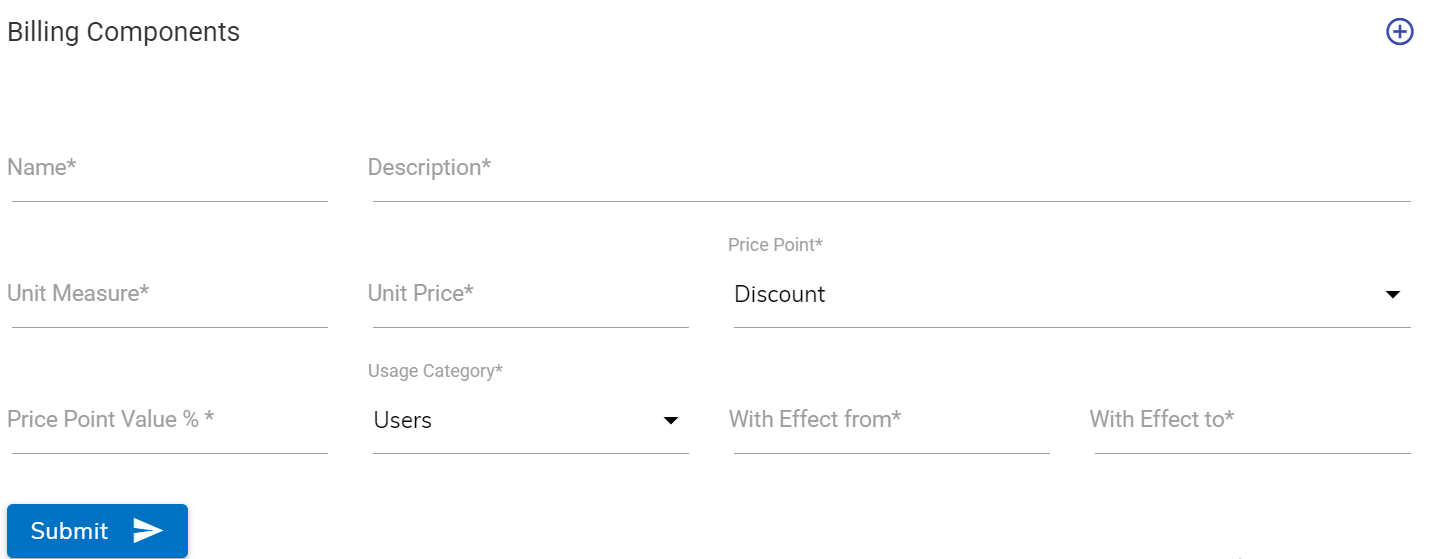
To add more billing components to the same template, click on  and it adds a new billing component form below the current
form.
and it adds a new billing component form below the current
form.