Harbor Configuration / Enable HCL AION CLI
Harbor Configuration (For Docker/Kubernetes Deployment)
All HCL AION images are pulled directly from the HCLSoftware Harbor registry. Configuration of Harbor credentials is mandatory before deployment.
The configuration file defines login credentials, application setup, storage, database, and network settings
Create or update the config_properties file with the following parameters:
| Variable | Description |
|---|---|
| IMAGE_REGISTRY_USERNAME | Email ID for HCL Harbor login |
| IMAGE_REGISTRY_PASSWORD | CLI secret from your Harbor profile |
| IMAGE_TAG | Version of the AION image (e.g., 2.1.0) |
| PLATFORM | System architecture: x86_64 or arm64 |
| FRESH_INSTALL | TRUE for first-time setup, FALSE for upgrade |
| APP_SETUP | Choose dev or prod environment |
| STORAGE_LOCATION | Path where application data will be stored |
| PRUNE | TRUE/FALSE to enable automatic data cleanup |
| STALE_DAYS | Number of days after which old data is deleted |
Ensure Docker is logged into Harbor before proceeding using: docker login <harbor_url>.
Enable HCL AION CLI (For CLI-based Installation)
Switch to the directory where you have unzipped the HCL AION build.
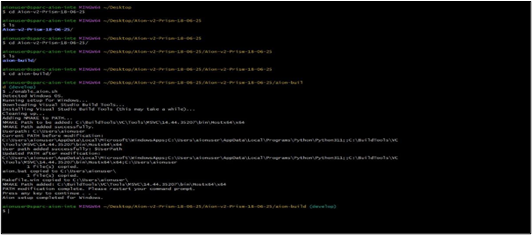
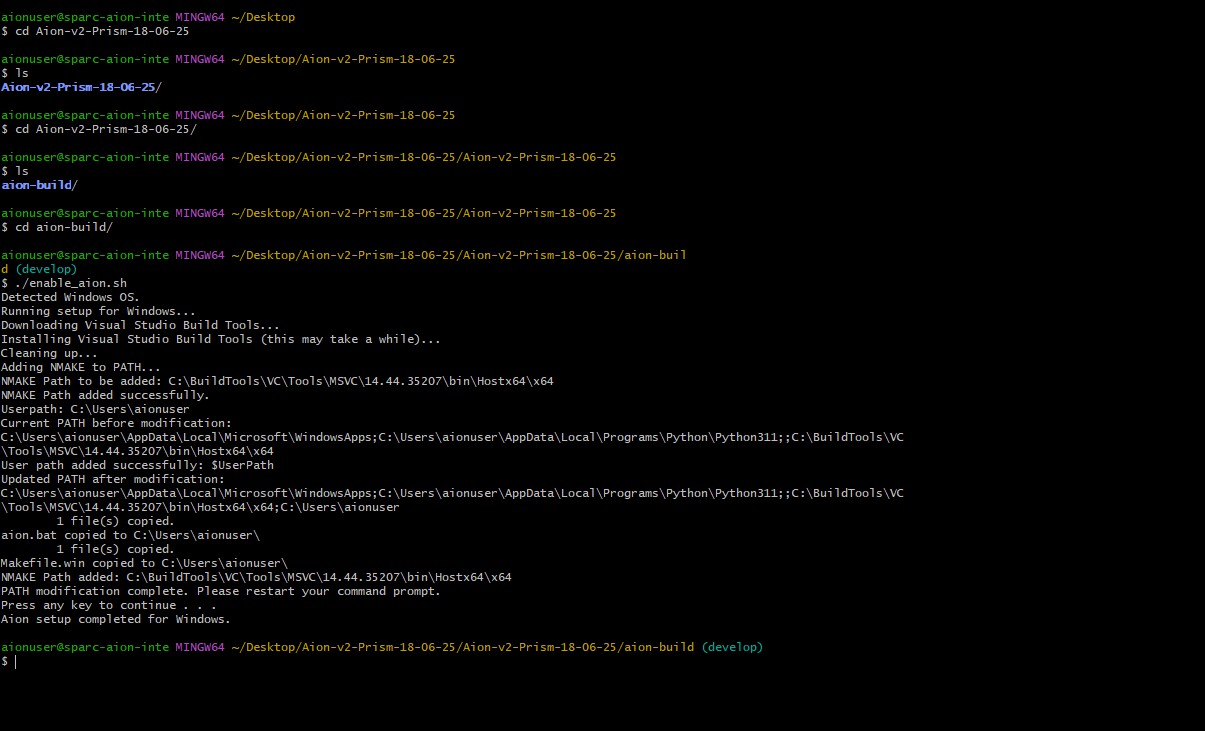
For Windows: Open Git Bash and follow this command:
Bash
& "C:\Program Files\Git\bin\bash.exe" enable_aion.sh
Close and reopen all VS Code windows after this.
For Linux/Mac/Unix:
Bash
chmod +x enable_aion.sh
./enable_aion.sh
Make sure you're in the directory containing the `enable_aion.sh` script before running these commands.