
Cloud Native Link Architecture
The following diagram provides a high-level overview of Cloud Native Link architecture.
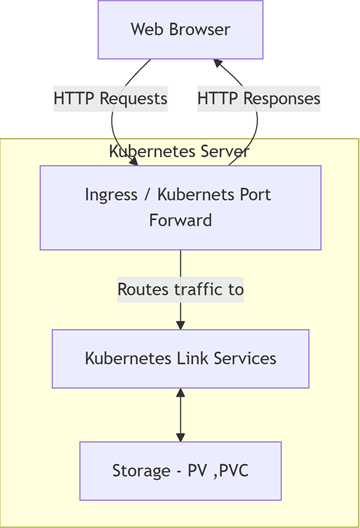
- Communication: Handling traffic from a web browser to the Kubernetes Link services.
- Link Services: The core application components deployed via the "lnk-product" Helm chart.
- Storage: The persistent storage used for application data and results.
The general flow involves an user accessing the application from a Web Browser. This sends HTTP Requests to the Kubernetes Server. For production access, traffic is routed via an Ingress controller. For development or debugging, access can be achieved using kubectl port-forward. The traffic is then directed to the appropriate Kubernetes Link Services, which interact with the Storage (PV, PVC) layer.
Communication: Accessing Link Services
-
Lnk-product-client: For accessing the Link User Interface (UI).
-
Lnk-product-server: For accessing the Link Server Swagger UI.
Lnk-product-rest: For accessing the Link Rest Swagger UI.
If the Helm chart is configured to deploy with Redis and MongoDB, the following services are also created:
-
<helm-release-name>-redis-master: For Redis database access.
- <helm-release-name>-mongodb: For MongoDB database access.
For development, testing, or debugging, you can use the kubectl port-forward command to temporarily forward a port from your local machine to one of the services (such as Lnk-product-client) inside the cluster.
Kubernetes Link Services
The core Link services are installed using a Helm chart (lnk-product). This chart processes requests and stores the results into persistent storage. The Helm chart utilizes publicly available subcharts for its database dependencies:
-
MongoDB: bitnami/mongodb
- Redis: bitnami/redis
Kubernetes Resources Created by Helm Chart
The Helm chart installation creates the following set of Kubernetes resources.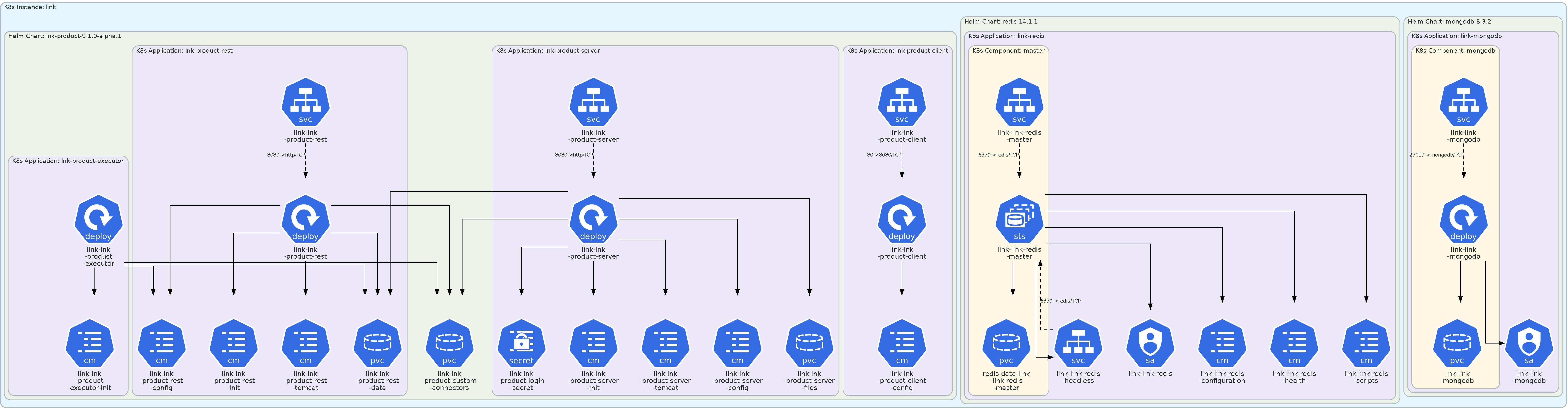
- Services (SVC):
- Lnk-product-client
- Lnk-product-server
- Lnk-product-rest
- Deployments:
- <helm-release-name>-lnk-product-client
- <helm-release-name>-lnk-product-rest
- <helm-release-name>-lnk-product-server
- <helm-release-name>-lnk-product-executor
- ConfigMaps:
- <helm-release-name>-lnk-product-executor-init
- <helm-release-name>-lnk-product-rest-config
- <helm-release-name>-lnk-product-rest-init
- <helm-release-name>-lnk-product-rest-tomcat
- <helm-release-name>-lnk-product-server-init
- <helm-release-name>-lnk-product-server-tomcat
- <helm-release-name>-lnk-product-server-config
- <helm-release-name>-lnk-product-client-config
-
Secrets:
- <helm-release-name>-lnk-product-login-secret
- Persistent Volume Claims (PVC):
- <helm-release-name>-lnk-product-rest-data
- <helm-release-name>-lnk-product-custom-connectors
- <helm-release-name>-lnk-product-server-files
- redis-data-<helm-release-name>-link-redis -master
- <helm-release-name>-mongodb
- StatefulSet:
- <helm-release-name>-redis-master
- Service Account:
- <helm-release-name>-redis
- Pods (Example names):
- <helm-release-name>-redis-master-0
- <helm-release-name>-mongodb-864c9cdc67-sxjdj
- <helm-release-name>-lnk-product-client-68b67b9f46-h2bvp
- <helm-release-name>-lnk-product-rest-599d6484cf-tqcqf
- <helm-release-name>-lnk-product-server-6dbcb5d7f6-6mpnn
- <helm-release-name>-lnk-product-executor-697b489b98-dmpf2
- Init Containers:
- <helm-release-name>-lnk-product-executor-init-redis
- <helm-release-name>-lnk-product-kafka-link-init
Pod Details
| Pod | No. of Containers | Container(s) Image(s) | Default Port | Technology / Process Name |
|---|---|---|---|---|
| Client | 1 | hclcr.io/link/lnk-client:1.3.1.0 | 80->8080/TCP | Node.js / node |
| Server | 1 | hclcr.io/link/lnk-server:1.3.1.0 | 8080->http/TCP | Tomcat / java |
| Rest | 1 | hclcr.io/link/lnk-rest:1.3.1.0 | 8080->http/TCP | Tomcat / java |
| Executor | 2 | hclcr.io/link/lnk-executor:1.3.1.0 | N/A | Flowexec redis / C++ runtime / java |
| registry.access.redhat.com/ubi8/ubi-minimal:8.5 | N/A | Init container (checks redis status) | ||
| Kafka-link | 2 | hclcr.io/link/lnk-kafka-link:1.3.1.0 | N/A | java |
| registry.access.redhat.com/ubi8/ubi-minimal:8.5 | N/A | Init container (checks kafka status) |
Storage (PV / PVC)
Storage is a critical component for persisting data. The application uses Persistent Volume Claims (PVCs) to request storage for services like REST data, custom connectors, server files, Redis, and MongoDB.
- Dynamic Provisioning(Recommended): The documentation states the Helm chart needs to be provided with appropriate PV’s storage class. This is the standard cloud-native method. You specify the name of an existing StorageClass in your Helm values.yaml file. When the chart is installed, the PVCs request storage, and the StorageClass automatically provisions the necessary Persistent Volumes (PVs).
- Static Provisioning: The documentation also states that "Storage PV , need to be created manually , and not part of helm chart installation". This describes a static provisioning model, common in on-premises or bare-metal clusters. In this scenario, a cluster administrator must create the PVs by hand before installing the chart. The PVCs created by the Helm chart will then claim (bind to) these pre-existing PVs, assuming their size and access modes match.