Segments Page
The Segments page provides a centralized interface to search, filter, sort, and analyze audience segments through a master-detail view.
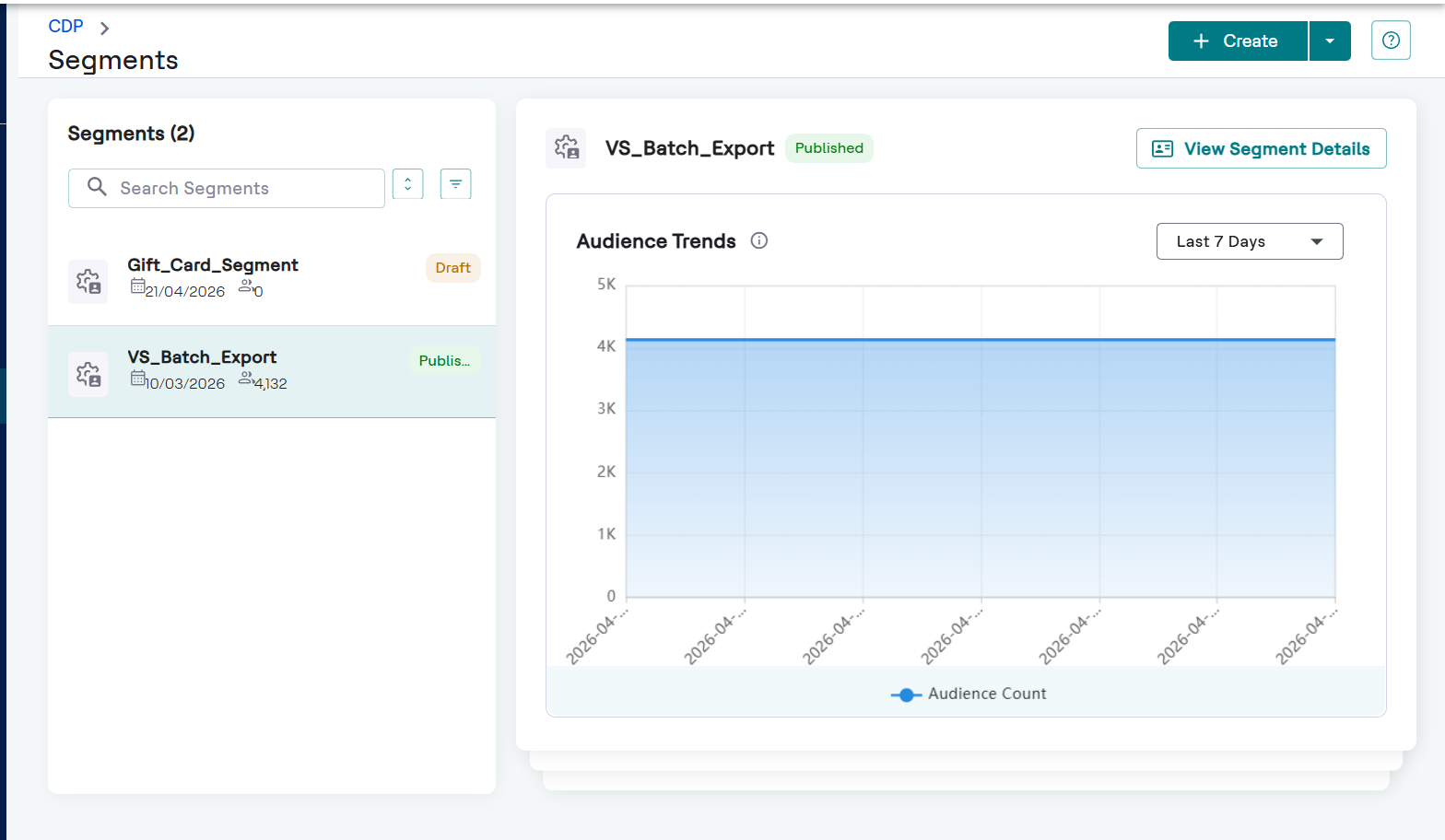
The Segments page consists of a list of batch and realtime segments and a main details pane for performance visualization.
Segment List and Organization
The left sidebar lists all segments with their current status, such as Draft or Published. Use the following tools to organize the list:
- Search: Locate a segment by entering its name in the search bar.
- Sort: Click the sort icon to arrange segments by Audience Count, Segment State like Draft, Published, Publishing, Failed Draft, Failed Publish, or In Progress, or Created Date in ascending or descending order.
- Filter: Click the filter icon to refine the list based on:
- Either All Segments or Archived Segments.
- Segments Type: View Realtime or Batch segments.
- Priority: Filter by Highest, High, Medium, or Low.
- Schedule: Filter by Single or Repeat execution schedules.
- Source: Filter by the origin of the segment, such as Standard, Funnel, or Max AI.
Audience Trends and Details
Selecting a published segment from the sidebar populates the main panel with specific performance data:
- View Segment Details: View the full segment details like Segment type, No.of users, Active channels, and so on.
- Audience Trends Chart: A visual timeline showing the Audience
Count of published segments over a selected period. Note:Trends data relies on T+1 processed batch data, so newly created segments won't show trend data until the next processing cycle.
- Time Range Selector: Filter the chart data by specific durations, such as Last 7 Days.
- Interactive Legend: Toggle the Audience Count metric on the chart to analyze user growth or fluctuations.
Segment Details
The View Segment Details page provides a comprehensive view of a segment's configuration, logic, and active connections. Information is organized into three primary tabs:
-
Basic Info
This tab displays high-level metadata and administrative details for the segment, including:
- Segment Type and ID: Identifies if the segment is Batch or Real-time and lists its unique system ID.
- Ownership and History: Shows who created and last updated the segment, along with specific timestamps for publication and data refreshes.
- Audience Metrics: Displays the current No. of Users and Active Channels.
- Configuration Details: Lists the assigned priority level, schedule, source, tags, and a functional description.
- Audience Trends: An interactive chart showing the segment's growth or fluctuations over a selectable period (e.g., Last 90 Days).
-
Rule Builder
This tab reveals the underlying logic used to qualify users for the segment. It includes:
- Audience Count: A summary of the total audience qualified by the current rules.
- Query Structure: A technical view of the segment's conditions, such as event names, date ranges, and attribute filters (e.g., users who checked a gift card status in the last 30 days).
-
Engagements
This tab manages how the segment is utilized across different marketing platforms:
- All Channels: A sidebar listing available destination channels, such as Amazon S3, Journey.
- List of Engagements: Displays all active engagements for the segment. If no engagements exist, use the + Add Engagement button to begin reaching customers on specific channels.
- Actions drop-down menu
- Duplicate: Select this to create a copy of the current segment. You must provide a unique name for the duplicated segment.
- Archive: Select this to move the segment to the Archived status. This action deactivates all associated engagements.
- Refresh: Click to update the Audience Count and reflect the latest data based on your defined rules.
- Re-Draft: Select this option to move the published segment back into a draft state for significant logic updates.
- Publish: Select this option to publish the segment from draft state, to the destination.