
Managing Event Transformation
Use event transformation to modify the structure of event payloads and define routing rules for specific events to ensure data compatibility with required destinations.
Event transformation allows you to control the format and routing of event data before it is sent to a destination. This is essential when a downstream system requires a specific data schema or when you need to apply filtering logic to determine which events are delivered to which destinations.
Transformations are configured using pre-defined templates or custom code to manipulate the event payload, ensuring data compatibility and efficiency across your entire data pipeline.
For example:
- A "productviewed" event might be transformed as:
- "viewedproduct" for Facebook
- "viewed" for Google Ads
Create an Event Transformation
You can create a new transformation by navigating through the Event Dictionary.
To create a new event transformation:
- Navigate to Data Pipeline > Event Dictionary, and select the Event Transformation tab.
- Click + Add Transformation.
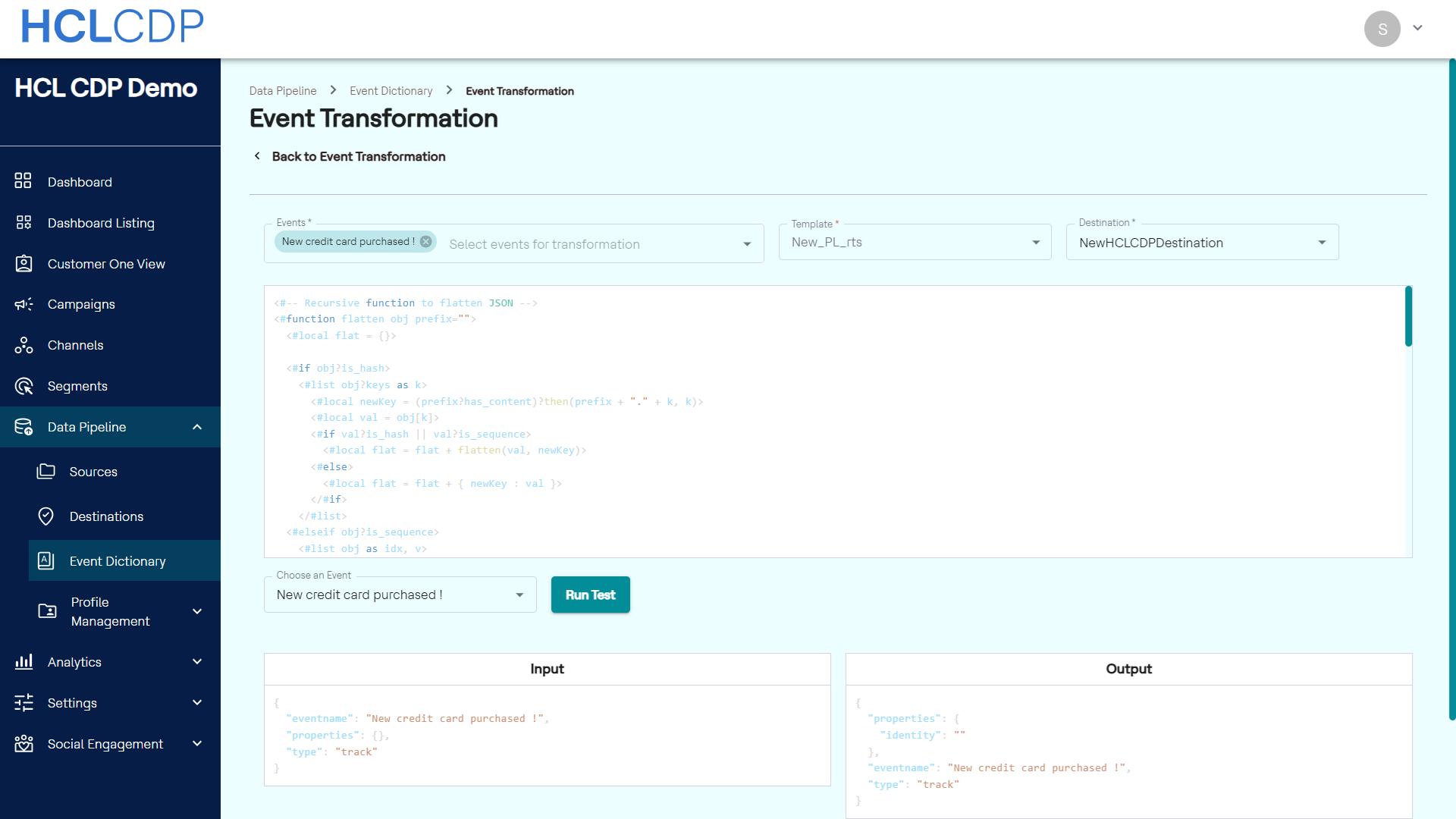
- Specify the required transformation parameters in the top fields:
- In the Events* field, select the events from the list that you want to apply the transformation logic to.
- In the Template* field, select a pre-built transformation
template (e.g.,
generic_base_template) or a custom template. As a result, the template will be displayed below in the code snippet. - In the Destination* field, select the specific destination where the transformed event data will be sent.
- (Optional) In the code snippet editor, view the custom transformation or routing
logic. This code will execute against the event payload.
Test the Transformation
Before saving, you must test the transformation to ensure the output payload is correctly generated according to your logic.
- In the section below the code snippet, select one of the events you chose in Step 3 from the dropdown list labeled Choose an Event.
- In the Input section, enter a sample JSON payload that represents a typical incoming event for testing.
- Click Run Test. The system executes the transformation logic against the input payload, and the resulting JSON structure is displayed in the Output section.
- Review the Output to verify that the event payload has been transformed and routed correctly.
Save the Transformation
After a successful test, click Save Transformation to save the transformation and activate it in your data pipeline.
View an existing Transformation
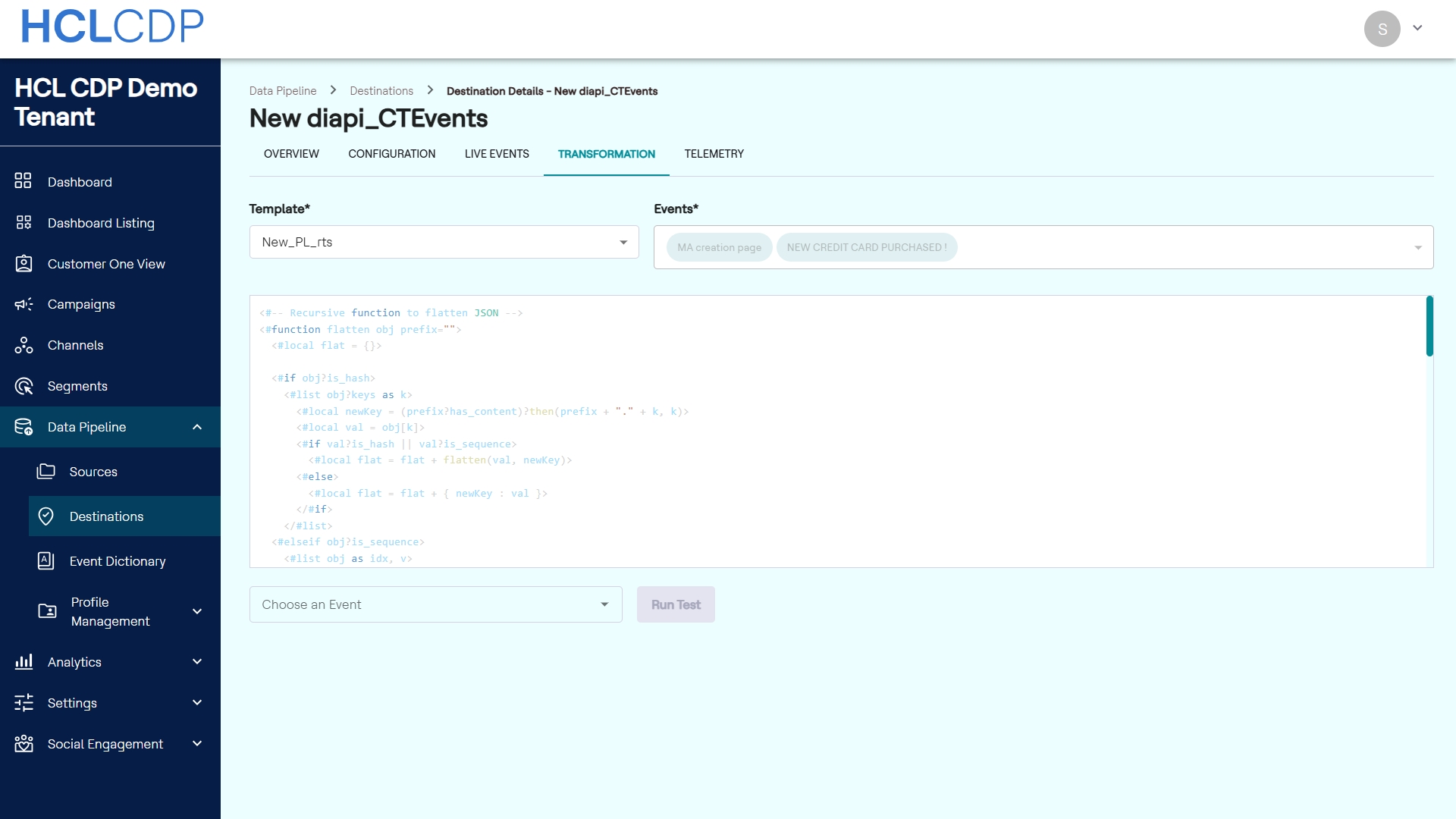
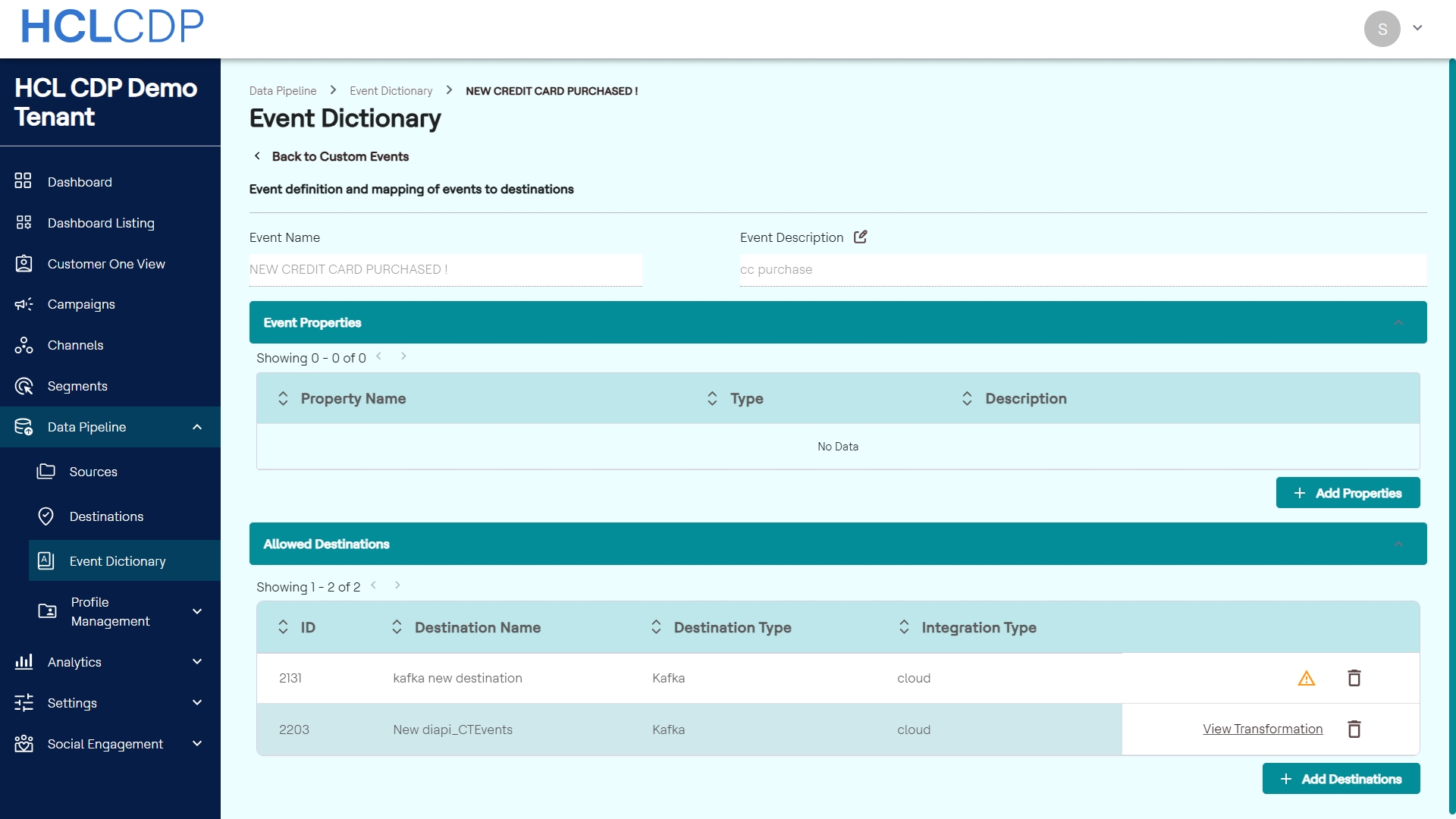
You can view the code template and test an existing transformation through two access points:
- Via Destination
- Navigate to Data Pipeline > Destination, select the desired destination.
- Click the Transformation tab.
- Select a template to view the transformation code and test it.
- Via Custom Event
- Navigate to Data Pipeline > Event Dictionary.
- On the Custom Events tab, select an event.
- In the Event Details page, under Allowed Destinations,
click the View transformation link corresponding to a desired
destination.
Delete a Transformation
You can remove a transformation that is no longer required.
- Navigate to the specific transformation you wish to delete.
- Click the Delete icon corresponding to the specific transformation.
- Confirm the deletion to remove the transformation rule from the system.