
Configuring Verse Mobile with OIDC login
Configuring HCL Verse Mobile and HCL Traveler with OIDC allows Verse Mobile users to authenticate through Domino as an OIDC provider prior to accessing the HCL Traveler services.
Before you begin
You must complete the procedures in the Mobile client support for OIDC authentication section of the HCL Traveler documentation before performing the following tasks in the Domino OIDC provider configuration.
Procedure
-
Configure Domino as an OIDC provider by following the steps in Configuring Domino as an OIDC provider.
Note: Mobile devices are ideally suited for passkey authentication, so it's best to configure the Domino OIDC provider's internet site to support passkey authentication by following the steps in Passkey authentication.
-
Enable Bearer Token (JWT) authentication for your Traveler internet site by
following the steps in Configuring HTTP Bearer authentication using an OIDC provider, and
then restart the Domino HTTP task on the server or servers hosting your Traveler
internet site.
Note:
- The OAuth and OIDC specifications mandate the use of TLS. We recommend using Domino's CertMgr process to quickly and easily acquire and configure TLS certificates.
- If multiple Domino servers are running Traveler, they should all be configured to use the same Internet Site, and the host name for the site must match the host name used by the reverse proxy or sprayer if any. Authenticating proxies can be configured to use the Domino OIDC provider's introspection or userinfo endpoints to validate the JWT bearer token. Those endpoints are described in Domino OIDC provider HTTP endpoints. For information about configuring authenticating proxies, see the documentation for your proxy.
-
To configure the Traveler internet site to trust a Domino OIDC provider hosted
on provider.example.com follow the steps in Configuring trusted OIDC providers.
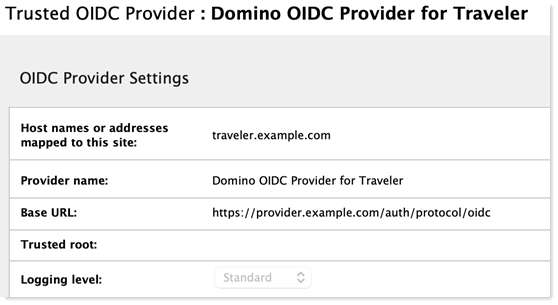
The following screenshot shows a Traveler server listening on traveler.example.com configured to trust a Domino OIDC provider hosted on provider.example.com. In most environments the rest of the fields in this document can be left with the default values. Those fields are described in Configuring trusted OIDC providers.
-
To configure the Domino OIDC provider to issue tokens to Verse Mobile clients,
follow the steps in Registering a new OAuth client.
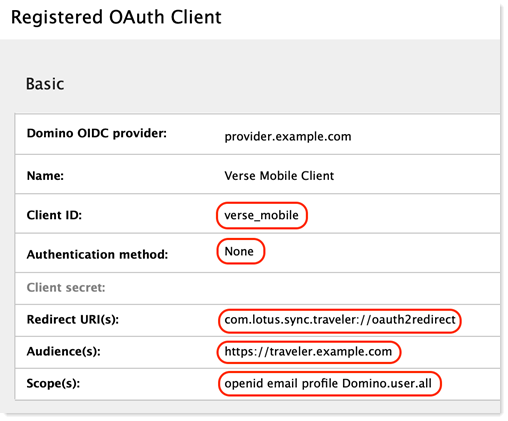
The screenshot below shows the correct values for a Traveler server hosted on traveler.example.com and an OIDC provider hosted on provider.example.com. Please note that the Client ID must be set to "verse_mobile", the authentication method must be set to "None", the Redirect URI(s) must be set to "com.lotus.sync.traveler://oauth2redirect", the audience must be set to "https://<Traveler site DNS name>", and the scope or scopes must contain at least "openid email profile Domino.user.all".
-
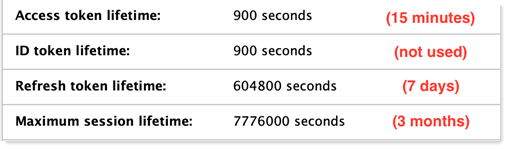
In the Advanced section of the Registered OAuth Client document that was just
created, administrators can change the lifetimes of the tokens being issued to
Verse Mobile clients. The Verse Mobile team recommends increasing these values
for an improved user experience as shown in the following screenshot.
Note:
- The Verse Mobile clients do not currently support logout so the logout-related fields in this document should be left blank.
- If an end user's device is lost, stolen, or compromised, all of their authorization grants can be revoked through a server console command on the Domino OIDC provider. The command oidcp show users <username> will show all of the login sessions and authorization grants for the specified user, and oidcp revoke user <username> will revoke all of the sessions for that user. It is best to use the former command before the latter to ensure that only the single desired user matches <username>.
- Restart the Domino server or servers hosting your Traveler internet site.