Administering marketing
To support marketing features in the , there are a number of administration tasks that you might need to perform. Use the Marketing tool in the to create and manage marketing campaigns and other store content, excluding catalog content. You can use the extensive precision marketing features in the tool to deliver targeted marketing messages to customers.
About this task
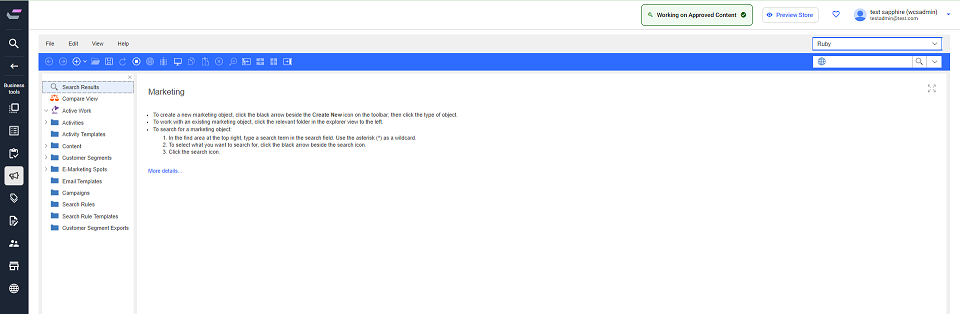
- The left pane, called the explorer view, lists the types of marketing objects you can create and manage by using the Marketing tool.
- The right pane shows an example of how you can set up a web activity to display a targeted ad on a store page by using a graphical editor that is called the Activity Builder.
What to do next
Here is a summary of tasks you can perform in the marketing tool:
| Tasks | Details | For more information |
|---|---|---|
| Display marketing information and other store content on your store pages |
|
Managing e-Marketing Spots |
| Manage the support material that is created for your campaigns |
Create marketing content to contain your marketing images, mobile text messages, and other images and text for display in e-Marketing Spots. You can specify click actions for marketing content, if required. You can create marketing image content that contains an image map. An image map can be associated with image content to provide multiple click actions within a single image. If Commerce Lab is integrated with an external content management system such as IBM Web Content Manager, you can retrieve content from this external system for use as marketing content. |
Managing marketing content |
| Create email marketing campaigns |
If Commerce Lab is integrated with IBM Marketing Center, you can use IBM Marketing Center to create marketing campaigns and send personalized (email) communications to target specific customers. You can send customers information about Commerce+ promotions and deliver promotion codes that are exported from Commerce Lab to the customers. |
Managing email activities |
| Create marketing activities that are triggered by specific customer behavior or events |
|
Creating a dialog activity |
| Experiment with your web activities | Perform A/B and multivariate testing to maximize the effectiveness of your web activities. For example, for web activities, you can experiment with different content, different locations on store pages, different customer segments, or different targets. Then, choose the best option to use going forward. | Managing marketing experiments |
| Create customer segments | Define customer segments by selecting a group of
customer attributes that are relevant to your marketing strategy.
The Marketing tool supports various attributes that cover
demographic data, registration status, purchase history, and so on.
You also can build customer segments that are based on specific
customer behavior, such as catalog browsing or search behavior. You
can then use these customer segments as targets for advertising,
promotions, and suggestive selling. As a Marketing Manager, Seller, or Marketing Director, you can export customer segment information into a file, such as the email addresses of all customers in a segment. Only a Marketing Director can download the customer segment export file to a local file system. |
Managing customer segments |
| Organize and manage marketing campaigns |
If Commerce Lab is integrated with IBM Marketing Center, you can use IBM Marketing Center to create marketing campaigns and send personalized communications to target specific customers. You can send customers information about Commerce+ promotions and deliver promotion codes that are exported from Commerce Lab to the customers. |
Managing campaigns |
| Organize marketing objects into folders |
Create and use marketing folders to group references to e-Marketing Spots, marketing activities, marketing content, and customer segments. With marketing folders, you can improve browsing for, and managing your marketing objects. |
|
| View statistics that are related to marketing activities | Analyze the progress and results of your marketing activities by viewing statistical data, such as impressions and click-through rates. | Managing activity statistics |
| Preview marketing information about store pages | View your marketing changes on your storefront
before you publish the changes to your live store. Options include
previewing your store:
You can also use the store preview to see the names and locations of e-Marketing Spots on each store page. |
Previewing a store |
| Create templates for marketing activities that you use repeatedly | To save time, create templates of your marketing activities. Then, you can use the templates as starting points. | Managing custom activity templates |
| Search | Search for your campaigns, activities, templates, e-Marketing Spots, marketing content, and customer segments. | Finding objects in Commerce Lab |