Substitution variables for entering HTML in Management Center
Previously if you entered HTML in the text field when you created or changed marketing content, you had to hardcode the specific context root for image paths and URLs. If your Management Center store preview and storefront used different context roots for images and URLs, you could not use the same HTML in store preview and the storefront. To switch between viewing the images and URLs in store preview and the storefront, you had to change the context root. You can include substitution variables for the image path and URLs so that you can view the images and URLs in store preview and the storefront without changing the context root. You can set the substitution variables for the context root when you create or change marketing content in the Management Center.
Sample static HTML snippet
[contextPath] and [imagePath] variables when you create or
change the HTML for image content, these paths must be passed by the e-Marketing Spot JSP file.
Include the following code to the e-Marketing Spot JSP files for your store to enable the use of
these variables for your store e-Marketing Spots.
<c:if test="${!empty env_contextAndServletPath}">
  <wcf:param name="DM_contextPath" value="${env_contextAndServletPath}" />
</c:if>
<c:if test="${!empty env_imageContextPath}">
  <wcf:param name="DM_imagePath" value="${env_imageContextPath}" />
</c:if>
Within your image content HTML in Management Center, you can then include substitution
variables when you define the image path or any URL. For example, the following HTML snippet
includes [imagePath],[contextPath], [storeId],
and [catalogId] substitution variables:
<div class="espot" style="position:relative;">
1<img alt="Dresses Image" src="[imagePath]/Aurora/content/custom/images/en_US/dresses_espot.png"/>
2<a href="[contextPath]/SearchDisplay?searchTerm=dresses&storeId=[storeId]&catalogId=[catalogId]">
<div class="imagelink" style="position: absolute; top: 220px; right: 0px; ">Dresses</div>
</a>
</div>- The line marked 1 shows how you can include images in your static
HTML. You can link to image files that you upload by using the Assets tool in Management Center. Notice that the path to the image file must start with the
[imagePath]. - The line marked 2 shows how you can link to other store pages from
your static HTML. This example uses the
SearchDisplaycommand to link to the search results page that contains results for the search termdresses.
Substitution variables for use in static HTML
HCL Commerce provides a set of substitution variables that you can use in your static HTML for marketing content. You can use these substitution variables for the marketing text image map HTML. By using the substitution variables, you can preview your custom content pages as they display on your live store. When you insert a substitution variable, the server automatically replaces the variable with the correct data from the current store environment.The following table details the substitution variables that are supported by default.
| Tag | Starter store variable | Description |
|---|---|---|
[contextPath] |
${env_contextAndServletPath} |
For URL links: Used together, these two variables insert a portion of the URL to a store page. Example 1: To link to another store page
called
Example 2: To link to a search results page for the search term
|
[imagePath] |
${env_imageContextPath} |
For image links: This variable inserts the portion of the image path that comes before /storedirectory in the Assets tool. For example, if the image file is at the following path in the Assets tool: The
link uses the |
[storeId] |
For URL links: This variable inserts the store ID in the URL. See Example 2: for the |
|
[catalogId] |
For URL links: This variable inserts the catalog ID in the URL. See Example 2: for the |
|
[ProductDisplay?productId=NNN] |
For substituting the SEO URL for product information. For example, if the
product page is at the following URL:
[ProductDisplay?productId=NNN] substitution variable to generate the following
URL: |
|
[CategoryDisplay?categoryId=NNN] |
For substituting the SEO URL for category information. For example, if the
category page is at the following URL: [CategoryDisplay?categoryId=NNN] substitution variable to generate the following
URL: |
[contextPath]/ to the
href URLs that you include in your HTML source code. Where
[contextPath]/ is the context or servlet path to the URL. For example,
<area shape="rect" coords="62,228,195,251" href="[webapp/wcs/preview/servlet]/[CategoryDisplay?categoryId=10003]"[webapp/wcs/preview/servlet]/ is the value for the
[contextPath]/.Using substitution variables with REST calls
Store developers are responsible for passing in the name and value to be replaced with substitution variables.
There are two types of substitution variables: 1 Predefined, and 2 Dynamic.
1 For predefined substitution variables, the marketing engine
defines two useful variables for static HTML content, [contextPath] and
[imagePath].
For example, in the
widgetdir/com.ibm.commerce.store.widgets.ContentRecommendation/ContentRecommendation_Data.jspf
file, the variables DM_contextPath (which will replace
[contextPath]), and DM_imagePath (which will replace
[imagePath]) are passed as parameters in the /espot REST API
call.
env_contextAndServletPath and jspStoreImgDir are
defined in the storedir/Common/EnvironmentSetup.jspf
file:
<%-- Call the REST service to get the data to display in the e-Marketing Spot --%>
<wcf:rest var="eSpotDatasRoot" url="/store/{storeId}/espot/{name}" format="json" >
            <%-- the name of the e-Marketing Spot --%>
            <wcf:param name="DM_EmsName" value="${emsName}" />

            <wcf:param name="DM_contextPath" value="${env_contextAndServletPath}" />
            <wcf:param name="DM_imagePath" value="${requestScope.jspStoreImgDir}" />
Therefore, store developers will need to find out the applicable values for their environment and
pass in DM_contextPath and DM_imagePath parameters in the REST
call.
2 For dynamic substitution variables, store developers can pass in
one or more variables, such as DM_SubstitutionNameX and
DM_SubstitutionValueX, where X is a value
starting at 1.
The Aurora starter store passes in 6 of these variables: [storeName],
[fullPathHomeURL], [langlocale],
[productTotalCount], [contentTotalCount], and
[widgetSuffix].
<c:if test="${empty param.substitutionName1}">
<wcf:param name="DM_SubstitutionName1" value="[storeName]" />
<wcf:param name="DM_SubstitutionValue1" value="${storeName}" />
</c:if>
<c:if test="${empty param.substitutionName2}">
<wcf:param name="DM_SubstitutionName2" value="[fullPathHomeURL]" />
<wcf:param name="DM_SubstitutionValue2" value="${homePageURL}" />
</c:if>
<c:if test="${empty param.substitutionName3}">
<wcf:param name="DM_SubstitutionName3" value="[langlocale]" />
<wcf:param name="DM_SubstitutionValue3" value="${locale}" />
</c:if>
<c:if test="${empty param.substitutionName4}">
<wcf:param name="DM_SubstitutionName4" value="[productTotalCount]" />
<wcf:param name="DM_SubstitutionValue4" value="${searchTabSubText1}" />
</c:if>

<c:if test="${empty param.substitutionName5}">
<wcf:param name="DM_SubstitutionName5" value="[contentTotalCount]" />
<wcf:param name="DM_SubstitutionValue5" value="${searchTabSubText2}" />
</c:if>

<wcf:param name="DM_SubstitutionName6" value="[widgetSuffix]" />
<wcf:param name="DM_SubstitutionValue6" value="${widgetSuffix}" />
In this scenario, the store developer will need to find out the values applicable for their
environment and pass in DM_SubstitutionNameX and
DM_SubstitutionValueX parameters in the REST call.
Substitution variables for marketing content static HTML in Emerald and Ruby storefronts
In the Marketing tool, you can use variable substitution tokens within marketing content
defined as static HTML. These custom tokens are dynamically replaced at runtime when the
required name-value pair parameters are passed in an eSpot REST API call. The
DM_SubstitutionNameN and DM_SubstitutionValueN
name-value pair query parameters are used in the eSpot REST API call. These parameters are
described on the Trigger
parameters page.
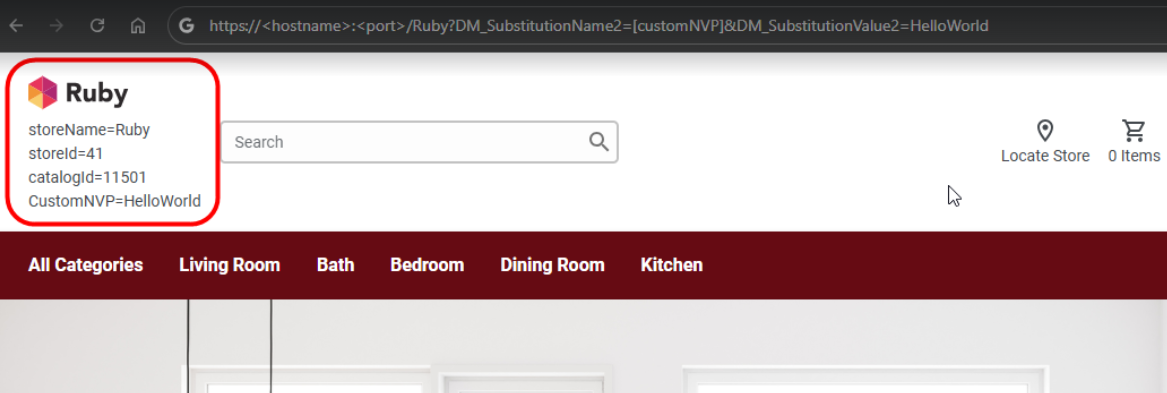
To test variable substitution, follow these steps in the Ruby storefront:
- In the Marketing tool for the Ruby storefront, create a new content object named
HeaderStoreLogo_Custom with the following static HTML source code:
<p>storeName=[storeName]</p> <p>storeId=[storeId]</p> <p>catalogId=[catalogId]</p> <p>CustomNVP=[customNVP]</p> - Locate the existing Ruby storefront HeaderStoreLogo eSpot.
- Add the newly created HeaderStoreLogo_Custom content object to
the default content grid, in sequence 2, after the existing
HeaderStoreLogo content object.

- In a browser, open the Ruby storefront home page using the following URL:
https://hostname:port/Ruby?DM_SubstitutionName2=[customNVP]&DM_SubstitutionValue2=HelloWorld - Verify that the
DM_SubstitutionName2andDM_SubstitutionValue2parameters specified in the URL are passed to the underlying eSpot REST API calls. - Confirm that the HTML tokens in the custom content object are dynamically
replaced.
 Note:
Note:DM_SubstitutionName1is reserved for the[storeName]token.- Internal predefined tokens such as
[storeId]and[catalogId]are also dynamically replaced. - You can use
DM_SubstitutionName2,DM_SubstitutionName3,DM_SubstitutionName4, and so on to specify additional custom substitution tokens.
Results: The DM_SubstitutionName2 and
DM_SubstitutionValue2 parameters are passed to the eSpot REST API, and
the HTML tokens are dynamically replaced in the Ruby storefront.