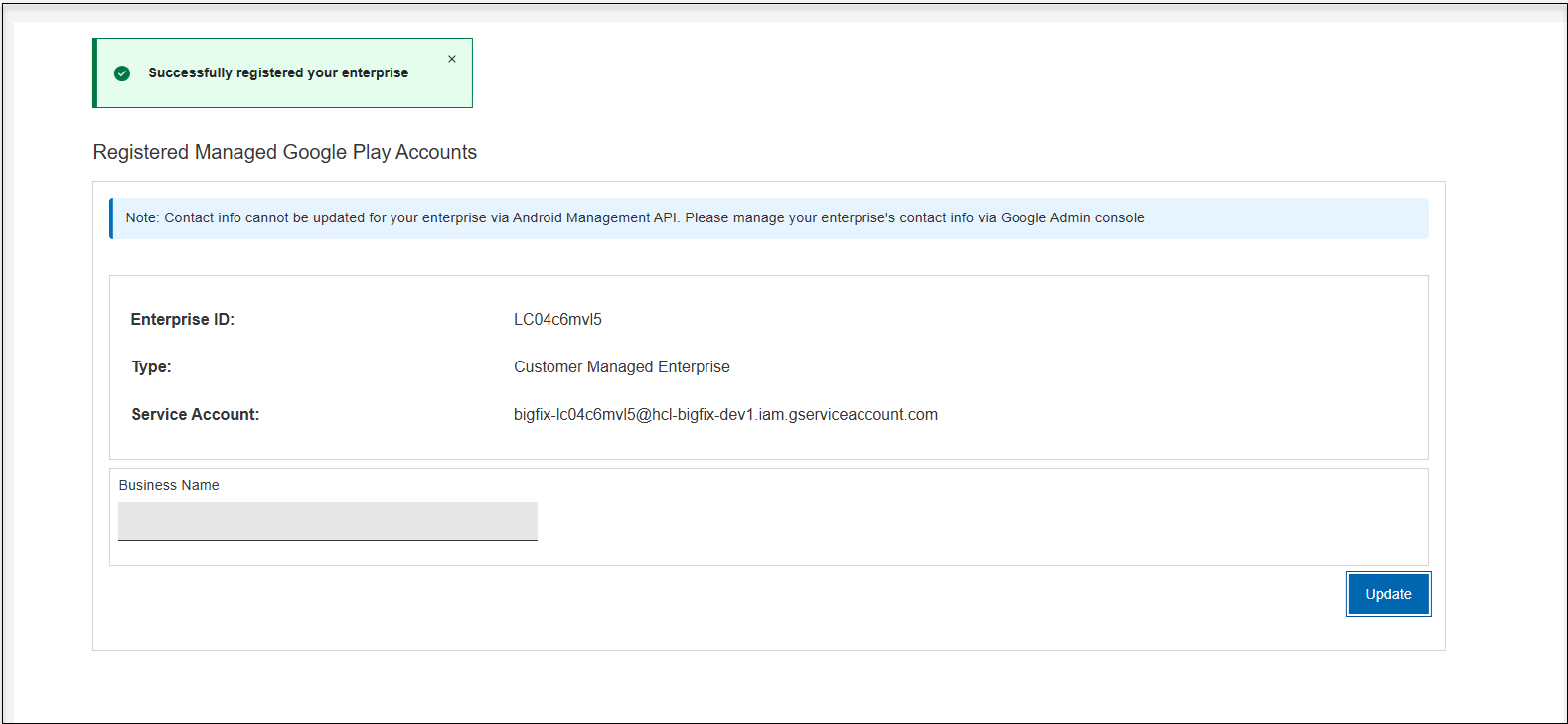
Customer Managed Enterprise Registration
Learn how to set up Customer Managed Enterprise Registration by configuring Google Workspace (GWS) and linking Android Enterprise registration to your GWS domain.
Prerequisites
- You need GWS super admin credentials to set up GWS (Formerly G-Suite)
- You must have Installed MDM service for Android
To set up Customer Managed Enterprise Registration, Complete the following steps.
- Setup GWS (Formerly G-Suite)
- Customer Managed Enterprise Registration
1. Setup GWS
This step should be performed after completing Enterprise Registration from the BigFix MDM UI (by following the steps in this document using the Customer-managed enterprise registration option. Once completed, the Android Enterprise registration will be bound to the GWS domain.
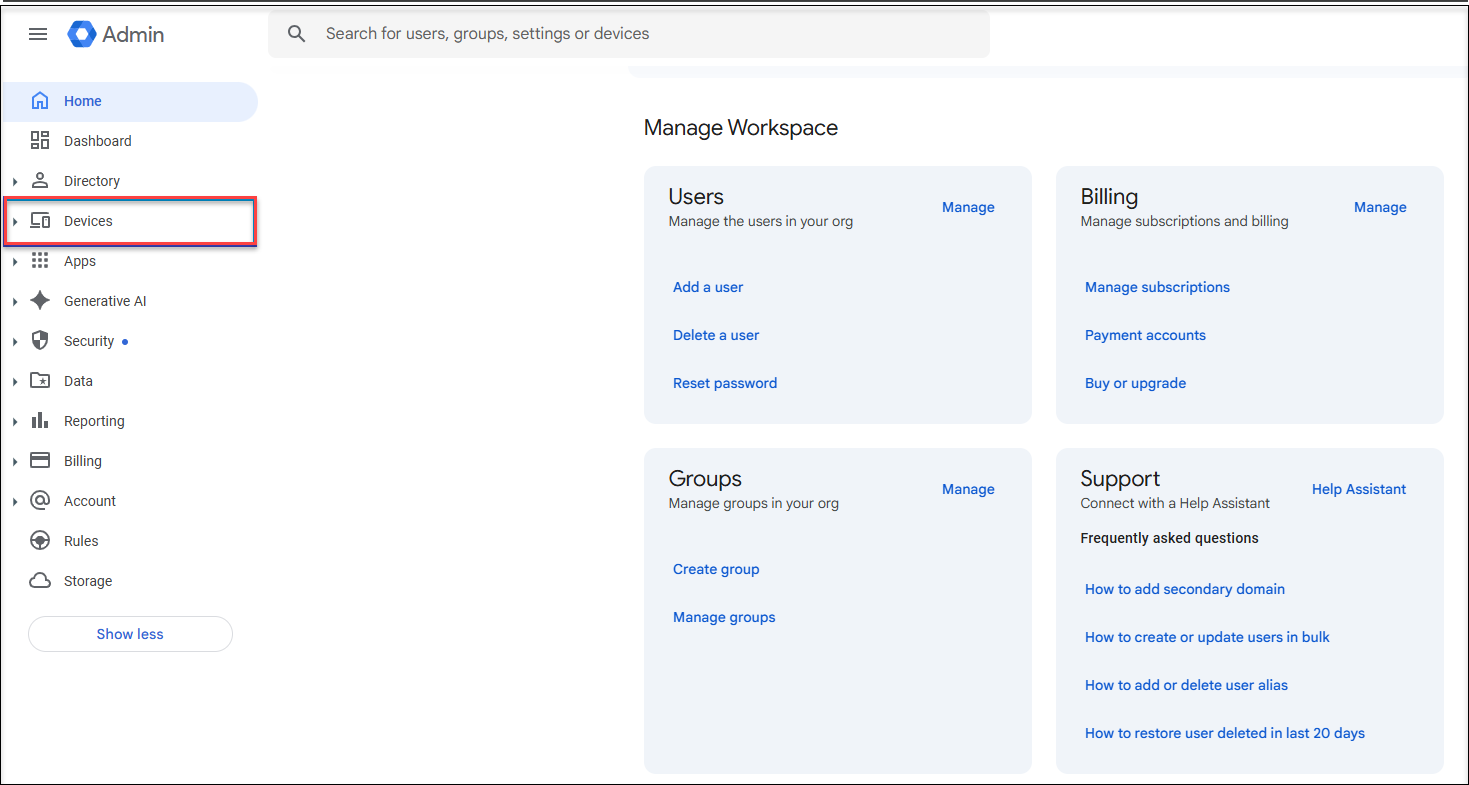
- Go to admin.google.com and login with admin credentials).
- From the left side menu, select devices options
- Select the Universal Settings: Navigate to ( and select Mobile management.
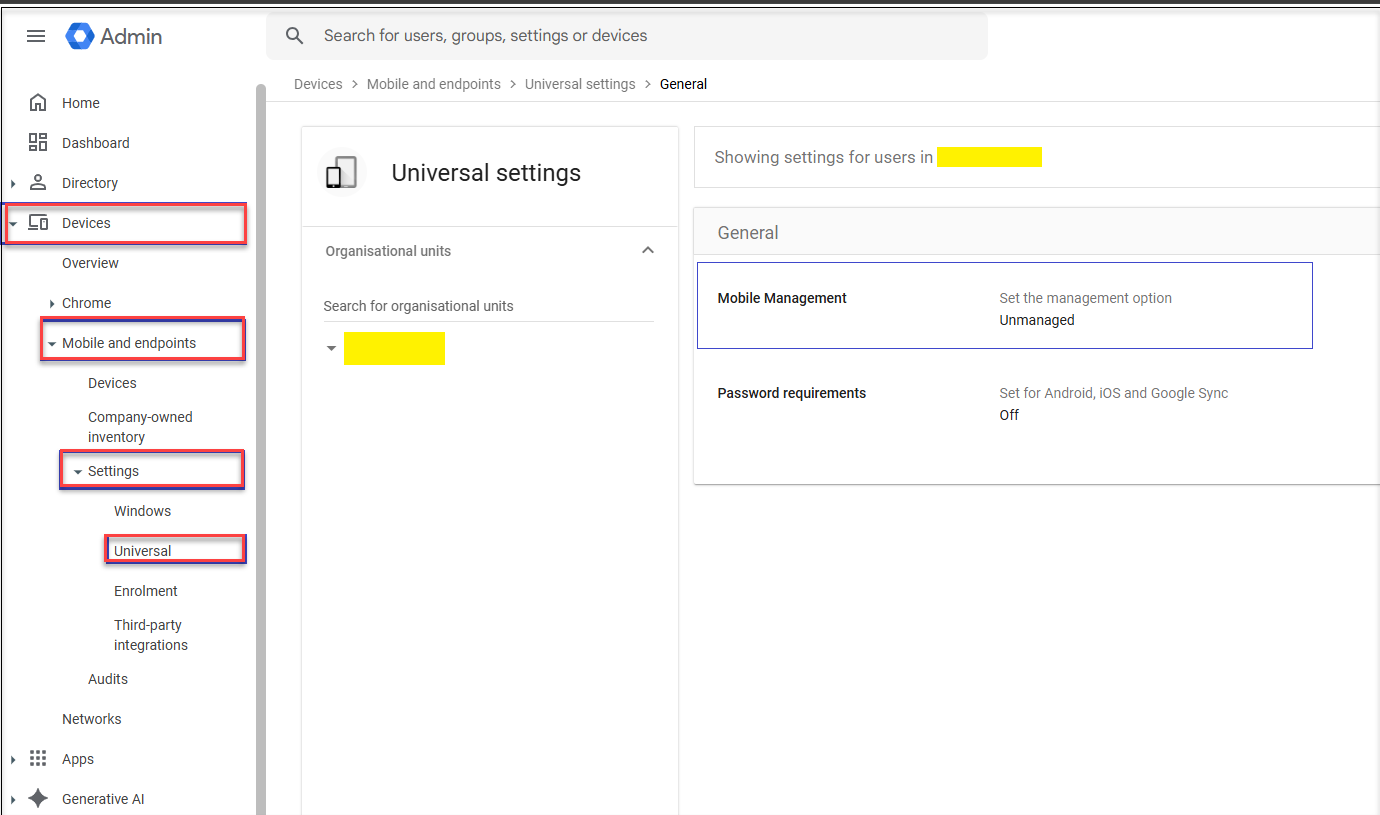
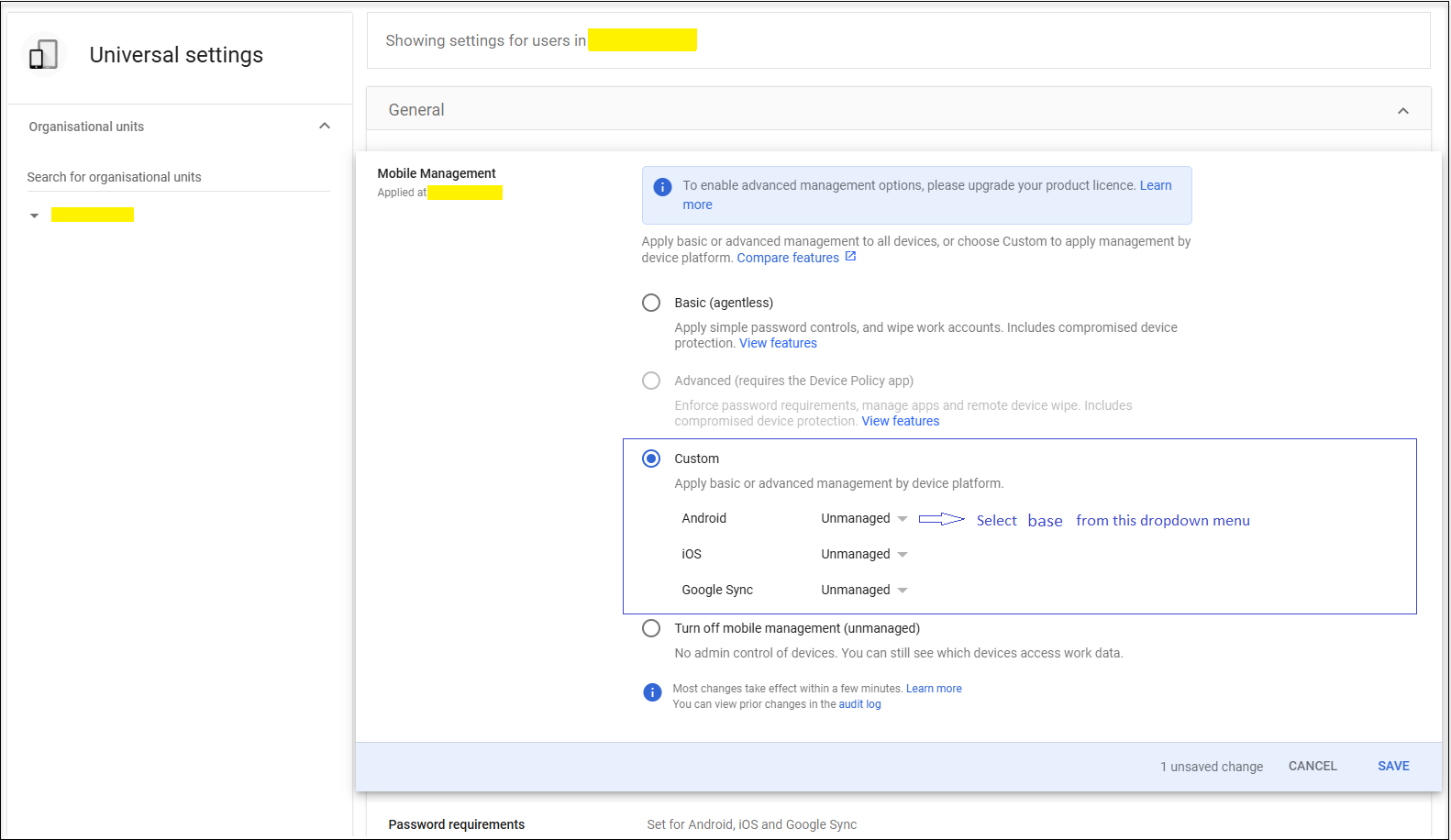
- In the Mobile Management option, select the
Turn off mobile management.
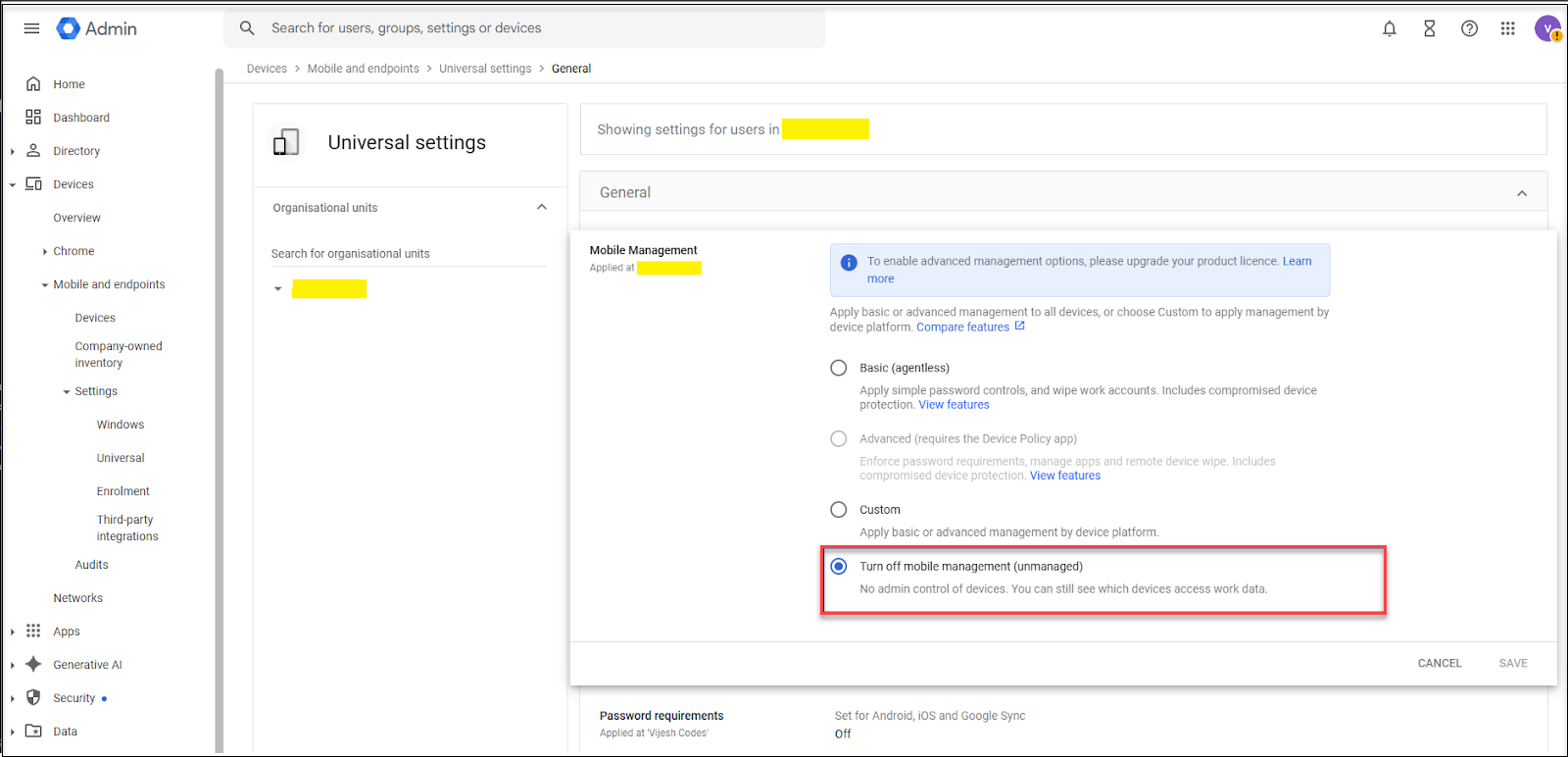
- Optional: If you have preferences for which device platforms need to be managed
by Endpoint Central, then navigate to Custom and select
Android and then from the dropdown menu, select
Basic.
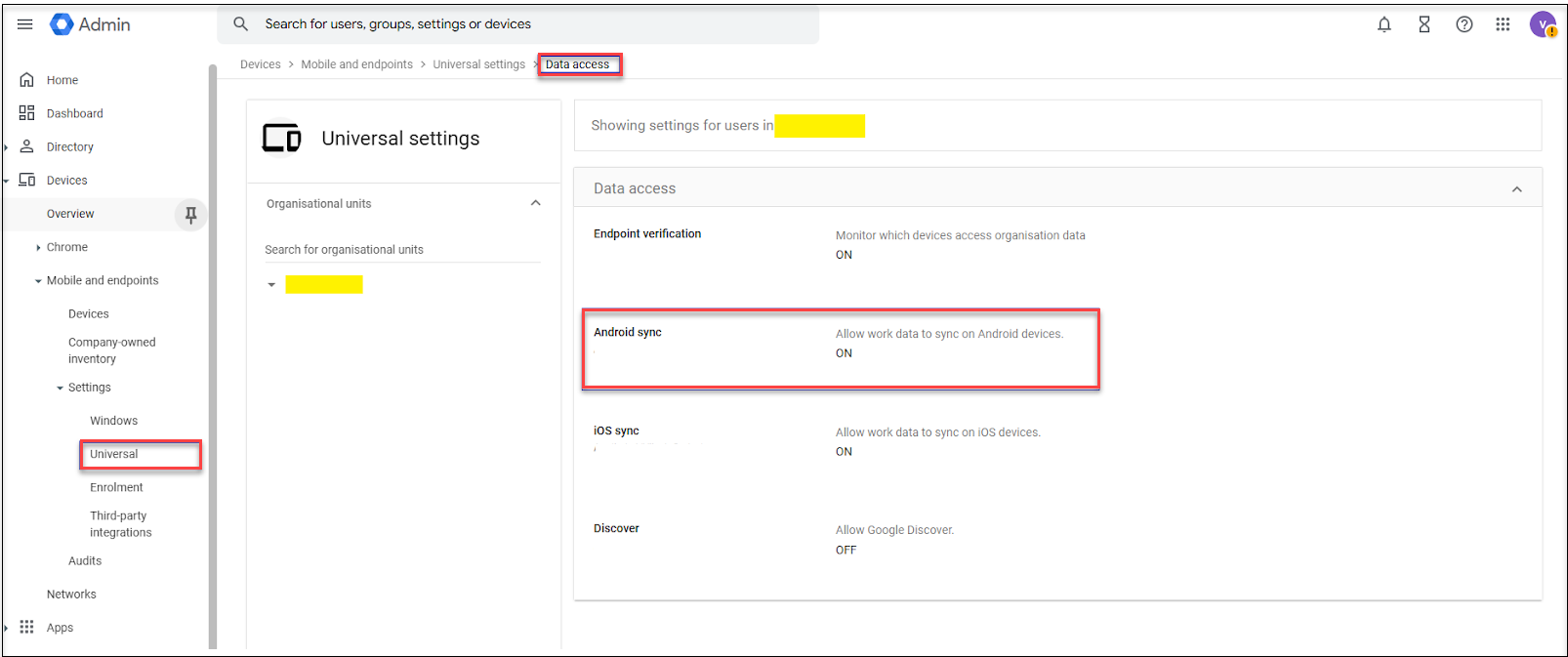
- In the Universal Settings, click on Data
Access and turn on Android sync.
- Go back to Settings and select Third-party
integrations.
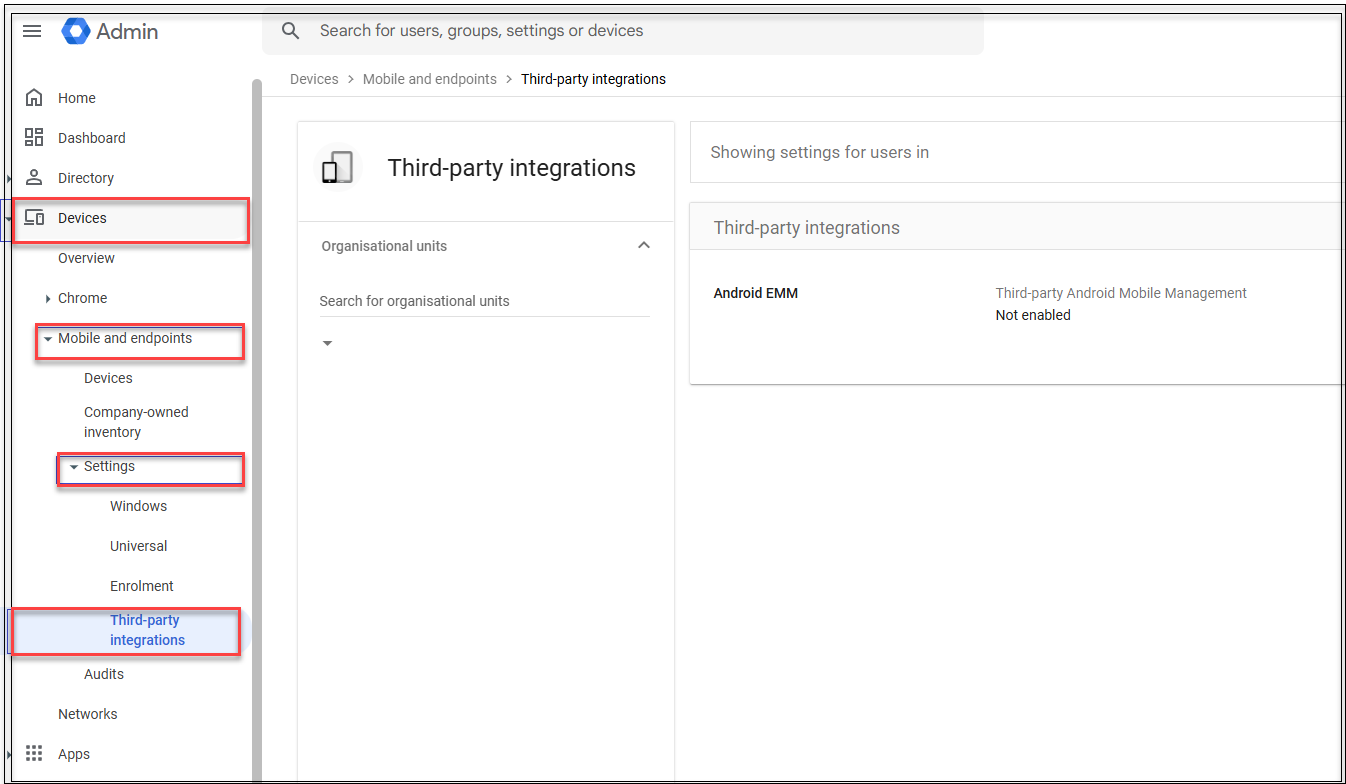
- Enable the third party integration and select the registered Enterprise ID or
come back to this page once the enterprise registration is completed by using
Customer managed mode.
2. Customer Managed Enterprise Registration
Prerequisites: Ensure that you have created and uploaded the token from MCM server’s configuration page.
- Go to MCM server configuration (https://<mcm_server_ip_or_dns>/config)
page by login into the configuration page by using admin credentials.
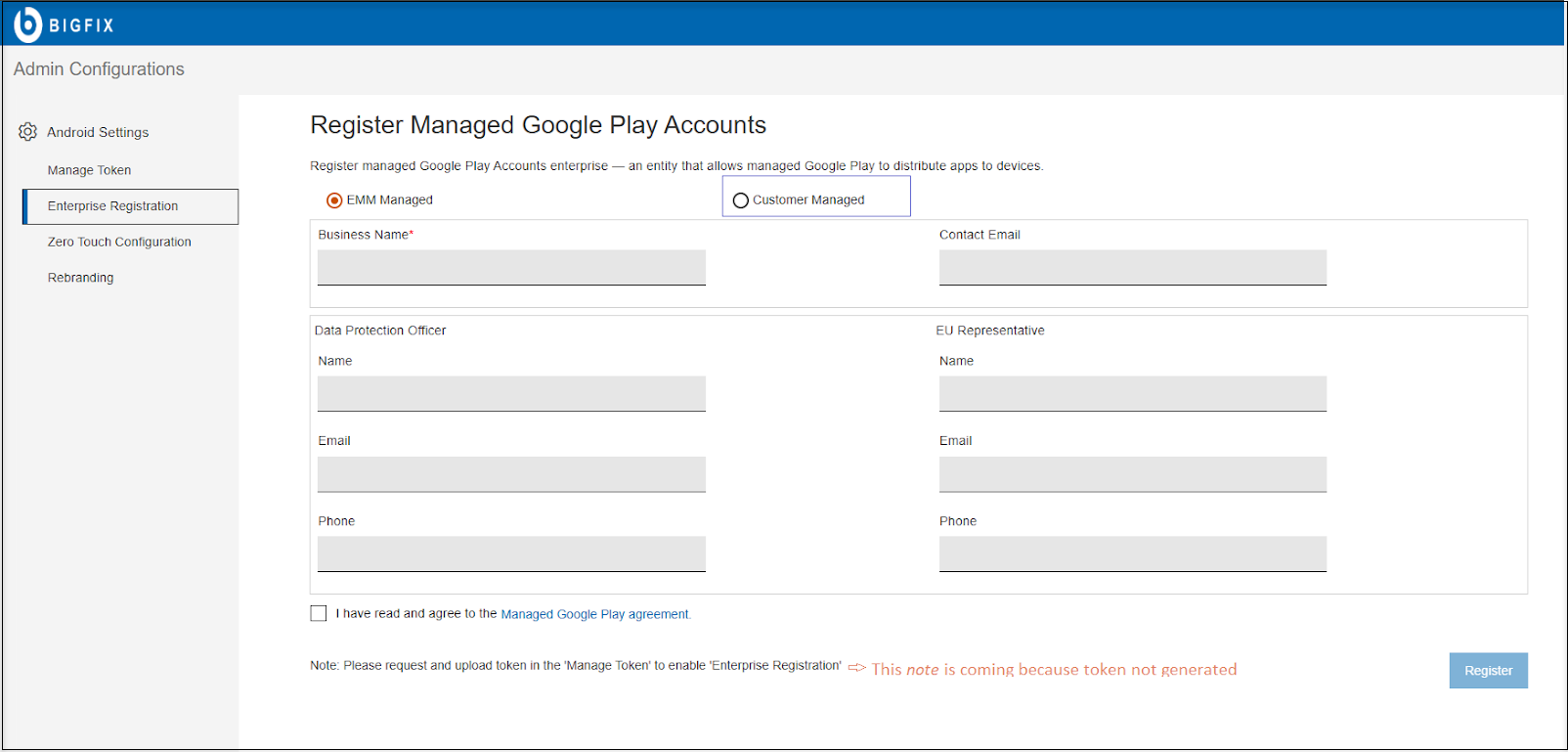
- Select the Customer Managed option.
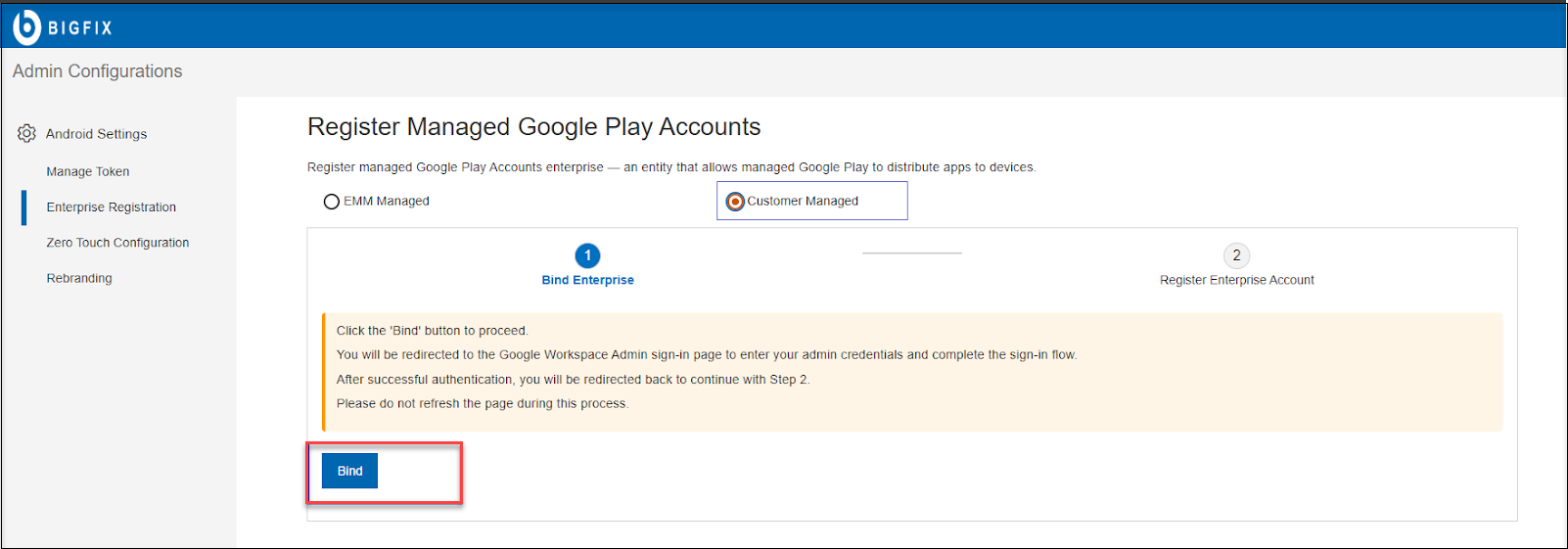
- Read the warning and then click on Bind button to
initiate the process.
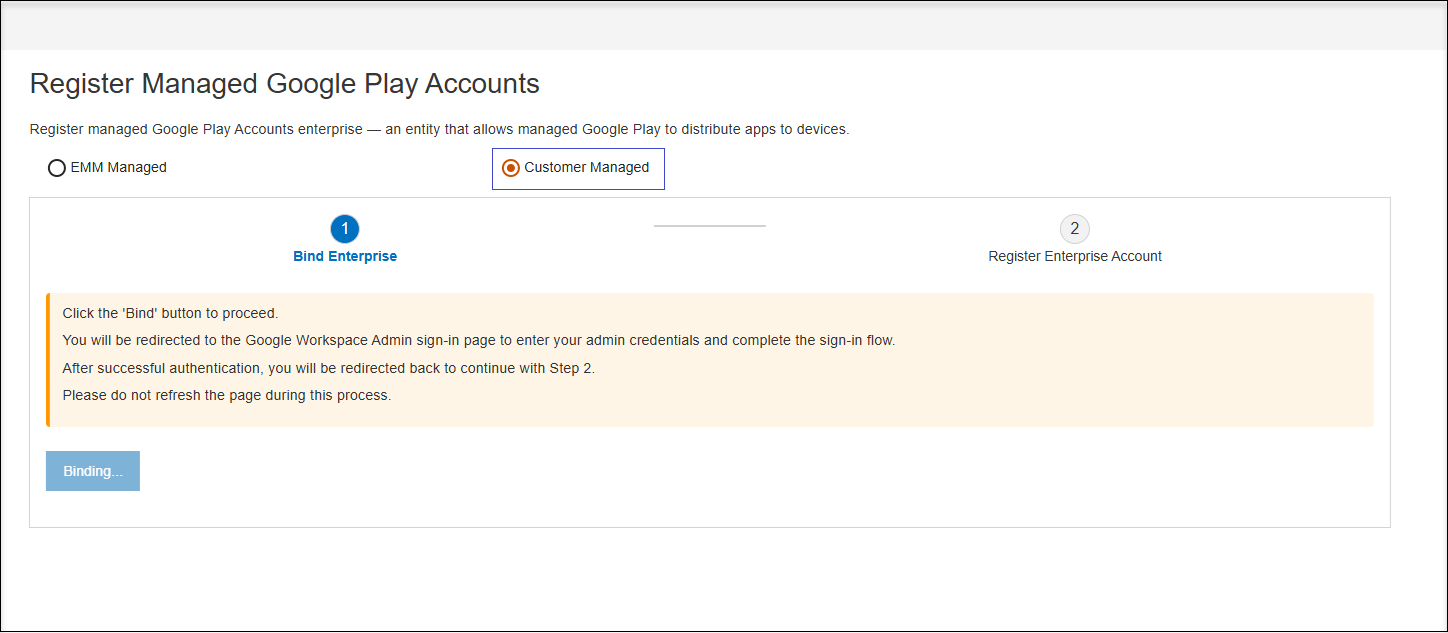
- Wait for the binding to complete and redirect to the GSuite authentication
page.
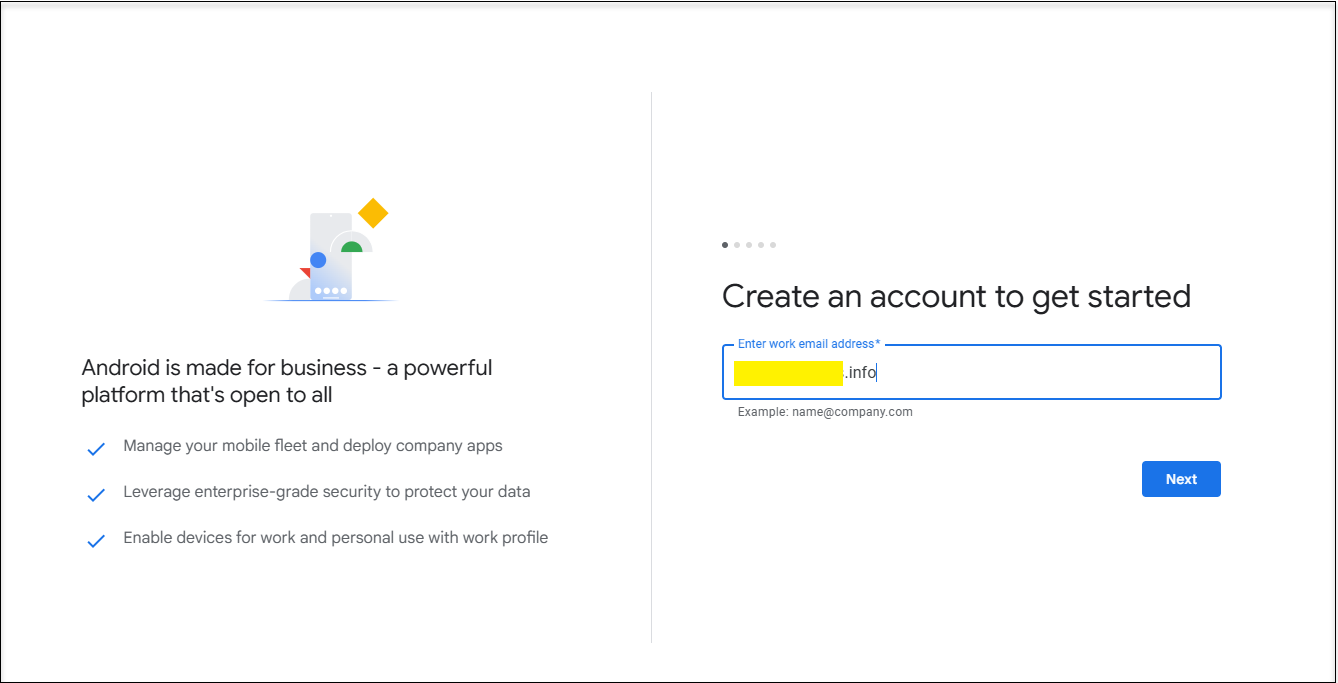
- Give username and password and complete the GSuite authentication.
- After successful authentication, you will be taken to a page where you can
either create or select enterprise
IDs.
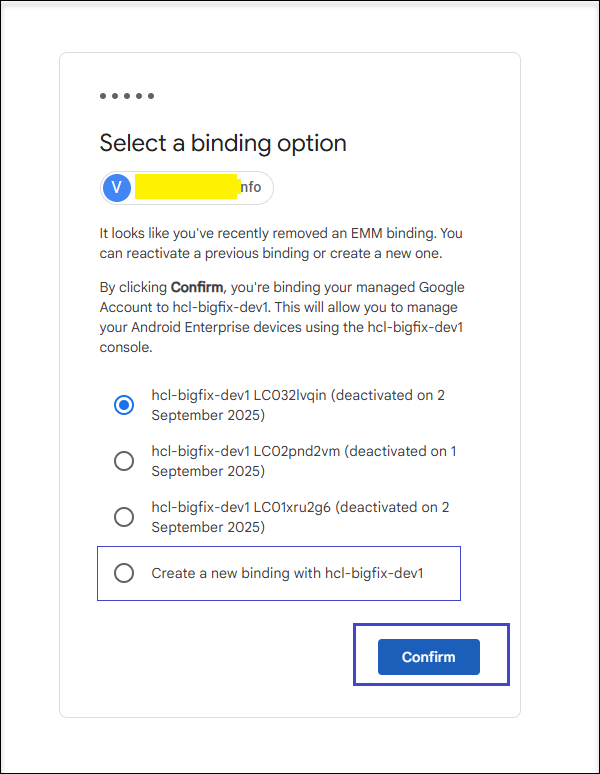 Note:
Note:If this is your first time, choose Create a new bindingand then click on Confirm button.
You are seeing the Select option because multiple enterprise IDs have already been created and deactivated for this GSuite account. - After clicking the Confirm button, you will be
redirected back to the MCM configuration’s Enterprise Registration
page. Enter a business name if needed (this field is optional). If left
blank, your G Suite business name will be used by default. Then click
Register to continue with the enterprise
registration. Note: The registration process may take some time, so please wait. If it fails, try clicking the Register button again after 5–10 seconds.
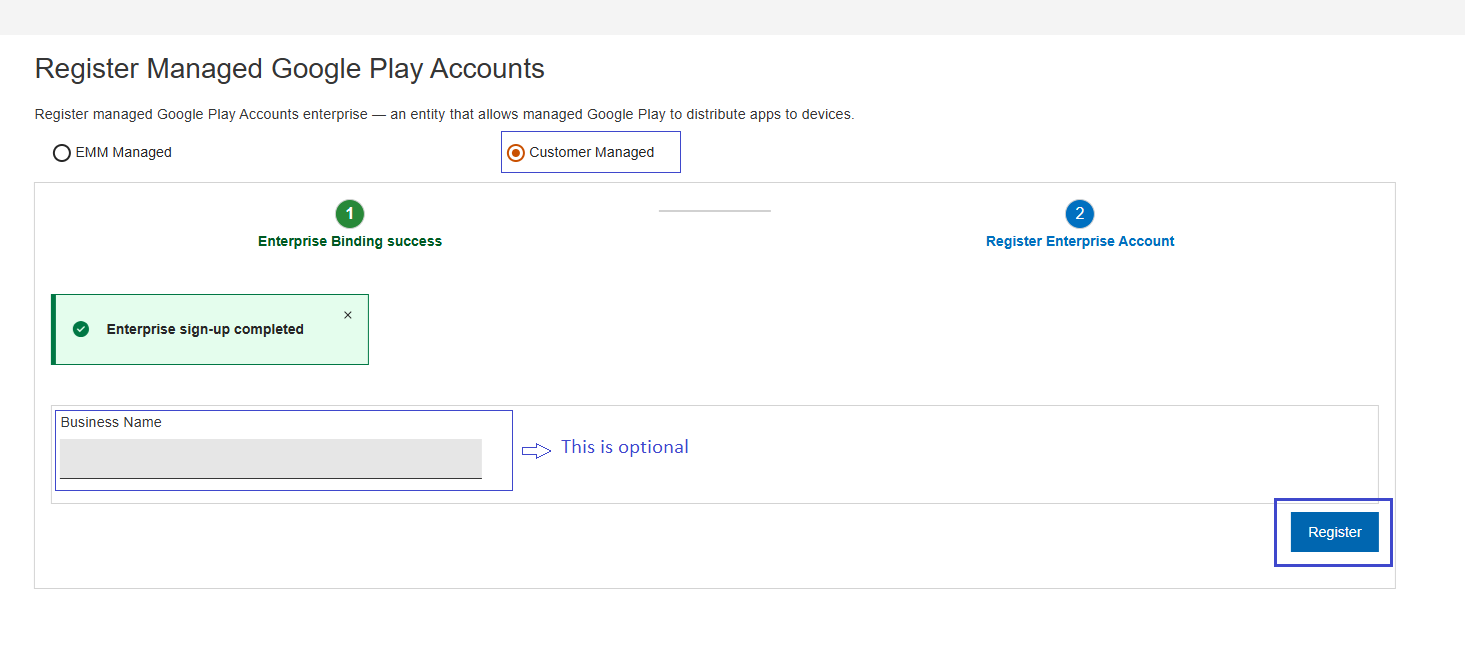
- Once registration is completed, you can update the Business
Name, if you wish to change.