MITRE APT report
The MITRE APT Report in CyberFOCUS helps organizations understand and mitigate vulnerabilities by mapping them to adversary tactics and techniques. It provides valuable insights for security teams, enabling proactive defense strategies.
The MITRE APT report maps adversary groups and ATT&CK techniques to related CVEs using MITRE ATT&CK® data, then correlates those CVEs with CISA KEV metadata and BigFix Fixlet and device exposure data to help prioritize mitigation. It visualizes the analysis as a bar chart to help you take an informed decision to mitigate the security threat.
The MITRE ATT&CK® Framework documents real-world attack techniques used by Advanced Persistent Threat (APT) groups. For more details, visit MITRE ATT&CK.
Key Benefits of MITRE APT Report
-
MITRE APT Report maps vulnerabilities to the MITRE ATT&CK framework, which tracks adversary tactics and techniques.
- The report analyses the data within MITRE ATT&CK and correlates the tactics, techniques, and procedures leveraged by APT groups to the BigFix Patch content based on the CVEs.
- It enriches those CVEs with vulnerability metadata such as CVSS score, severity, due date, and remediation guidance from the CISA KEV catalog.
- It highlights vulnerabilities linked to known adversary techniques.
- It helps security teams understand attack vectors and prepare defense strategies.
What the report includes
A CVE appears in this report only if it satisfies all three of the following:
- MITRE ATT&CK associates it with at least one APT group.
- It appears in the CISA KEV catalog, which supplies its CVSS score, severity, vector, due date, required action, vendor, and product.
- Fixlets exist for it that apply to the devices in your environment.
Because a CVE must clear all three tests, this report normally lists far fewer CVEs than the CISA KEV Report. A short list is the expected result, not a sign that data is missing.
Accessing MITRE APT report
To view the MITRE APTs report, expand Resolve from the side navigation, select CyberFOCUS, and then click the MITRE APT tab.
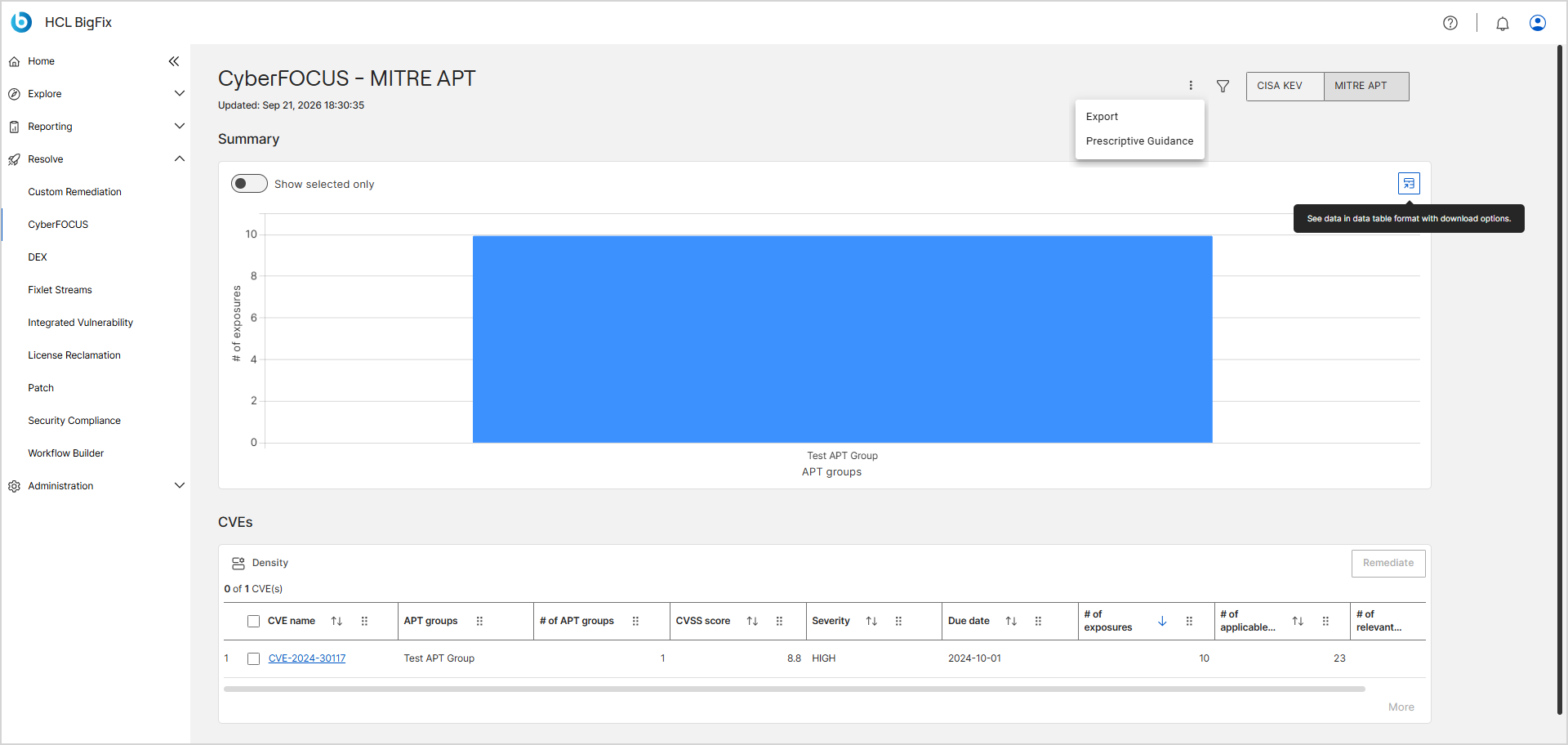
MITRE APT View and Utility Controls
The MITRE APT page provides utility controls that enable you to toggle between vulnerability reports, refine the displayed data, export information, and access remediation guidance.
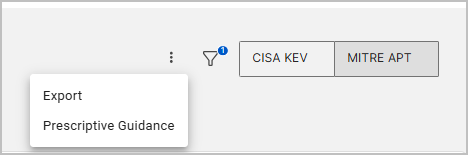
- Report Toggle (CISA KEV / MITRE APT) – Click the buttons to switch the dashboard view between the MITRE APT and CISA KEV reports.
- Click the 3-dot ⋮ menu to access the Export and
Prescriptive Guidance tools.
- Export – Click the ⋮ menu and select Export to open the Export panel. Select your preferred format (CSV, Excel, JPEG, PNG, or PDF), and click Download to save the CVE data. For detailed steps, see Exporting Data and Exporting Charts.
- Prescriptive Guidance – Click the ⋮ menu and select Prescriptive Guidance to view actionable remediation recommendations. For more information, see Prescriptive Guidance.
- Filter – Click the Filter icon to open the filter panel. Use this tool to
refine and reduce the number of CVEs displayed in the data table. For detailed
steps, including how to save a filter and mark it as a favourite, see Global filter.Note:By default, the system applies a filter where the Property is set to
N° exposures, the Operator isGreater than, and the Value is0.
MITRE APT Report Data Representation and Interactions
CyberFOCUS displays MITRE APT data in an interactive table and chart, offering insights into an organization’s exposure to known threats.
- MITRE APT Chart Representation
- The chart visualizes the exposure each adversary group represents:
-
The stacked bars on the chart indicate different CVE’s that have been associated to a given APT group.
-
Colour of the bar indicates the unique CVE. The same colour on the different bars indicates that the same CVE can be leveraged by different APT groups.
-
X-axis is labeled APT groups and lists the adversary groups.
-
Y-axis is labeled # of exposures and measures the exposure each group represents.
-
When a group is associated with a single CVE, its bar is one solid block rather than a stack.
Note:Unlike the CISA KEV chart, the MITRE APT chart has no zoom controls. -
- MITRE APT Chart Interactions
-
- Hover for Details: Hover over a bars in the graph to view additional details about the associated CVE and its impact on the applicable environment below the chart.
- Show Selected Only: Filter the chart to display only the CVEs selected from the table.
- Chart Data Table: Click the data table icon at the upper right of the chart to open the plotted values as text. The icon tooltip reads See data in data table format with download options. The panel is titled CyberFOCUS MITRE APT. Its first column is APT groups, and it then shows one sortable column per plotted CVE, headed by the CVE identifier, holding the exposure count that CVE contributes to each group. Select Copy to put the values on the clipboard, or choose CSV, PDF, or XLS from the Export as list to download them. A More button loads further rows. For detailed steps, see Viewing chart data in a table.
- Missing device data: When no device data is available, an information icon and this message appear in place of the bars, and the CVEs table shows an empty state. The axes still render.
- MITRE APT Table Representation
- The table provides a structured list of vulnerabilities with key
details. It offers the same Density control, Remediate button,
record counter, header checkbox, and sortable, reorderable columns as
the CISA KEV table. A More button below the table
loads further rows, and the table scrolls horizontally when the columns
exceed the width of the page. When no CVEs are available, it shows an
empty state. For how the counts are calculated, see How CyberFOCUS counts Fixlets, devices, and exposures.Note:Unlike the CISA KEV table, which uses the
N°form, the MITRE APT table column headings use the#form, for example# of exposures.Column Name Description CVE name Unique identifier for the vulnerability from the National Vulnerability Database (NVD). Select it to open the CVE details page. APT groups List of APT groups known to exploit the vulnerability, for example Test APT Group.# of APT groups Number of APT groups associated with the CVE. CVSS score Severity rating based on the Common Vulnerability Scoring System (CVSS), enriched from the CISA KEV catalog. Severity The severity band that corresponds to the CVSS score (Critical, High, Medium, or Low), enriched from the CISA KEV catalog. Due date The CISA remediation deadline for the vulnerability, enriched from the CISA KEV catalog. # of exposures The total number of Fixlet-to-device mappings required to remediate the vulnerability. The table is sorted by this column by default. # of applicable Fixlets Fixlets that address the CVE, whether or not they are currently relevant to a device. # of relevant Fixlets The subset of Fixlets that still need to be applied (after some patches have been deployed).
- MITRE APT Table Interactions
-
- Click for More Information: Click on a CVE in the table to open the CVE details page, which provides the description, the affected devices, the relevant Fixlets, and a direct link to the National Vulnerability Database (NVD).
- Sort Functionality: Sort vulnerabilities by any column in the table to quickly identify and prioritize threats.
- Start Remediation: Select one or more CVEs from the table
and click the Remediate button to initiate the CyberFOCUS remediation flow. The flow works
the same way as it does from the CISA KEV report: the six steps
are Fixlets,
Actions,
Devices,
Behavior,
Schedule, and
Summary, and the
Fixlets step opens pre-filtered with
Property set to
CVE, Operator
set to In, and the CVEs you selected
listed under Selected Values.Note:If no Fixlets match the selected CVEs, Select the Fixlets to remediate shows No Data Available, the counter reads
Selected 0 Fixlets to deploy, and Next stays dimmed. A CVE can appear in the report with applicable Fixlets that are not relevant to any device, which leaves nothing to deploy.