Analyses
The Analyses app lets you collect and review device data in BigFix. Use it to create analyses, define the devices they apply to, and manage the properties that each analysis reports.
An analysis is a collection of one or more properties that BigFix evaluates on the devices that fall within the analysis scope. Use analyses to gather information from devices, such as service status, installed software, or configuration values, and to view the results centrally. Together, these values give you a current view of your environment without deploying an action.
To open the app, expand Explore in the side navigation, and then select Analyses.
Key benefits
- Gather device data on a schedule that you control, from every report to once a day.
- Target only the devices that matter by defining a device scope for each analysis.
- Reuse the collected properties in filters, reports, and device investigations.
- Review all analyses and all properties from a single workspace.
Analyses tab
The page opens on the Analyses tab and provides a second Properties tab.
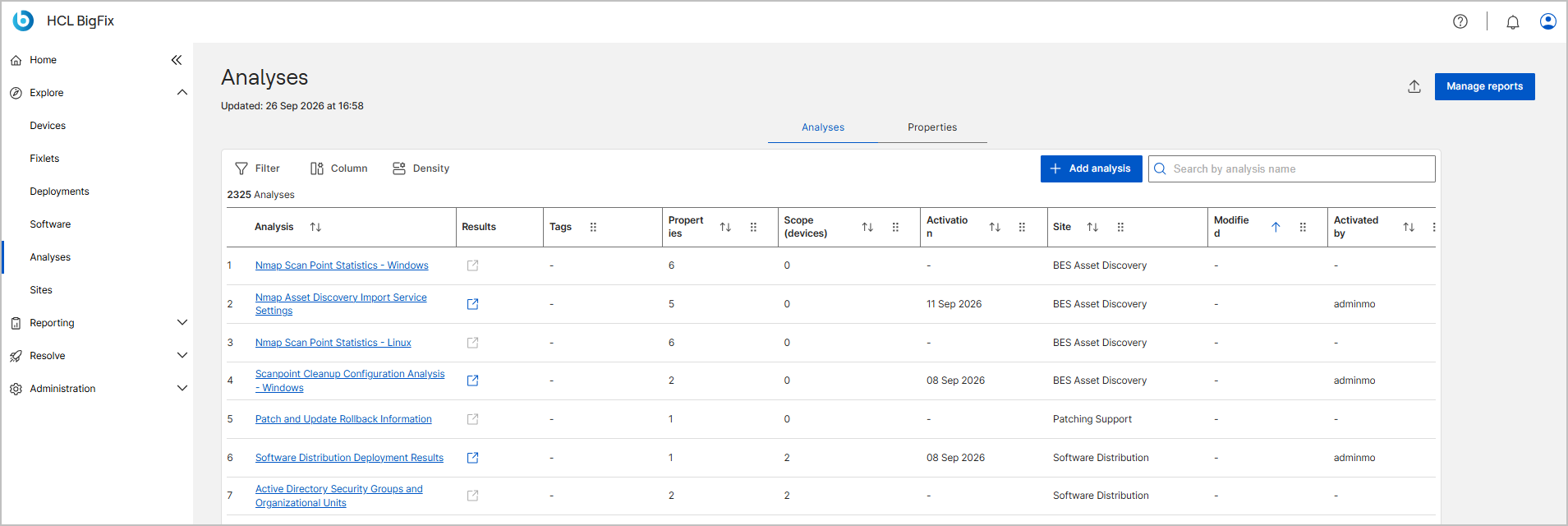
The Analyses tab lists all analyses that are visible to you, along with the total count. The following table describes the columns:
| Column | Description |
|---|---|
| Analysis | The analysis name. Select the name to open the analysis detail page. |
| Results | A link to the results of the analysis. The results open in the device list, where you can review the values that the devices report for the properties of the analysis. Results are available only when the analysis is activated. If an analysis was activated locally, its results are visible only to the operator who activated it. |
| Tags | The tags assigned to the analysis. Shows the tag name when one tag is assigned, a count link (for example, 2 tags) when more than one tag is assigned, or No data when no tag is assigned. Select a count link to open the tag drawer, where you can view and remove tags. For more information, see Managing Tags. |
| Properties | The number of properties in the analysis. |
| Scope (devices) | The number of devices in the analysis scope. |
| Activation | The time when the analysis was activated. |
| Site | The site that hosts the analysis. |
| Modified | The date when the analysis was last modified. |
| Activated by | The operator who activated the analysis. |
From this tab, you can select Add analysis to create an analysis, or use the search box to find an analysis by name.
Properties tab
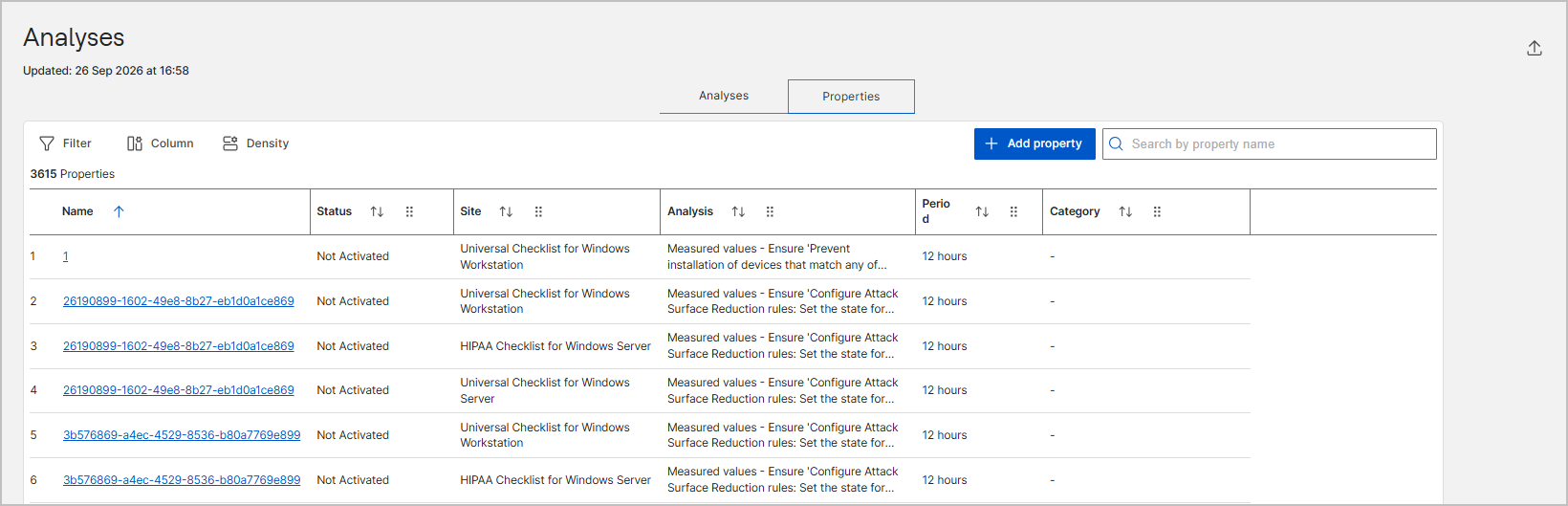
The Properties tab lists all retrieved properties in the deployment, along with the total count. The following table describes the columns:
| Column | Description |
|---|---|
| Name | The property name. Select the name to view or edit the property definition. |
| Status | The activation status of the property, for example Not Activated or Activated Globally. |
| Site | The site that hosts the property. |
| Analysis | The analysis that the property belongs to. |
| Period | How often devices evaluate the property, for example Every Report, 6 hours, or 1 day. |
| Category | The category of the property, if one is defined. |
From this tab, you can select Add property to create a property, select a property name to view or edit its definition, or use the search box to find a property by name.
Primary features
- Add analysis – Opens a three-step wizard to create an analysis. See Creating an analysis.
- Add property – Adds a property from the Properties tab. See Configuring analysis properties.
- Filter, Column, and Density – Narrow the list, choose which columns appear, and set the row spacing. For more information, see Table filter, Columns, and Density.
- Search – Finds an analysis by name or a property by name.
- Export report and Manage reports – Download the table data and save the current view. See Exporting and sharing analysis results and Manage Reports.
- Edit analysis – Reopens the wizard on the details page so that you can change the details, scope, or properties. See Editing and deleting an analysis.
- View results – Opens the results of an activated analysis in the device list. See Analysis detail page.
- Delete – Removes an analysis that is hosted on a custom site. See Editing and deleting an analysis.
Prerequisites
- Your BigFix operator account must have rights to the site that stores the analysis, such as a custom site or the master action site.
- You need custom content rights to create, edit, or delete an analysis and its properties.
- Reserved properties, such as Agent Type, are activated globally and cannot be edited.
- Devices report values only after the analysis is activated and the agent completes its next evaluation.