Editing and deleting an analysis
Use the Edit analysis wizard to change the details, the device scope, or the properties of an analysis. Use the delete icon to remove an analysis that you no longer need.
Before you begin
You need custom content rights and write access to the site that hosts the analysis.
About this task
You edit and delete an analysis from its detail page. The Edit analysis wizard uses the same three steps as the Add analysis wizard: Details, Scope, and Properties. You can change most configuration parameters, but not the site that hosts the analysis.
Procedure
-
Expand Explore in the side navigation, and then select
Analyses.
The Analyses list view opens.
-
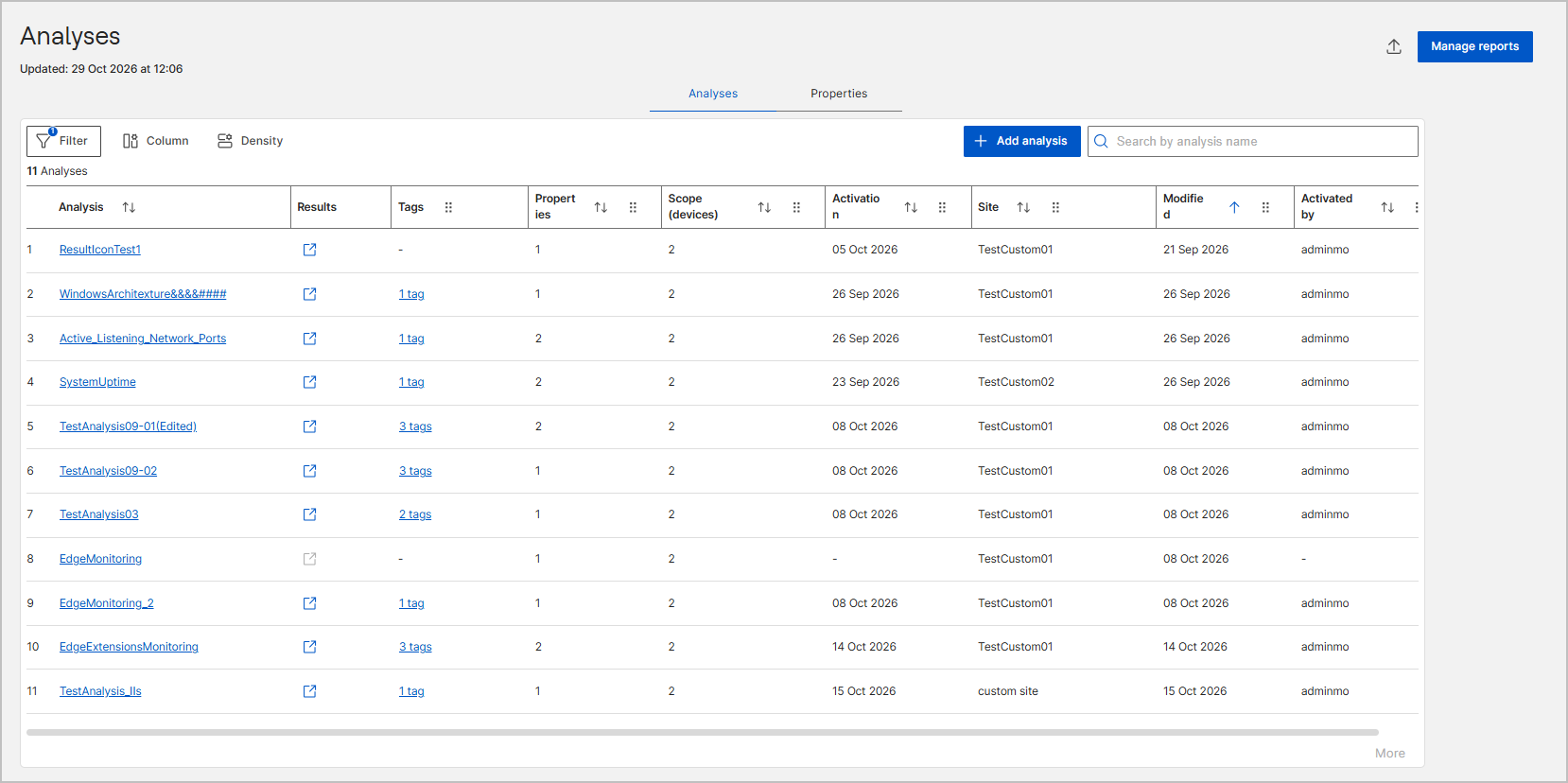
Use the table filter to identify the analyses that are hosted on custom
sites.
Above the table, select Filter (funnel icon), select the Site property and an operator, enter the name of the custom site, and then select Apply. The table shows only the analyses on that site, which are the ones that you can edit and delete. For more information, see Table filter.
-
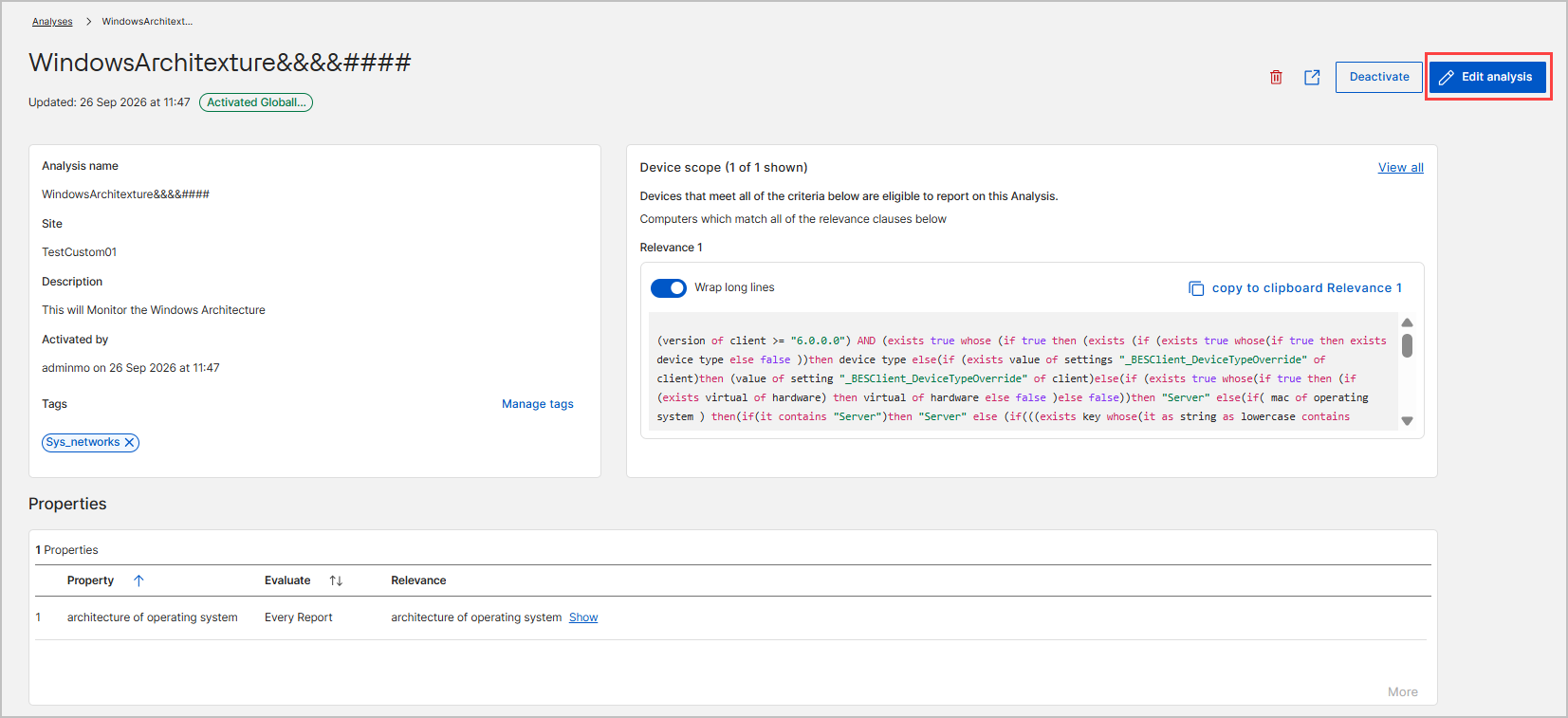
Select the name of the analysis that you want to change.
The analysis detail page opens.
-
In the upper-right corner of the page, select Edit
analysis.
If the button is dimmed, the analysis is hosted on an external site or you do not have permission to change it.
The Edit analysis wizard opens on the Details step. -
On the Details step, update the analysis details.
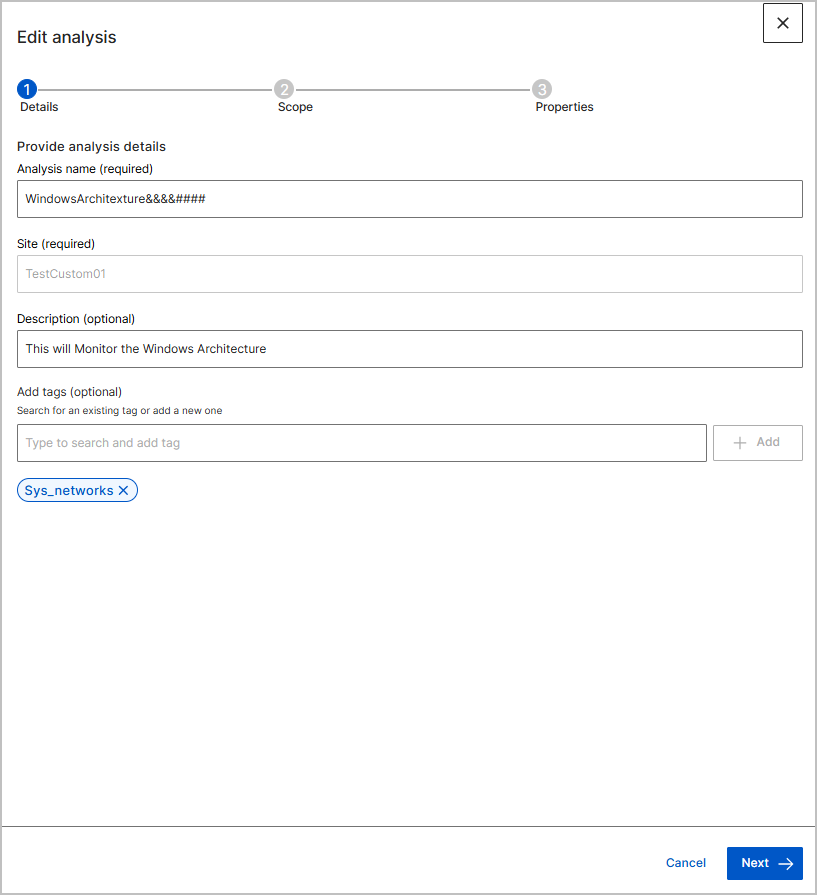
- In Analysis name (required), change the name.
- Optional: In Description, change the text that explains what the analysis collects.
- Optional: In Add tags, search for an existing tag or type a new one, and then select Add.
Note:Site (required) is read only. You cannot move an analysis to another site. -
Select Next to continue to the
Scope step.
-
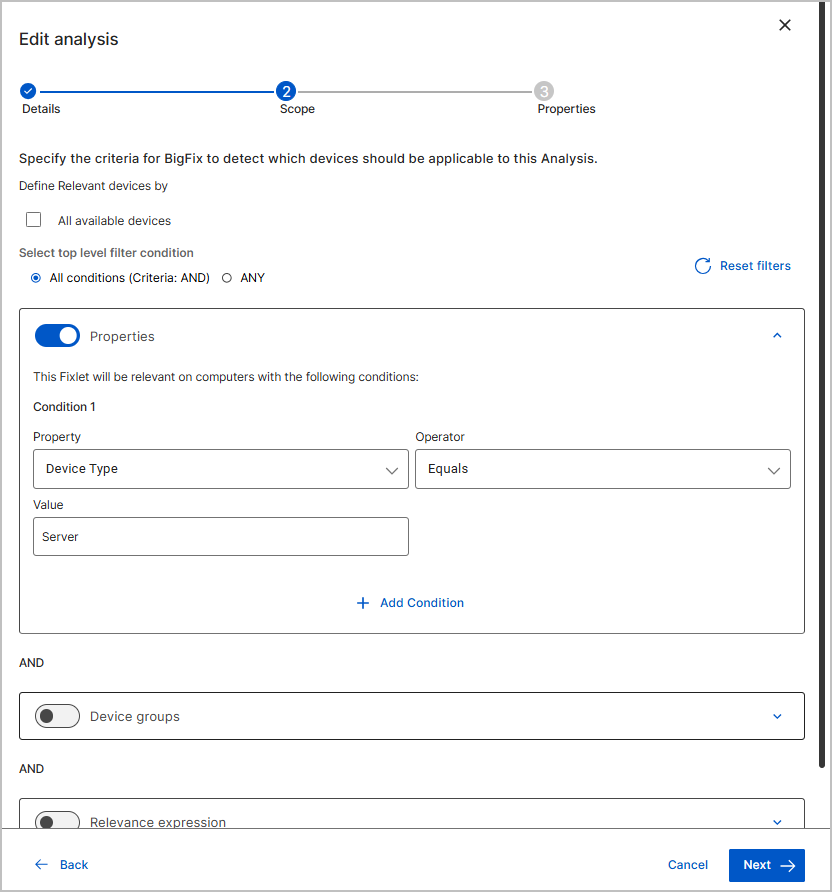
On the Scope step, update the criteria that BigFix uses
to detect which devices are applicable to the analysis.
-
Select Next to continue to the
Properties step.
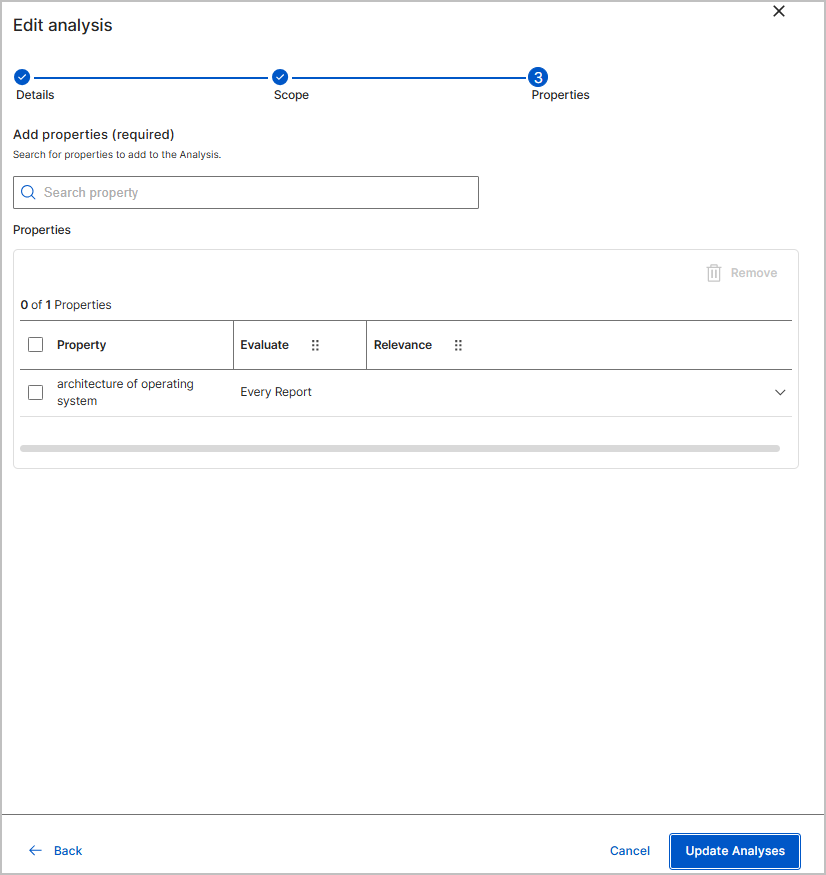 Select Back to return to a previous step.
-
On the Properties step, update the properties that the
analysis reports.
- To add a property, enter a property name in Search property, and then select a property from the results.
- To review a property definition, expand its row in the Properties table.
- To remove a property, select its check box, and then select Remove.
Note:The analysis must keep at least one property. -
Select Update Analyses.
The message Analysis Updated successfully appears, the wizard closes, and the detail page shows the new values.
Results
The analysis is saved with your changes. If the analysis is activated, devices report the updated property values after the agent completes its next evaluation.
Deleting an analysis
Delete an analysis when you no longer need the data that it collects. This action cannot be undone.
- Expand Explore in the side navigation, and then select Analyses.
- Select the name of the analysis that you want to remove.
- In the upper-right corner of the detail page, select the delete icon.
The icon is dimmed for analyses that are hosted on external sites. It is enabled for analyses that are hosted on custom sites, if you have the required permissions.
- In the Delete analysis dialog, review the name of the
analysis, and then select Delete.
Select Cancel or the close icon to keep the analysis.
The analysis is removed from the deployment and no longer appears in the Analyses list. Devices stop reporting the properties that belonged to it.
What to do next
To change only the device scope without opening the wizard, in the Device scope panel, select View all, update the criteria, and then select Save.