Remote Control support for Wayland on Linux
BigFix Remote Control supports remote sessions with Linux systems using the Wayland display protocol, with some differences from X11 in permission handling and session capabilities. Users must approve desktop access through the operating system, and certain features such as drawing tools and automatic session reconnection after reboot are unavailable. Screen capture requires an active user session, and additional configuration is needed for capturing locked GNOME desktops.
BigFix Remote Control supports remote control sessions with Linux targets that use the Wayland display protocol. Because Wayland controls access to the desktop, permission approval and some session capabilities differ from X11 desktop sessions.
Desktop-sharing permissions
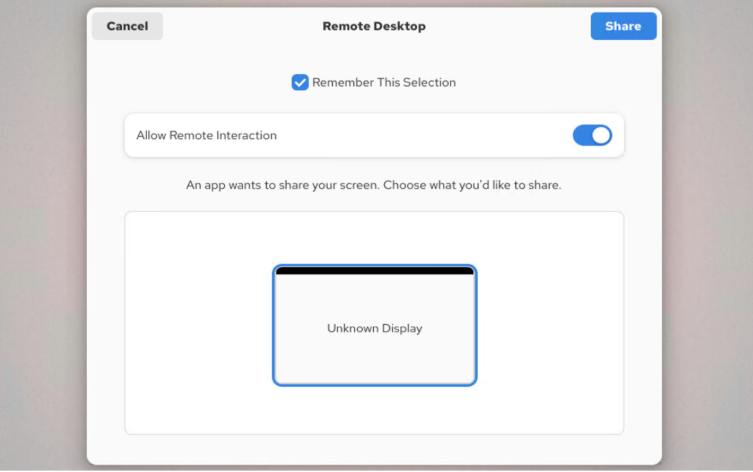
In supported desktop environments on Ubuntu 24.04 and higher or Red Hat Enterprise Linux (RHEL) 10 and higher, selecting the Allow Remote Interaction option generates a local restore token only if all permissions are given. This token permits the reuse of prior consent, preventing the operating-system prompt from appearing again on subsequent connections once full access is granted. Conversely, if this option remains unselected, the local user must manually approve each new session request.
Screen capture and locked sessions
Wayland screen capture requires a logged-in user with an active graphical desktop session. Screen capture at the system login screen, before a user has logged in, is not supported.
To capture a locked GNOME desktop session, the Allow Locked Remote Desktop GNOME Shell extension must be installed on the target. The extension does not enable screen capture at the login screen when no user session exists.
To install and manage extensions, you can install the extension management application on your distribution and install the Allow Locked Remote Desktop extension.
Unavailable features
The following Remote Control features are not available during a Wayland desktop session:
- Drawing Tool
- Highlight Tool
- Open URL
- Privacy Mode
- Reboot followed by automatic reconnection to the remote control session
The reboot restriction applies to automatic reconnection after a reboot; it does not imply that all reboot operations are unavailable.