
Raising an Application Exception Request
This task outlines the process for raising an application exception request for blocklisted applications, which requires approval from the organization's exception manager. Users must specify the valid start and end dates for the request.
About this task
As a user, you can raise requests for blocklisted
applications which need to be approved by your organization’s exception manager.
While raising the exception request, you also need to define the start and end dates
for the time the request will be valid. After the end date, the application will
automatically be blocklisted again.
Note: An end-user can raise
a maximum of 60 exception access requests for an endpoint.
After you raise the request, it goes to your organization’s exception manager for approval.
To raise an application exception request, follow the below steps:
Procedure
- Run the blocklisted application on your endpoint.
-
A BigFix® Application
Control notification message is displayed stating that the application is blocked as
per your organization’s security policy.
Figure 1. Application Blocked Notification 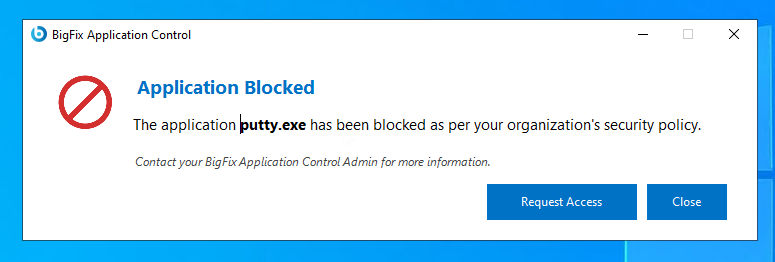
- From the notification message box, click the Request Access button.
-
A Reason for Access Request dialog box appears. In this
dialog box, type-in the business justification for requesting temporary access
to the application in the available text field.
Figure 2. Reason for Access Request Dialog 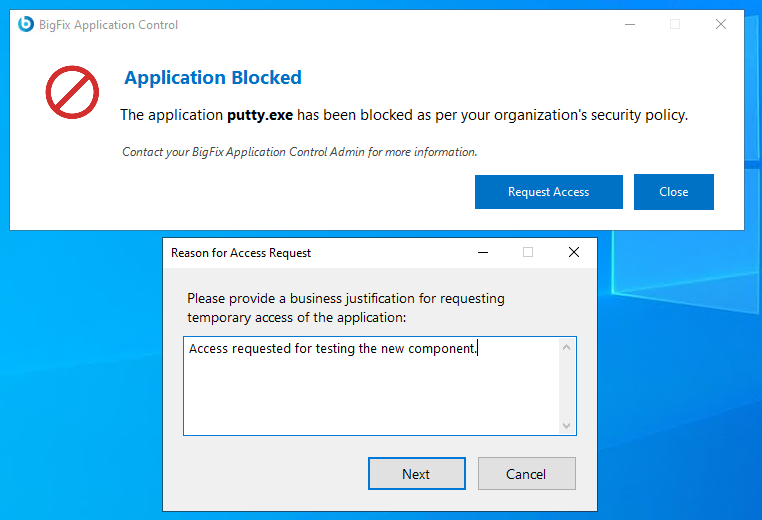
-
A date picker dialog box named Select Expiration Date is
displayed. Select the start and end date and click
OK.
Figure 3. Set Expiration Date Dialog box 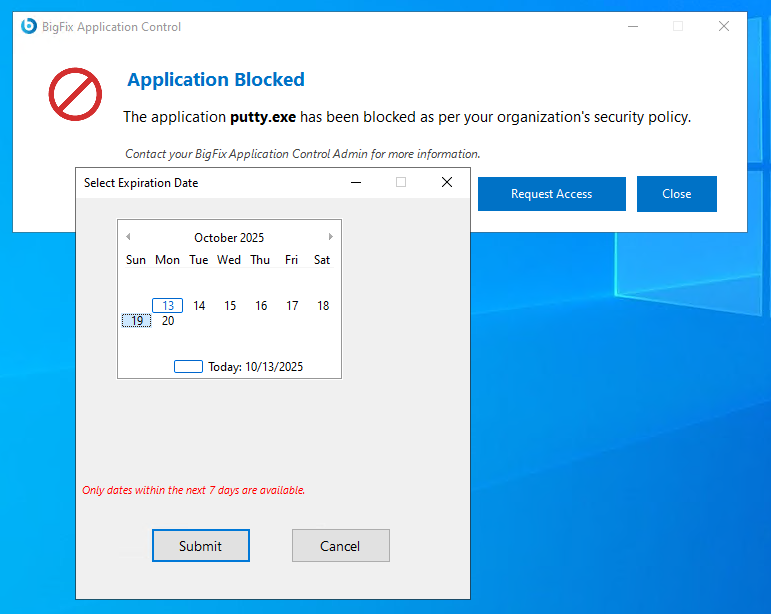
Note: A Pending Request Exists message is displayed, if previously you have raised a request for the application. You cannot raise another request if a previous request is raised and in a pending approval state.Figure 4. Pending Request Exists Message 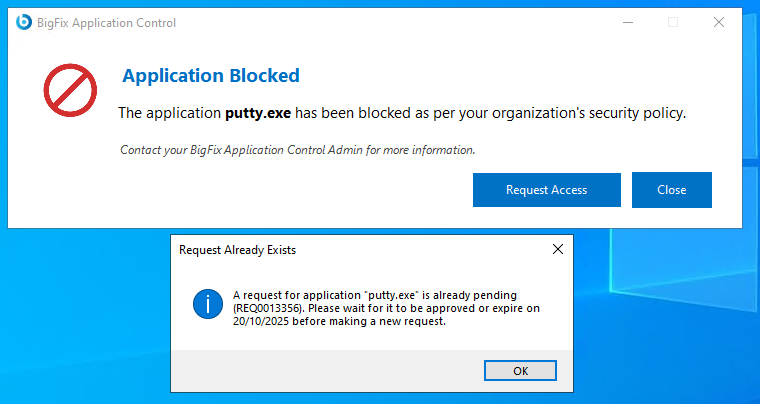
-
A ServiceNow™ ticket is raised and the request is visible
to the exception manager.
Figure 5. Request Created 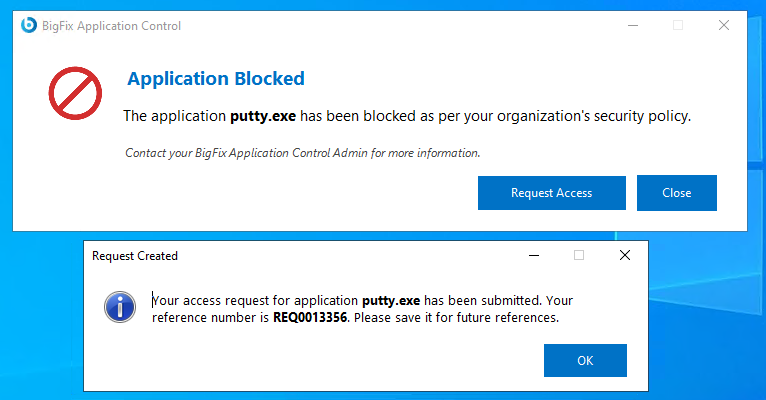
Results
This task ensures that users can request temporary access to the necessary applications while adhering to organizational security protocols.