
Configuring the Middleware download plug-in settings
Use the Manage Download Plug-ins dashboard to configure proxy settings or specify the vendor for the Middleware download plug-in.
About this task
Procedure
- From the Patch Management domain, click .
- From the Servers and Relays table, select the server or relay on which the download plug-in is to be configured.
- From the Plug-ins table, select Middleware Plug-in.
-
Click Configure.
The Configure Middleware Plug-in wizard displays.
-
Enter the proxy parameters only if the user has the option to configure
proxy settings and the downloads must go through a proxy server.
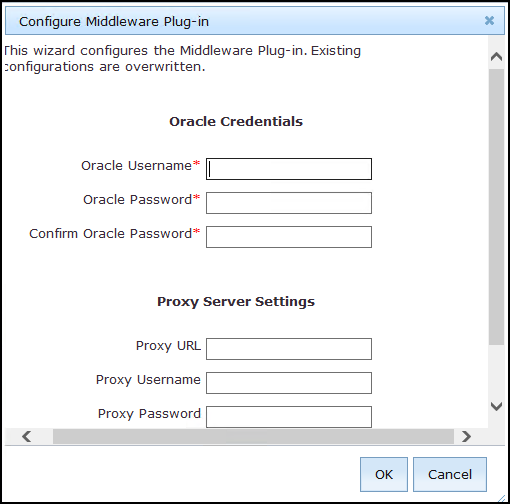
- Proxy URL
- The URL of your proxy server. It must be a well-formed URL that contains a protocol and a host
name. The URL is usually the IP address or DNS name of your proxy server and its port, which is
separated by a colon. For example:
http://192.168.100.10:8080.
- Proxy Username
- Your proxy user name if your proxy server requires authentication. It is usually in the form of
domain\username.
- Proxy Password
- Your proxy password if your proxy server requires authentication.
- Confirm Proxy Password
- Your proxy password for confirmation.
-
Click OK.
The Take Action dialog displays.
- Select the target computer.
- Click OK.