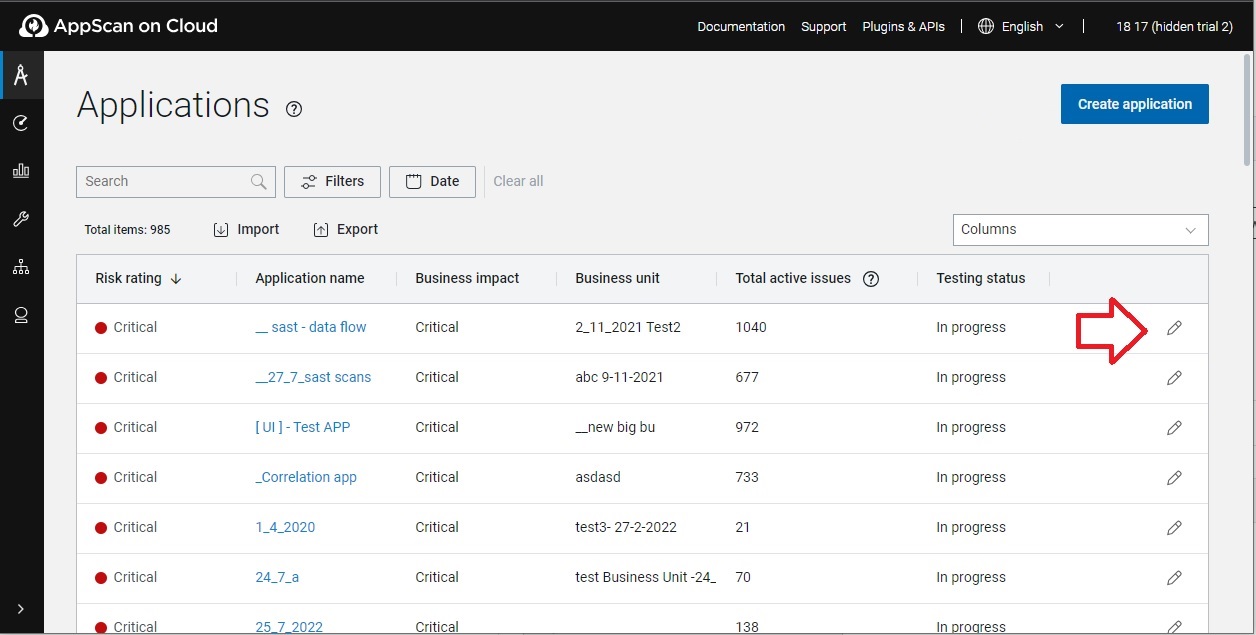
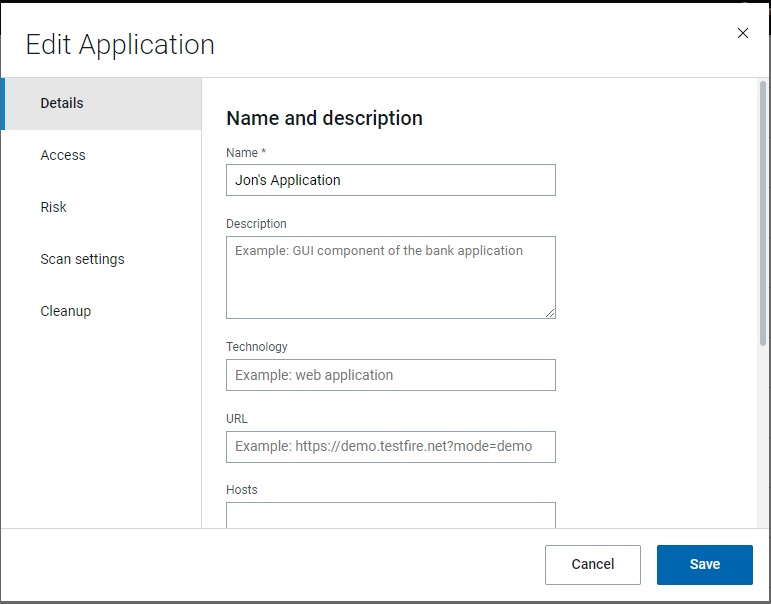
| Essentials |
Application name |
Required. Enter the name of the application. |
| Asset group |
Required. Restrict access to these applications by assigning it to an
appropriate asset group. An application can belong to one asset group
only. The Asset group drop-down list appears only
if the administrator has created one or more asset groups in the user
management administration. Otherwise, a newly created application belongs to
the default asset group. If you have permission you can type in a new
name to create a new asset group for the application. See Asset groups for
more information. |
| Business impact |
If this applications is important, assign it a high or critical value.
That way, when you filter your application inventory by this attribute, this
application appears near or at the top of the list. The Risk
rating for an application is based on a combination of highest
detected issue severity and the application's business impact. Higher
numbers indicate increased risk. See Risk rating |
| Custom application fields |
Optional. Define custom fields for your application to help you
categorize, filter, and analyze data. Admin users can create up to five new
custom application fields in . |
| Application Details |
Description |
Optional. Use it for your own reference. |
| Other fields |
Optional. Use it for your own reference. |
| Personal |
Business owner |
Optional. Use it for your own reference. |
| Development contact |
Optional. Use it for your own reference. |
| Tester |
Optional. Use it for your own reference. |
| Access control |
Business unit |
Optional. Select the business unit in the organization that your
application belongs to. Admin users can create new business units in . |
| Security and risk |
Security and risk ratings |
Optional. Use for your own reference to define the security and risk
ratings for your application. |
| Scan settings |
Presence |
Assign up to three unique presences for your application. Note:
- You cannot use a presence for an application if no presence is
assigned and the restrict option is used.
- Assigning presences to an application is optional; you can also assign a
presence each time you scan. For more
information, see AppScan Presence.
|
| Only allow Presences defined above |
Select this checkbox to restrict the application's scanning exclusively
to the presences you assigned. |
| Testing status |
Indicate Not Started, In Progress, or Completed in
this field. This attribute appears as a summary dashboard chart, and
contributes to the overall security risk rating. |
| Automatic cleanup |
Automatic cleanup |
The maximum number of scans that an application can contain is
2,000. Indicate how to proceed when this limit is reached:
- Manually delete scans: ASoC prompts you to delete scans when needed.
- Enable automatic cleanup: ASoC deletes old scans automatically as needed.
See Application scan cleanup. |