
Managed ZIEWIN and Interoperablity
This section provides detailed information about Managed ZIEWin and Interoperabilty between HCL Z and I Emulator for Windows and HCL Z and I Emulator for Web Clients.
HCL Z and I Emulator for Windows uses Session Manager Online dialog to provide easy access to workstation profiles and batch files on the ZIE Server. With Session Manager Online users can create or start a single or multiple sessions and or batch files. Users can create their own profile to the ZIE server and migrate existing files such as the workstation profiles (*.WS) and batch files (*.BCH) that were stored on the ZIE Server.
This "How To" document aims to supplement additional detailed information in setting up Managed HCL Z and I Emulator for Windows (ZIEWIN) as referenced below.
Steps to Install Using Managed:
Refer to Planning to Install Z and I Emulator for Windows
The steps provided in this document are applicable to all Windows 10 versions which are 64-bit OS level.
Prerequisites :
- Download a copy of HCL Z and I Emulator for Windows 64-bit base package and HCL Z and I Emulator for Windows RP1.zip
- A HCL Z and I Emulator for Web server is required for the Session Manager Online to work.
- Create a folder (e.g. MPZiewin) in the ZIEWEB published directory.
- Unzip and dump the HCL Z and I Emulator for Windows RP1 contents in MPZiewin folder.
- Right click the MPZiewin folder > Properties > Sharing > Advance Sharing > Put a check on Share this Folder.
- Click OK then Close.
- Repeat steps 5-6 with ZIEWEB folder.
- Obtain the IP address of the ZIEWEB server and use it at step 2 below.
Follow the steps below in setting up Managed HCL Z and I Emulator for Windows (ZIEWIN):
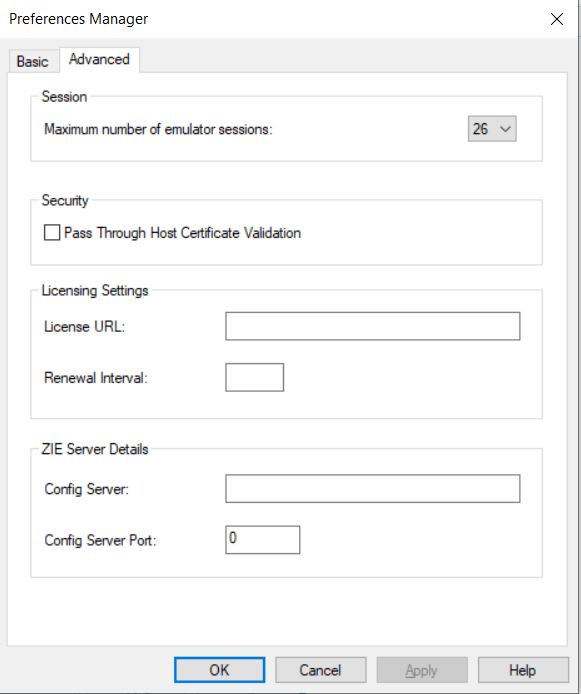
- There are two ways to input the ZIE Server configuration details. Choosing to
go either way will have the same results.
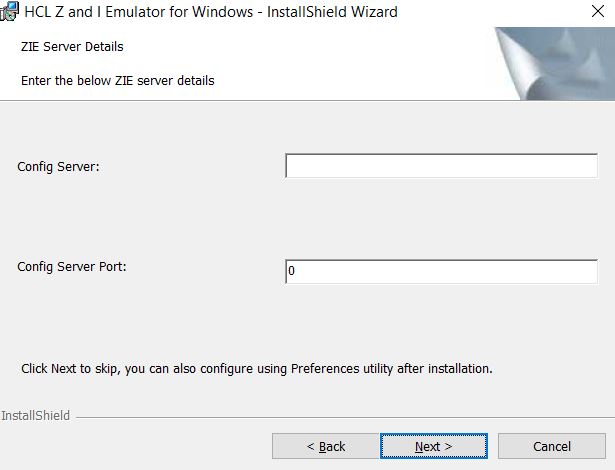
- During the ZIEWIN installation a new panel has been added.
- Preferences Manager - Click on Start > HCL Z and I Emulator for Windows
> Preferences > Advanced
- During the ZIEWIN installation a new panel has been added.
- Enter the configuration parameters based on the information below:
- Config Server : URL of the Application Server/Embedded Server, on
which interoperability module (.war file) is deployed. It can be
deployed on the HOD Embedded Server or on any configured Application
Server.
Example: http://< Application Server IP >/<Configured context root of the application>
For more details on WAR file deployment, refer to the technote <hyper-link>.
-
Config Server Port : Port number of Application Server where
interoperability module (.war file) is deployed.
Example: 9080
- Config Server : URL of the Application Server/Embedded Server, on
which interoperability module (.war file) is deployed. It can be
deployed on the HOD Embedded Server or on any configured Application
Server.
- Click OK.
- Open File Explorer > This PC > Map network drive. Use the IP address of the Web Server along with the folder where the HCL Z and I Emulator for Windows RP1.msi is located. E.g. \\192.168.56.102\MPZiewin
- Click Save.
- Repeat steps 4-5 with ZIEWEB folder. E.g. \\192.168.56.102\ZIEWEBNote: This completes configuring Managed HCL Z and I Emulator for Windows (ZIEWIN).
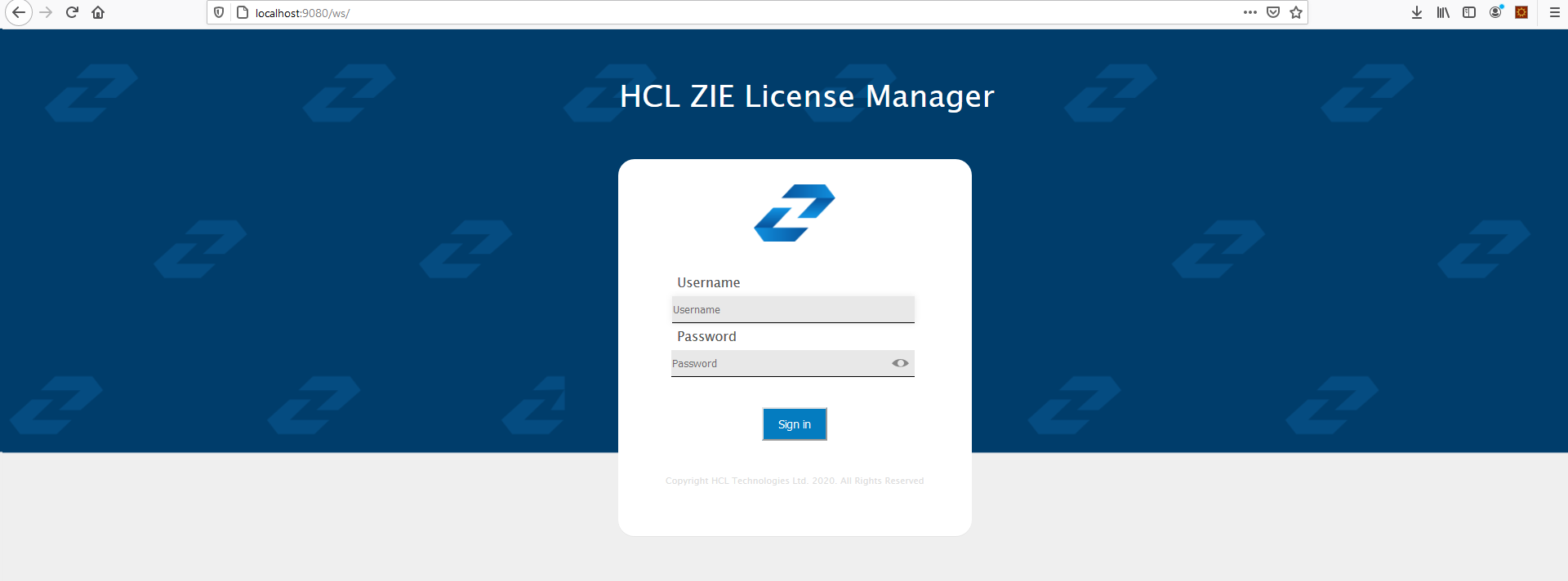
- To validate that the configuration is correct, create a new Username or use an
Existing User in the Session Manager Online. Click on Start > HCL Z and I
Emulator for Windows > Start or Configure sessions - Online
Points to consider:
- When mapping the network drive ensure that client machine and ZIEWEB server is within the same network.
- The Session Manager Online checks for updates at startup. It is essential that HCL Z and I Emulator for Windows RP1 is in the ZIEWEB published directory.