
Intune Application Packaging Support
Microsoft Intune is a cloud-based endpoint management solution. It acts as the "command center" for an organization's devices, allowing IT administrators to manage how smartphones, tablets, and laptops are used. It is a core component of Microsoft’s Enterprise Mobility + Security (EMS) suite.
This section describes the procedure for the deployment of a Win32 package via Microsoft Intune to ensure standardized installation, automatic updates, and remote management across all corporate Windows devices while maintaining strict security compliance.
Validation of Install and Uninstall Command
To enable Silent installation, create the .ini file (file name 1601.ini for v1601, to keep in the same location as setup.exe) using the command line. For detailed instructions, refer to Installing Z and I Emulator for Windows Using an Initialization (response) File.
To accommodate the installation and uninstallation using Intune portal, “Install.bat” and “Uninstall.bat” files are used to validate the install and uninstall commands.
@echo off
set "success=0"
cd /d "%~dp0"
echo Starting installation for setup.exe... >> "%temp%\Install.log"
echo.
:: Execute setup.exe with the specified silent parameters
:: Note: The entire /v parameter string is enclosed in an outer set of double quotes,
:: and the internal paths/values are enclosed in double quotes as required by MSIEXEC.
"%~dp0setup.exe" /s /v"/L*v \"%temp%\pcsinst.log\" USEINI=\"%~dp0Install.ini\" /qn /norestart"
if %errorlevel% equ 0 set "success=1"
if %errorlevel% equ 3010 set "success=1"
if "%success%"=="1" (
    echo.
    echo Installation completed successfully. >> "%temp%\Install.log"
) else (
    echo.
    echo ERROR: Installation failed with error code %errorlevel%. >> "%temp%\Install.log"
)@echo off
cd /d "%~dp0"
echo Starting uninstallation... >> "%temp%\Uninstall.log"
echo.
:: Run setup.exe silently (/s) and pass uninstall (/x),
:: quiet (/qn), and logging parameters to the MSI installer via /v
"%~dp0setup.exe" /v/qn /x "/L*v \"%temp%\pcsinst.log\""
if %errorlevel% equ 0 set "success=1"
if %errorlevel% equ 3010 set "success=1"
if "%success%"=="1" (
echo.
echo Uninstallation completed successfully. >> "%temp%\Uninstall.log"
) else (
echo.
echo ERROR: Uninstallation failed with error code %errorlevel%. >> "%temp%\Uninstall.log"
)Creation of IntuneWin File
-
Download IntuneWinAppUtil.exe from Intune App Download.
-
Extract the downloaded PCOMM/ZIEWin application package.
-
In the extracted application folder, place the following files:
-
The previously created
.inifile -
Install.bat -
Uninstall.bat
-
-
Create a folder named Win32 to be used as the output directory.
-
Run IntuneWinAppUtil.exe by double-clicking the executable.
-
When the command prompt opens, provide the required details when prompted, including:
-
Source folder
-
Setup file
-
Output folder (
Win32)
-
-
After the process completes, the Setup.exe.intunewin file is generated in the output folder.
-
For easier identification, rename the generated .intunewin file.
Create the group in Intune Portal
-
In the Intune portal, navigate to Groups.
-
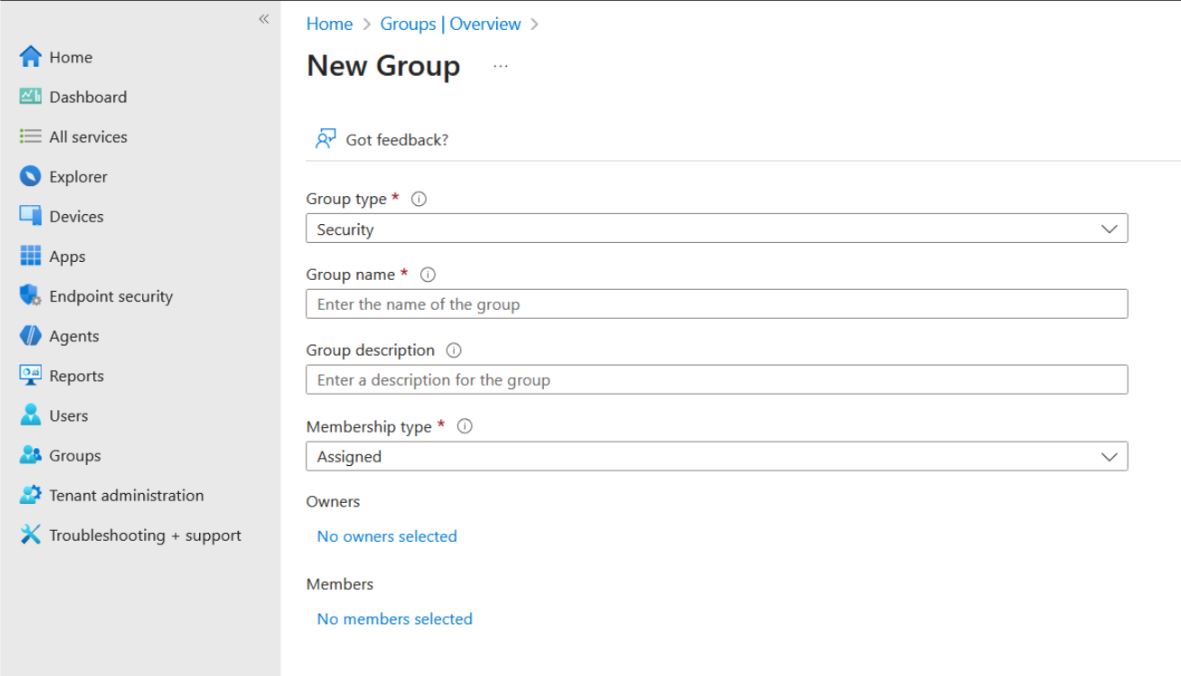
Click New group.
-
Enter a Group name.
-
Leave Group type set to the default value.
-
Set Membership type to Assigned.
-
-
In the Members section, select the Intune administrator email ID.
-
Click Create.
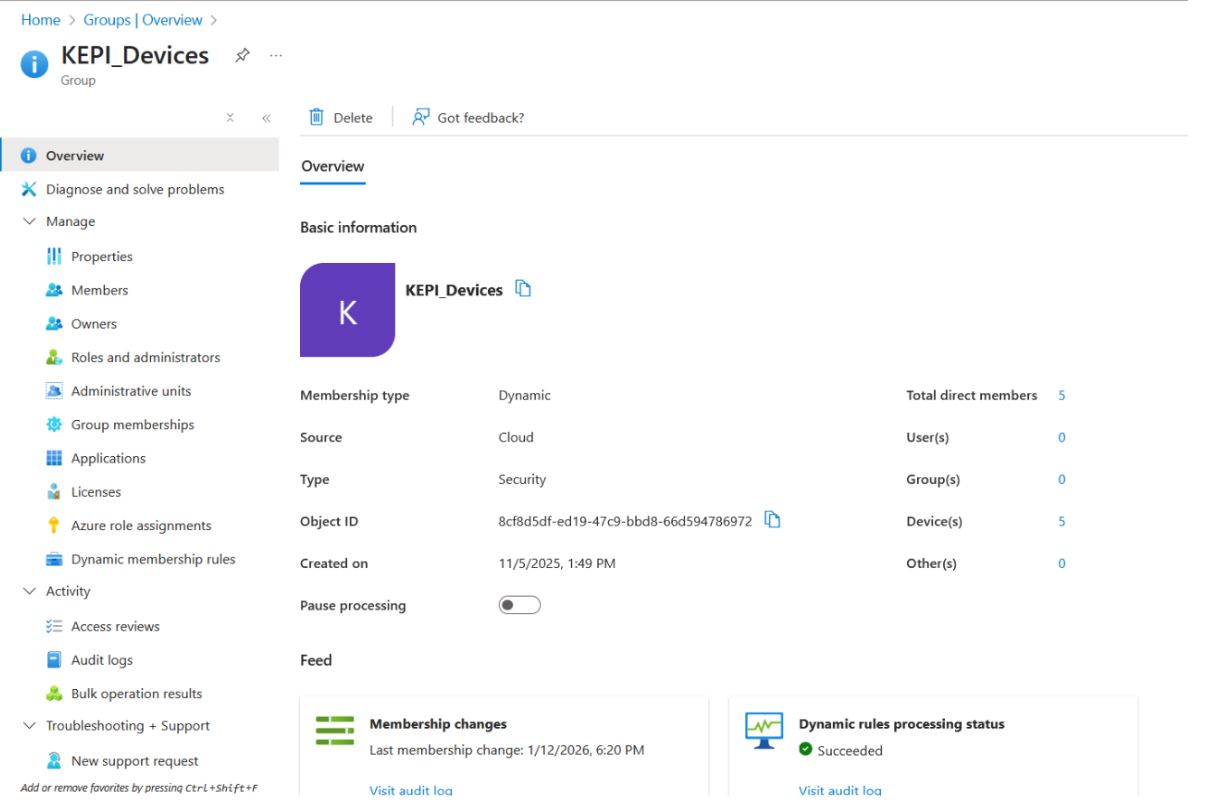
Create the Application in Intune Portal
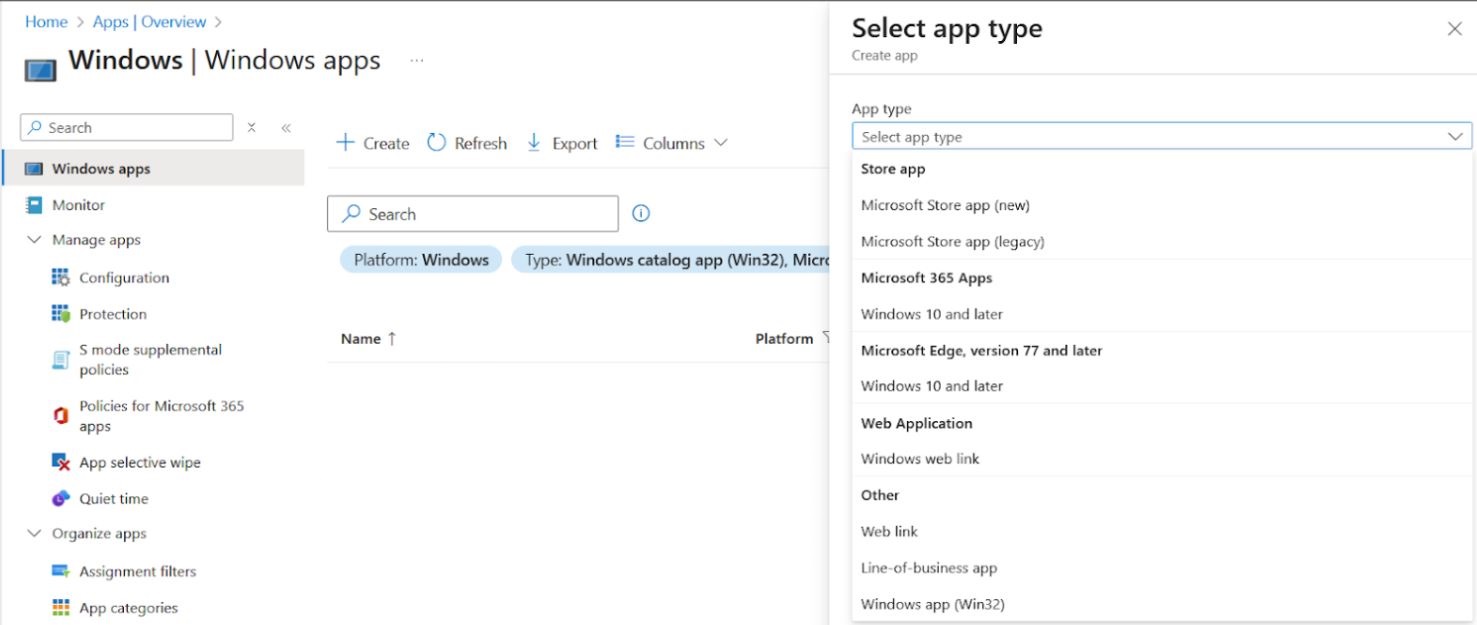
- In the Intune portal navigate to Windows Apps section.
- Select the Windows app (Win32) format file from the App Type.
- Then upload the .intunewin format file, which was created earlier.
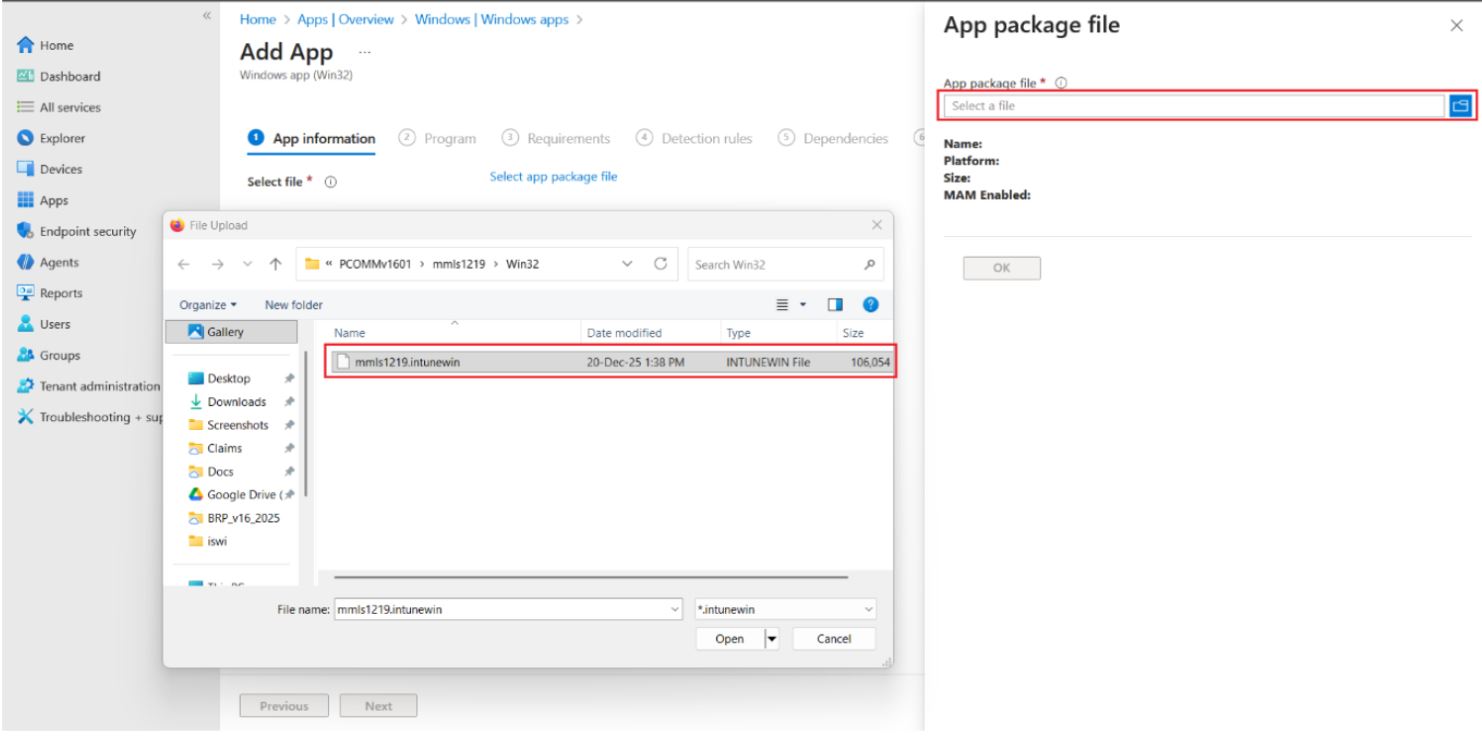
- The Add App page appears.
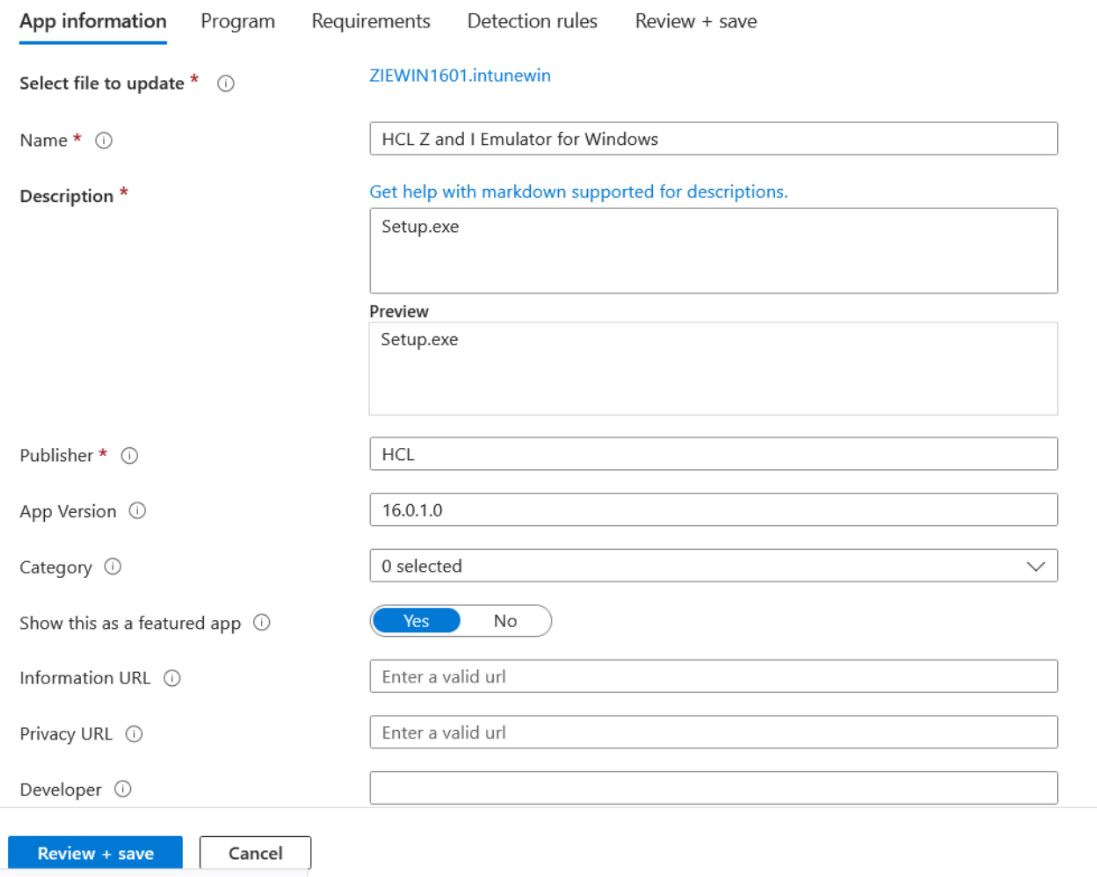
- Under the App Infomration section, enter the Name, Description, Publisher, App
Version and click Next.
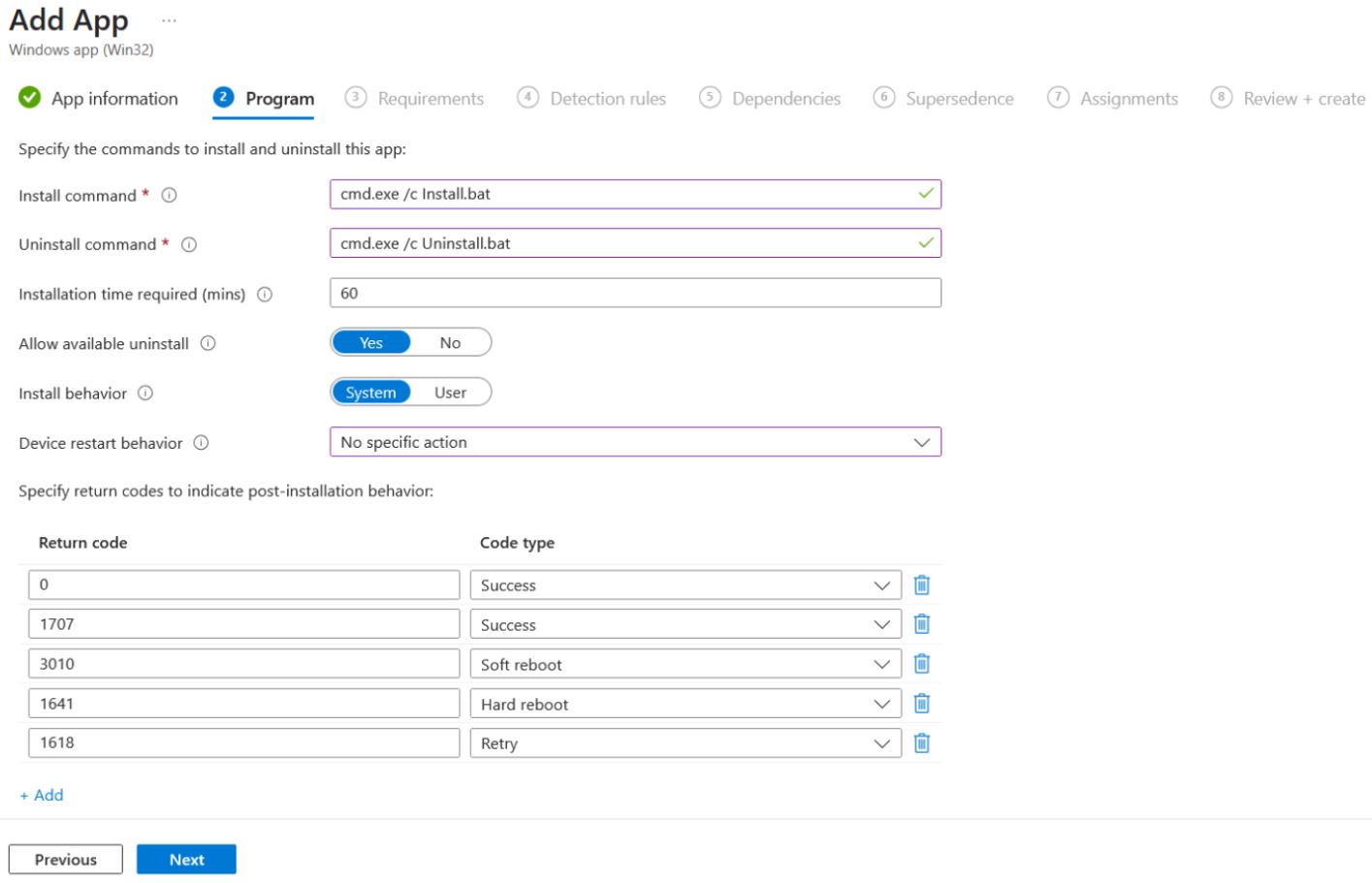
- The Program section appears.
- Enter the Install Command, Uninstall Command, Installation time required and other configuration.
- Click Next.
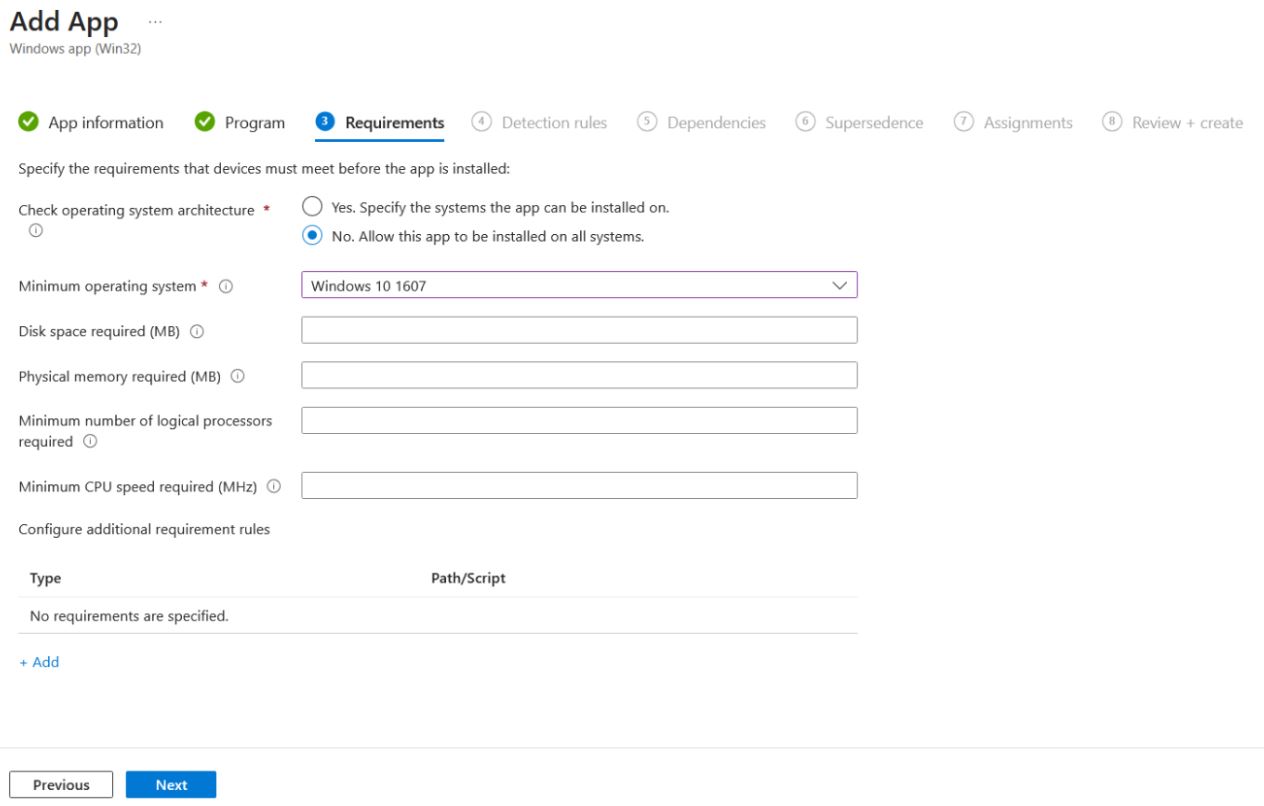
- In the Requirements section, provide system architecture for application to be
installed and in “Minimum operating system” section, minimum required OS version can be
provided.Note: Intune Package will be only supported for client machines. It won’t be supported on server machines.
- In the Detection rules section, configure the criteria that indicate a successful
installation of the product. For example, you can define a file version detection rule for
pcsfe.exeorpcsws.exe.Example:C:\Program Files\HCL\ZIE for Windows\pcsfe.exeCondition:Version (>=) 16010.0.00000.000In this example,16010represents the product version, which corresponds to version 16.0.1.0.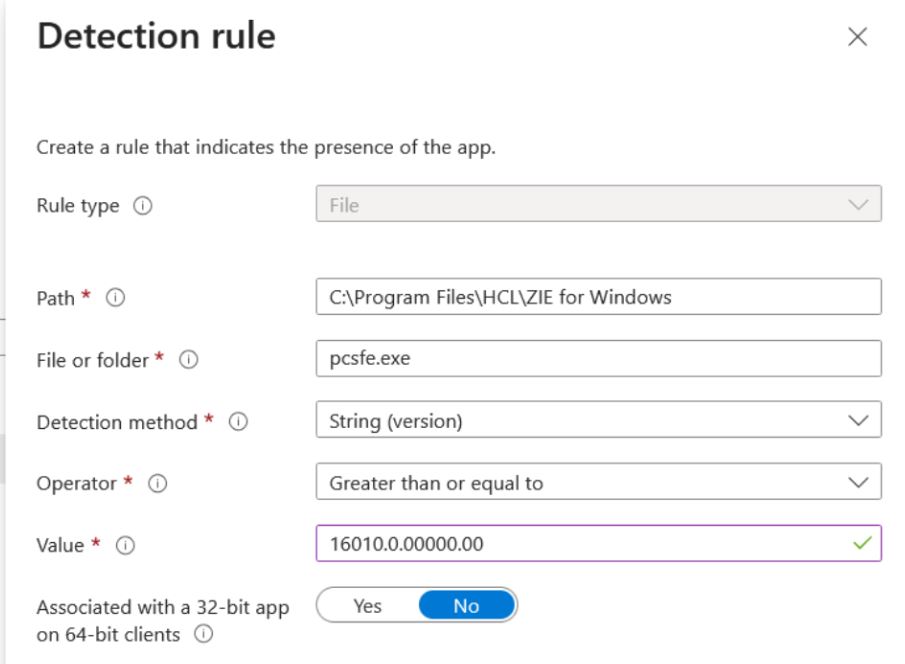 Note: By default, the Dependencies and Supersedence sections are not required. Configure these sections only if they are needed for the installation of the current release.
 - In the Assignments section, assign the application to the target devices on which
it should be installed. Include the group that was created earlier.
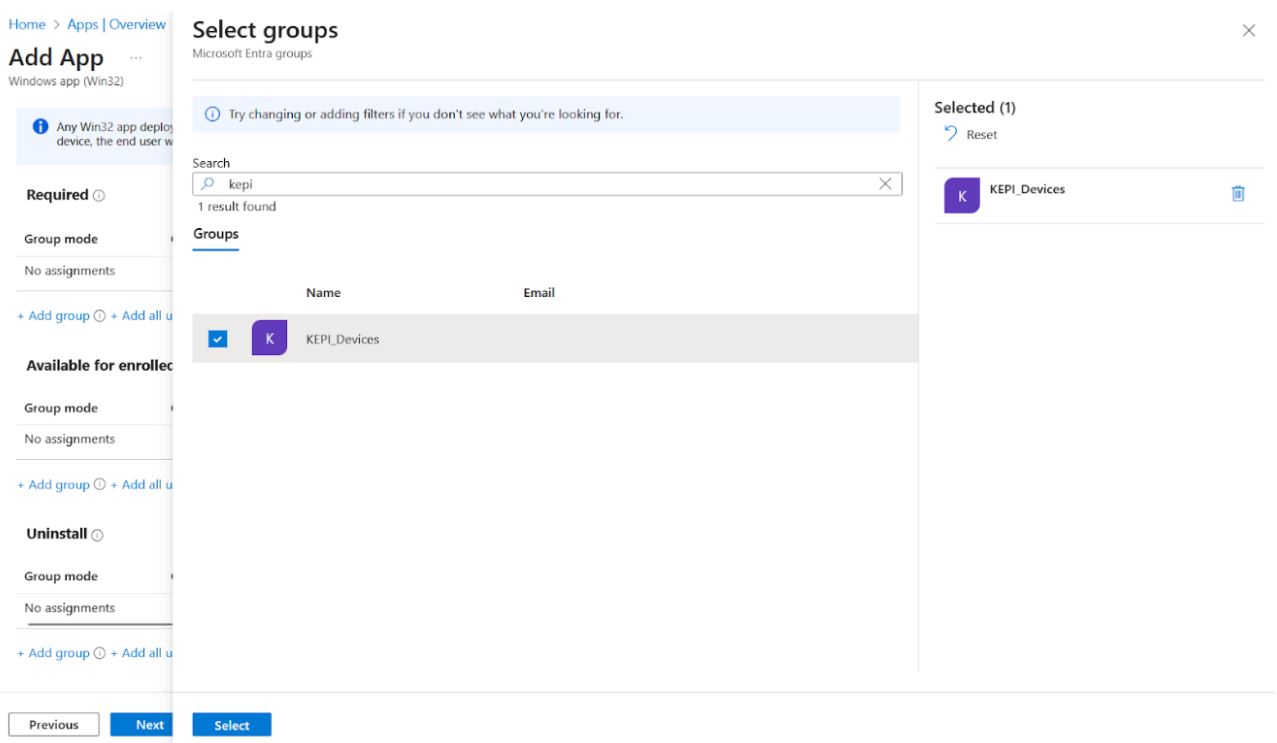
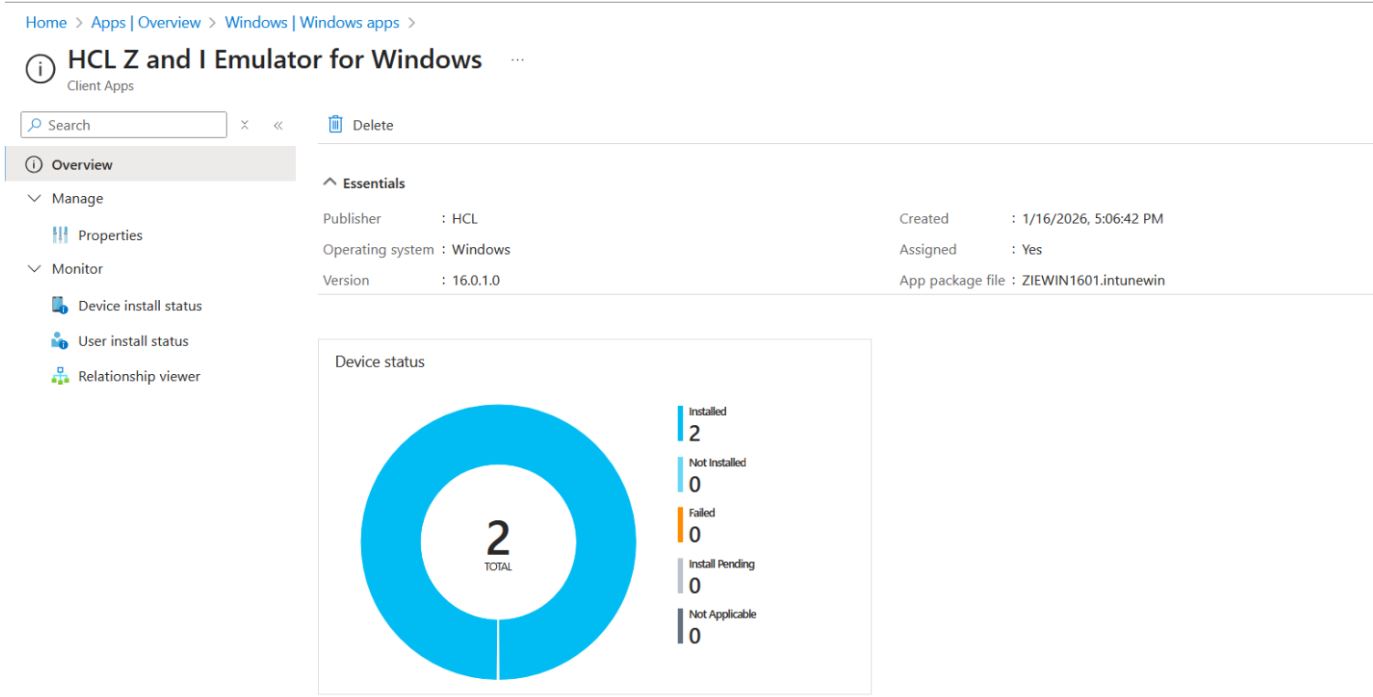
- Review all configuration settings and save the application. Wait for the application to
be added to the portal. Once the process is complete, the application appears as shown
below.
- For more information refer to Intune Document.
On Deployment System
- Search for Company Portal in the Microsoft Store and install the application.
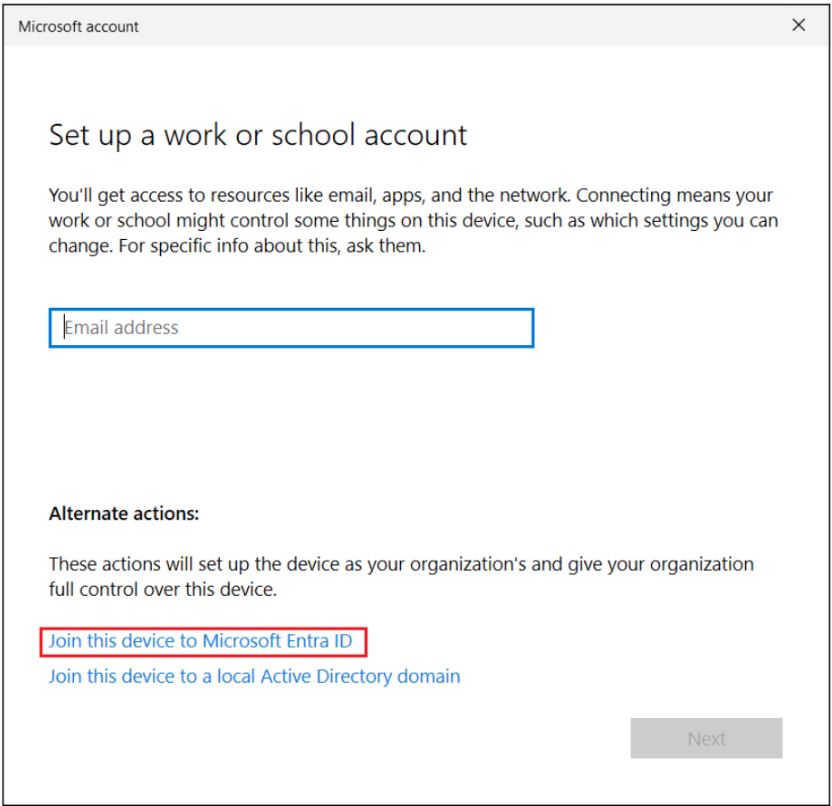
- Sign in using the Intune administrator email ID as follows:
- Select Join this device to Microsoft Entra ID.
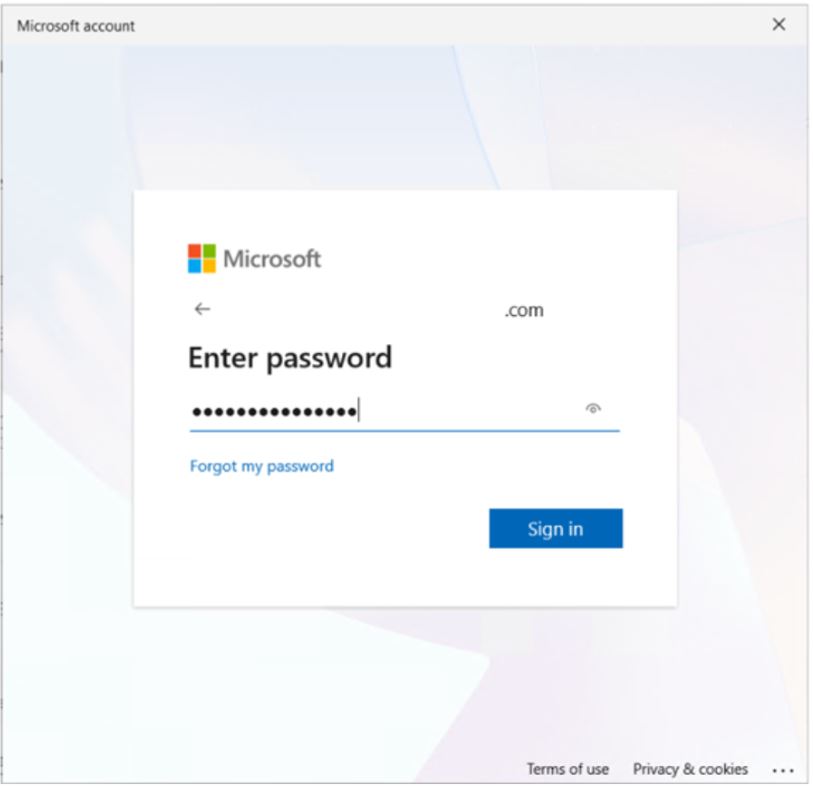
- Enter user id and password.
- A popup appears, click the Join button.
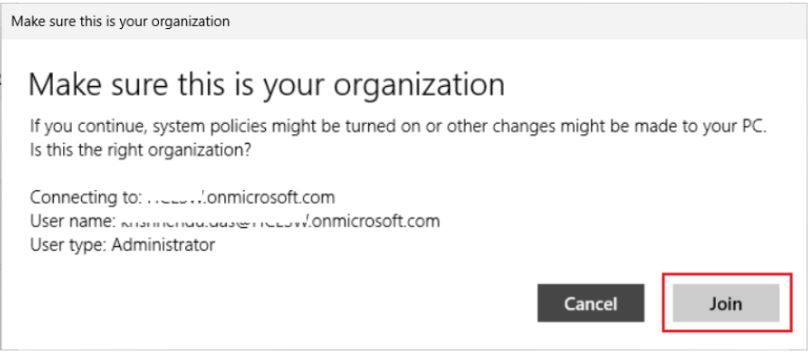
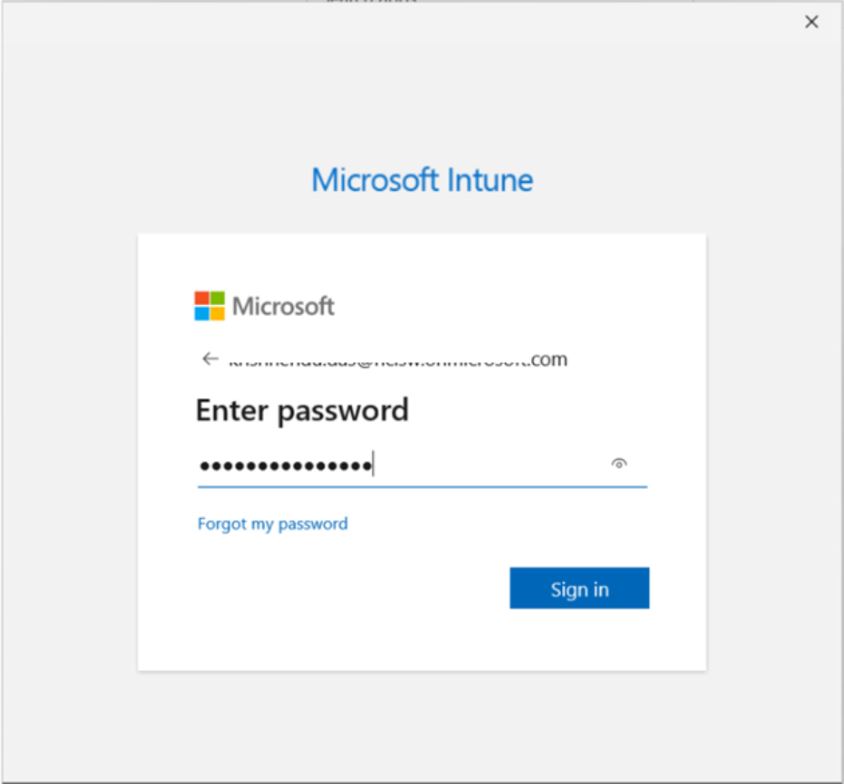
- A Microsoft Intune sign-in pop-up is displayed from the Company Portal. Sign in to
Microsoft Intune to continue.
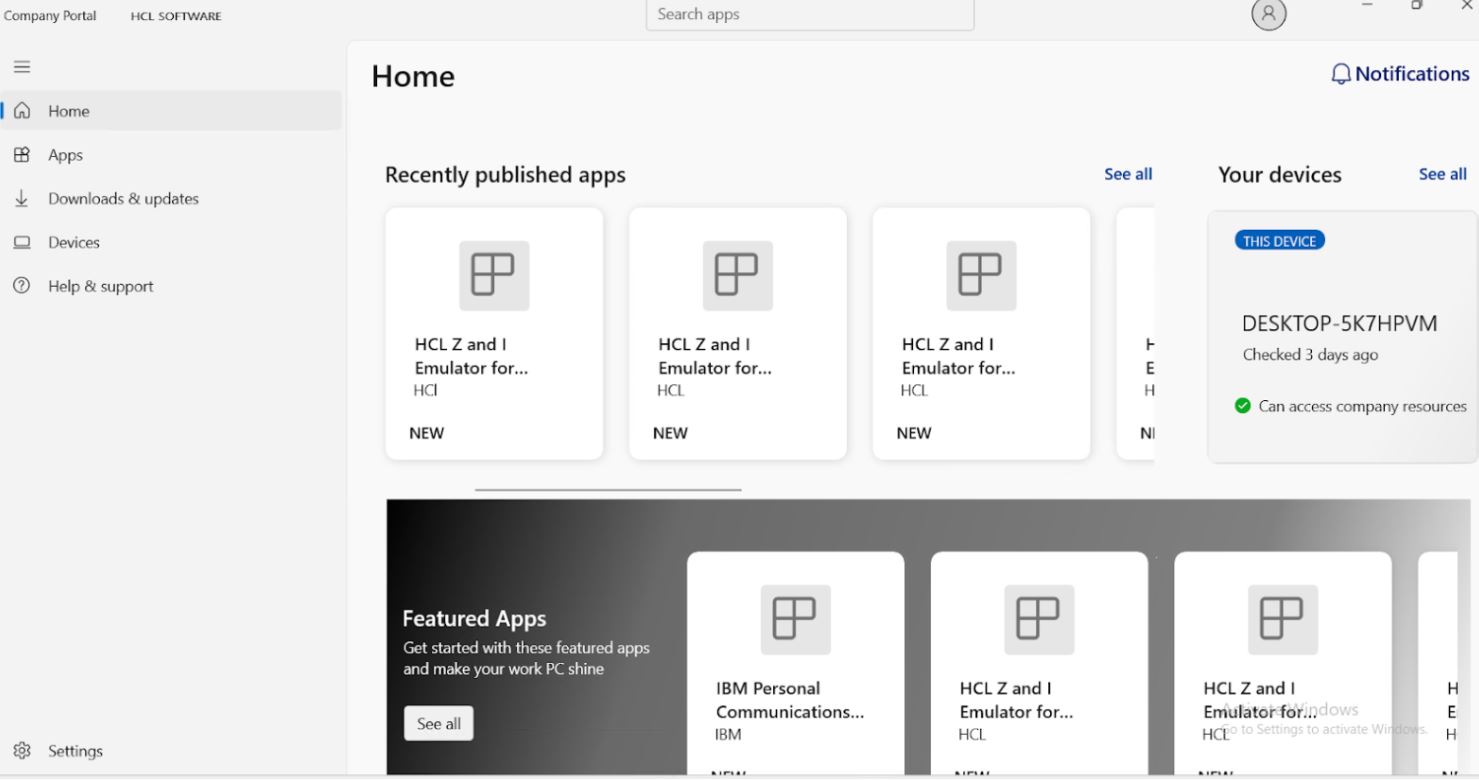
- The application appears as Available in the Company Portal, provided it was
configured as available earlier.
- Select Join this device to Microsoft Entra ID.
- Once the application is available in the Company Portal, click Install.
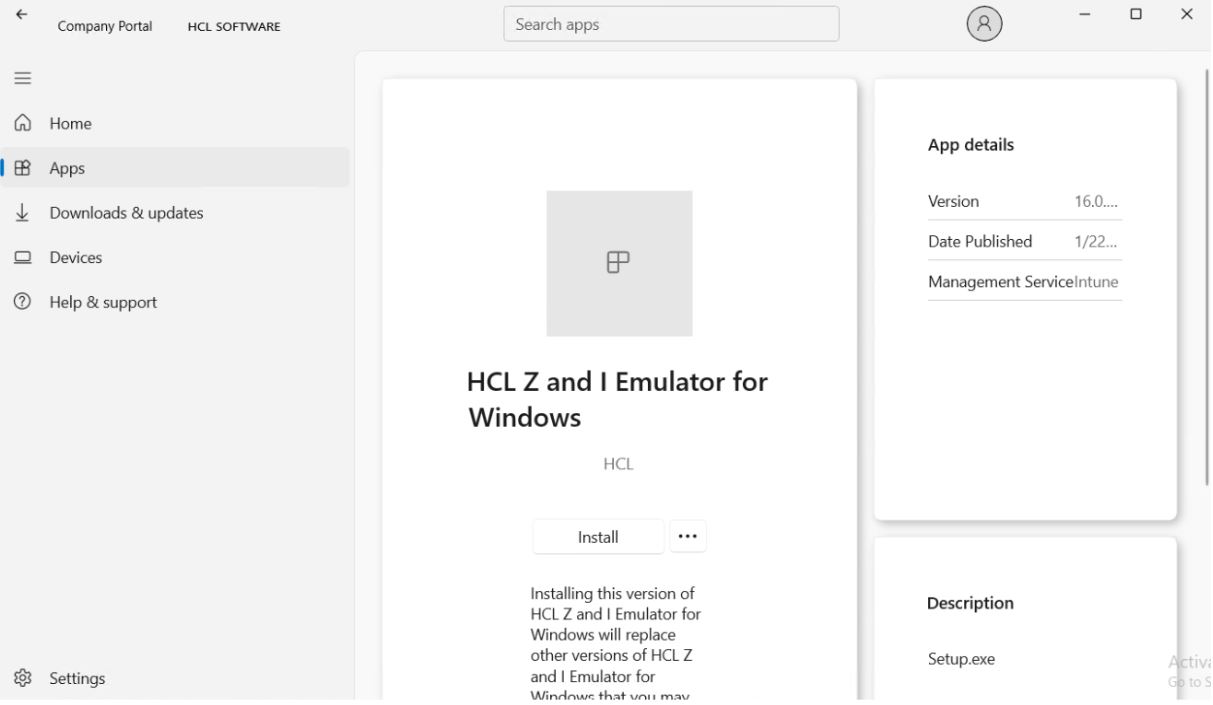
- After successful installation, the application is marked as Installed, and the Uninstall button appears.
- The application entry is displayed in the Control Panel as shown below.

RPUI Application Creation in Intune Portal
setup.exe file. The
installation can be performed using the command line. First, create a
.intunewin file by following the steps described earlier.
Create the application as follows:
-
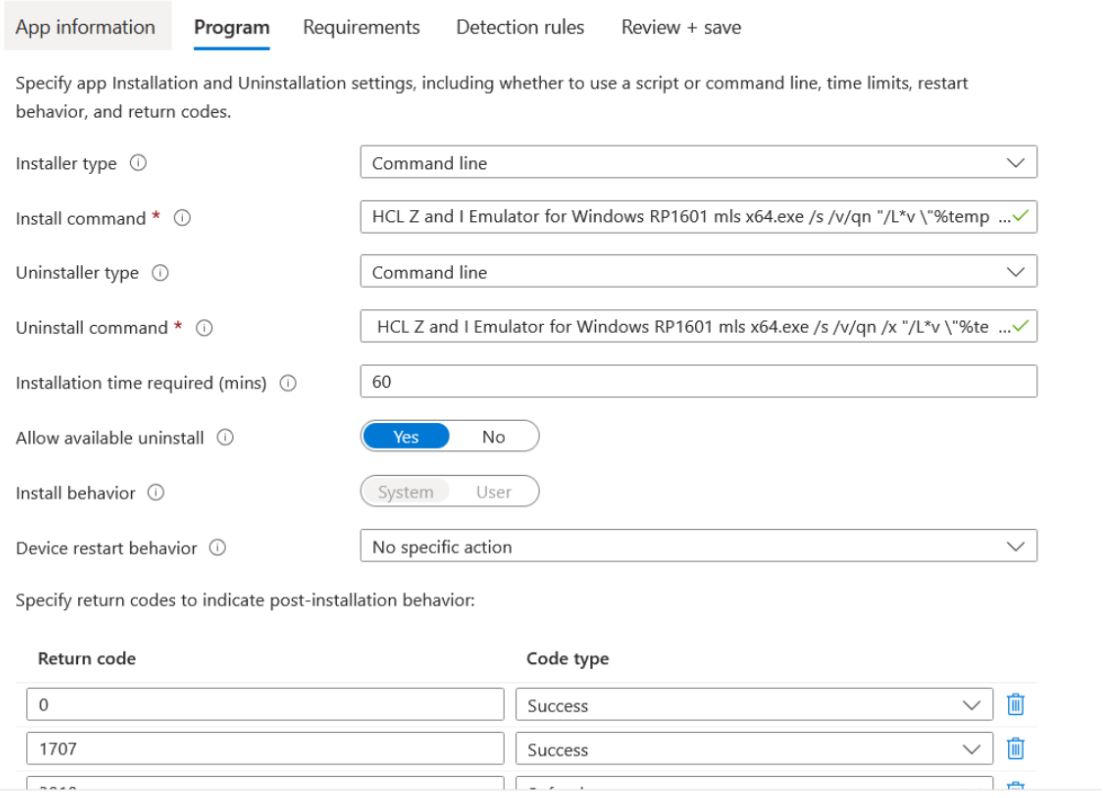
Create the application using the same procedure described in Create the application in Intune Portal: (steps 1 through 10). The only difference is the installation and uninstallation commands, which are provided below. These commands can be used directly in the Intune portal.
-
Install: HCL Z and I Emulator for Windows RP1601 mls x64.exe /s /v/qn "/L*v \"%temp%\pcsRPUI.log\"
-
Uninstall: HCL Z and I Emulator for Windows RP1601 mls x64.exe /s /v/qn /x "/L*v \"%temp%\pcsRPUI.log\"
-
-
And if the application is made available, it will be visible to Company Portal.
-
It can be installed from there.
-
Post installation, it will create an entry in the Control Panel.