Step : Adding images as hyperlinks


|

|

|
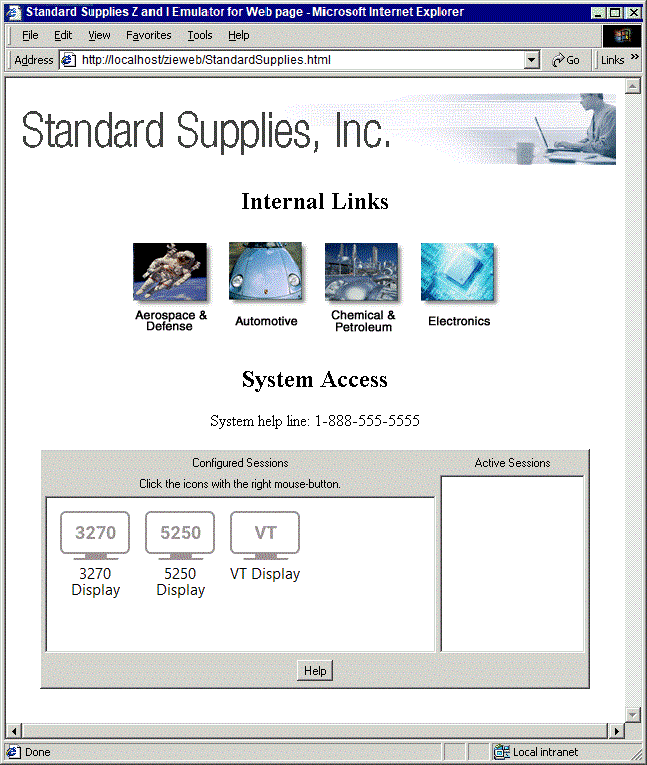
In this step we add a set of four hyperlinks near the top of the Web page. To make these links more attractive we arrange them in a table and use a different image for each link. We also add a caption, "Internal Links".
- Add the following lines after the <IMG> element which displays the banner. <p> <h2>Internal Links</h2> <table> <tr><td> <a name="aerogif" href="#aerolinks"><img src="aero.gif" Border="0"></a> </td><td> <a name="autogif" href="#autolinks"><img src="auto.gif" Border="0"></a> </td><td> <a name="chemgif" href="#chemlinks"><img src="chem.gif" Border="0"></a> </td><td> <a name="elecgif" href="#eleclinks"><img src="elec.gif" Border="0"></a> </td></tr> </table> The link references that we have specified, such as href="#aerolinks", href="#autolinks", and so on, refer to destinations that do not exist. That is, the identifiers "aerolinks", "autolinks", "chemlinks", and "eleclinks" are not valid link references in the current page. In an actual implementation, we would specify actually existing link references. View the modified custom HTML template file.
- Copy the new GIF files to the Z and I Emulator for Web publish directory. copy aero.gif c:\Program Files\HCL\ZIEForWeb\ZIEWeb copy auto.gif c:\Program Files\HCL\ZIEForWeb\ZIEWeb copy chem.gif c:\Program Files\HCL\ZIEForWeb\ZIEWeb copy elec.gif c:\Program Files\HCL\ZIEForWeb\ZIEWeb
- Save and close the custom HTML template file.
- Regenerate the Deployment Wizard output files.
The resulting Web page is shown below. If we had specified actually existing link references, clicking on each image would have caused the browser to jump to the associated link reference.
|
|
|
|