
Disconnect Connection/Pick Next Valid User in User List
Users can configure the user list in ZIETrans login/connect macros to automatically fetch user details from the pre-configured user list. When pooling is enabled, if a pool connection macro encounters an invalid user login for a specific number of times, the pool connection may become inactive and unusable. Consequently, the same inactive user connection will be used for further pool connections, rendering them inactive.
To resolve this issue, the user should be able to:
- Disconnect the connection: Identify the inactive connection and disconnect it.
- Pick the next valid user from the user list: If a pool of users is available, select the next valid user from the user list to establish a new connection.
Note:
- It is useful when the pooling is enabled, and the user enables the ‘Only allow single connection with each user ID’ option in the advanced tab of the connection file.
- The logon macro should have the user list configured in username and password prompts.
- The user should be aware and capture all the screens generated when an invalid UserID and Password are encountered and add the captured screens in macro.
- For the invalid login error screen, manually add an action to disconnect or pick the next user.
- When the ZIETrans application starts running, if the next user action is added, the application will pick the next valid user from the user list. When the incorrect user encounters, the connection gets disconnected, and the user will be marked as invalid.
- If a disconnect action is added, the connection will be terminated or disconnected.
Make the code modifications below in the macro file to disconnect the
connection/pick the next user when an invalid user is encountered in the macro login screen.
- Ensure the usevars is true inside the macro file.
‘usevars="true"’
- Ensure all screen recognition or prompt strings are encoded with single quotes. Otherwise, the macro file may show some error.
- Add the below lines in the macro file manually:
Example:<import> <type class="com.hcl.zietrans.common.actions.InvalidUserAction" name="InvalidUserAction"/> </import> <vars> <create name="$userlist$" type="InvalidUserAction" value="$new InvalidUserAction(MacroEnvironment)$"/> </vars>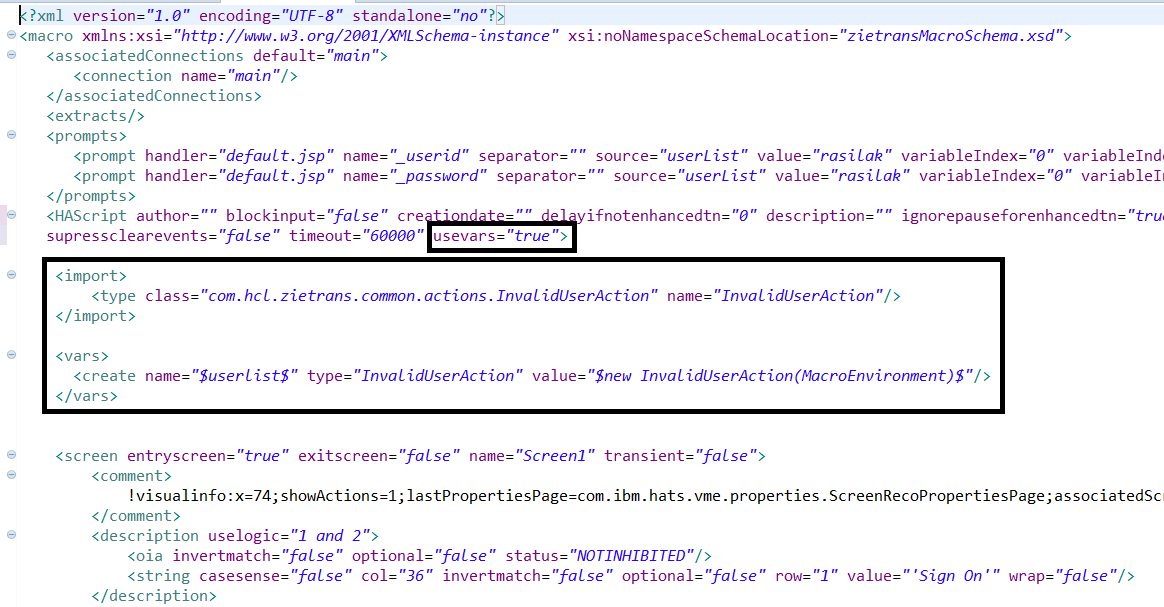
- Take a screen capture of all incorrect login screens when an incorrect userID or Password is encountered. An incorrect login could be due to an incorrect password, an unknown user, an expired password...etc. This varies from the host application.
- To disconnect and terminate the connection, the below code must be added manually in the
actions of the relevant incorrect login screen, especially in the screen that gives a
warning message, which may vary the device upon further login failures.
Example:<if condition="$userlist.disconnectInvalidUserConnection()$"> </if>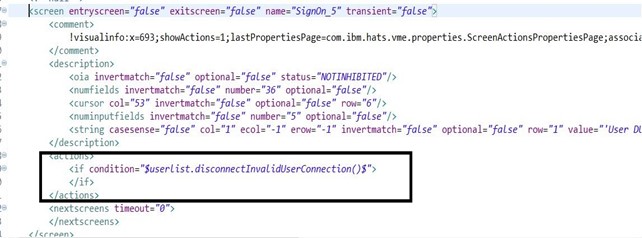
- To pick the next user, the below code must be added manually in the actions of all
invalid screens.
Example:<if condition="$userlist.pickNextUser()$"> </if>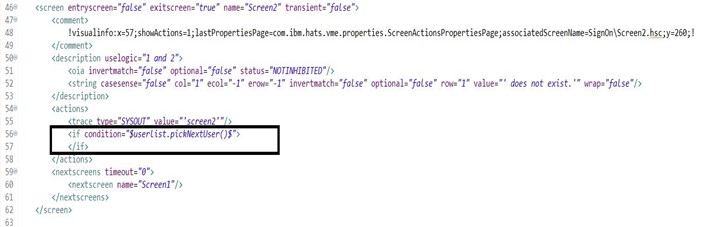
Note:
- One of the actions, either disconnect the user or pick the next user, should be added. Users cannot add both actions in a single screen of the macro.
- Sometimes, when multiple invalid users are encountered, the macro runs in the
background, but the screen on the browser may not refresh. In such a scenario, the user
should follow any one of the following steps:
- Increase the screen settle time, which is present in the screen handling tab in
the connection file, as shown below:
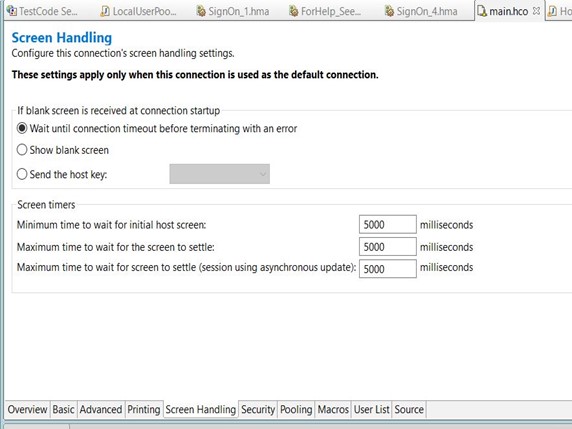
- Enable the ajax auto-refresh option present in the client settings as shown below:
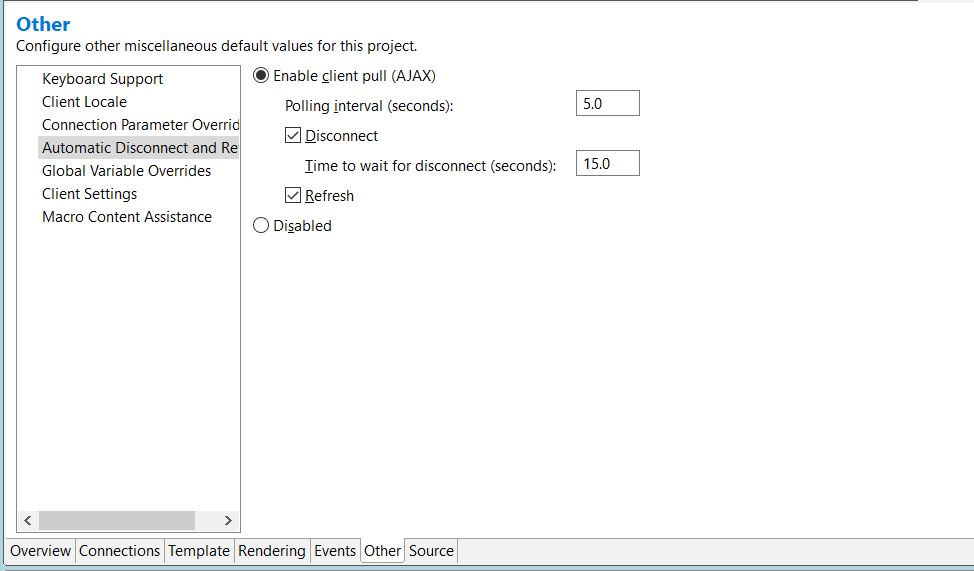
- Increase the screen settle time, which is present in the screen handling tab in
the connection file, as shown below: