Accessing HCL Volt Foundry Services Externally
Use this document to expose HCL Volt Foundry Integration Services and access them from external applications without using Volt Iris. This document also consolidates all supported security models into a single reference.
Security Models Overview
The following table summarizes the available security models, their access types, and the corresponding authentication requirements.
| Security Level | Access Type | Authentication Required |
|---|---|---|
| Public Access | Public | No |
| Anonymous Application Users | Anonymous Application Users | Backend token via Identity Service |
| Authenticated Application Users | Authenticated Application Users | Application user authentication |
Common Prerequisites
- Access to the Volt Foundry Console
- An existing application in Foundry
- A defined Integration Service
- An available target environment (DEV,QA, or PROD)
- Postman installed for testing
Common Configuration Steps
-
Log in to the Foundry Console. For more details, see the Access Volt Foundry Portal.
-
Open the target application in the (Middleware/Foundry) perspective.
-
Go to the Integration service.
-
Select the Integration Service and Operation to expose.
Configure Security Models
Use the following options based on your access type to configure security for external access to HCL Volt Foundry Integration Services:
- Public Access
- Anonymous Application Users
- Authenticated Application Users
Public Access
Use this option when the service does not require authentication and can be accessed publicly.
Exposing an Integration Service Externally
To expose an Integration Service externally:
-
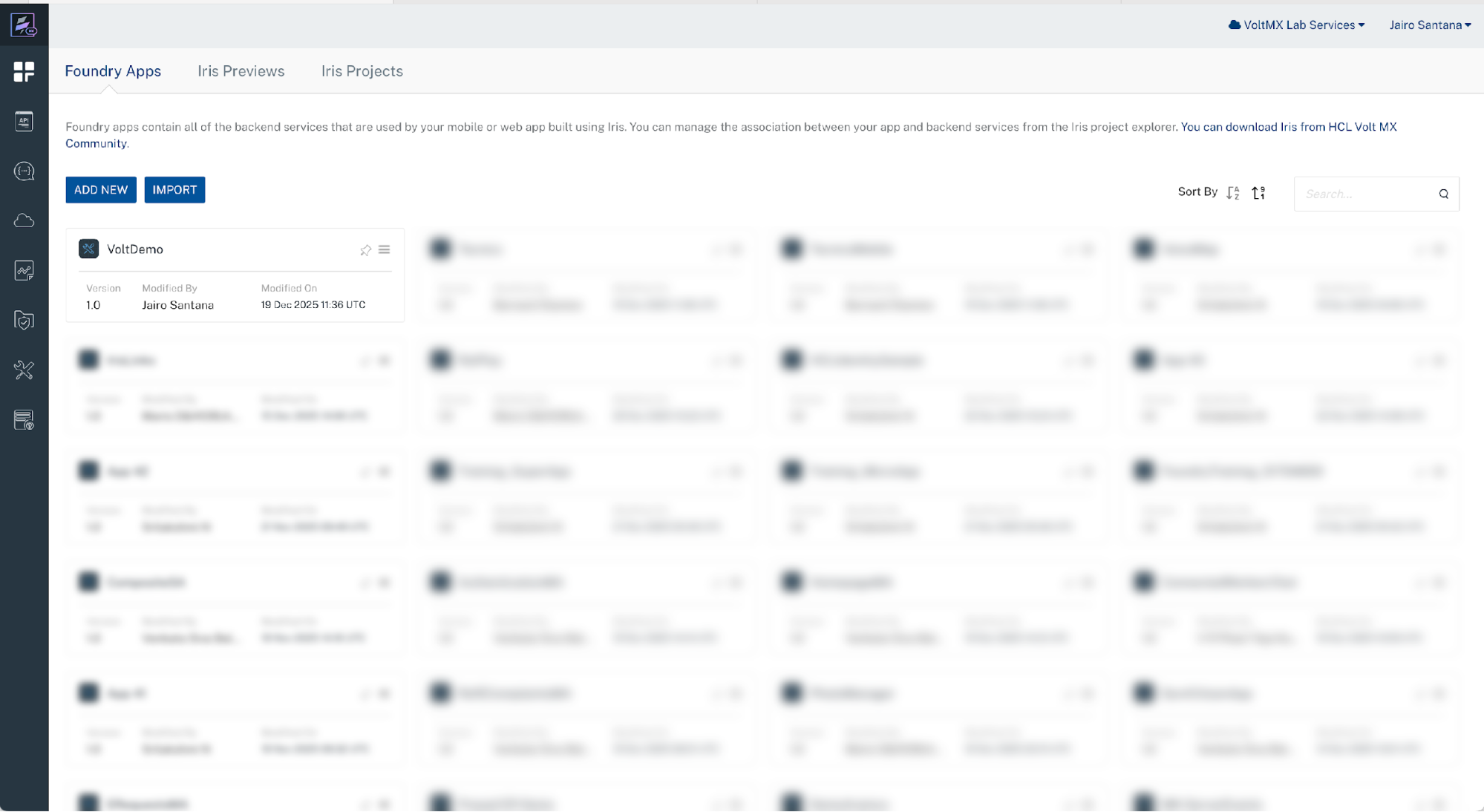
Log in to the Foundry Console.
-
Open the target Application in the Middleware perspective.
-
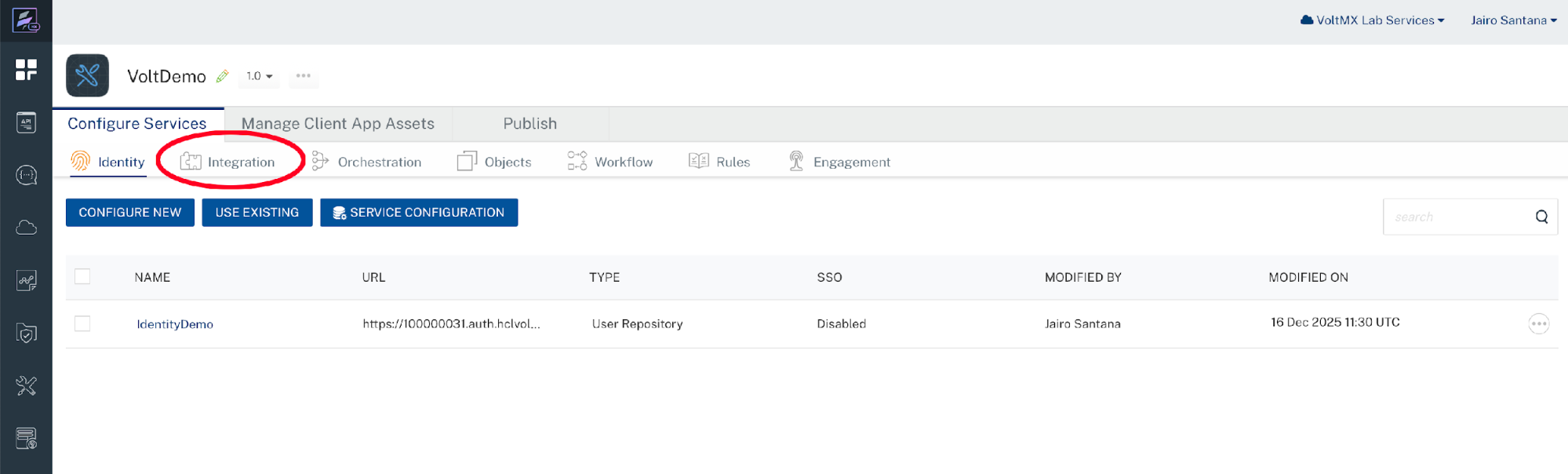
Go to the Integration Services tab.
-
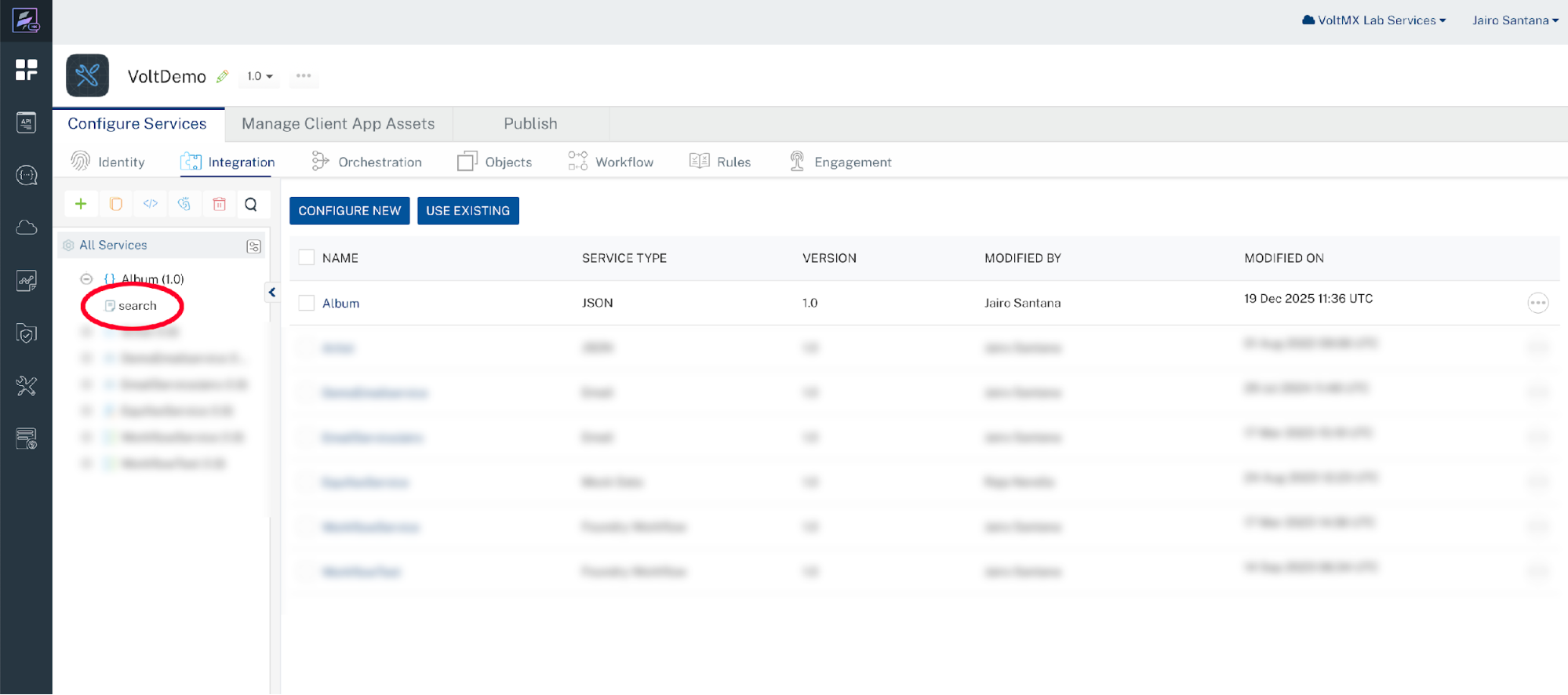
Select the Integration Service that you want to access externally.
-
Select the operation to expose.
-
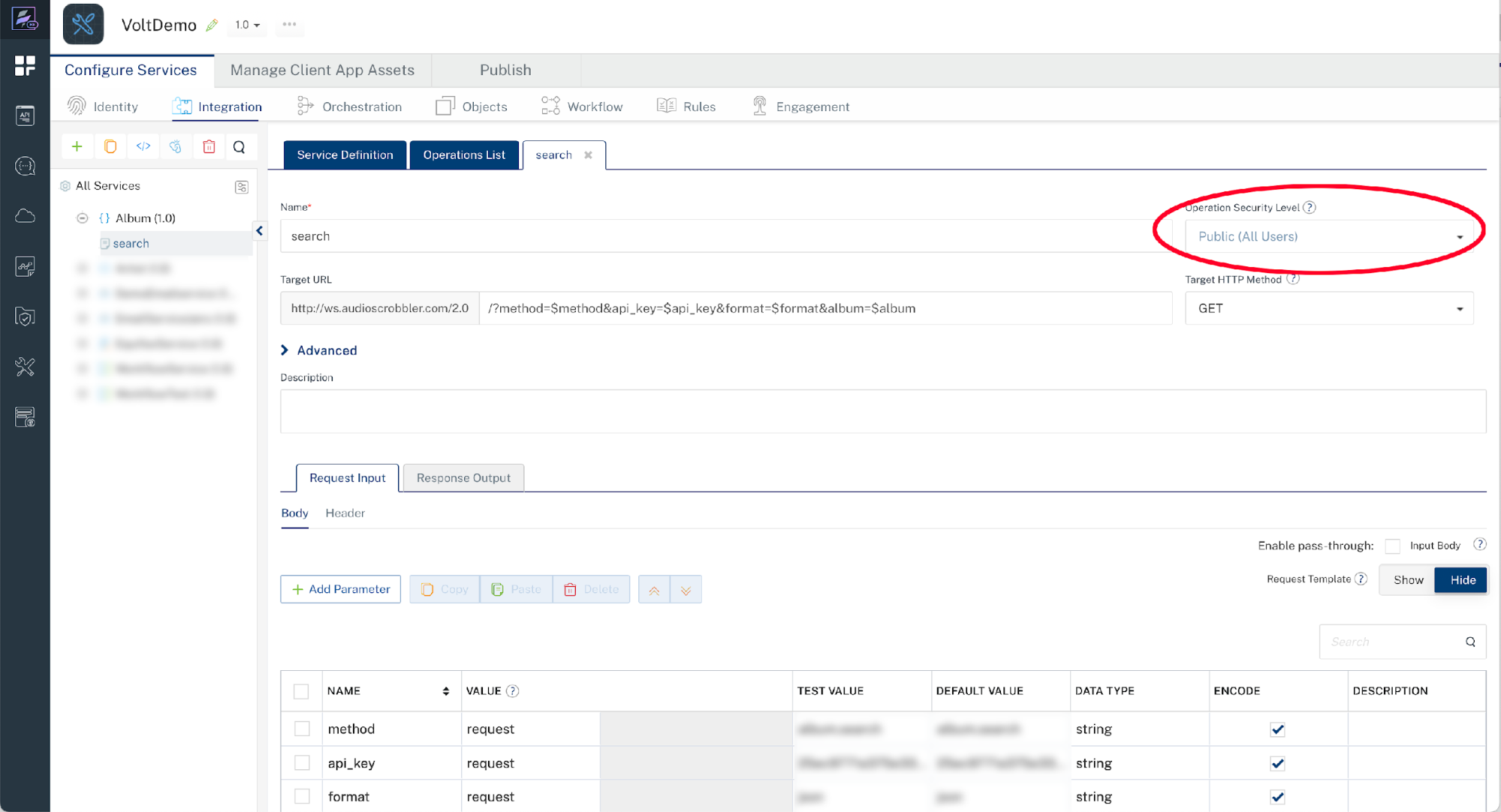
From the Operation Security Level field, select Public (All Users).
-
Click SAVE.
-
Publish the application and APIs. For instructions, see Publishing the Application and APIs.
Anonymous Application Users
Use this option when backend authentication is required but no end-user login is needed.
Exposing an Integration Service Externally
To expose an Integration Service externally for Anonymous Application Users:
-
Log in to the Foundry Console.
-
Open the target application in the Middleware perspective.
-
Go to the Integration Services tab.
-
Select the Integration Service that you want to access externally.
-
Select the operation to expose.
-
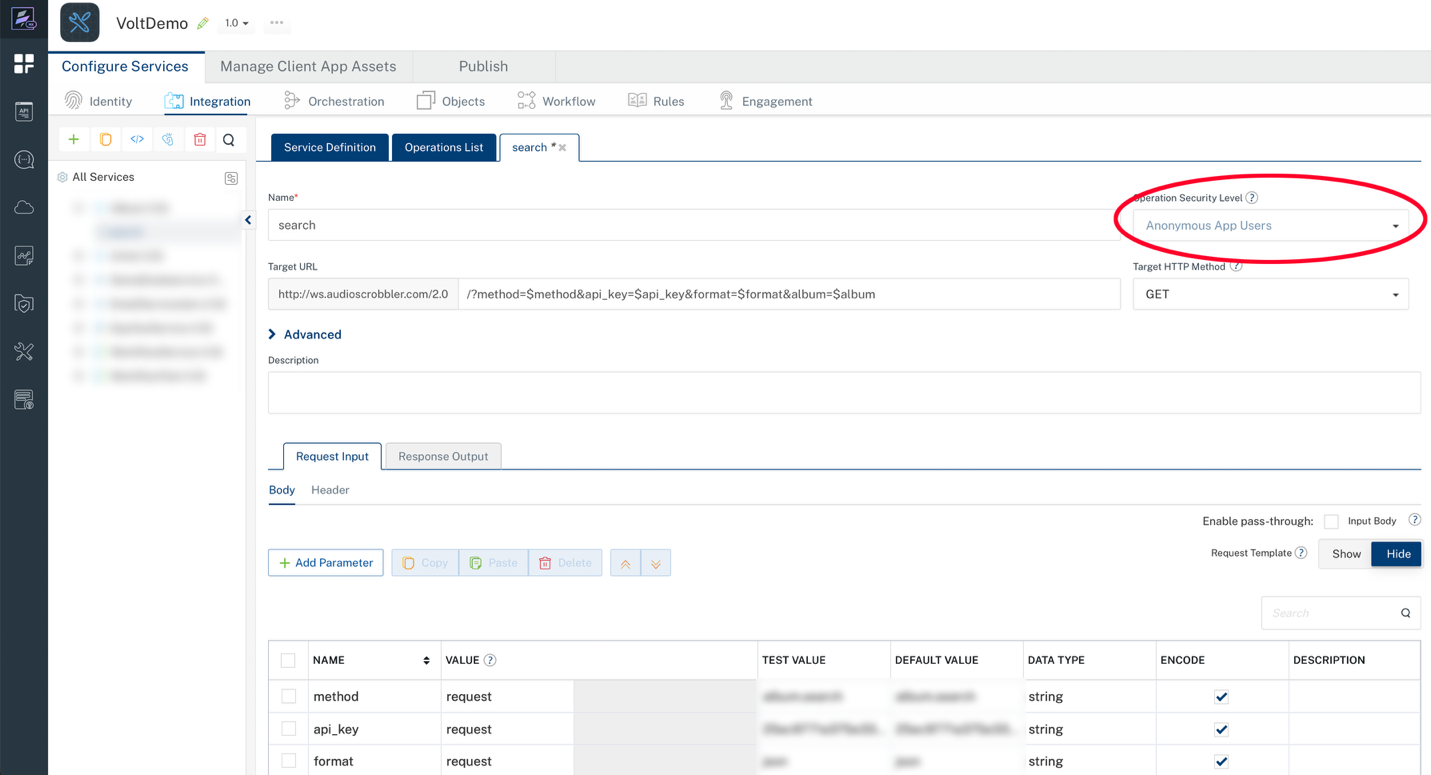
From the Operation Security Level field, select Anonymous App Users.
-
Click SAVE.
Creating an Identity Service for Anonymous Application Users
Use this procedure to create an Identity Service that provides backend credentials for authenticating Anonymous Application Users.
-
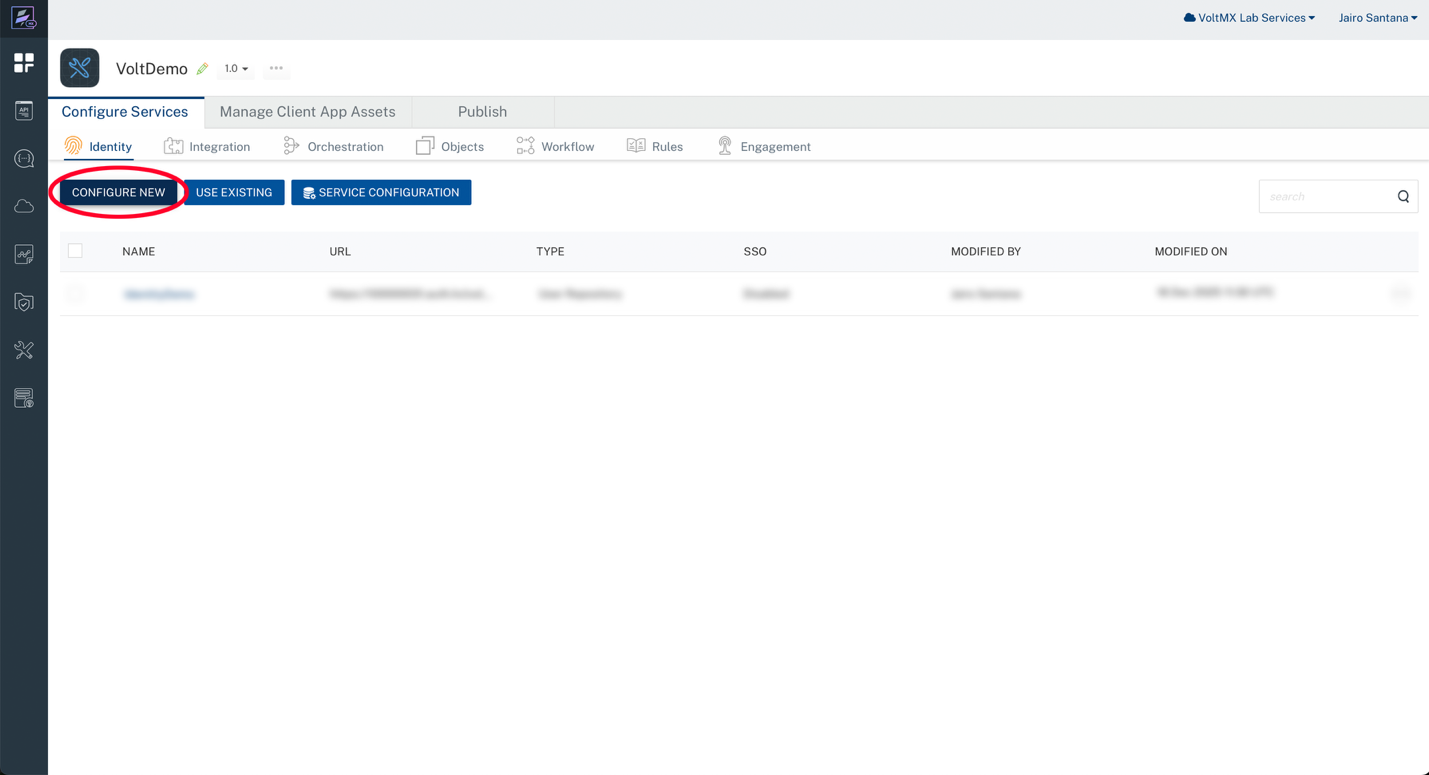
On the Identity tab.
-
Click CONFIFURE NEW.
-
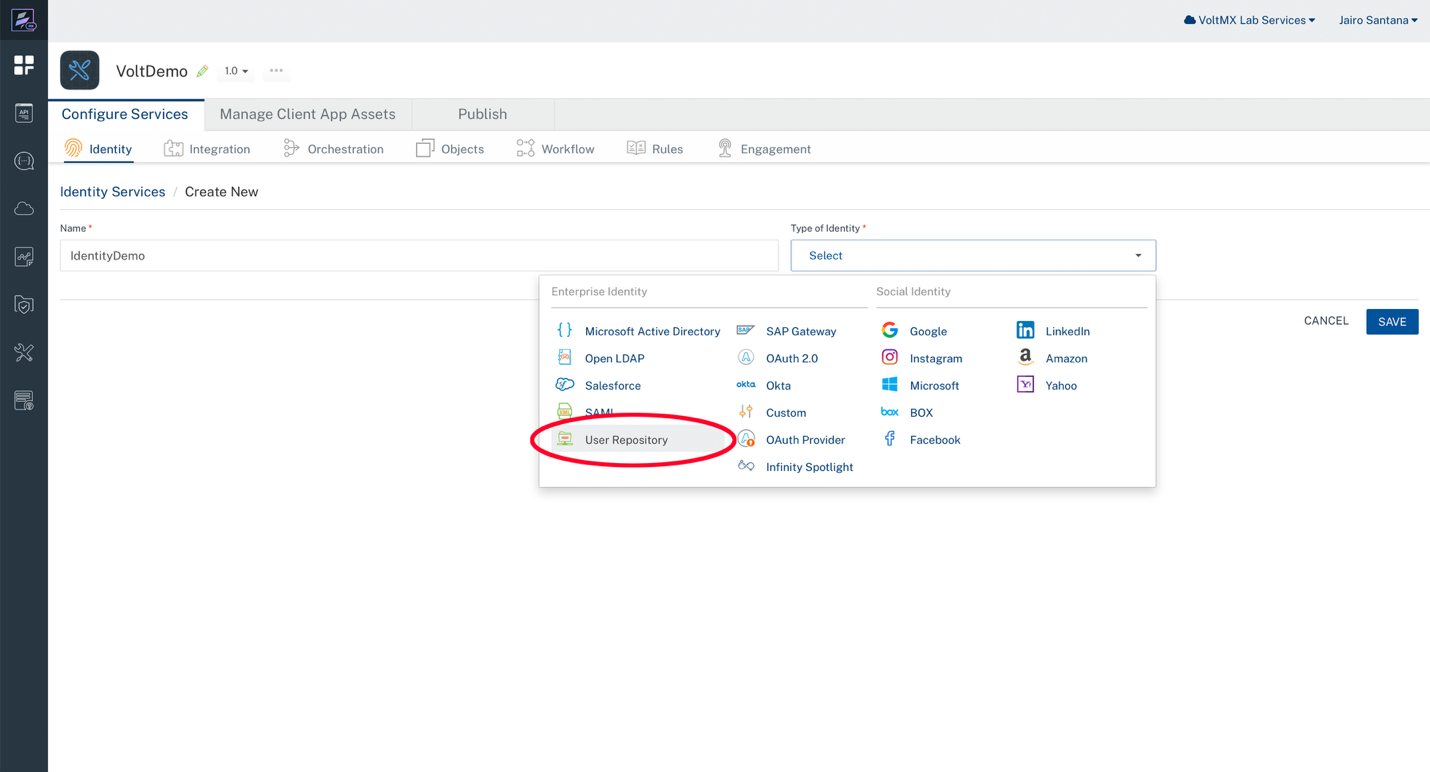
In the Name field, enter a name for the Identity Service.
-
From the Type of Identity list, select User Repository, and then click SAVE.
-
Click ADD USER.
The Add User window opens.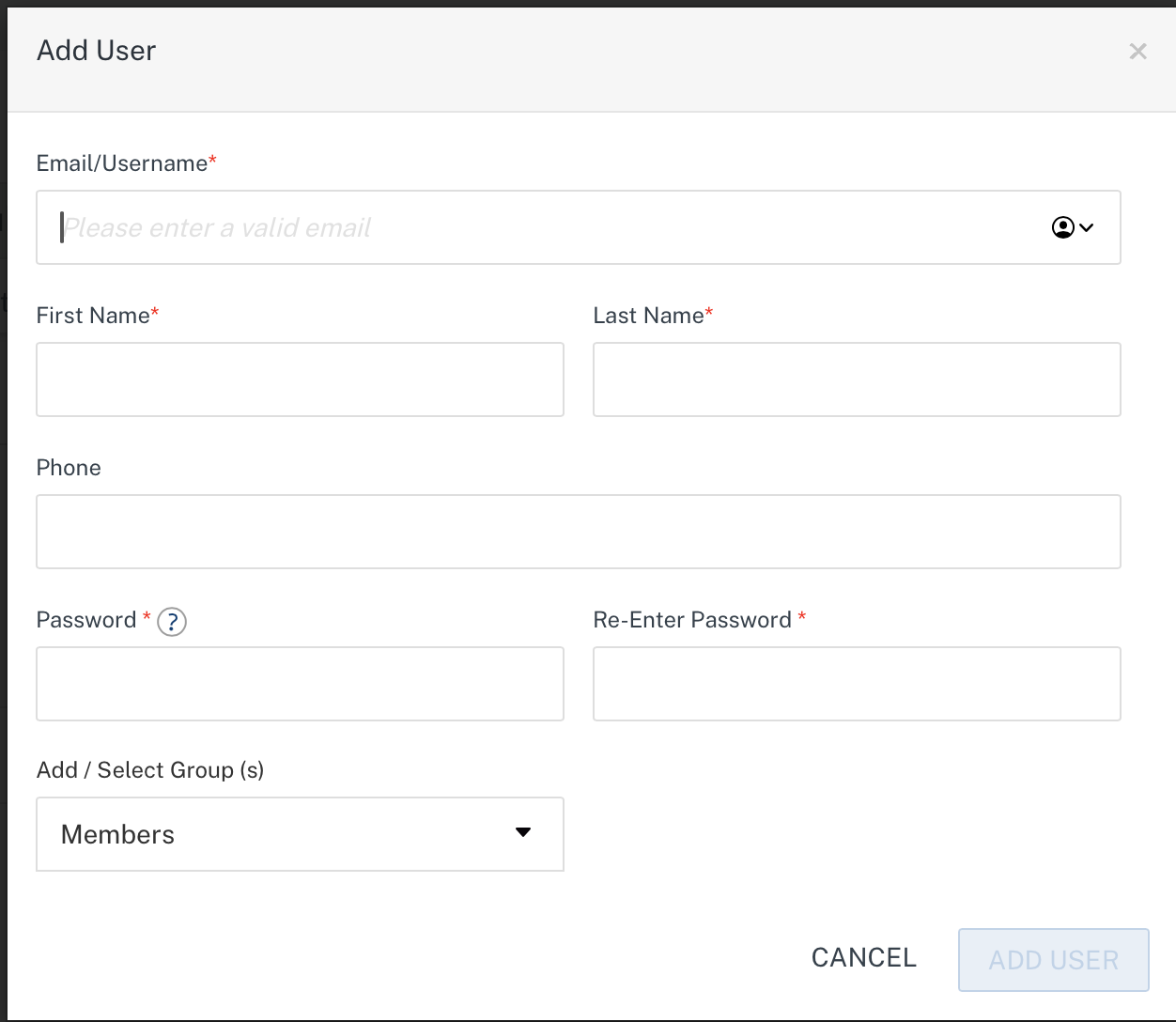
-
Enter the required user details.
-
Click ADD USER.
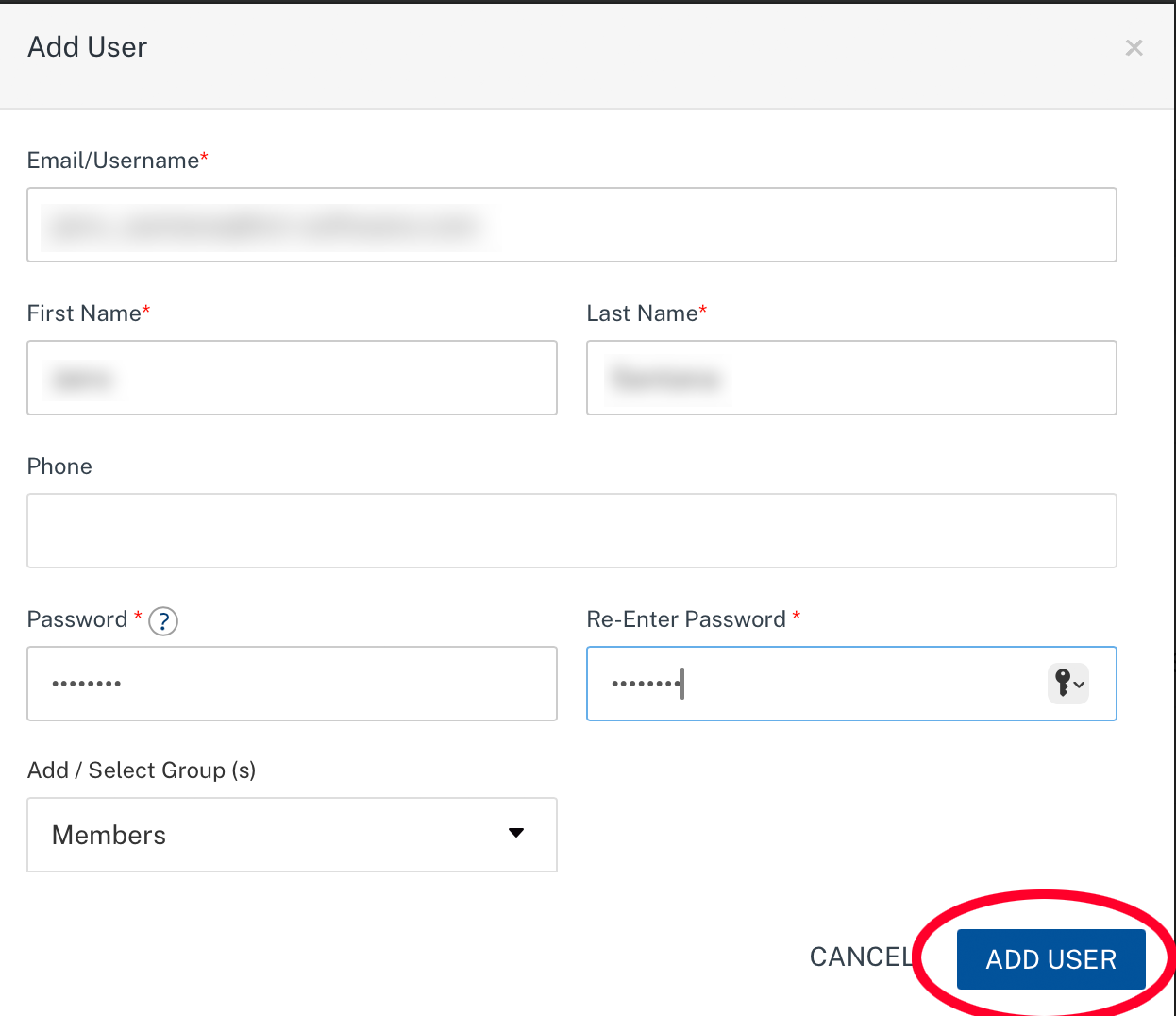
This creates backend credentials (username and password) that client applications use to authenticate when accessing the Integration Service.
Associating the Identity Service with the Integration Service
To associate the Identity Service with an Integration Service:
-
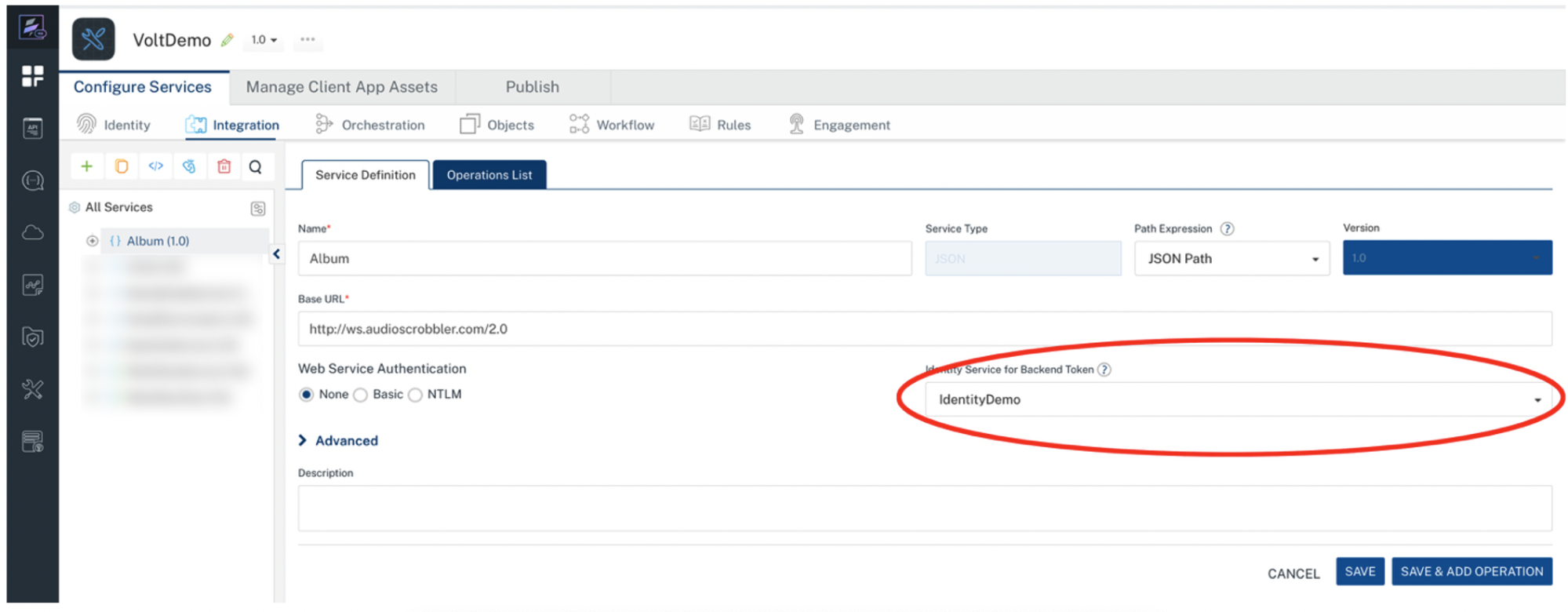
Open the Integration Service on the Service Definition tab.
-
From the Identity Service for Backend Token list, select the Identity Service you created.
-
Click SAVE.
-
Publish the application and APIs. For instructions, see Publishing the Application and APIs.
Authenticated Application Users
Use this option when only authenticated application users must access the service.
Exposing an Integration Service Externally
To expose an Integration Service externally for Authenticated Application Users:
-
Log in to the Foundry Console.
-
Open the target application in the Middleware perspective.
-
Go to the Integration Services tab.
-
Select the Integration Service to access externally.
-
Select the operation to expose.
-
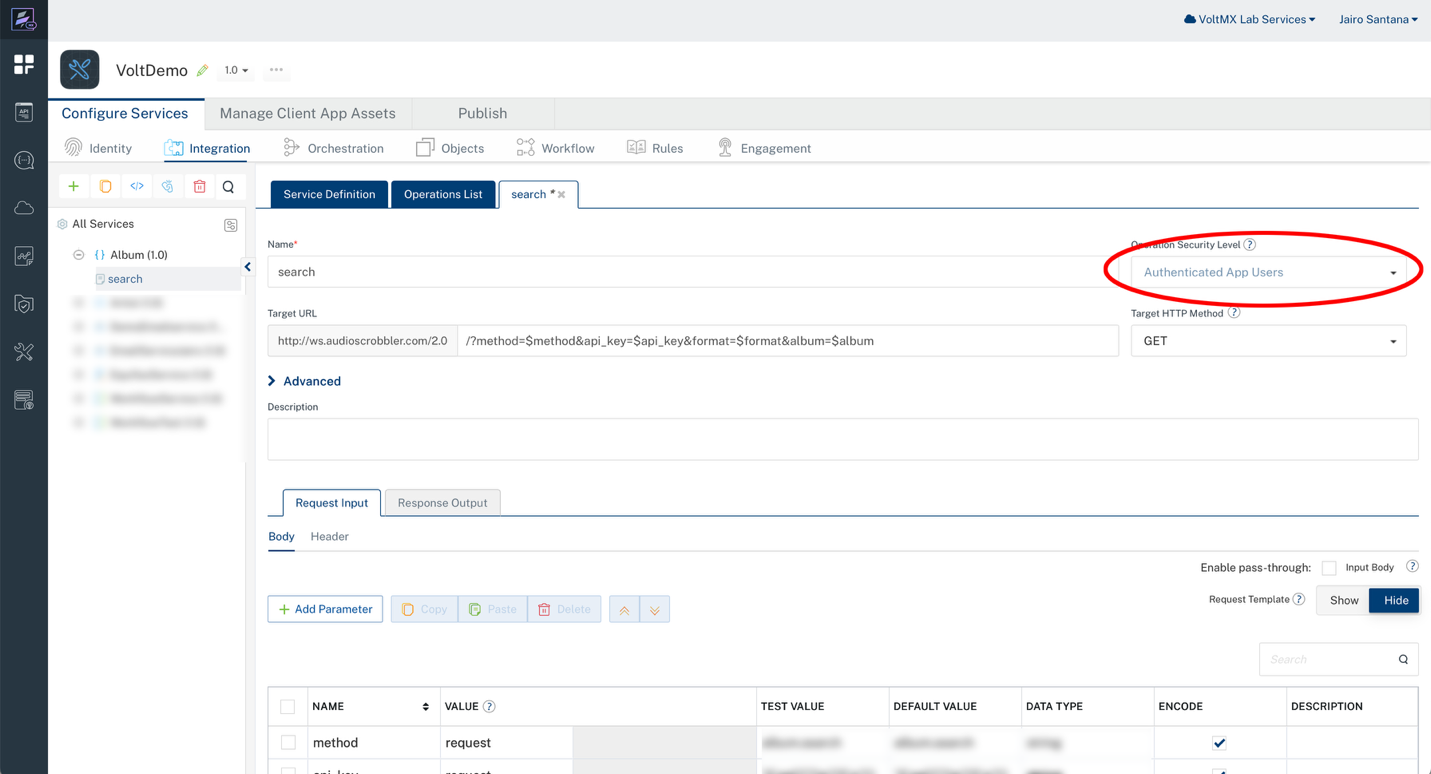
From the Operation Security Level field, select Authenticated App Users.
-
Click SAVE.
Associating the Identity Service with the Integration Service
To associate the Identity Service with an Integration Service:
-
Open the Integration Service on the Service Definition tab.
-
From the Identity Service for Backend Token list, select the Identity Service used to authenticate application users.
Note: In this step, we assume that an identity service is already created and configured for the application.
-
Click SAVE.
-
Publish the Application and APIs. For instructions, see Publishing the Application and APIs.
Publishing the Application and APIs
To publish the application and APIs:
-
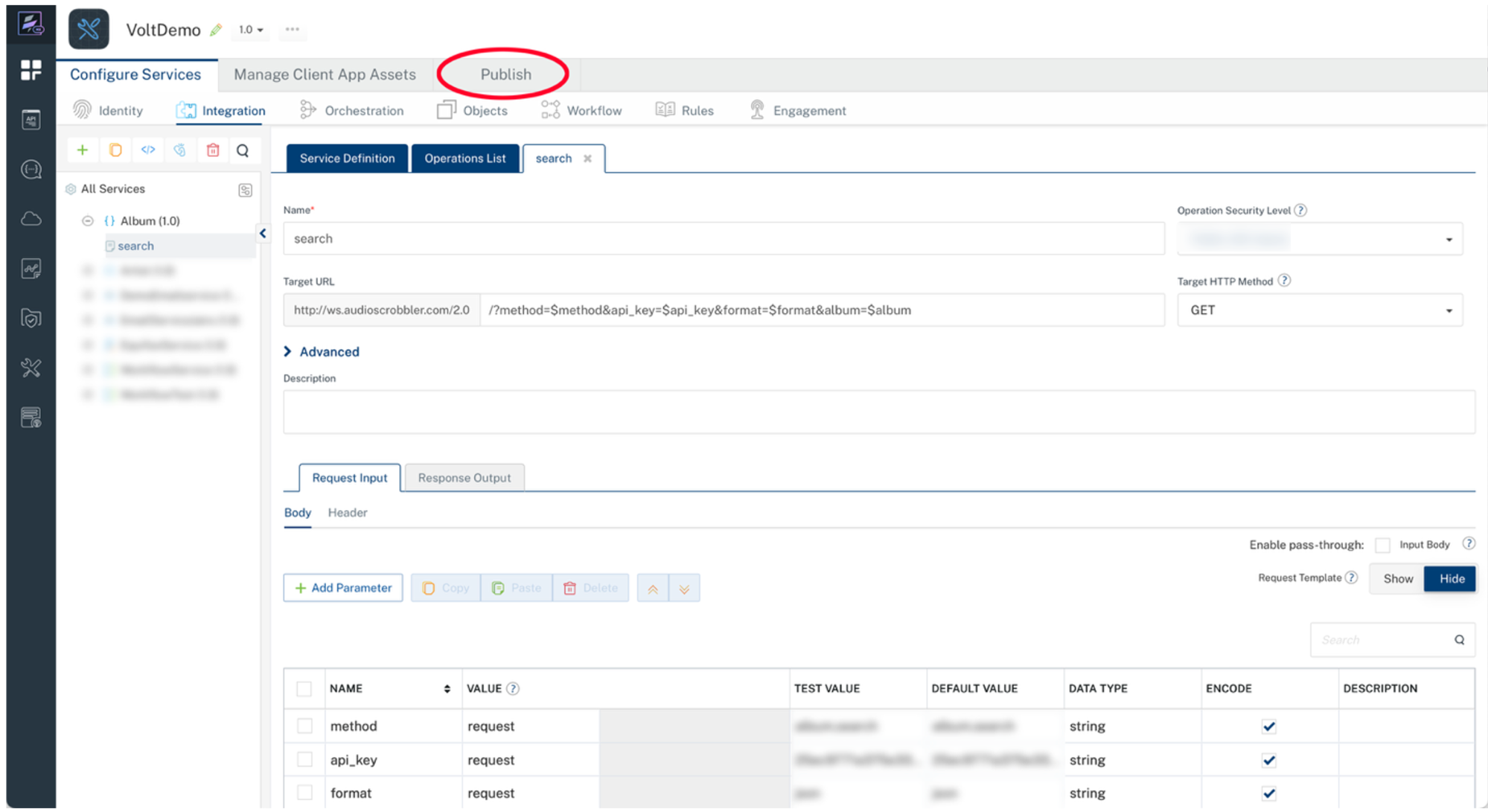
In the Foundry Console, go to the Publish tab.
-
Select the target environment (for example, DEV, QA, or PROD).
-
Click PUBLISH.
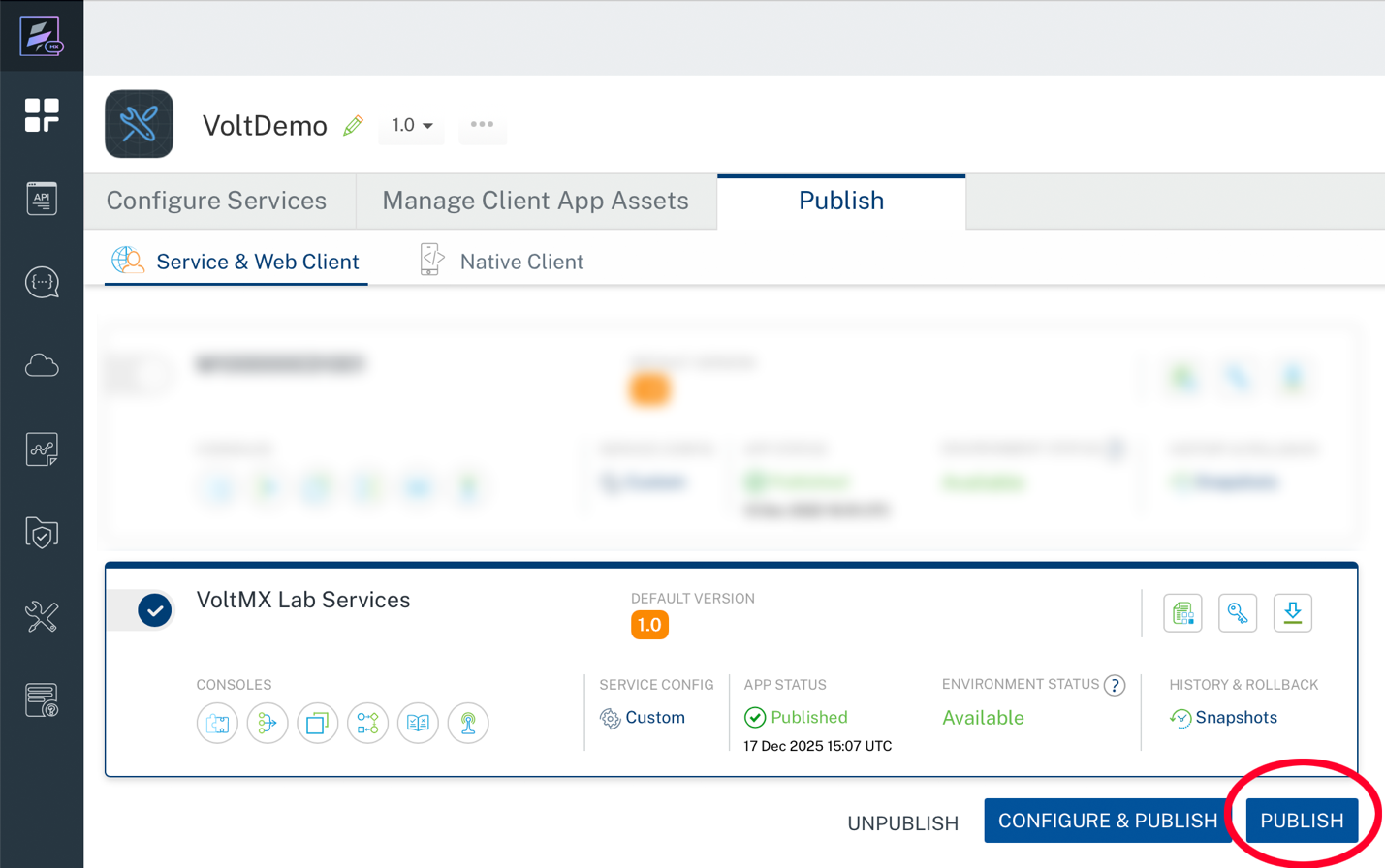
Note: We recommend that you wait until the publishing process completes successfully.
Downloading Application Documentation (Swagger)
Note: Enusre that you remain in the same environment aftet the publishing process completes.
-
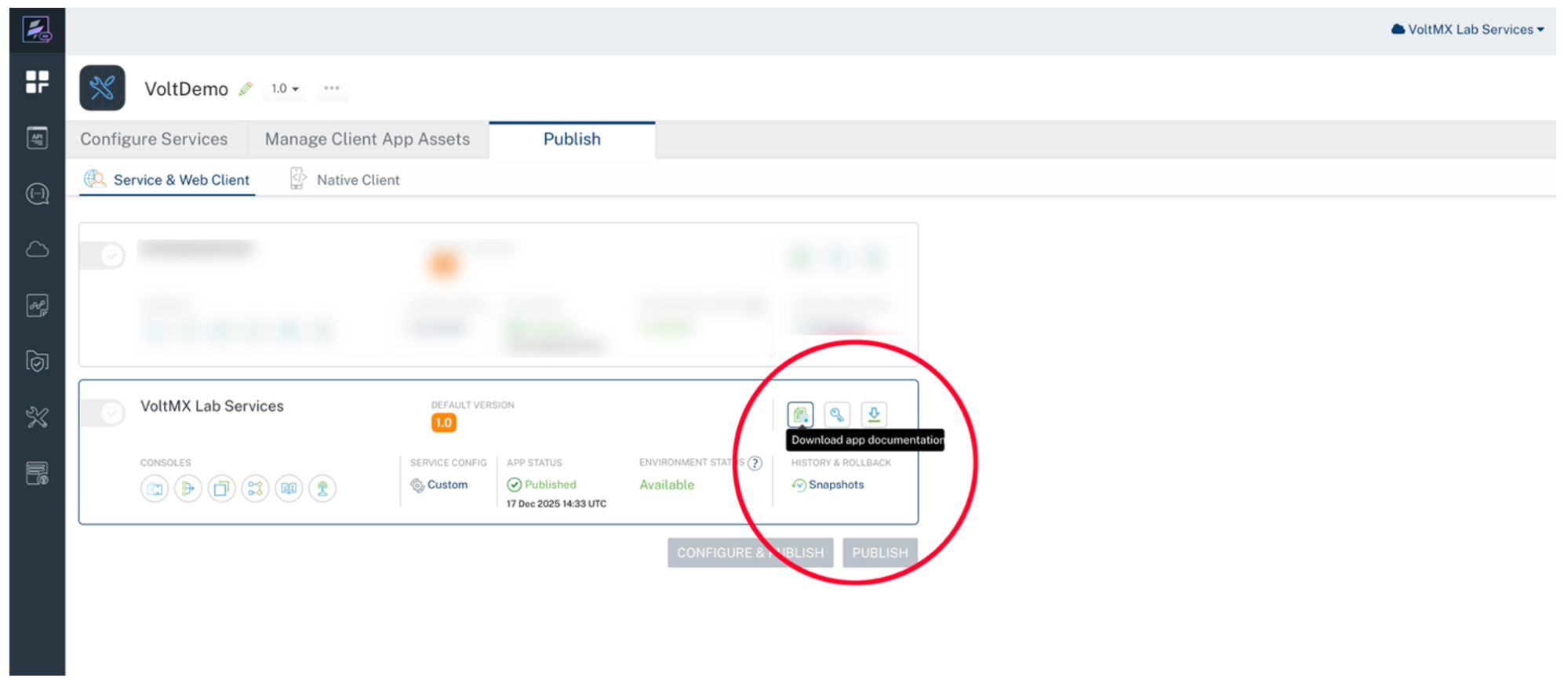
Click Download App Documentation.
-
Extract the downloaded .zip file.
-
Locate the Swagger (.json) file for the Integration Service you want to test.
Testing Using Postman
To test the Integration Service using Postman:
-
If postman is not installed, download and install Postman.
-
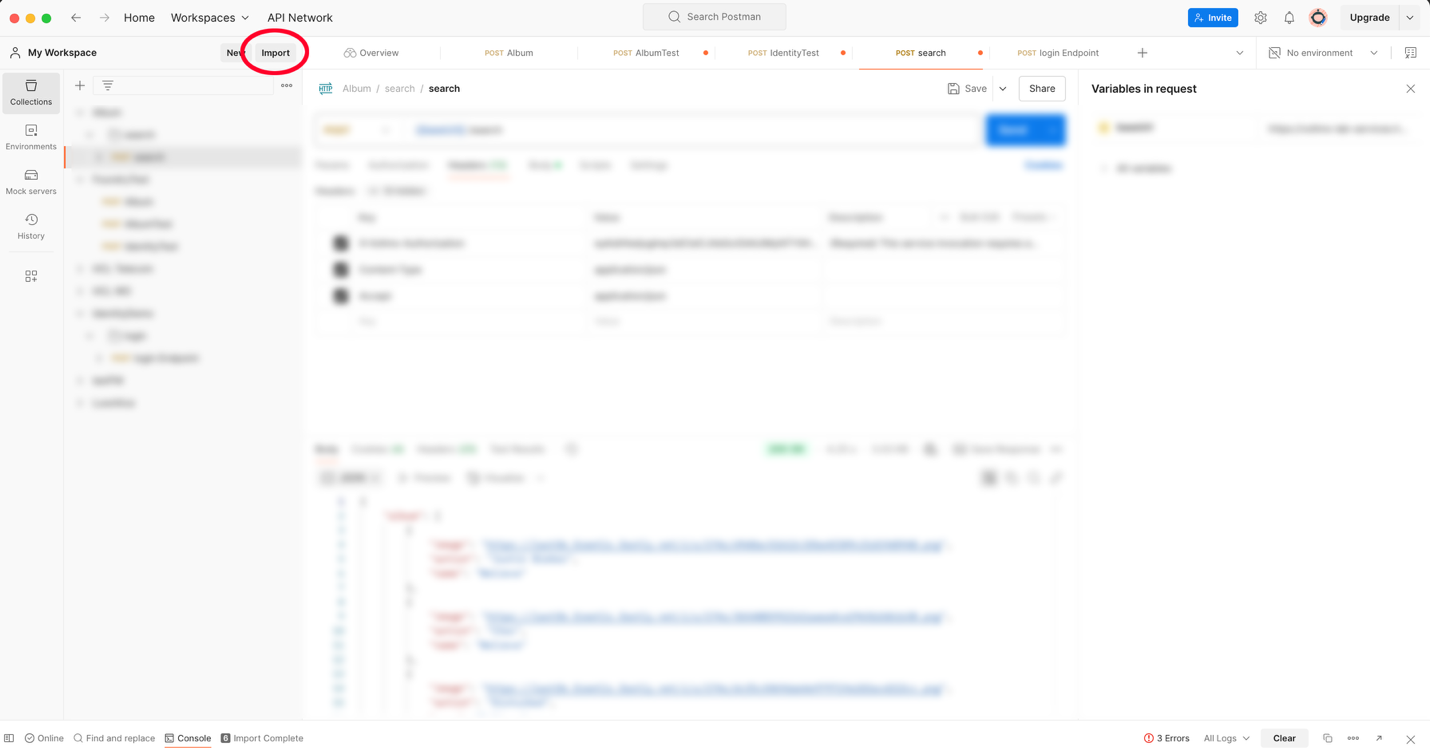
In Postman, click Import.
-
Select File, and import the Swagger file from the extracted documentation.
-
Verify that Postman generates a collection with the service and its operations.
-
Test the service based on your security configuration:
For Public Access
a. Select the Integration Service request.
b. Go to the Body tab and enter the required request parameters.
c. Run the service and verify the response.
For Anonymous Application Users and Authenticated Application Users
a. Select the Identity Service request.
b. In the Body tab, enter the following parameters:
- User ID: Username created in the user repository
- Password: Password created in the user repository
- Provider: Name of the Identity Service
c. Run the service and verify the response.
d. Copy the claims_token value from the response.
e. Select the Integration Service request.
f. Go to the Headers tab and add the following header:
- Key: X-Voltmx-Authorization
- Value: claims_token
g. Go to the Body tab and enter the required request parameters, if applicable.
h. Run the service and verify the Integration Service response.