HCL Experience Studio for Windows OS: Prerequisites
This document describes the hardware, software, and download requirements for installing HCL Experience Studio on your Windows computer.
Following are the requirements needed to complete the installation process. They include the hardware and software prerequisites required to complete the process.
System Requirements
This section helps you understand the system requirements and necessary software required to install HCL Experience Studio.
Software Requirements
| Operating System | Software Requirements |
|---|---|
| Windows 11 and Windows 10. Supports 64-bit Operating Systems | Installer File (Mandatory) |
Hardware Requirements
| Component | Requirement |
|---|---|
| Processor and Architecture | Dual Core processor, 64-bit |
| RAM | 8 GB |
| Internal Storage | 24 GB |
| Network | Ethernet Port |
White-list Essential Domains
Ensure that you contact your system administrator and white-list the following domain URLs:
- https://api.hclvoltmx.com
- https://manage.hclvoltmx.com
- https://manage.demo-hclvoltmx.com
- https://visualization.hclvoltmx.com
- https://accounts.auth.hclvoltmx.com
- https://download.hclvoltmx.com
- https://community.hclvoltmx.com
- https://cloud-metrics.hclvoltmx.net
- https://opensource.hcltechsw.com
- https://hcl-tech-software.github.io
- https://hclvoltmx-prototypetransit.s3.amazonaws.com
Download HCL Experience Studio
The following section explains the procedure to download HCL Experience Studio:
Downloading a trial version
Before downloading the Iris trial version, you must create a Volt MX account. You can go to the Volt MX website and create a new account, or respond to an email invitation from an existing Volt MX user. To create your account, follow these steps:
-
If you received an invitation email, click Accept Invitation. Otherwise, go to https://manage.demo-hclvoltmx.com/registration.
-
On the Registration page, provide the required details and click Start Free Trial.
-
When you receive your registration confirmation email, respond by clicking Activate Account.
-
On the activation page, name your new account and pick a cloud location. Provide the other required details and click Activate My Account.
Your account is activated. The HCL Experience Studio installer should start downloading automatically. If not, or if you want to download the installer later, follow these steps:
-
Type your email address and password, and then click Sign In. The downloads page appears.
-
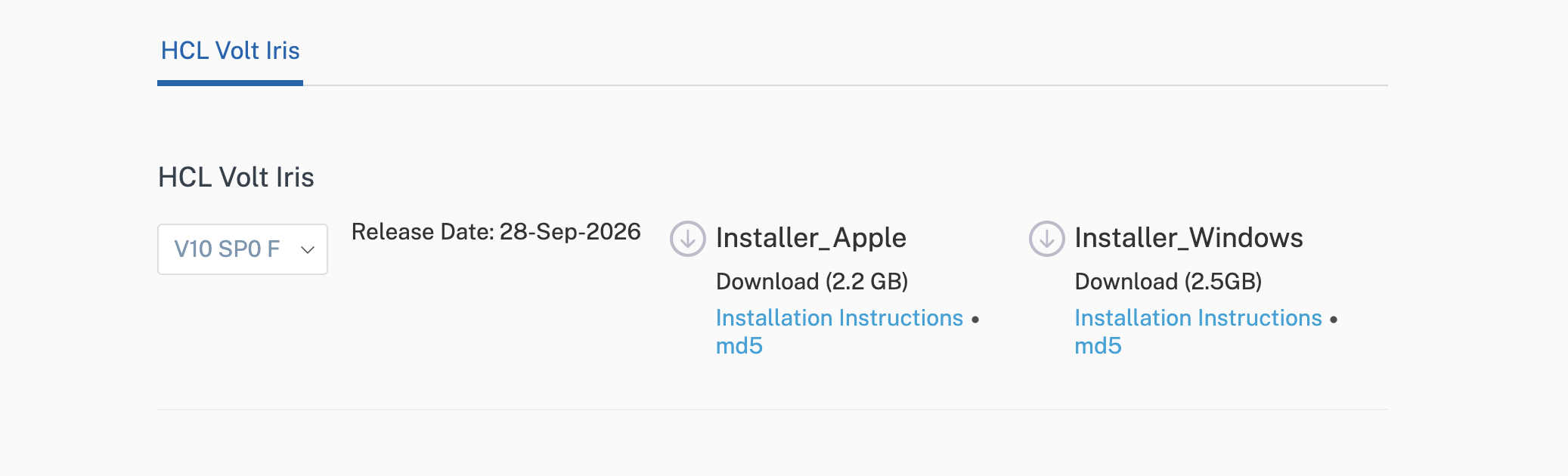
Under HCL Volt Iris, click Installer_Windows.
The installer is downloaded to your computer.
Note: You must have administrative rights on your computer to install HCL Experience Studio.
Note: When you activate your account, you receive an email with a link to the Foundry console. After you have installed Iris, visit https://support.hcltechsw.com/csm?id=kb_article&sysparm_article=KB0094403 for important information about configuring Iris and Foundry to work together.
Downloading with a Volt MX Account
To download HCL Experience Studio on your Windows computer, follow these steps:
-
Type your Volt MX account login credentials, and click Sign in.
-
Under HCL Volt Iris, with name “Installer_Windows”. Click the Download button for the installer of choice. The installer is downloaded as a zip file to your computer.