
DAG Execution
UDS pipelines process data across various layers applying various data integration procedures to standardize the source data from Canonical schema, to ultimately create the 360 views for customer consumption.
About this task
These pipelines are executed via DAGs (Directed Acyclic Graphs) scheduled in an orchestration tool like Airflow. This Airflow setup is a prerequisite for this installation as mentioned above.
Procedure
-
Extract the
ZIPfile provided in the UDS installation package (HCL_Unica_CDM_<25.1.1>.zip) and navigate to the dags folder. -
Copy contents of this folder to the Airflow installation's DAG folder.
Example: /opt/airflow-data/dags
-
ONE-TIME STEPS FOR DAG SETUP
-
DAG execution order
-
Click download the DAG Execution
Document.
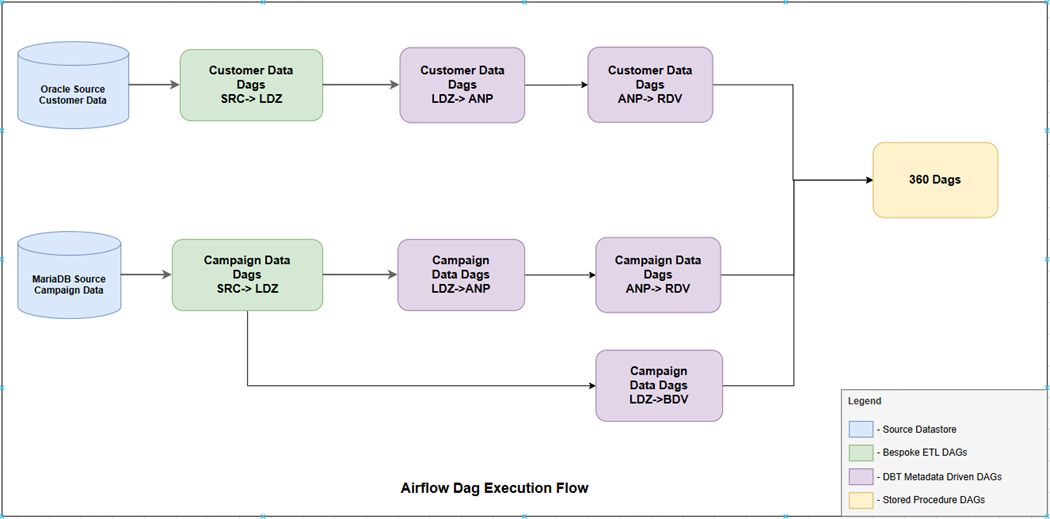
The document summarizes the DAGs that need to be executed and the order in which they should be executed. The document also contains additional information regarding sources and targets of DAGs, their inter dependencies and operational information like date control entries to manage the business dates for various data groups.
The below diagram depicts the flow of execution for dags:
-
Click download the DAG Execution
Document.
-
Importing variables into Airflow
-
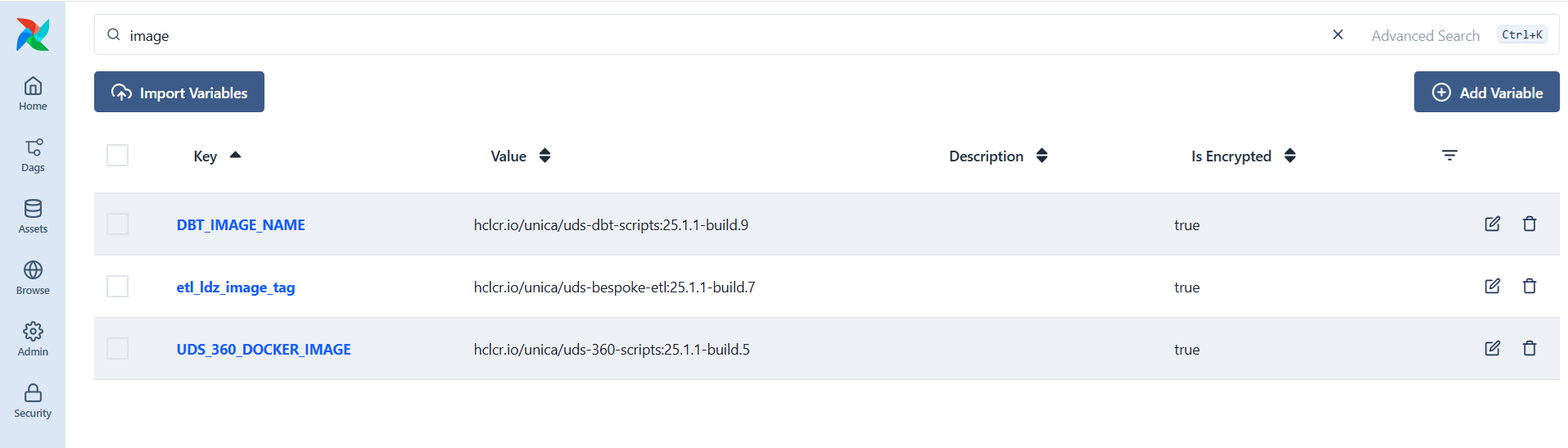
Once variables are imported, set up corresponding environment values as
per installation. For example, below Docker image specific variables
will have to be updated with image values deployed in the Kubernetes
cluster:
 Key point:
- Initial Execution (Bespoke, DBT and 360 Docker Images): The container image is pulled from the registry, cached on the Kubernetes node, and subsequently utilized for pod creation.
- Subsequent Executions: The cached image is utilized directly from the node's local storage, eliminating the need for registry access.
Once DAG specific variables are imported, the next step is to import Schedule variables using the same steps mentioned above. The schedule specific JSON files to be imported are bespoke_schedule_config.json, dbt_schedule.json, and schedule_360.json.
A sample schedule that should run everyday at 7:00PM will have its schedule variable value set as:
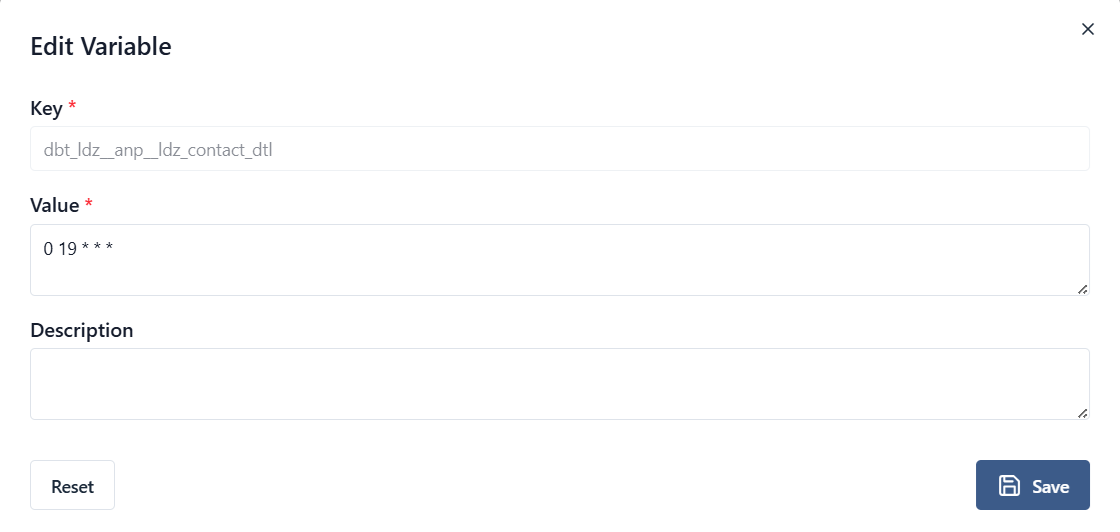
Field Value Meaning Minute 00 Run at minute 00 Hour 19 Run at 19:00 (7:00 PM) Day of Month * Every day Month * Every month Day of Week * Every day
-
Once variables are imported, set up corresponding environment values as
per installation. For example, below Docker image specific variables
will have to be updated with image values deployed in the Kubernetes
cluster: