Creating Persistent Volume Claim for shared drive
After installing Detect
services, create and configure a shared drive in kubernetes. There are two ways to
create Persistent Volume Claim (PVC) in the kubernetes either using YAML file or
through UI console.
In the OpenShift console, click Create PersistentVolumeClaim, enter required
parameters to create a PVC and create the PVC as shown in the below screenshot.
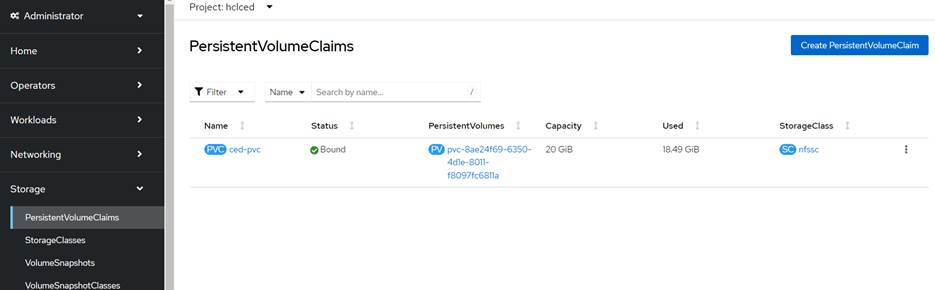
Alternatively, you can create a yaml file, refer
here, and update the
required parameters like name, namespace, storageClassName and storage size. After
updating the corresponding values in the yaml, run the following command to create
PVC.
kubectl apply -f sample_pvc.yaml
Configuring Mount Points
To configure PVC for mounting data to the pod, create and configure the sample-pod-to-copy-appsrc-n-instancehome.yaml file.
Now, copy the acme and instance_home zip files to this the /data folder using
the kubectl command.
Kubectl cp <acme zip file> <pod-name>:/data/
Note: Update the image name of your choice.
After the files are copied, rename the acme folder to the appsrc folder, and delete
all the folders in the appsrc/lib path.
unzip acme.zip
mv acme appsrc
cd appsrc/lib
rm -rf *
Finally, change the folder permissions of appsrc and
instance_home.
chmod -R 764 appsrc instance_home
Edit the bootstrap.servers key in the producer_config.properties file
available in the appsrc/etc folder with the VM IP address.
bootstrap.servers=<VM IP address>:9092
Prefix the folders of the appsrc and instance_home folders with the
solution name (ex. Default solution name is acme)
mv appsrc acme-appsrc
mv instance_home acme-instance_home
Note: Update the mount points in the deployment charts as the
mount points vary for the manual/NFS/cloud storage drives.
