
Integrating HCL Detect with Unica Platform
This page explains about how to integrate HCL Detect with Unica Platform.
Pre-requisites
Before you configure Detect to use MaxAI, make sure the following things are in
place:
- MaxAI Integration with Platform:MaxAI must be integrated with the same platform where Unica Detect is integrated.
- A Platform User with MaxAI Admin Role must be available. To assign this
role:
- Navigate to User roles and permissions > Unica Detect
>
<partition>> MaxAI Admin. - Select Assign Users, and add the user (e.g.,
testuser2).
- Navigate to User roles and permissions > Unica Detect
>
- A Platform User with Unica Detect User Role must be available: To assign
this role:
- Navigate to User roles and permissions > Unica Detect
>
<partition>> Detect User. - Select Assign Users, and add the user (e.g.,
testuser2).
- Navigate to User roles and permissions > Unica Detect
>
- If the user needs to create events, the user must have the Unica Detect
Admin role.
To assign this role:
- Navigate to User roles and permissions > Unica Detect
>
<partition>> Detect Admin. - Select Assign Users, and add the user (e.g.,
testuser2).
- Navigate to User roles and permissions > Unica Detect
>
Integrate Detect with Unica Platform
To integrate Detect with Unica Platform, follow the steps below:
- Before deploying the Detect for Platform integration, run the
following commands to generate platform client ID and client secret.
- For
RHEL
cd <Platform_Home>/tools/bin ./clientDetails.sh -a Manager - For Windows:
cd <Platform_Home>/tools/bin
clientDetails.bat -a Manager

- For
RHEL
- Then, update the drive.json file with the configuration below after
the pinPoint
object.
"platformAuthConfig": { "defaultUserName": "<default username>", "platformBaseUrl" : "<http(s)://platform-domain-url/unica>", "platformClientId": "<username>", "platformClientSecret": "<encrypted password>" },- defaultUserName: Default user name to access the platform.
- platformBaseUrl: Unica Platform's URL.
- platformClientId: Platform username.
- platformClientSecret: Encrypted password of the user.
- Include license configuration to report count and the frequency at which these
counts should be pushed to the
Platform.
"licenseFeatureConfiguration" : { "featureNames" : ["HCL_Detect"], "pushFrequencyGranularity": "Day", "pushFrequencyPeriod": 1 }, - If the domain (host:port) is different for the platform and the MaxAI
application, add the hosts for both
applications.
"corsConfig": {
            	"allowedHeaders": [
                		""
            	],
            	"allowedOrigins": [
                		"<https://platform-domain-url>",
                		"https://developer:8443",
			“”
            	]
        	},
"maxAiConfiguration": { "maxAiAgenticApiURL": "<https://platform-domain-url>" },Note: If you have a MaxAI license, enable this configuration to use MaxAI.Note: The maxAiAgenticApiURL must be configured in the Platform Configuration as shown below.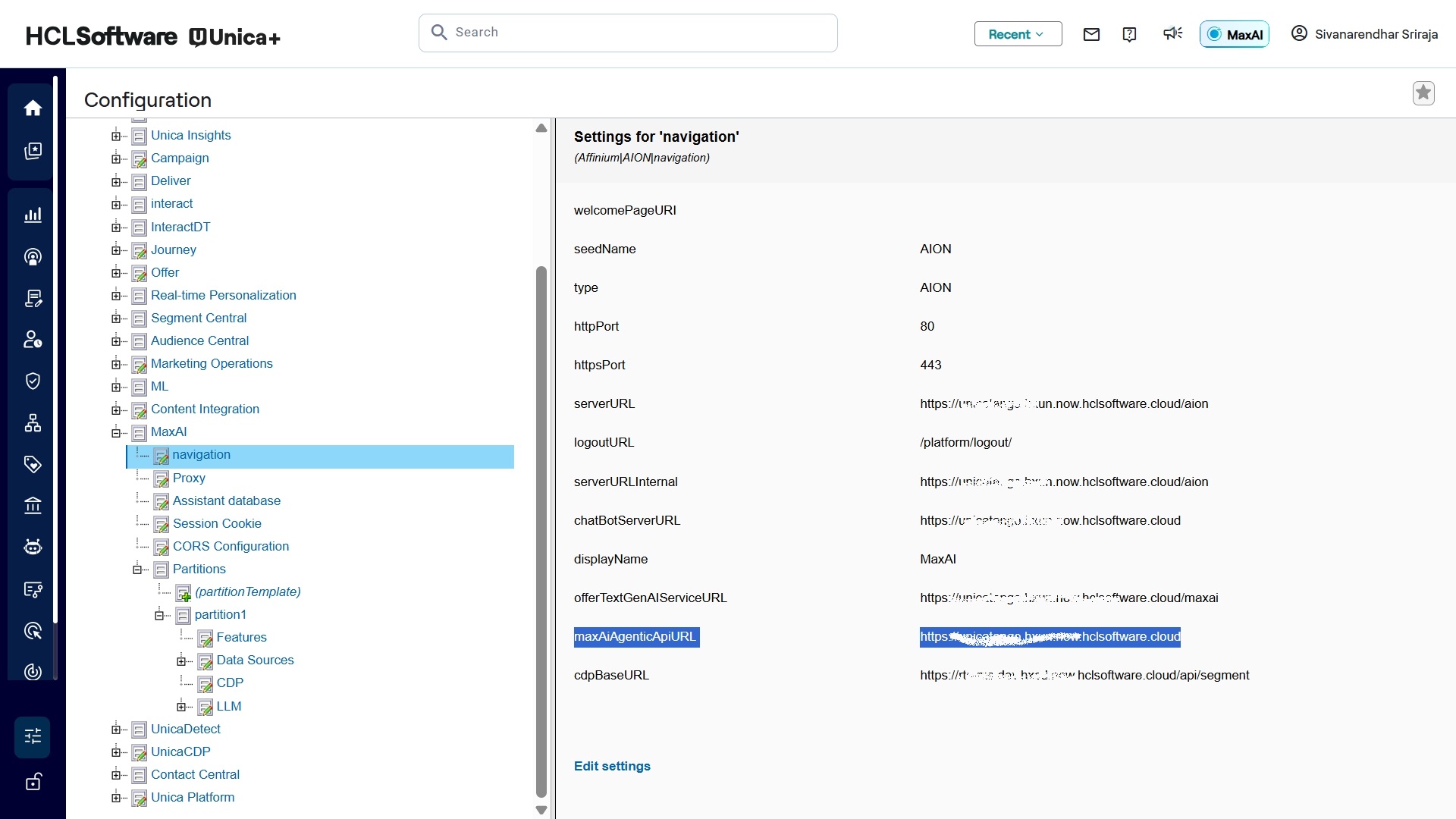
- For the docker environment, to execute the command inside the platform VM,
execute the command
below.
env | grep platform.home
- As a result, the output is shown as
below.
PRODUCT_OPTS_PLATFORM=-Dplatform.home= /docker/unica/PlatformThis path is considered the platform home. The path may vary depending on the installation.
- In case of docker, copy the UnicaDetect_menu.xml, UnicaDetect_configuration.xml and detectabout.xml files to the Platform pod (under /docker/unica/Platform). These files are available in <Detect_Install_path>/drive/etc/platform/.
- For the On-prem Scenario, copy the UnicaDetect_menu.xml and UnicaDetect_configuration.xml files to platform.home path. These files are available in the <Detect_Install_path>/drive/etc/platform/ path.
- Run the below commands inside the Platform pod, available under
(<platform.home>/tools/bin).
./populateDb.sh -n UnicaDetect ./configTool.sh -vp -p "Affinium|suite|uiNavigation|mainMenu" -f <platform.home>/UnicaDetect_menu.xml ./configTool.sh -vp -p "Affinium" -f <platform.home>/UnicaDetect_configuration.xml - Save the below xml contents as DetectAbout.xml, and copy to
<platform.home>/tools/bin for both docker and non-docker
scenarios.
<?xml version="1.0" encoding="UTF-8"?>
        <category name="about" hidden="true" readOnly="true">
            <property name="displayName" type="string_property" width="40">
                <value>Unica Detect</value>
            </property>
            <property name="releaseNumber" type="string_property" width="40">
                <value>25.1.0.0.4</value>
            </property>
            <property name="copyright" type="string_property" width="40">
                <value>2025</value>
            </property>
            <property name="os" type="string_property" width="40">
                <value>Red Hat Enterprise Linux <Linux Version></value>
            </property>
            <property name="java" type="string_property" width="40">
                <value>OpenJDK Runtime Environment (build 1.8.0_202-b08)</value>
            </property>
            <property name="appServer" type="string_property" width="40">
                <value>docker_host_name</value>
            </property>
            <property name="otherString" type="string_property" width="40">
            </property>
        </category>
Note: Update the appropriate RHEL version 8 or 9 as per your environment, and run the below command:./configTool.sh -vp -p "Affinium|UnicaDetect" -f DetectAbout.xml -o - Login to platform using asm_admin, and update the serverURL and serverURLInternal fields in the Platform Configuration > Detect > Navigation.
- Using the roles and permissions options, assign Detect Roles as DetectAdmin and DetectUser to users.
- For docker scenario, update the detect helm
charts.
helm upgrade <detect_chart_name> . - Restart Detect Tomcat service. All set to use Detect from Platform now.
- Now, you can login to platform. From Menu bar, click Unica Detect and start using Detect.