
User & Role Management
This page explains how to manage roles and permission in HCL Detect.
This section provides administrators with the essential information needed to configure user access through a robust system of roles and permissions. By defining roles and assigning specific permissions, users can access only to the functionalities required for their responsibilities.
From 25.1.0 version, Managing detect user, roles and user groups are integrated in Unica+ Platform. For comprehensive information on administrative functions on user and role management, please refer to the Unica+ Platform Guide.
Managing Roles
Default Roles
HCL Detect includes the following default roles:
- Detect Admin: Has unrestricted access.
- Detect User: Has all permissions except user and role management.
Adding a New Role
To create a new role, follow the steps below:
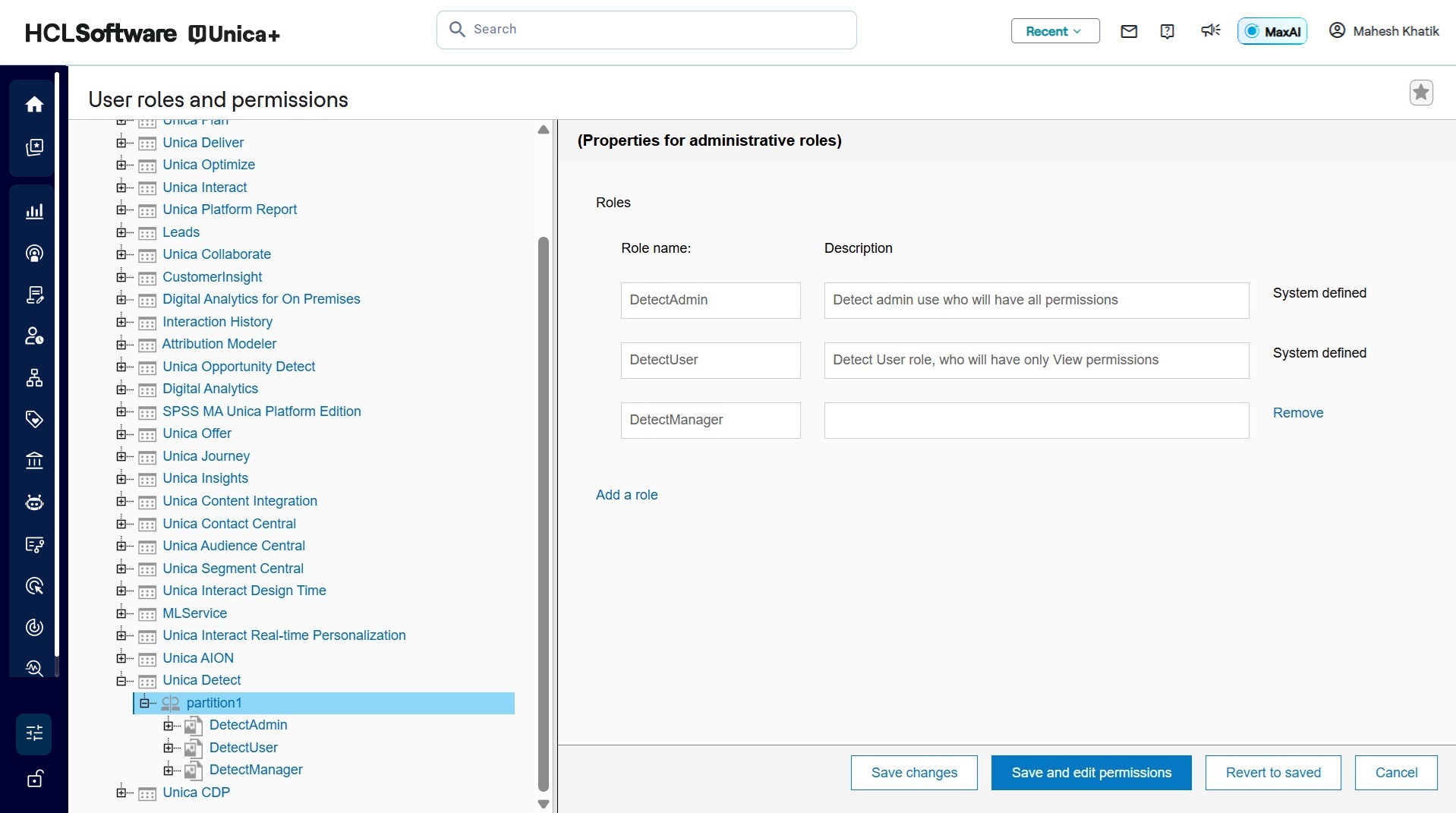
- From the platform menu, click Settings > User roles and permissions.
- From the User roles and permission tree, expand Unica Detect > partition1.
- On the right pane, click Add roles and assign permissions.
- Enter name and description for the new role.
- Click Save and edit permissions.
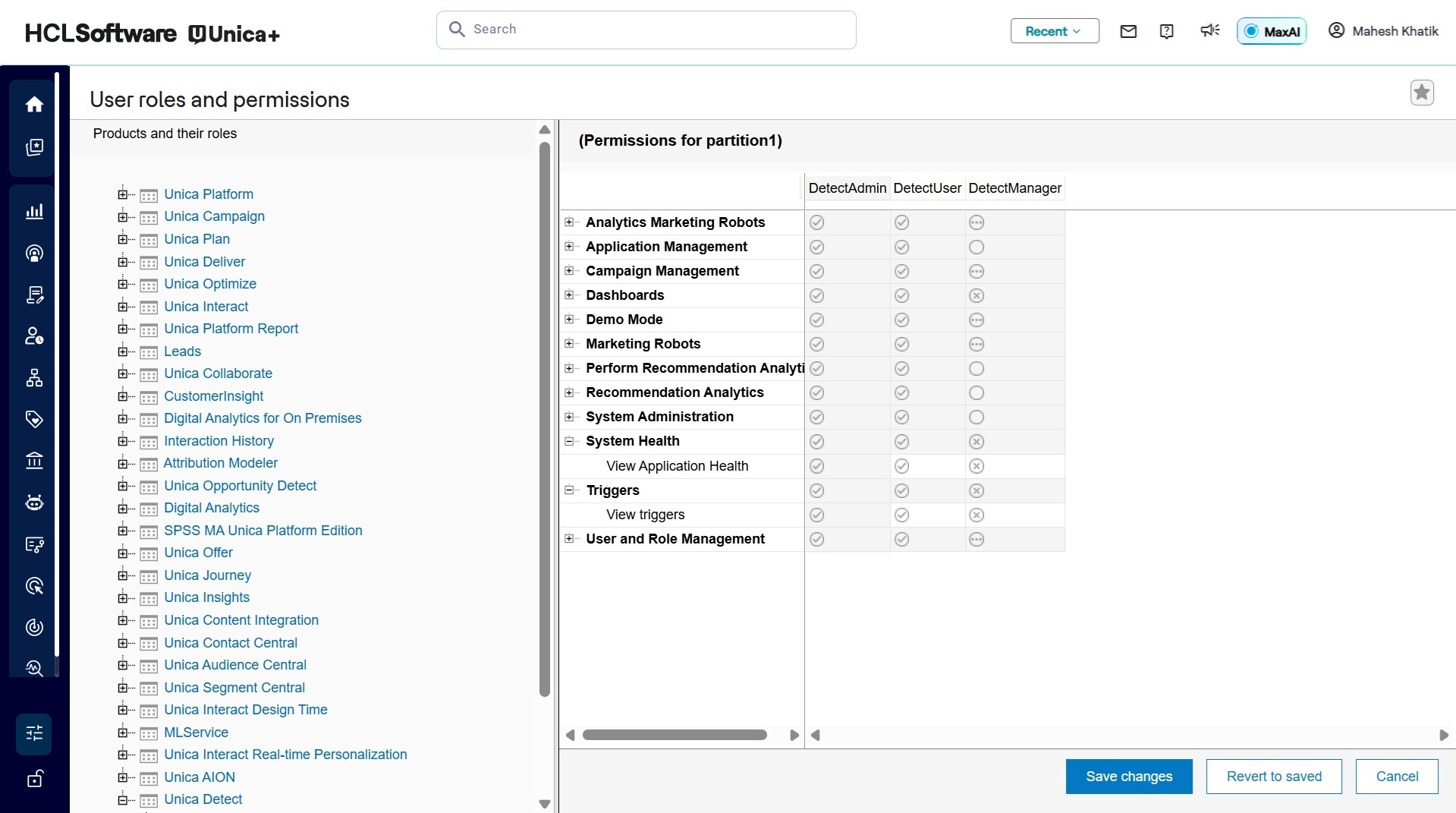
- Assign permissions by selecting the relevant checkboxes, and click Save Changes.
For example, a newly created Detect Manager role may have only View Events permissions.
Permissions
Permissions grant access to specific actions and features within the platform. Below is a list of available permissions and their functions.
Application Management
- Edit applications: Grants permission to modify application settings.
Campaign Management
- Send actuations: Allows users to send outbound marketing messages or actions.
- Update campaign statistics: Permits the manual update of campaign performance data.
- View offer and campaign information: Grants access to view details of offers and campaigns.
- Edit Campaign Cores: Allows users to edit the core settings of a campaign.
- View Campaign Cores: Allows users to view the core settings of a campaign.
- Consume responses: Enables the processing of incoming campaign responses.
Dashboards
- View dashboard: Grants access to view system and performance dashboards.
Event Management
- Deploy Events: Grants permission to activate and deploy events.
- Edit Events: Allows users to create or modify event definitions.
- View Events: Grants access to view configured events.
- Add geofences: Allows users to create new geographical boundaries.
- View geofences: Grants access to view existing geographical boundaries.
Recommendation Analytics
- Edit Recommendation Analytics: Allows users to modify recommendation analytics configurations.
- View Recommendation Analytics: Grants access to view recommendation analytics results.
System Administration
- Add and edit data feeds: Allows users to configure and manage data feeds.
- View data feeds: Grants access to view the status and details of data feeds.
- View subscriber profiles: Allows users to view detailed subscriber information.
- View POIs: Grants access to view Points of Interest.
- Edit POIs: Allows users to create or modify Points of Interest.
- Add and edit subscriber segments: Grants permission to create and manage subscriber segments.
- View subscriber segments: Allows users to view existing subscriber segments.
- View settings: Grants access to view system-wide settings.
System Health
- View Application Health: Allows users to monitor the health and status of applications.
Triggers
- View triggers: Grants access to view configured system triggers.
User and Role Management
- View departments: Allows viewing of the departmental structure.