Feed Applications, Aggregates & Enrichments
This section explains how Feed Applications, Aggregates, and Enrichments in HCL Unica Detect work together to define event sources, aggregate data, and enrich event information for improved event processing and decision-making.
Viewing Feed Applications
Feed applications are custom Python programs that ingest real-time data from external sources such as Kafka or files. They process the data using enrichments and aggregates before sending the output to Detect's internal Kafka for event detection. Each feed application represents a pipeline for transforming and evaluating customer event data.
Feed applications are registered in Detect through system configuration files and
appear automatically on the Settings page once deployed. The feed application
metadata, such as feed name, associated enrichments, and aggregates, is defined in
the backend configuration via the drive.json file.
The following information is shown for each feed application:
- Feed Name: The unique name of the feed application.
- Aggregates Used: Lists the predefined aggregates linked to the feed.
- Enrichments Used: Shows pre- and post-aggregation enrichments applied.
- Actions: Allows users with appropriate roles to view, update, or delete the feed entry.
Use this page to quickly verify the structure and deployment status of your feed applications.
To view all feed applications configured in HCL Detect:
- From the Menu bar, click Unica Detect > Administration.
- In the Settings page, click the Feed Management tab.
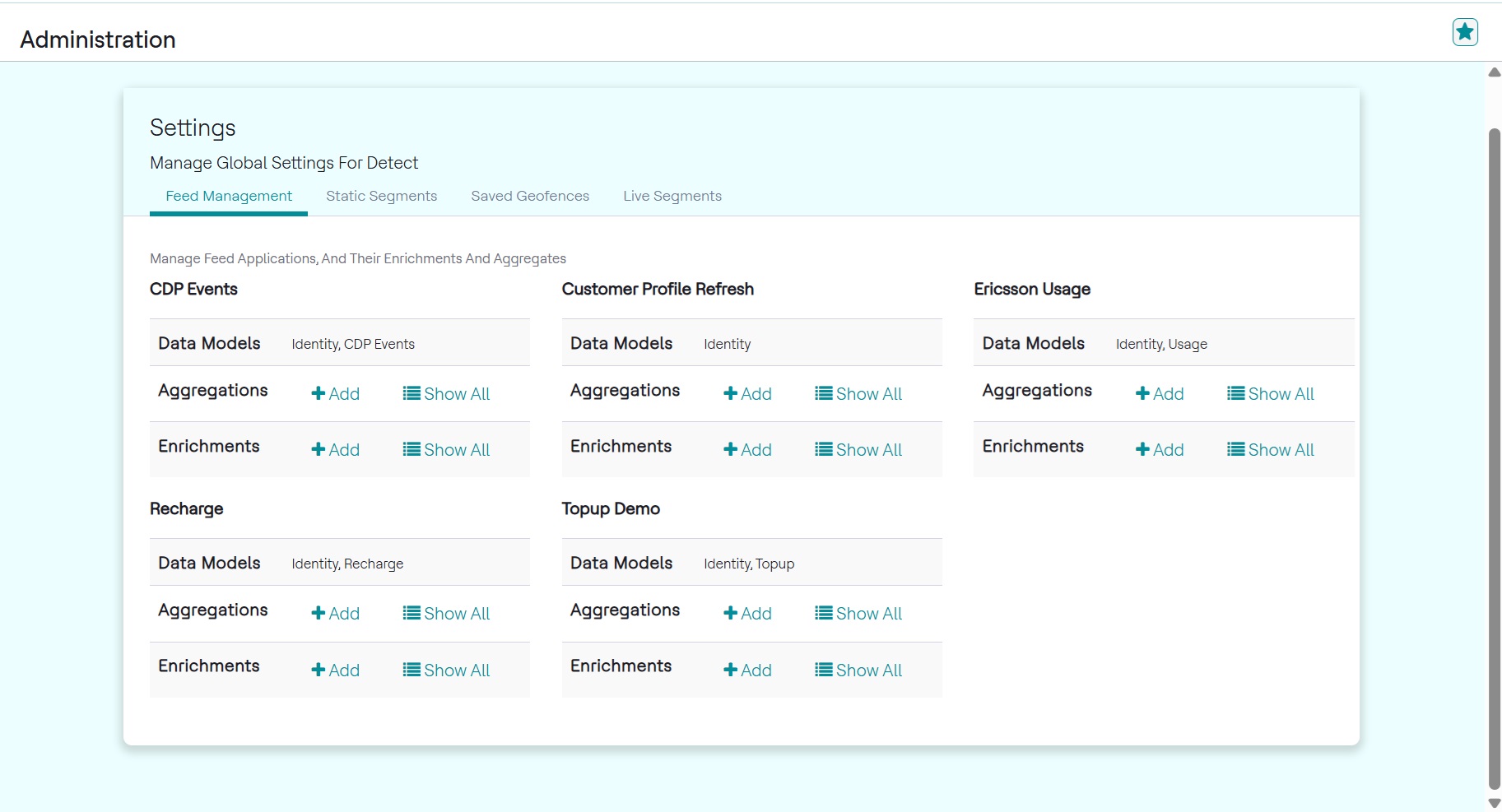
Users with appropriate permissions can view, edit, add, and delete aggregates and enrichments for a given feed application.
Managing Aggregates
An aggregate summarizes data by performing operations such as count, sum, average, minimum, or maximum. Aggregates are configured using metadata that defines what data to aggregate, how to group the data, and what filters to apply.
Detect uses FastPast, an aggregation engine, to perform complex, real-time
aggregations on streaming data and store results in time-based buckets e.g.,
5-minute windows or hourly summaries. The window configuration is defined in the
drive.json file.
Aggregate Configuration Fields:
- Name: Unique identifier for the aggregate.
- Type: Type of operation (e.g., count, sum).
- Attribute to Aggregate: Field used in the operation.
- Group-By: Dimensions to group data by e.g., customerId.
- Filter: Optional filtering condition like transactionStatus == "Successful".
Viewing Aggregates
To view existing aggregates for a feed application:
- Click Show All in the Aggregations row of the selected feed
application.
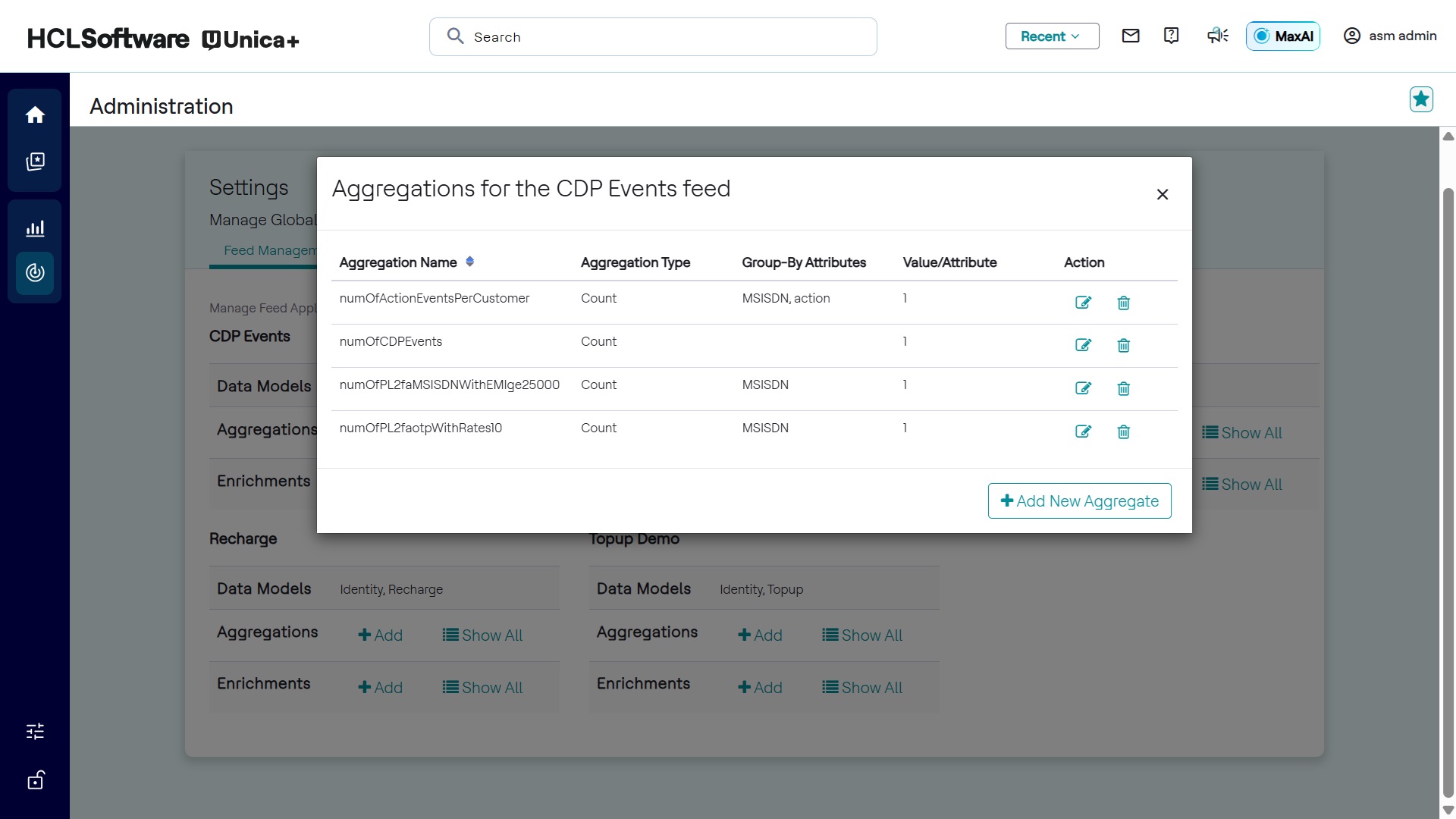
- The dialog displays the aggregates associated with the feed application.
Editing and Removing Aggregates
Aggregates can be modified or removed. For example, the topupAmountBySubscriber aggregate counts calls by a subscriber over various time windows (e.g., currentDay, lastDay). The dialog for editing an aggregate includes:
- Aggregate Name (e.g., topupAmountBySubscriber)
- Aggregation Type (e.g., Sum, Count)
- Group-by Attribute (e.g., MSISDN to identify subscribers)
- Filter Condition (optional, to process only specific tuples)
For example, to count dropped calls per subscriber, set isDroppedCall = True as the filter condition, MSISDN as the group-by attribute, and Count as the aggregation type.
Adding New Aggregate
To create an aggregate:
- Click +Add for the respective feed application.
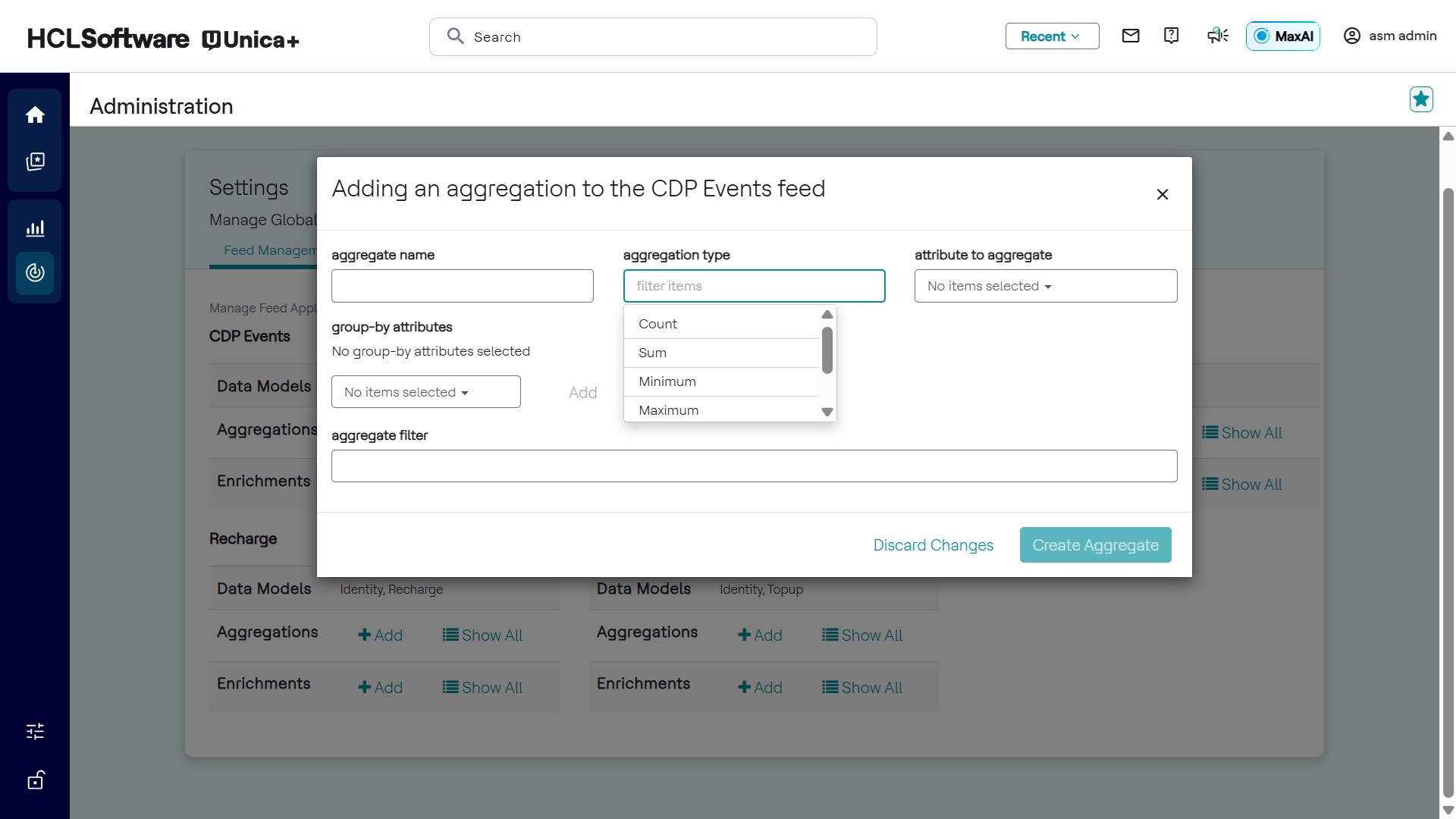
- Enter the following details:
- Aggregate Name
- Aggregation Type
- Attribute to Aggregate
- Group-by Attribute
- Aggregation Filter (optional)
- Click Save.
Managing Enrichments
Enrichments enhance real-time data streams by adding new attributes before or after aggregation. They are configured in the Administration page.
HCL Detect supports multiple enrichment types to enhance incoming data before or after aggregation. These enrichments are evaluated in the following order:
- Transformed Attributes Enrichment: Adds attributes with constant values or values derived from a Detect Expression Language expression. These attributes can be retained or forwarded in the enriched tuple.
- Lookup-Based Enrichment
- Retrieves attributes from the profile store and adds them to the outgoing tuple.
- Requires selecting:
- A key attribute from the tuple.
- A lookup table from the associated PinPoint database.
- The attribute to be retrieved from the lookup table.
- Aggregate-Based Enrichment
- Fetches data from FastPast and adds attributes to the outgoing tuple.
- Requires selecting:
- An aggregate from the list of available aggregates.
- A window length unit (Minute, Hour, Day, Month, or Year).
- A period (Current or Last).
- An optional window length (e.g., Last 7 days for daily aggregation).
- Retention of attributes in the output tuple is optional.
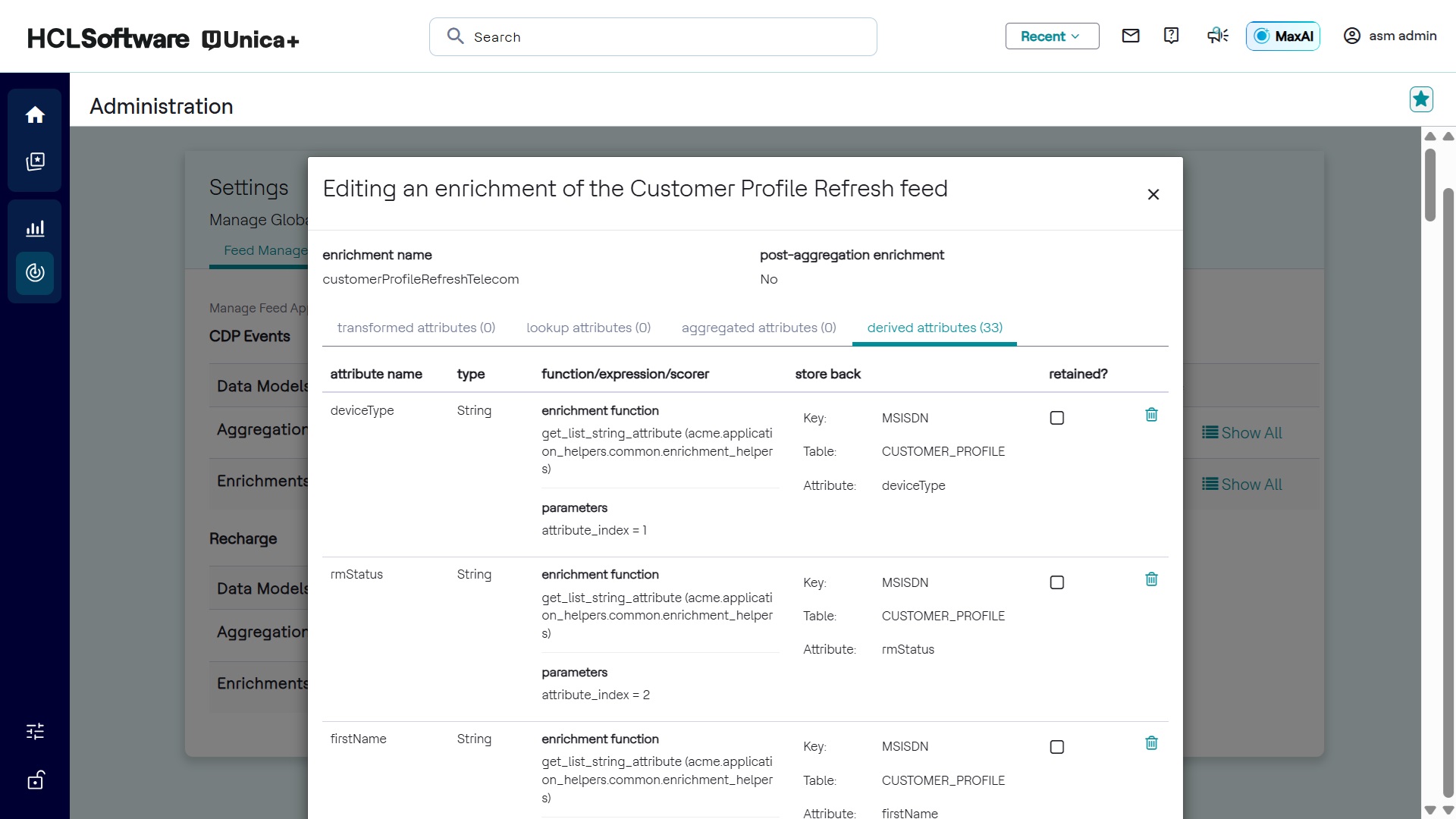
- Derived Attributes Enrichment
- Executes an external Python function to compute and append results to tuples.
- Can be used for:
- Scoring functions (e.g., computing risk scores from historical data).
- Expression-based enrichments detect expression language expressions.
- Scorer function-based enrichments.
Viewing Enrichments
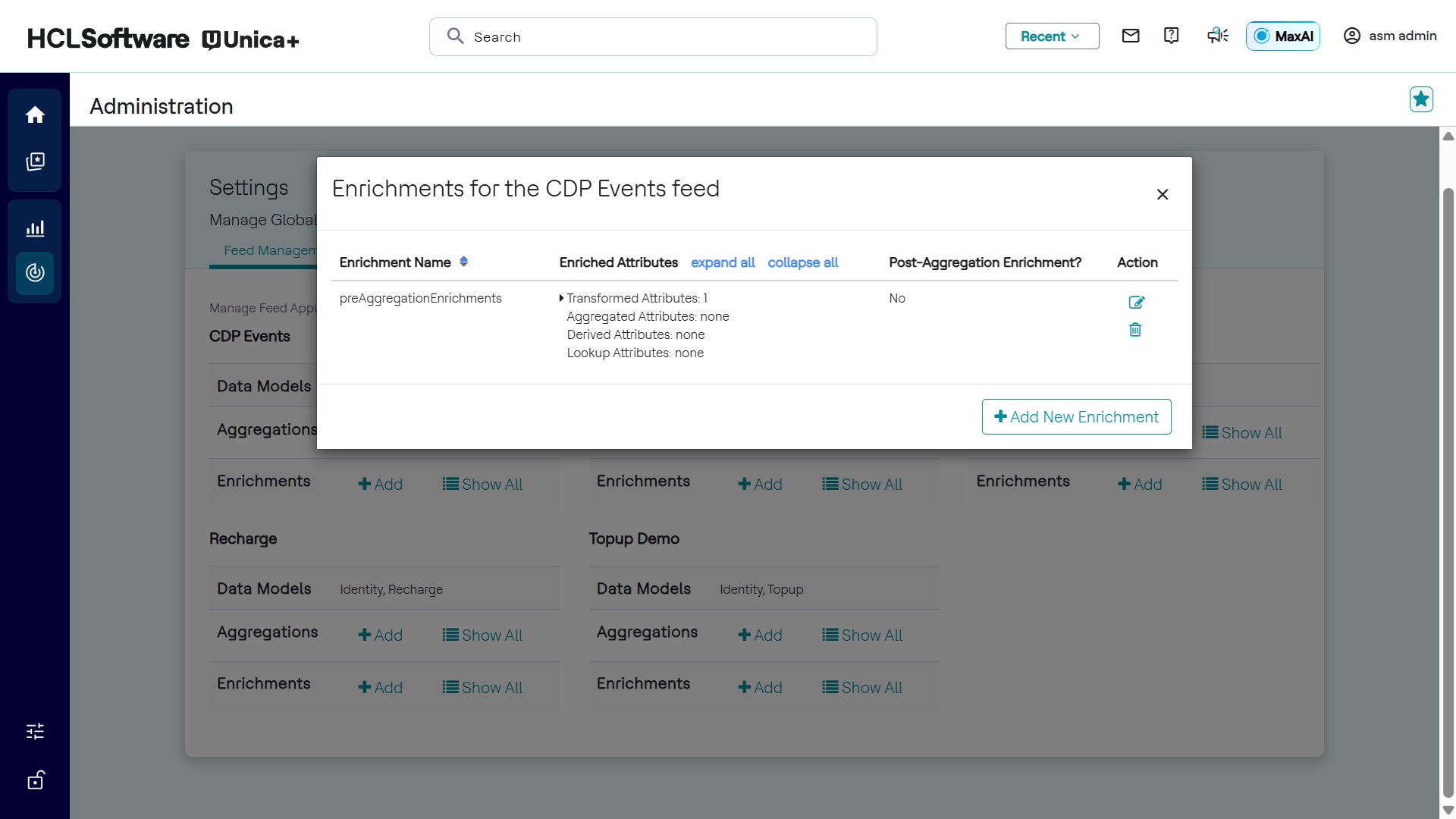
To view enrichments for a feed application:
- Click Show All in the Enrichments row of the selected feed application.
- The associated enrichments appear in the interface.
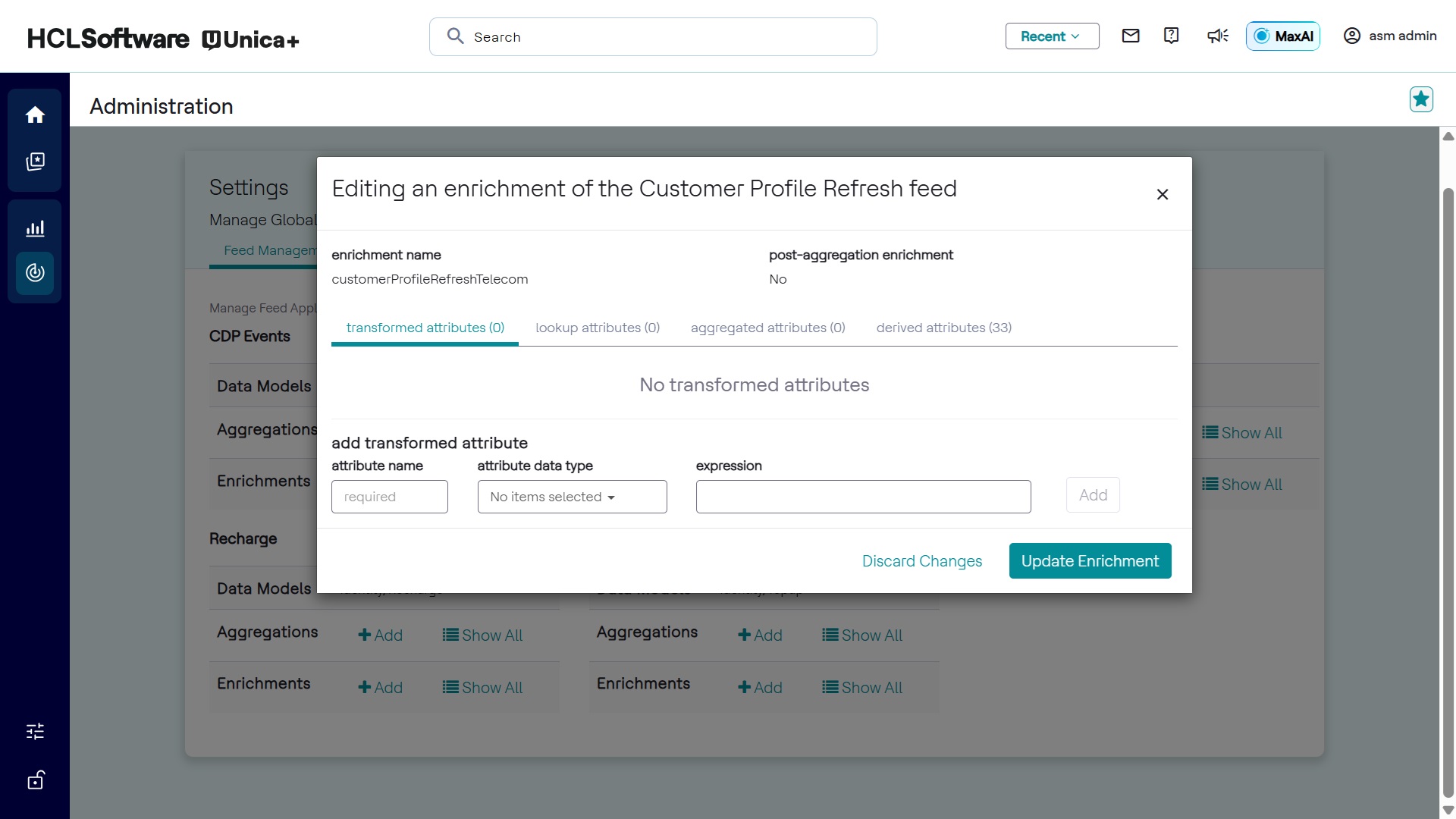
Editing Enrichments
The interface for editing enrichments is shown below:
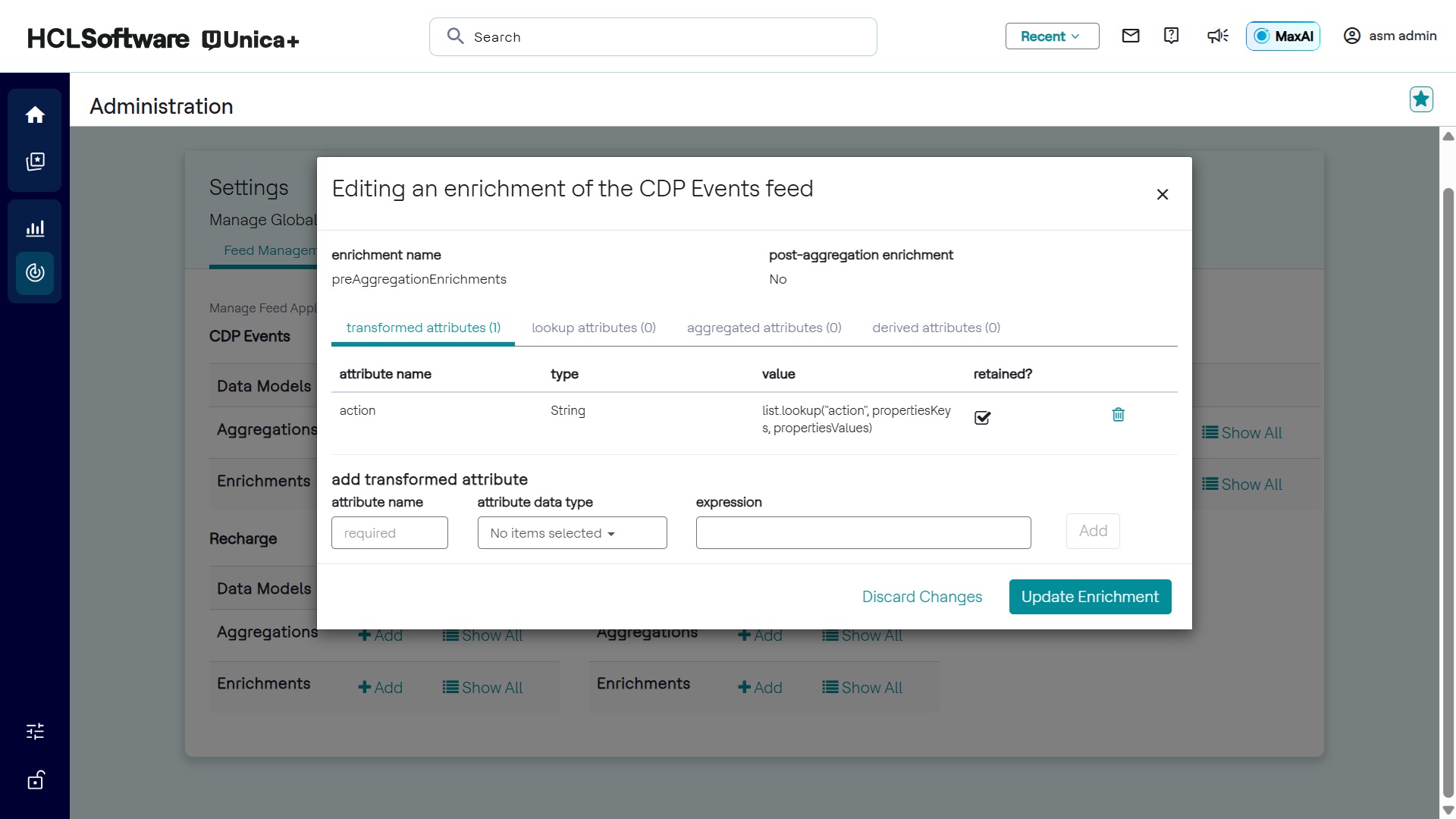
- The interface allows modification of enrichment settings.
- Derived attribute enrichments have a separate editing interface.
Configuring Enrichment Order
- Enrichment operations can occur before or after aggregations.
- This affects the values of enriched attributes.
- To configure post-aggregation enrichment, select the Post-Aggregation
Enrichment checkbox during enrichment creation.