
Configuring Shared Drive
Creating Persistent Volume Claim for shared drive
After installing Detect services, create and configure a shared drive in kubernetes. There are two ways to create Persistent Volume Claim (PVC) in the kubernetes either using YAML file or through UI console.
In the Kubernetes UI console, click Create PersistentVolumeClaim, enter
required parameters to create a PVC and create the PVC as shown in the below
screenshot. 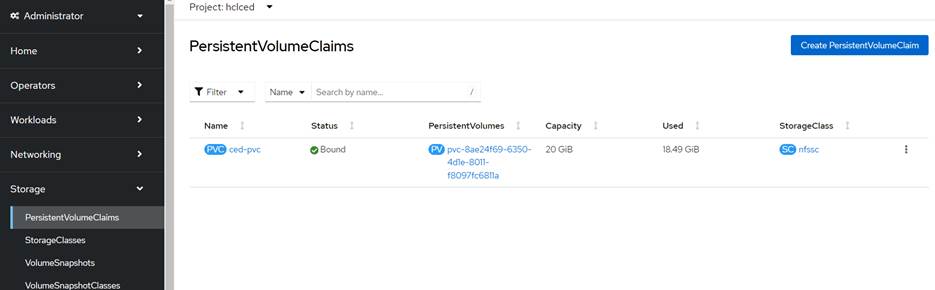
Alternatively, you can create a yaml file, refer here, and update the
required parameters like name, namespace, storageClassName and storage size. After
updating the corresponding values in the yaml, run the following command to create
PVC.
kubectl apply -f sample_pvc.yaml