Configuring Helm Charts
Configuring Services
Copy the drive.json and runtime_environment.json files, which are extracted, available inside the drive/etc folder to the helm chart folder, and update the config paramaters before deploying the helm charts
In the drive.json file, update the ip address value with 127.0.0.1 (replace <VM IP address>) as shown below.
"kafkaServer": {
                        "ip": "<VM IP address>",
                        "port": 9092
                    },
                    "zooKeeperServer": {
                        "ip": "<VM IP address>",
                        ���
		   "name": "bootstrapServers",
                        "stringListValue": {
                            "values": [
                                "<VM IP address>:9092"
                            ]
                        }
		    {
                    "name": "databaseServerIp",
                    "stringValue": "<VM IP address>"
                  },
In the tomcat configuration section, update the host name as shown below:
"tomcatConfiguration": {
            "hostname": "tomcat",
            "httpConfiguration": {
                "httpBoundOnlyToLocalhost": false
            },
            "httpsEnabled": false,
            "port": 8081,
            "shutdownPort": 8010,
            "usingSelfSignedCertificate": false
}
Also, update the runningMode as ScaledDistributed.
"runningMode": "ScaledDistributed",
"solution": {
���
In the interface_application.env file, update the VM IP Address.
export DRIVE_DB_IP_ADDRESS="<VM IP address>"
export NAMESERVICE_SERVER_IP="<VM IP address>"
export EXTERNAL_KAFKA_BROKERS="<VM IP address>:9092"���
Similarly for the runtime_environment.json file, update the network values as shown below:
"network": {
        "interface": "eth0",
        "ipV6Available": false,
        "usingIpV4": true
    },
Tagging Docker Images
Contact with the HCL support team to get the images for tomcat (HCL_Detect_x.x.x_Docker_Tomcat_Image.zip) and feed (HCL_Detect_x.x.x_Docker_Feed_Image.zip). Unzip both the images, and tag the images with required name. After tagging the images, push the images to the repository. For more information of tagging docker images, refer https://docs.docker.com/reference/cli/docker/image/tag/.
docker load ���input HCL_Detect_Feed_12.1.8_Docker.tar
docker tag <imageid> <gcr repo tag>
docker push <gcr repo tag>pvc:
volumeName: ced-pvcIn the values.yaml file of helm charts, update the timezonevalue wrt. the timezone of the VM, where services like fastpast, pinpoint, nameserver, are deployed. For example, update the "timezonevalue:" as "EST5EDT" to set the US Eastern Timezone.
Deploying Detect Services
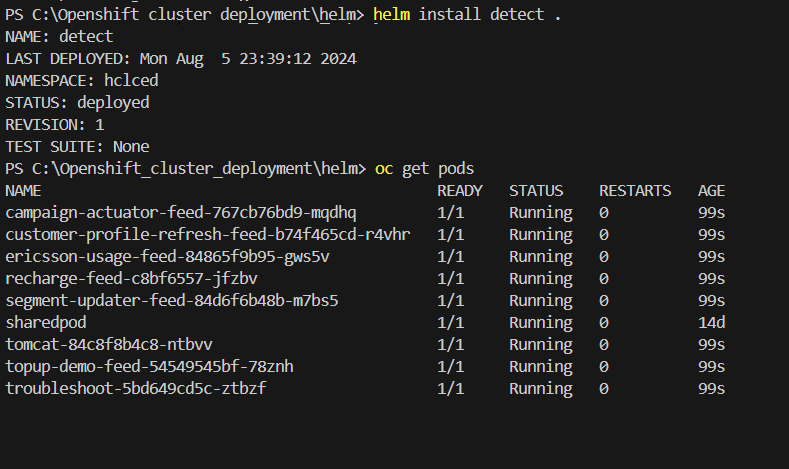
Using the below Helm command, install the Detect services on the OpenShift cluster.
helm install detect .As a result, the output will be as shown below.