New features in HCL Sametime 12 for Android
HCL Sametime® for Android version 12 has new features and enhancements.
12.0.42
This release contains the following new enhancements.
- See Domino Files integration in HCL Sametime Mobile
- Text Modifiers
- Chat Filters
Text Modifiers
What are Text Modifiers?
- Italics
- Bold
- Underline
- Striketrhough
How are they applied?
- Type your text
- Select the text you want modified
- Select “Format”
- Select the modification to be applied
“Format” is a new button we have added
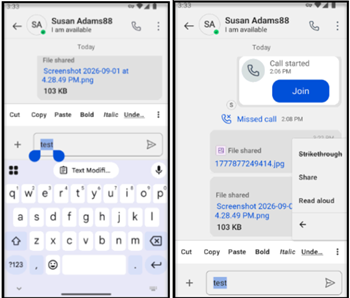
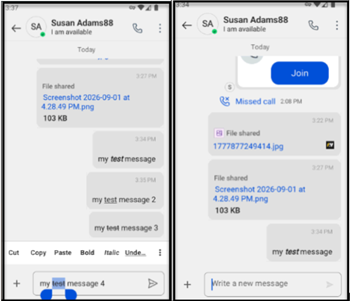
You can select multiple modifiers.
Chat Filters
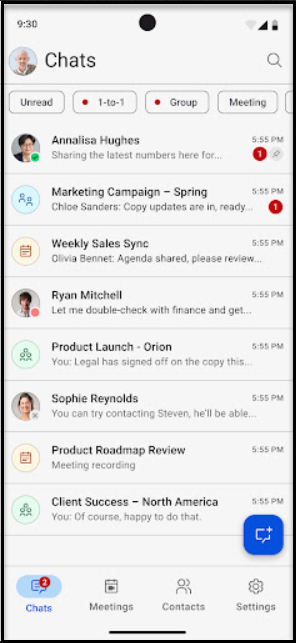
All new chat filter design
- Unread
- 1-to-1
- Channels
- Groups
- Meetings
Unread Indicator Updates
- We do show a red indicator
- No unread count in badge
12.0.41
This release contains the following new enhancements.
- Improved Accessibility: Enhanced the app by addressing multiple accessibility issues, making it more inclusive and easier to use for everyone.
- Refreshed User Interface: Updated the app with the latest Android Material components for a more modern and consistent experience.
- Performance Improvements: Under-the-hood architecture upgrades for faster load times and smoother screen transitions.
- Stability Enhancements: Fixed crashes and resolved various issues to deliver a smoother and more reliable experience.
12.0.40
This release contains the following new enhancements.
- Channels - moderated group chats
- Editing Chats
- Meeting Reactions
- Detailed Logging
CHANNELS
What is a Channel?
- Moderated Group Conversation
- Can be “private” or “public”
- Share files
- Manage members
- Moderator
- Contributor
- Viewer
- Custom Avatars
- Listed in your list of active conversations
How to create a channel?
- Web or mobile
- Starts very similar to creating a group conversation
- Tap the Floating Action Button (FAB) to create a new channel
- Tap “New Channel” or “Search - public channels”
Creating a channel?
- Tapping “Create channel” opens a modal view
- Enter the name of the channel
- Public channel names are unique
- Private channel names are NOT unique
- Visibility
- Public
- Searchable
- Can require join approval (Members have to ask to join)
- Private
- Not searchable
- You have to invite members to join (You can assign members to join)
- Public
- Default Role
- This is the “default” role of all new members
- Can be overridden when inviting members
- Only “moderators” can change roles of other members
- Other options for groups
- You can add public groups as members
- You can override the default role for the entire group
- If you happen to add George Washington as a “contributor”, but then add a public group which also has George in the group, but you want the group to all be “viewers”, we have a switch to override the role and George will become a “contributor”
- Custom Avatar
- Every channel can have it’s own “avatar”
- Makes it very easy to find the channel
- Can be updated at any time by a moderator
- Select a color and an icon
- Description
- Every channel can have it’s own “description”
- Not required
- Can be updated by a moderator
- Shown by tapping on the avatar in the details view
Managing Members
- Can be individuals or groups of people
- Moderators
- update roles of other members
- add or remove members
- upload files, rename files, delete files
- update the settings of the channel
- delete a channel
- Contributors
- send chats
- upload files
-
Viewers can only “view”
- Cannot send chats
- Cannot upload files
Adding Members
- Start by tapping the “Add Member” button
- Search for an individual or group
- Select from the list
- New members are added at the top showing the avatar
- You can tap the “x” button to remove a member from the temporary list in the avatar view
- Set the new member role Tap “✔️” to save the members list
Files
- Upload New files
- Rename files
- Delete files
- Tap “Share File” to get started or the “Add file” button
- Opens the Apple Files picker to select a file
- If this is a Domino Workspace environment, it also gives the option to “Choose from
Domino Files”
- This opens the Domino Files app on the device
- Select a file from Domino Files
- It automatically flips back to Sametime to share the file
EDITING CHATS
Sametime now has the ability to “edit” sent messages
- Long press on the chat bubble to present the menu
- Tap “Edit” to present the edit message view
- Edited messages are designated with “Edited”
MEETING REACTIONS
Sametime Meetings now have “in meeting reactions”
-
Accessed via the toolbar
- Tap a reaction - it will “float” up from the bottom. Then Tap as many times as you want
- Reactions can be “muted” to prevent reactions
- Turned off in meeting settings
DETAILED LOGGING
Client logging has been enhanced
-
We now offer “Detailed” logging
-
This turns on “trace level” logging
- Details of api calls
- Policies and Settings
- Helps developers in diagnosing issues
- Navigate to Settings
- Tap “Log Preferences”
- Enable the switch for “Detailed Logging”
Log Management Improvements
-
Users can now clear application logs and share logs for troubleshooting purposes.
12.0.22
This release focuses on enhancing accessibility and improving the overall chat experience.
-
- Improved Accessibility: Addressed and fixed multiple accessibility issues to enhance usability for all users
- Improved Usability: Expanded the chat input area to support up to six lines for easier message composition
- Image Preview Enhancement: Added zoom functionality in image preview for better viewing and clarity
- Stability Improvements: Resolved crash events and errors to provide a smoother and more reliable experience.
12.0.21
This release focuses on improving your meeting stability and chat experience.
-
- Chat: Improved chat search performance
- Meetings: Smoother, more reliable Picture-in-Picture (PiP) mode
- Scheduling: Enhanced, easier-to-use scheduling interface
- Interface: Cleaner meeting information banner and optimized meeting view layout.
- Display: Better display on tablets and improved text formatting (Markdown)
- Stability: Fixed several crashes and errors for a more stable experience
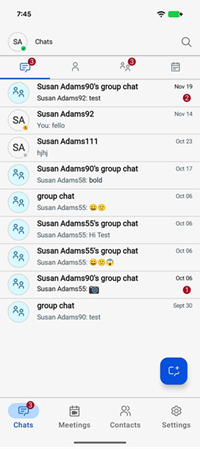
- Context: Quick context in chat list—see who sent the last message instantly.
-
12.0.20
This release contains bug fixes only.
12.0.19
This release contains bug fixes only.
Note: In version 12.0.19 support for Android 15 (API level 35) has been included.
12.0.18
This release contains bug fixes only.
12.0.17
This release contains the following new enhancements.
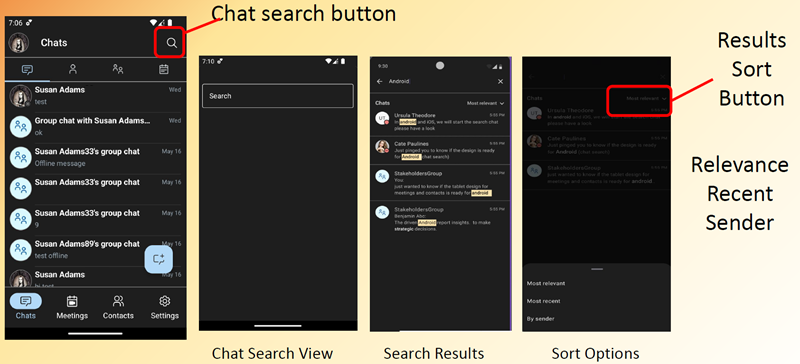
- Chat Search
- Read Receipts
- Notification Updates
- Updated Theme
- Chat Search
- Search Rules
-
- Search is done server side
- Results are from all conversations
- P2P chats, group chats, meeting chats
- If you have “left” a group chat, the search will not return results from that conversation
- Search terms are not case sensitive
- Can be numbers or characters
- Requires a 12.0.3 or newer chat server
- When you select the new group chat fab icon in the chat list screen, you can add the group name, participant, and message.
- Starting a search
-
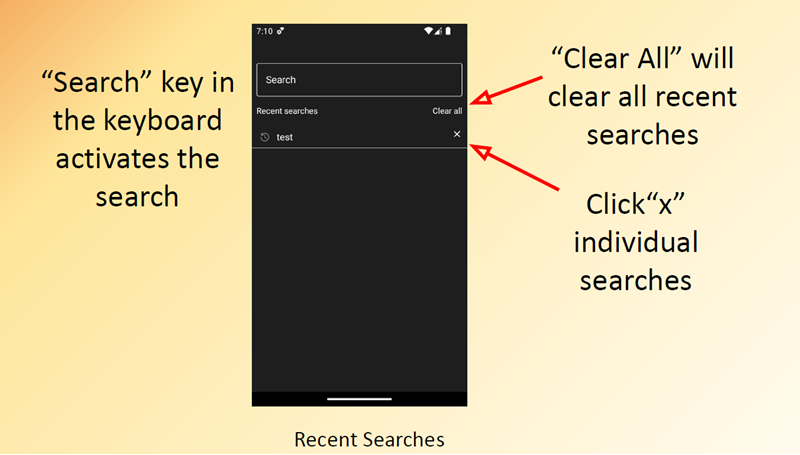
- Managing Recent Searches
-
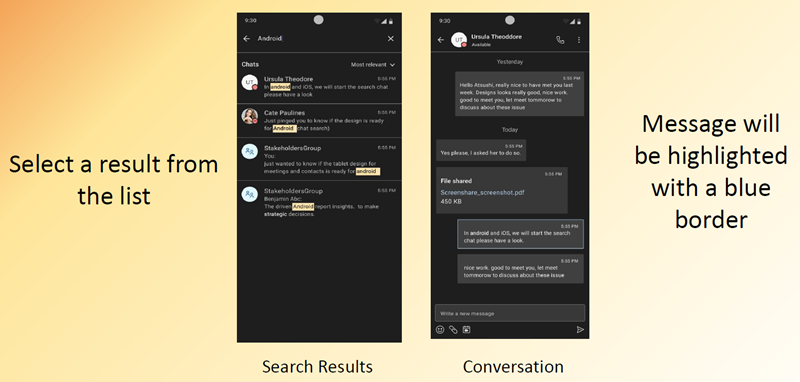
- Selecting a Search Result
-
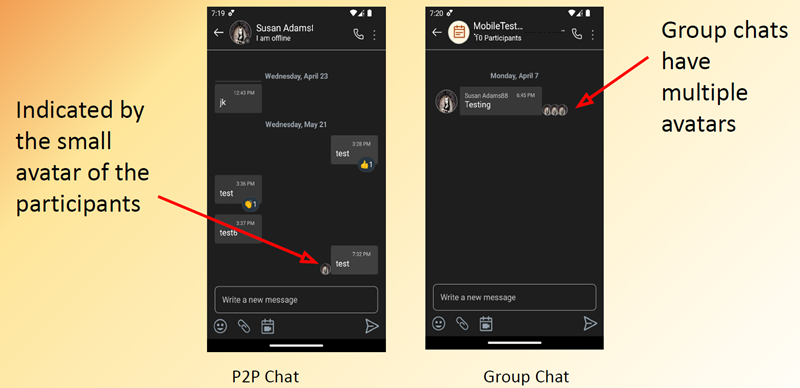
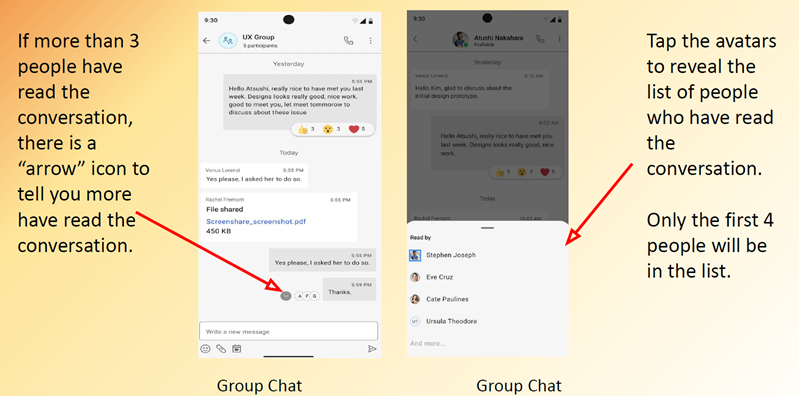
- Read Receipts
- Tell you when others have read the conversation
- Notification Updates
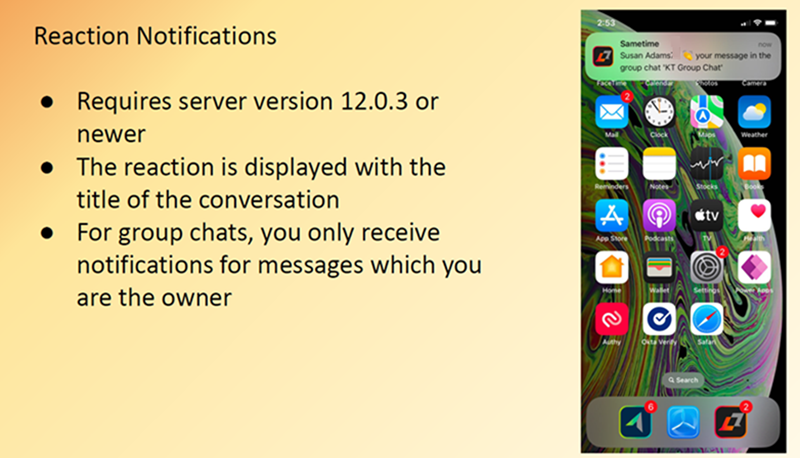
- Reaction Notifications and Groupings
-
- Requires server version 12.0.3 or newer
- The reaction is displayed with the title of the conversation
- For group chats, you only receive notifications for messages which you are the owner
- Theme Updates
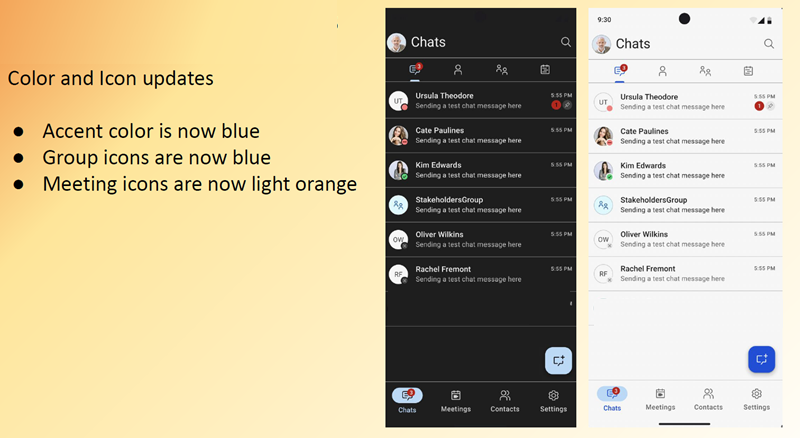
- Color and Icon updates
-
- Accent color is now blue
- Group icons are now blue
- Meeting icons are now light orange
12.0.16
This release contains the following new enhancements.
- Enhancements
-
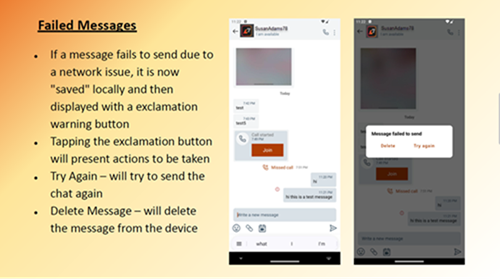
- Failed Sent Message Support
12.0.15
This release contains the following new enhancements.
- Enhancements
-
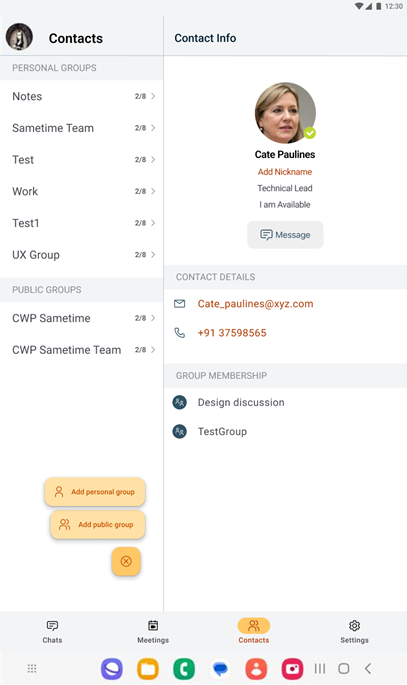
- Tablet's Contact User Interface
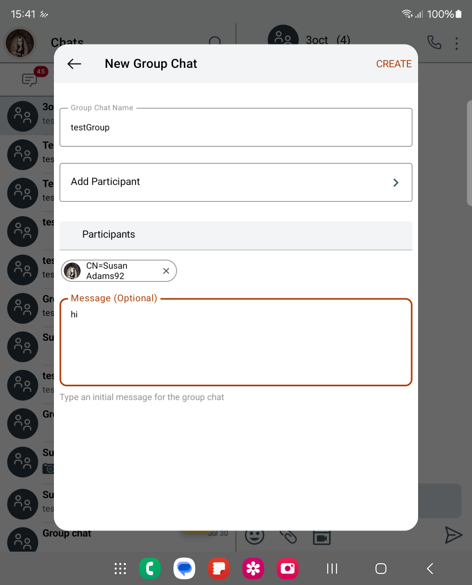
- Tablet's Group Chat User Interface
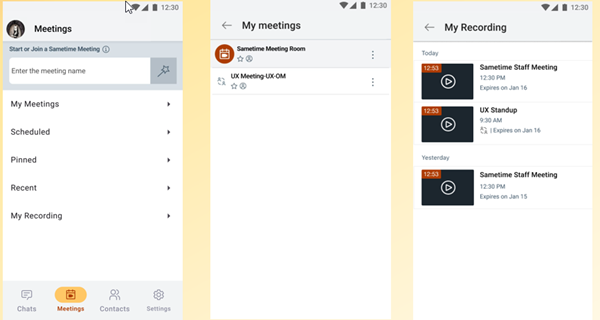
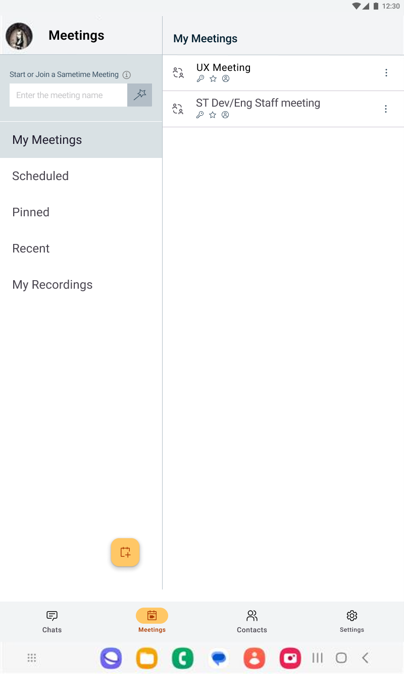
- Tablet/Phone Meetings User Interface
- Dynamic Type - Scable Text
- Tablet's Contact User Interface
- Enhancements to the tablet's contact user interface:
-
- Tablet's Group Chat User Interface
- The tablet's group chat user interface has been enhanced:
- Tablet/Phone Meeting User Interface
- The user interface for the Meetings on Tablets and Phones has been enhanced:
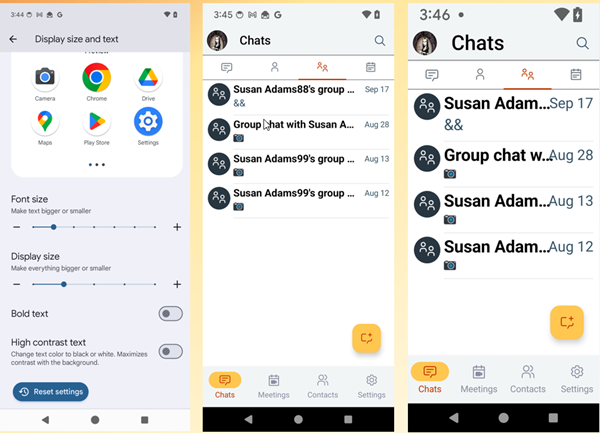
- Dynamic Type – Scalable Text
- Your font sizes are now adaptive based on your device's font size setting:
- The text sizes in the application are scalable based on your setting
- When you alter the font size, the user interface will not overlap.
12.0.14
This release contains the following new features in addition to bug fixes.
- Enhancements
- Sametime Andriod now provides Tablet and Foldable phone UI support.
12.0.13
This release contains bug fixes only.
12.0.12
- New navigation
- Sametime now uses tabs to access Chats, Meetings, Contacts, and Settings.
- Creating group chat enhancement
- Group chat can be started from the message icon at the bottom right of the screen.
- Leave conversation message enhancements
- After you leave a conversation, you must be invited again to participate further in the conversation. When you leave a conversation a message is displayed indicating that you are leaving the conversation. You have the option to turn off the message from displaying. Displaying the message can also be controlled by a Chat Preference setting. If you are the last person to leave a conversation, the message is displayed regardless of the setting.
12.0.11
This release contains bug fixes only.
12.0.10
HCL Sametime version 12.0.2 includes several new features that are available when installing the Sametime app version12.0.12. For a complete list of new features, see HCL Sametime and HCL Sametime Premium 12.0.2 Release Information.
- Status updates
- A new setting added for status messages. You can select to have your status automatically updated when you are in a meeting. After you leave the meeting, the message is changed to your previous status message.
- Chat reactions
- As part of a chat message you can long press on a message bubble and add a reaction.
- Delete messages
- You can delete a sent message and also undo the deletion within a time frame that has been set by the administrator.
- Additional meeting settings available
- Meeting owner can customize their meetings with various advanced privacy settings.
For example, the owner can decide if recordings are allowed for the meeting, and
whether the recording can be downloaded or shared in the associated group chat.
The meeting owner can not allow meeting reports and chat discussion after the meeting ends.
12.0.9
This release contains the following new feature in addition to bug fixes.
- Enhancements
- The number of current meeting participants is displayed prior to joining a meeting. This number refreshes every fifteen seconds.
12.0.8
This release contains bug fixes only.
12.0.7
- Notification improvement
- When the app is in the foreground, notifications are suspended.
- Driving mode enhancement
- When in driving mode, you can join a meeting using a data channel. Previously joining a meeting was using dial-in. Selecting a meeting from the Meetings page, information about the meeting displays. You can join or start the meeting by clicking Join or Start.
12.0.6
- Emoticon palette updates
- The Sametime emoticon palette contains new emoticions. You can also use the Android emoticon palette, however some emoticons are not supported on all platforms the message is received on.
12.0.5
- New mobile meetings capabilities
- The mobile meeting moderator can do the following from the main meeting window:
- Lower a participant's hand
- Toggle the participant view between tile and filmstrip view
- Hide and show all meeting participants in the meeting window
The participants list in the meeting now has a menu icon ( ) that provides additional moderator
features. From this menu, the moderator can:
) that provides additional moderator
features. From this menu, the moderator can: - Download attendance report
- Mute everyone else
- All cameras off
- Lower all hands
- Preview transferred files
- If the Sametime administrator has turned on the im.mobile.allowReceiveFiles policy, you can preview a file that has been transferred to you. Previewing a file allows you to view a file without having to use another application. To prevent downloading and sharing a file with other applications, the Sametime administrator can turn the policy off.
- Driving mode enhancement
- The driving mode feature has been improved to detect when you are in a car and join a meeting. In driving mode you participate in a meeting without distraction from your driving. You interact with the meeting using audio. Previously, driving mode was activated when a bluetooth device was detected and you joined a meeting.
12.0.4
- Android OS versions
- Android version 13 is now supported. Support for Android version 8 is no longer supported
- Meeting attendance report
- Meeting owners can view and download load a list of participants when in a meeting. The report can be shared with other apps provided that the Sametime administrator has enabled this feature.
- File transfer update
- The Sametime administrator can restrict the type of files that can be transferred. When a restricted file type is specified to be transferred, a message is displayed and the file is not sent.
12.0.3
The following new features are only available when using the 12.0.3 version of the mobile app.
- Meeting duration timer
-
A meeting time display as part of the title bar allowing you to see how long a meeting has been running. The timer is available if the administrator enables the meeting timer display feature.
- Photo size selection
- When sending a photo from the camera or gallery in a chat, you are prompted to choose the size of image to be sent. Choices are small, medium, large and actual size. Note that the actual size is sent during a file transfer to preserve the photo's clarity.
12.0.2
The following new features are only available when using the 12.0.2 version of the mobile app.
- Content sharing
- Content such as images, URLs, files, and text can be shared with the Sametime app using the mobile device sharing feature.
- Filter your active chats
- When viewing active chats you can filter on one-to-one chats, group chats, and meeting chats.
- Managing the waiting room
- Mobile moderators can manage the waiting room. Moderators who attend a meeting on a mobile device can admit other participants who are in the waiting room.
12.0
The following new features are only available when using the 12.0.2 version of the mobile app.
- Server based Recent Meetings
- With version 12.0 the Recent Meetings list queries the server to get recent meetings update. This update means that your Recent Meetings list is same no matter which client you use to display them. Because you can use mobile clients can to join meetings on multiple servers you might see some discrepancy between the Recents list on a mobile client and the Recents list on the browser or another mobile client. This discrepancy happens because the mobile client also lists joined meetings on other servers whereas the browser only lists joined meetings that are on the server you're connected to. Meetings that you joined on servers prior to version 12.0 are still stored locally and then merged with the version 12.0 meetings in the Recent Meetings list.
- New meeting filters for viewing the list of recent meetings
- By default, when you view meetings listed in Recent, all
meetings that you joined while logged into the app are listed. The list includes meeting
that used a Sametime 12 server or an earlier version. With the Sametime mobile app
version 12.0, you can customize the list by using the following filters:
- My Meetings
- Lists the meetings that you own. The list includes meetings that you joined and those that you didn't join.
- Recordings
- Lists the meetings that you have joined and have an associated recording.
- Calls
- Lists the calls that you participated in.
- Meeting reports and recordings
- Meeting owners have access to reports for their meetings. You can access these reports by opening the Recent tab and then tapping the More menu icon. You can view two reports: Summary Report and Full Report. If the meeting was recorded, the More menu includes the recordings.
- Muting conversations
- With version 12.0, you can mute individual conversations. The ability to mute is helpful when you participate in a group that that is very active.
- Click to call
- With this feature you can connect directly with a contact or group by clicking the call icon in the upper right of the chat window. When you place a call, a new meeting starts. Those you call receive a join message and are placed into the meeting when they join the call.
- Meeting modes enhancement
- When you create a meeting, you can select a mode for the type of meeting. Each mode
has a set of options with the most common mode setting already selected. You can choose
from three modes:
- Collaboration: Flexible and fully customizable
- Confidential: Maximum level of security
- Lecture: Ideal for large moderated meetings
- File transfer
- In addition to sending pictures from the camera or a photos app, in version 12.0 you
can send files in a chat. The files are uploaded and saved as a link in the chat that
you or a chat partner can download later. The HCL Sametime mobile app uses the Files app
to select the file to send. Files that you download are also saved in the Files app.
Note: The mobile client does not support the previous file transfer method, where you had to be online to receive the file.
- Token Login
- When you log in to the Sametime server with login credentials, secure tokens are sent to the client for use throughout the session. These tokens are also used to authenticate with the Sametime meeting service. The tokens can also be used to authenticate the session instead of using login credentials. The use of secure tokens permit a login session to persistent while the secure tokens remain valid. The session ends when you use the Logout menu option or when the token expires.
- Meeting waiting room support
- When you join a meeting that was configured with a waiting room, you enter the waiting room until you are either admitted or denied access to the meeting. Messages from the meeting owner are displayed in the waiting room.
- Custom branding for meetings
- Business customers can use their own branding for meetings. Administrators can configure the Sametime server to use a business logo which is displayed on screens that display during the join process.
- New policy default options for the mobile app
- Policies that the login process passes down specify the behavior of the HCL Sametime mobile app. The Sametime administrator uses policies to turn on and off features. For example, administrators can use file transfer policies to turn off file transfer when they assess that the security risks in the customer's environment are too great.