
Assigning licenses
To assign license to your teams, you must first allocate the features the teams need and then activate the license server.
Before you begin
About this task
The following example figure shows how the feature name, feature ID, and entitlements are listed in a deployment:
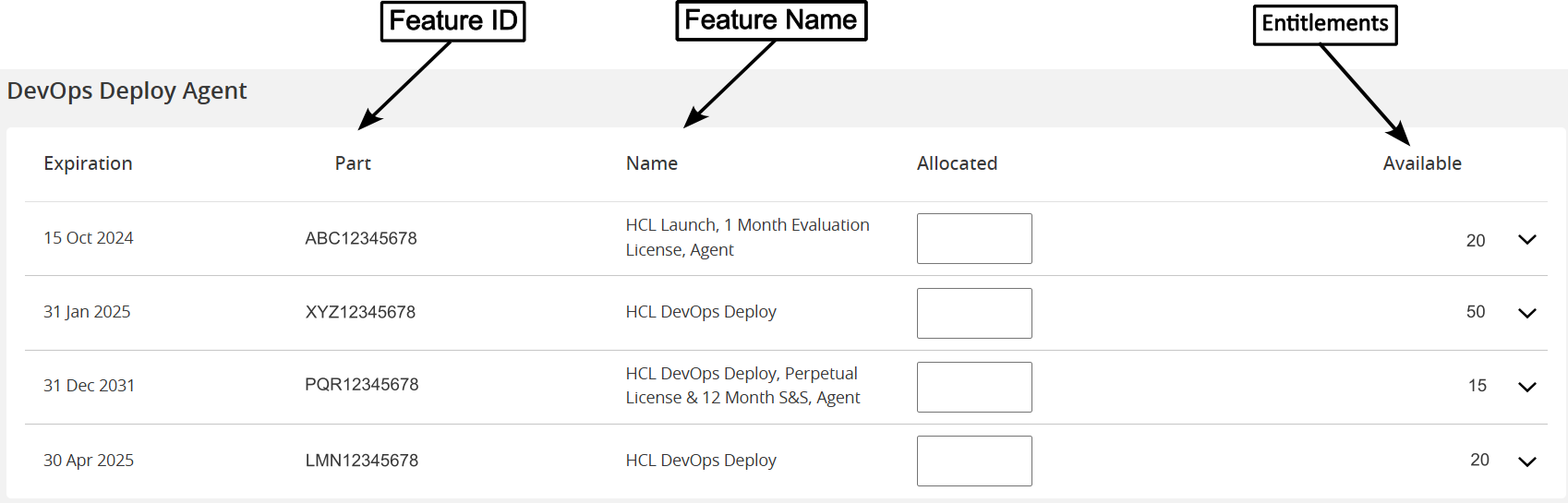
You can reduce the deployment allocation and remove the features as required. In case of locked deployment, you cannot edit the allocation and delete features. You must reach out to HCL support for assistance.
After a value is allocated to the entitlement, the Assign License option is activated. You can use this option to assign licenses to a specified number of users. The maximum number of allocations is limited to the total available value. Initially, the Allocated fields are empty.
Procedure
- Click the Deployment tab.
- Click on a deployment that you want to update.
-
Click on the Assign License option.
The Assign License window is displayed.
- Enter the name that identifies the entity for the assignment.
- Provide the fingerprint that uniquely identifies the entity.
- From the Entitlement drop-down list, select the entitlement to assign to the user.
- Click Assign.