Fetch Related Changes for a CI with ServiceNow
This integration is required to view the related change records (from ServiceNow) of an affected CI in an open alert in HCL IEM.
This section guides to establish the integration for update fetching related changes.
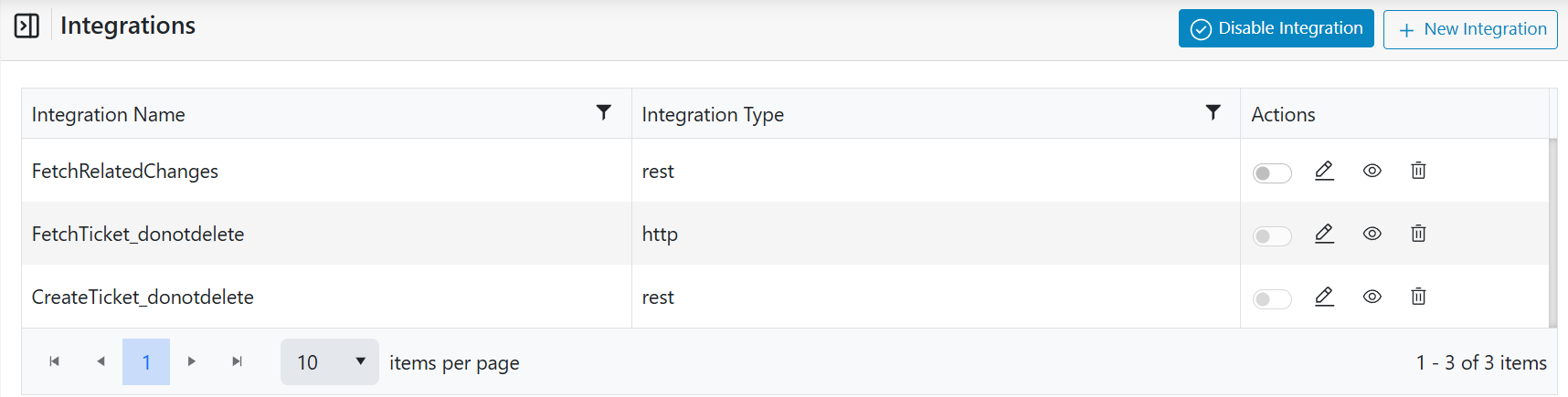
Follow up to point 6, mentioned in the “Create a New Incident Ticket” section to reach the “Integrations” webpage.
- Click “New Integration” to add the integration for update action.
- Type the Name as “FetchRelatedChanges”.
Figure 1. Add Integration 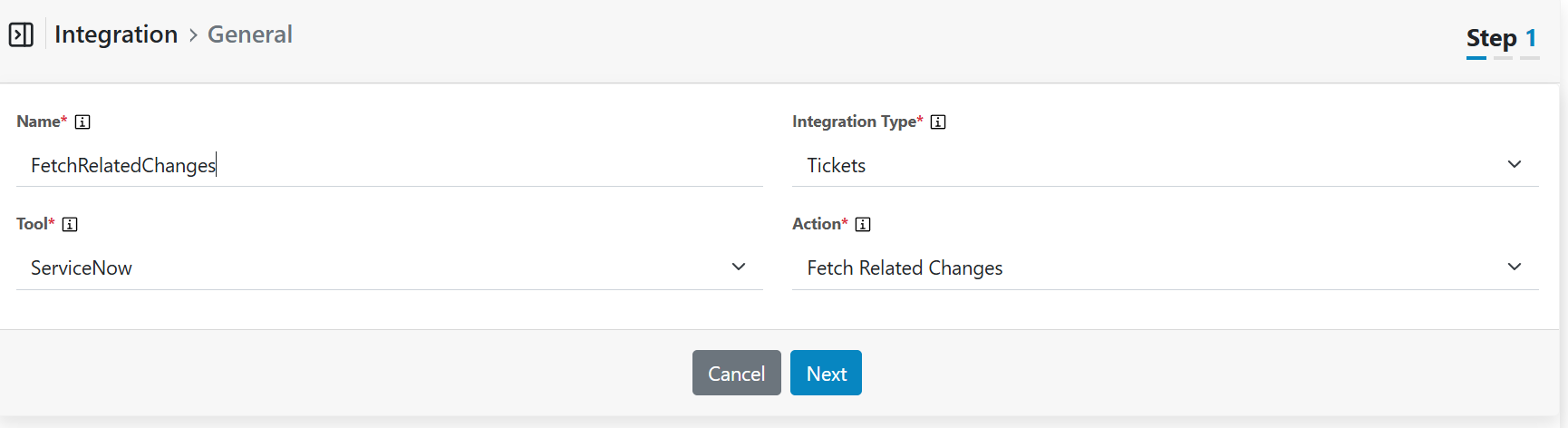
- Select other tabs as below:
- Integration Type: Tickets
- Tool: ServiceNow
- Action: Fetch Related Changes
- Click Next.
- Click “New Connection”
Figure 2. New Connection 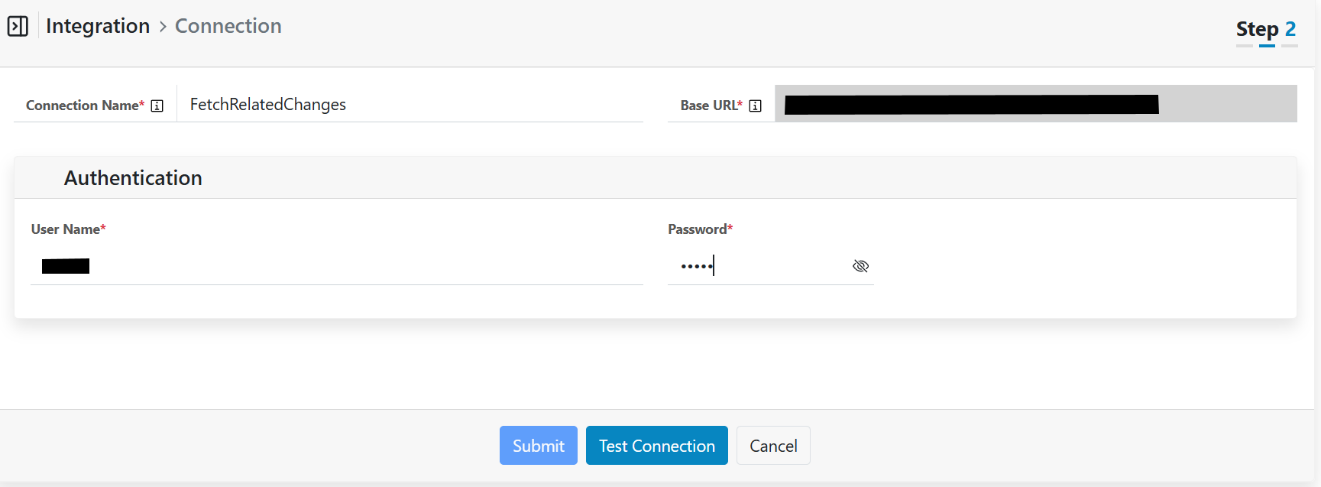
- Update the entries below.
- Connection Name: FetchRelatedChanges
- Base URL: <SNOW API URL for FetchChangeRecordsQuery>
- Username: <SNOW user ID>
- Password: <SNOW password>
- Click “Test Connection” to test the SNOW connectivity. It will take a few seconds to minutes based on your connectivity. A “Test connection successful” message will appear if the values are valid, and the connection is established. If values are invalid and unable to make stable connection, it will open pop up and ask the user to confirm connection. Once click confirm Submit button will be enabled to add connection.
- Click “Submit” to add the connection for fetching change records.
- Select the “FetchRelatedChanges” connection and click “Next”.
- In “Table Name” section default keys are listed to add new key click on + button fill the details or click on setting icon and put the value “/#param1#/#entity_name#/#param2#/#dt_length#/#param3#/#dt_start#” in JSON format. Click “Extract Keys”.
- Refer to the screen capture and update the values for keys below.
- #param1# è “/change_request/?sysparm_query=cmdb_ci.name=”
- #param2# è “^stateIN-5, -4, -3, -2, -1,0&sysparm_display_value=True&sysparm_limit=”
- #param3# è “&sysparm_offset=”
Figure 3. Enter Key Values 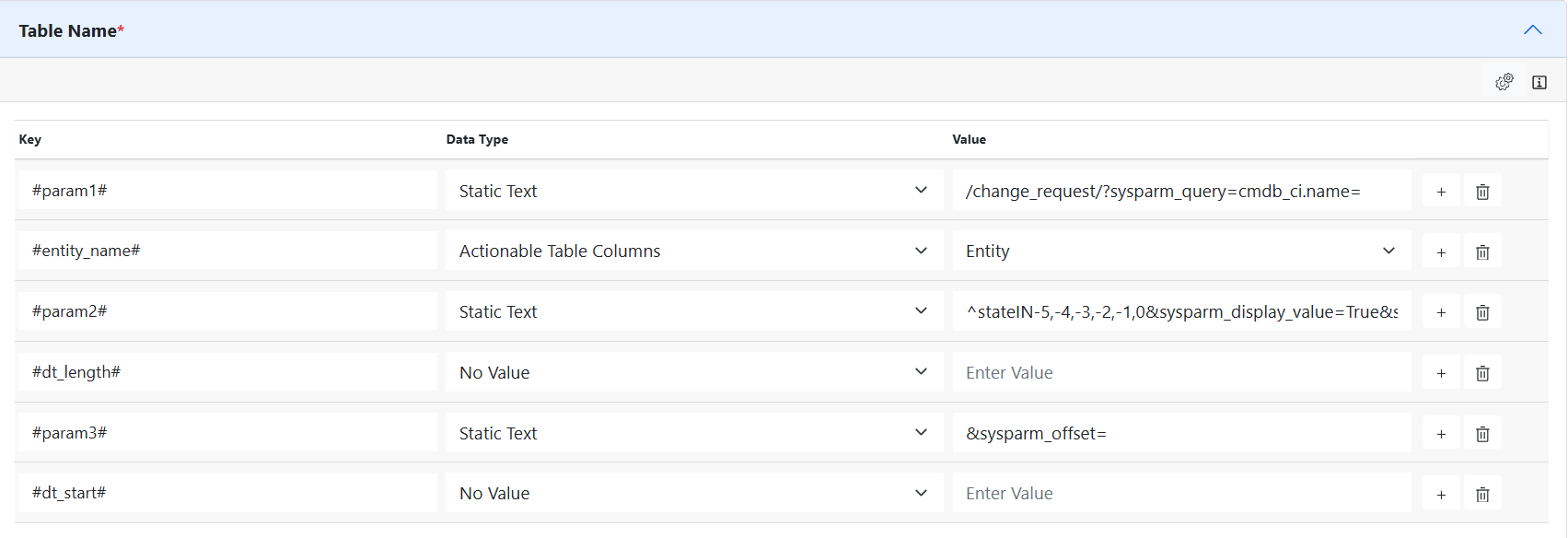
- Click on “IEM to ITSM field mapping” blank mapping is by default.
Figure 4. Field Mapping 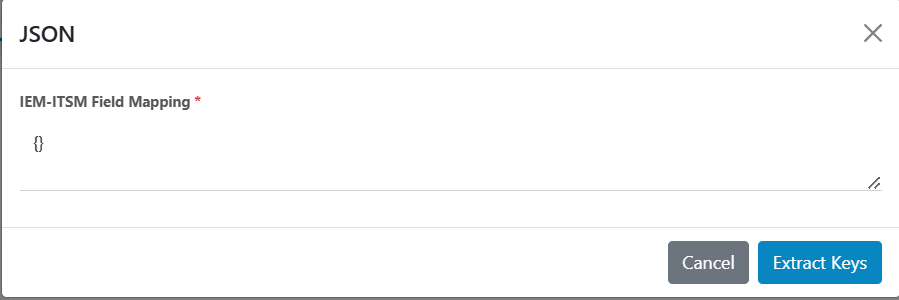
Figure 5. Field Mapping 
- Update status code as below.
Figure 6. Update Status Code 
- Click on “ITSM to IEM Field Mapping” to add new mapping click on + button and fill the
details or click on setting icon new window will be pooped up, use the JSON payload
below to update the
section.
{"risk": "Moderate", "type": "Normal", "order": "", "phase": "Requested", "scope": "Medium", "state": "New", "active": "true", "impact": "3 - Low", "number": "<Change ID>", "parent": "", "reason": null, "sys_id": "<System ID>", "cmdb_ci": {"link": "<ServiceNow Instance URL>", "display_value": "10oct21"}, "company": "", "on_hold": "false", "sla_due": "UNKNOWN", "urgency": "3 - Low", "approval": "Not Yet Requested", "cab_date": "", "category": "Other", "comments": "", "contract": "", "due_date": "", "end_date": "", "location": "", "made_sla": "true", "priority": "4 - Low", "sys_tags": "", "work_end": "", "closed_at": "", "closed_by": "", "follow_up": "", "knowledge": "false", "opened_at": "2022-02-14 22:04:09", "opened_by": {"link": "<ServiceNow Instance URL>", "display_value": "System Administrator"}, "test_plan": "", "close_code": null, "escalation": "Normal", "group_list": "", "start_date": "", "sys_domain": {"link": "<ServiceNow Instance URL>", "display_value": "global"}, "user_input": "", "watch_list": "", "work_notes": "", "work_start": "", "assigned_to": "", "change_plan": "", "close_notes": "", "description": "Test for related changes", "phase_state": "Open", "review_date": "", "time_worked": "", "upon_reject": "Cancel all future Tasks", "activity_due": "UNKNOWN", "approval_set": "", "backout_plan": "", "cab_delegate": "", "cab_required": "false", "contact_type": null, "on_hold_task": "", "requested_by": {"link": "<ServiceNow Instance URL>", "display_value": "System Administrator"}, "route_reason": "", "unauthorized": "false", "delivery_plan": "", "delivery_task": "", "justification": "", "review_status": "", "sys_mod_count": "0", "upon_approval": "Proceed to Next Task", "correlation_id": "", "expected_start": "", "on_hold_reason": "", "sys_class_name": "Change Request", "sys_created_by": "admin", "sys_created_on": "2022-02-14 22:04:57", "sys_updated_by": "admin", "sys_updated_on": "2022-02-14 22:04:57", "conflict_status": "Not Run", "review_comments": "", "sys_domain_path": "/", "work_notes_list": "", "approval_history": "", "assignment_group": "", "business_service": "", "service_offering": "", "business_duration": "", "calendar_duration": "", "conflict_last_run": "", "production_system": "false", "requested_by_date": "", "short_description": "Test for related changes", "universal_request": "", "cab_recommendation": "", "reassignment_count": "0", "correlation_display": "", "implementation_plan": "", "risk_impact_analysis": "", "task_effective_number": "<Change ID>", "comments_and_work_notes": "", "additional_assignee_list": "", "std_change_producer_version": "", "outside_maintenance_schedule": "false"}Figure 7. Field Mapping 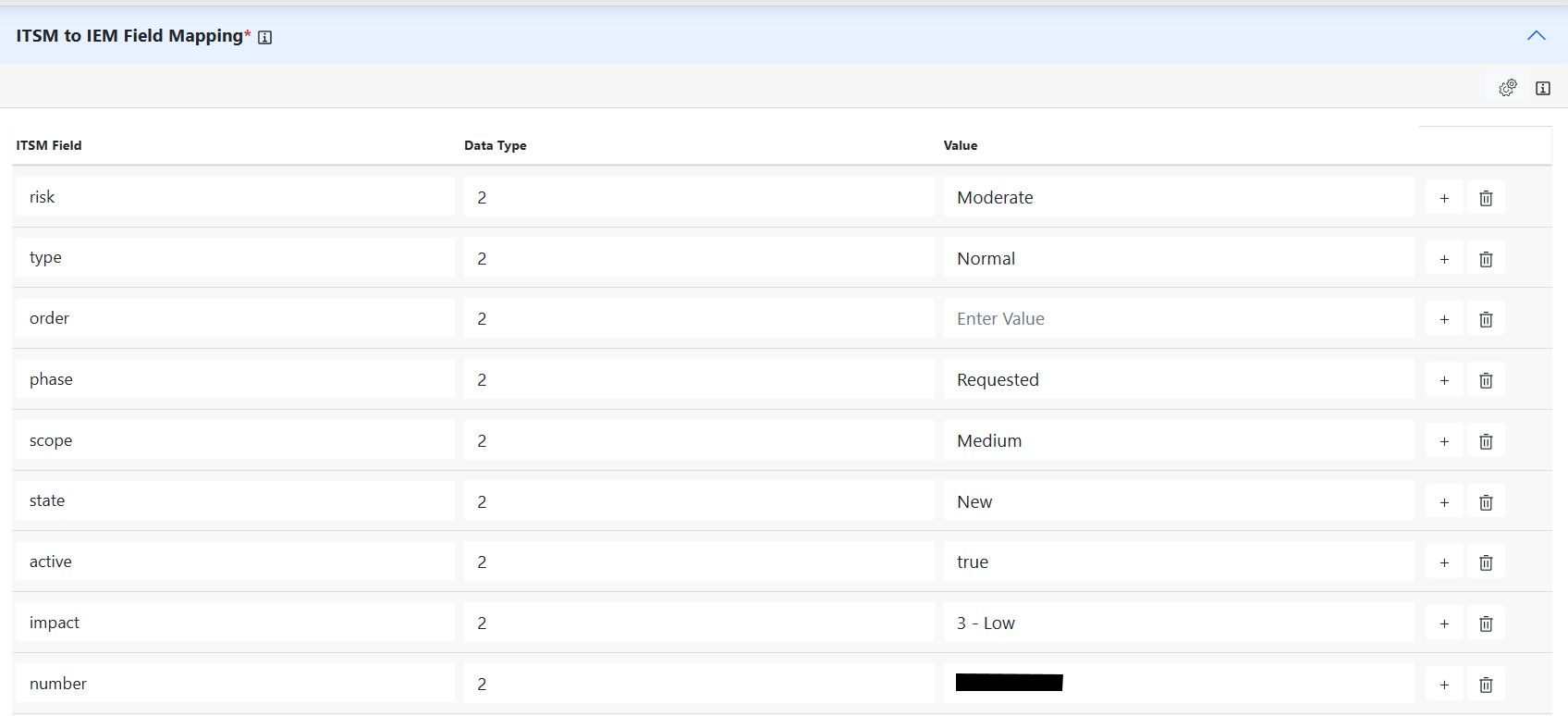
- Update the “Map Columns” as below. Click save and then submit to get the connection
added.Note:
If a mapping error occurs, validate the mapping values as mentioned in the similar section of “Create a New Incident Ticket”.
Figure 8. Map Columns 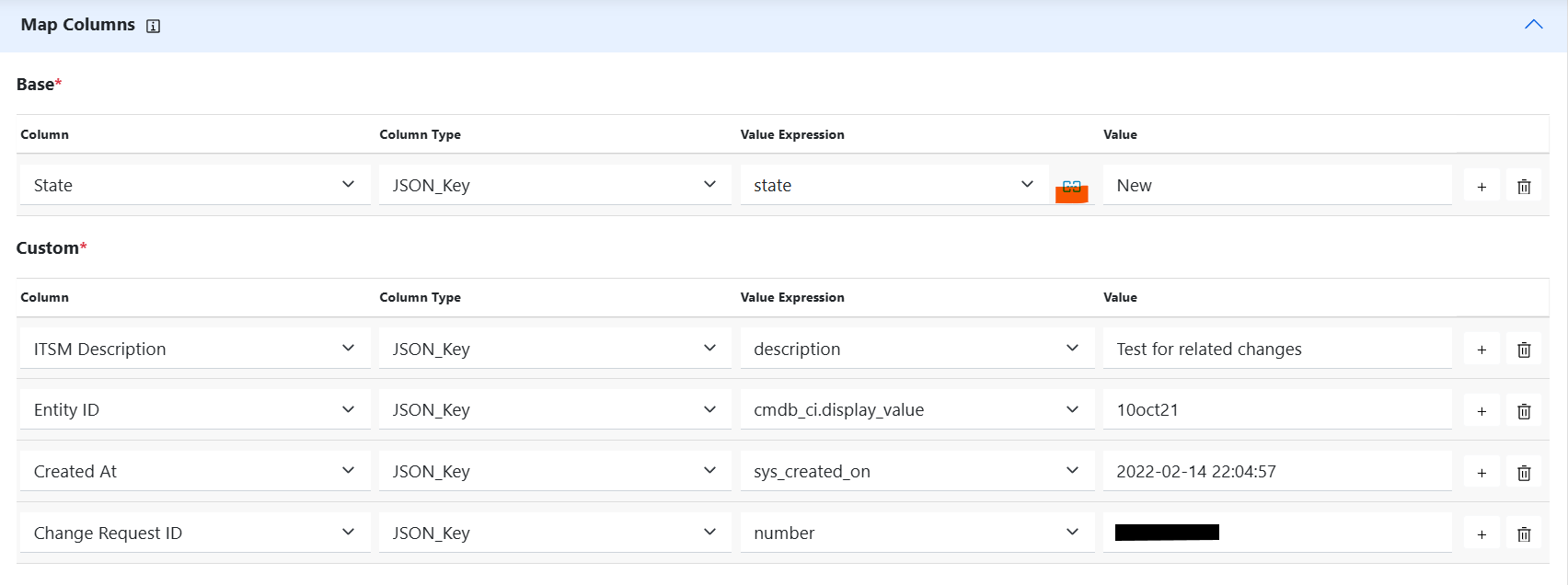
- The new integration for “Fetch Related Change Records” was added successfully.
Figure 9. New Integrations