
Create a New Incident Ticket for ServiceNow
A new incident ticket will be created when an alert is triggered in IEM with an incident creation action enabled for it. To establish the integration for creating incident action, perform the following steps:
- Login to the IEM instance link and navigate to the Customer tab.
- Select the customer’s name and click Edit in Actions.
Figure 1. Customer Onboard Page 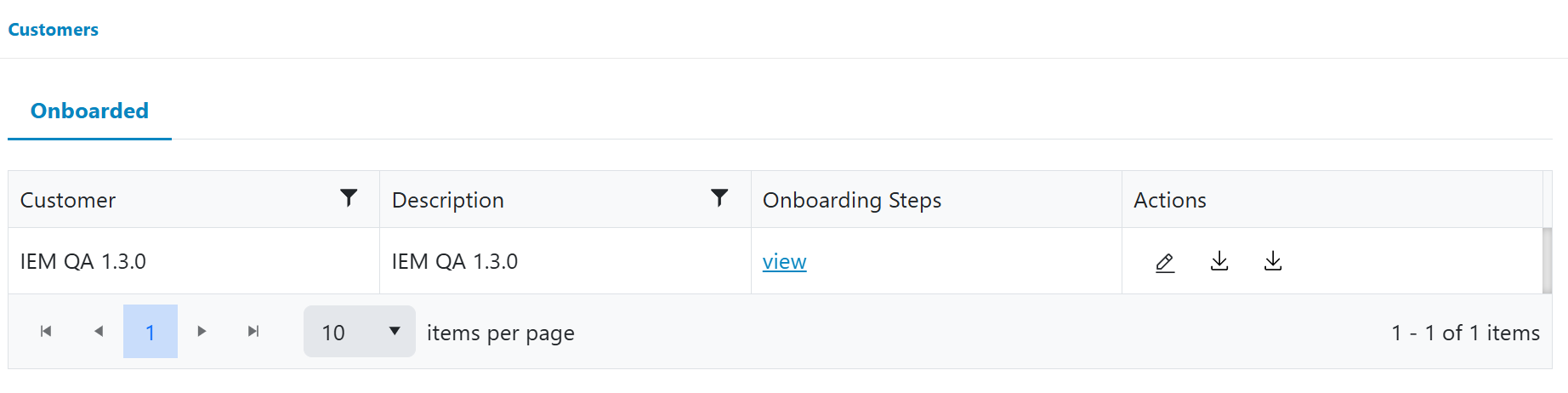
- Click on Customer in the Edit option.
- Click “New Integration” to add a new integration
Figure 2. Add New Integration 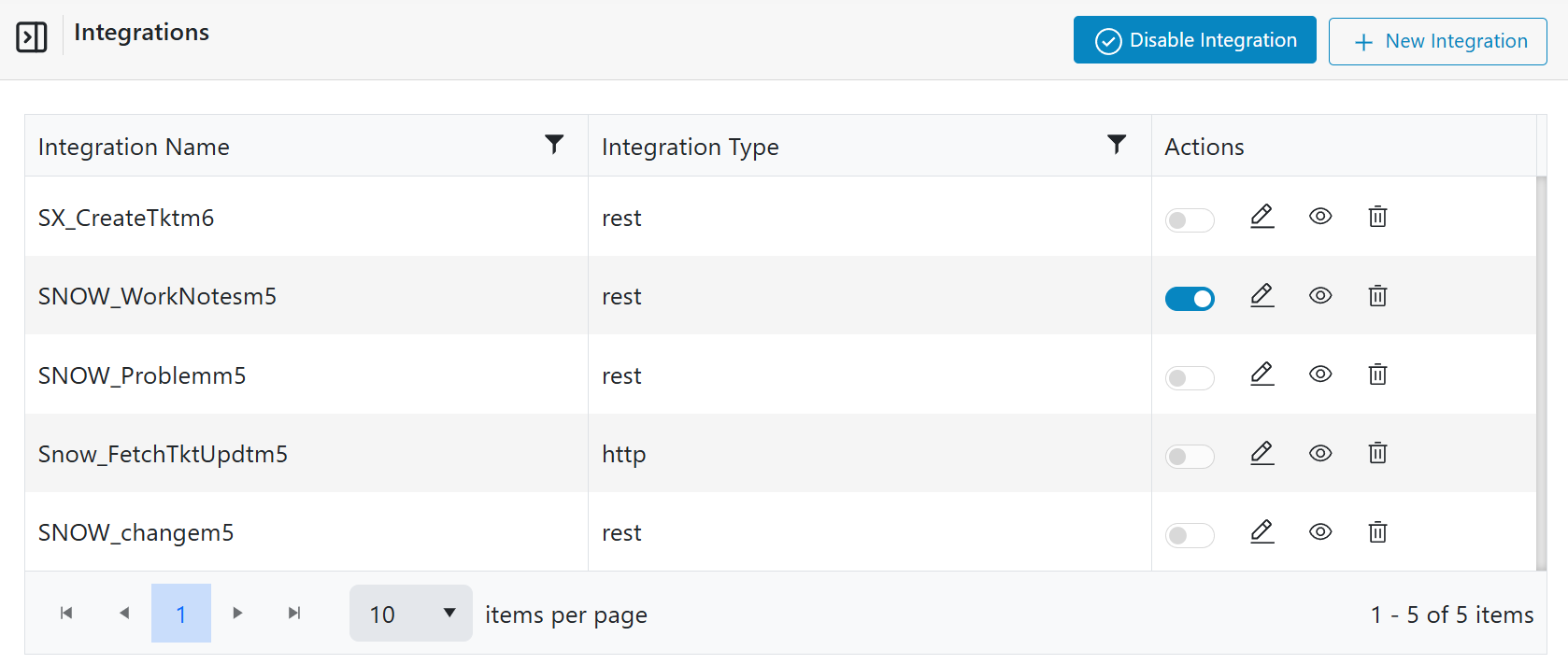
- Type the Name as “Create_Ticket”.
- Select other tabs as below:
- Integration Type: Tickets
- Tool: ServiceNow
- Action: Create Ticket
Figure 3. Create Ticket 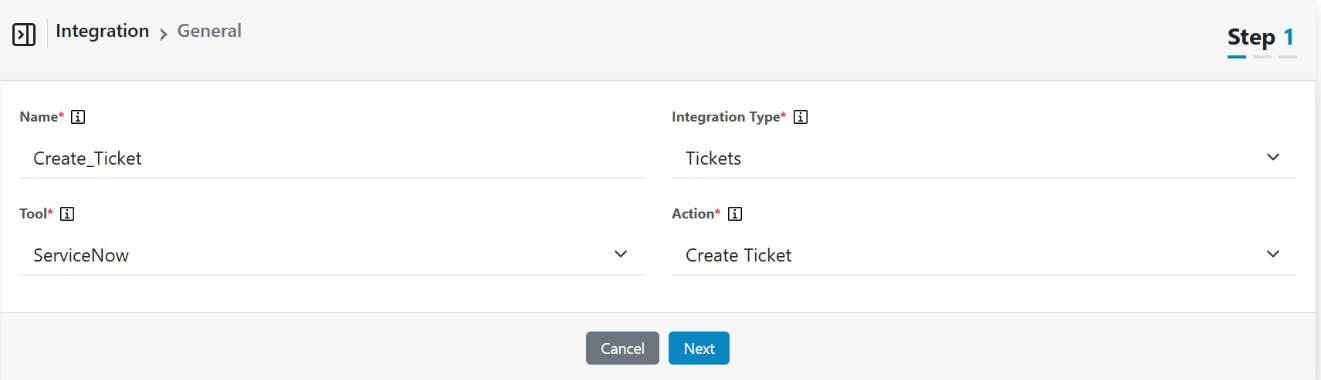
- Click Next.
- Click “New Connection”.
Figure 4. New Connection 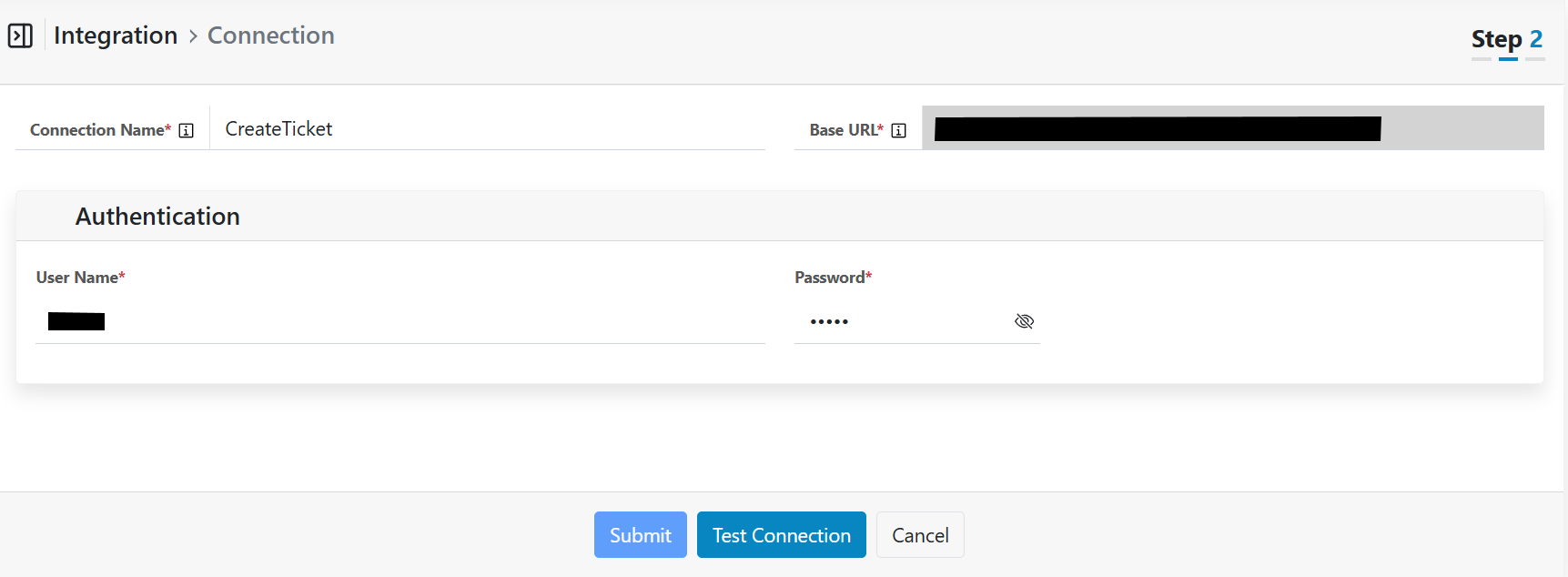
Figure 5. Connection Confirmation 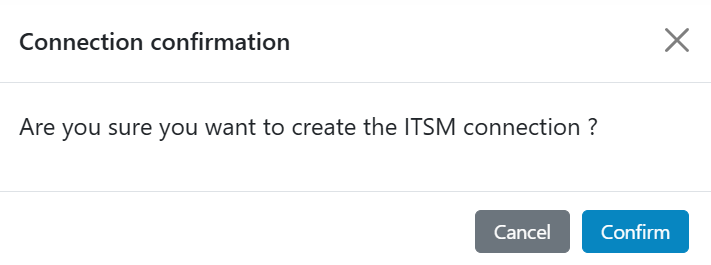
- Update the entries below.
- Connection Name: CreateTicket
- Base URL: <SNOW API URL for Create incident>
- Username: <SNOW user ID>
- Password: <SNOW password>
- Click “Test Connection” to test the SNOW connectivity. It will take a few seconds to minutes based on your connectivity. A “Test connection successful.” message will appear if the values are valid, and connection is established. If values are invalid and unable to make stable connection, it will open pop up and ask the user to confirm connection. Once click confirm Submit button will be enabled to add connection.
- Click “Submit” to get the new connection added and listed.
- Select “CreateTicket” connection and click “Next”.
Figure 6. Create Ticket Connection 
- The fields are defined and mapped in this section.
- Click on the “Table Name” section.
Figure 7. Table Name 
- Existing system defined data will be listed.
- If you need to add any new key, click on + button and add a new entry, or click on the
setting icon on top right corner in Table Name section a new window will be opened.
Enter the key value as “#tablename#” in text box Click “Extract Keys”.
Figure 8. JSON Window – Extract Keys 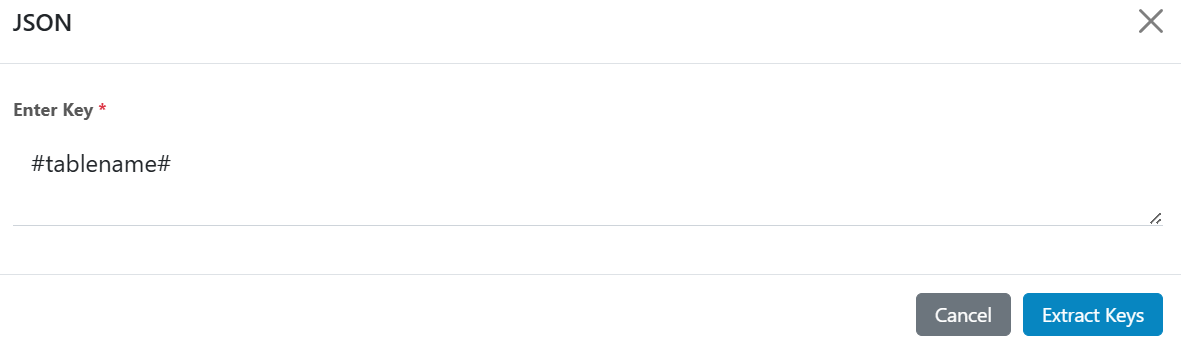
- Data Type: Static Text
- Value: incident
Figure 9. Table Name 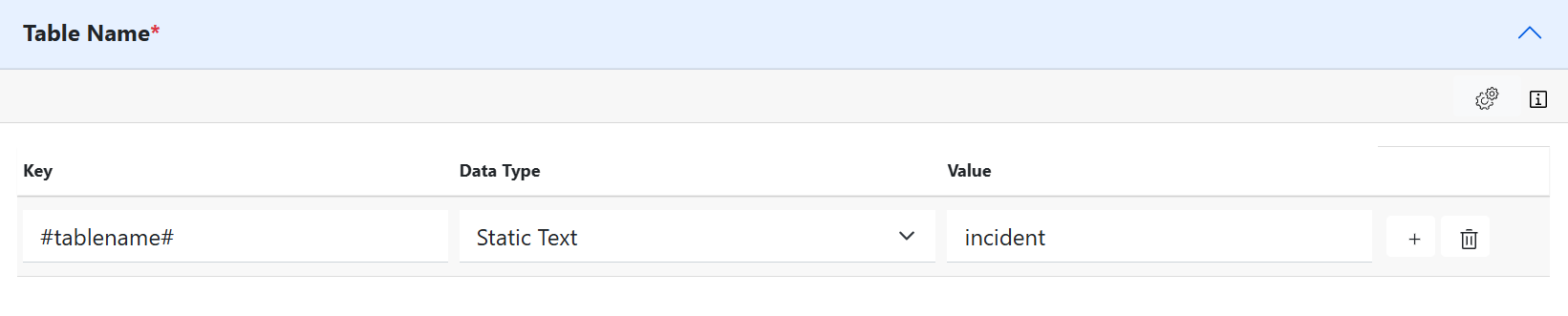
- expend “IEM to ITSM Field Mapping” existing system defined data will be listed.
- If you need to add any new field, click on + button and fill in the details, or click
on the setting icon on top right corner in IEM to ITSM Field Mapping section a new
window will be opened. Enter the value below strings in JSON format to update or add the
mapping and click “Extract
Keys”.
{"description":"#description#","u_uniqueid":"#entity##parameter#","cmdb_ci": "#cmdb ci#","company":"#company#","short_description":"#short description#","impact":"#impact#", "urgency":"#urgency#","assignment_group":"#assignment group#","contact_type":"#contact type#","caller_id": "#caller ID#","assigned_to":"#assigned to#"} - IEM Fields will be populated. The respective “Data Type” and “Value” need to be
updated as below:
Figure 10. Field Mapping 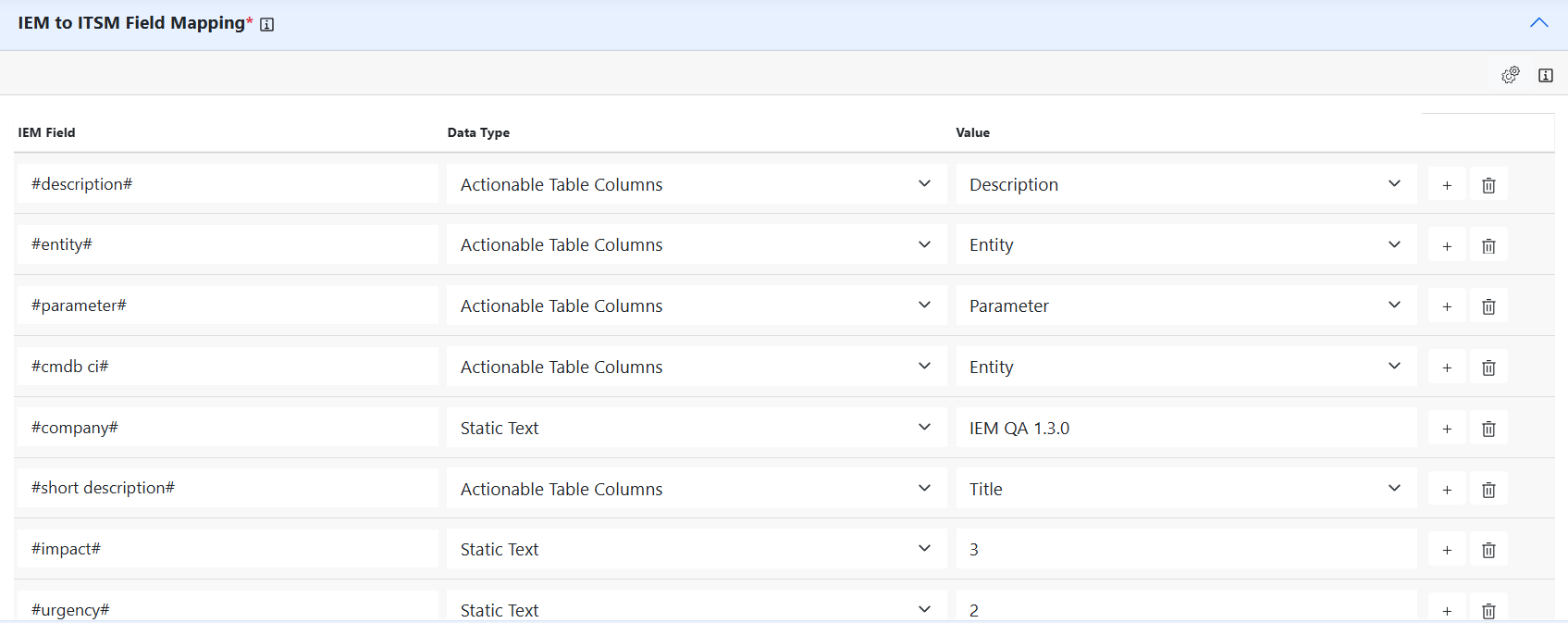
- The status section is updated as below.
Figure 11. Field status 
- Expand “ITSM to IEM field mapping” to add any new mapping click on + button and fill
the detail or click on setting icon and use the JSON sample entries below and extract
keys to update the ITSM to IEM field
mapping.
{"result": {"rfc": "", "order": "", "state": "1", "u_sip": "", "active": "true",
 "impact": "3", "notify": "1", "number": "INC0205459", "parent": "", "skills": "", "sys_id":
 "<System ID>", "u_cmdb": "", "u_peer": "", "cmdb_ci": "", "company": "", "sla_due": "",
"u_owner": "", "urgency": "3", "approval": "not requested", "category": "", "comments":
"", "contract": "", "due_date": "2021-09-06 12:25:43", "location": "", "made_sla": "true",
 "priority": "4", "severity": "3", "sys_tags": "", "u_outage": "false", "u_reason": "",
"work_end": "", "caller_id": "", "caused_by": "", "closed_at": "", "closed_by": "",
"follow_up": "", "knowledge": "false", "opened_at": "2021-09-02 12:25:43", "opened_by":
 {"link": "<dev instance service link>, "value": "<value>"}, "u_feature": "", "u_service":
"", "u_wo_flag": "false", "close_code": "", "escalation": "0", "group_list": "",
"problem_id": "", "sys_domain": {"link": "https://dev60412.service-now.com
/api/now/table/domain/47409f2aa0671000fa2f197b22cada57", "value":
"47409f2aa0671000fa2f197b22cada57"}, "u_cim_team": "", "u_critical": "false", "u_incident":
"", "u_releases": "", "u_resolved": "", "u_task_for": {"link": "<ServiceNow Instance URL>,
 "value": "<Value>"}, "user_input": "", "watch_list": "", "work_notes": "", "work_start":
 "", "assigned_to": "", "close_notes": "", "description": "#description#", "reopened_by":
"", "subcategory": "", "time_worked": "", "u_fcr_check": "false", "u_responded": "false",
"upon_reject": "cancel", "activity_due": "", "approval_set": "", "business_stc": "",
"calendar_stc": "", "contact_type": "", "reopen_count": "0", "route_reason": "",
"u_event_type": "Incident", "u_iscritical": "false", "u_isresolved": "false",
 "u_session_id": "<session ID>", "u_sub_status": "", "u_submit_cir": "false",
"u_task_table": "", "u_update_set": "", "delivery_plan": "", "delivery_task": "",
 "reopened_time": "", "sys_mod_count": "1", "u_affected_ci": "", "u_appointment":
"false", "u_owner_group": "", "u_resolved_by": "", "upon_approval": "proceed",
"correlation_id": "", "expected_start": "", "incident_state": "1", "sys_class_name":
 "incident", "sys_created_by": "<email ID>", "sys_created_on": "2021-09-02 12:25:43",
"sys_updated_by": "<email ID>", "sys_updated_on": "2021-09-02 12:25:44", "u_availability":
 "", "u_callback_dl1": "", "u_callback_dl2": "", "u_manufacturer": "", "u_product_name":
"", "u_sla_end_date": "", "child_incidents": "0", "parent_incident": "", "sys_domain_path":
 "!!!/!!!/!!!/", "u_callback_time": "", "u_company_sysid": "", "u_incident_type": "",
"u_pending_count": "0", "u_priority_type": "downgrade", "u_reopen_reason": "",
 "u_reported_date": "", "u_sla_responded": "false", "work_notes_list": "", "approval_history": "",
"assignment_group": {"link": "<ServiceNow Instance URL>, "value": "<Value>"}, "business_service": "",
 "service_offering": "", "u_contact_number": "", "u_ops_cat_tier_1": "", "u_ops_cat_tier_2": "",
 "u_ops_cat_tier_3": "", "u_requested_item": "", "u_sla_four_check": "false", "u_sla_start_date": "",
 "u_vendor_counter": "0", "business_duration": "", "calendar_duration": "", "short_description": "",
 "u_change_requests": "", "u_escalate_to_smo": "false", "u_outage_end_date": "", "u_survey_comments":
"", "u_survey_response": "", "universal_request": "", "reassignment_count": "0", "u_appointment_time":
 "", "u_escalation_cycle": "-1", "u_knowledge_record": "", "u_reassignee_count": "0", "u_state_controller":
 "1", "correlation_display": "", "u_priority_datetime": "2021-09-02 12:25:43", "u_proposed_critical":
"false", "u_servicedesk_check": "false", "u_outage_start_state": "", "u_product_cat_tier_1": "",
"u_product_cat_tier_2": "", "u_product_cat_tier_3": "", "task_effective_number": "<Incident number>",
 "u_assign_to_hop_count": "0", "u_service_unavailable": "false", "u_location_unavailable": "false",
"u_reason_for_escalation": "", "u_submit_for_validation": "false", "additional_assignee_list": "",
 "u_attached_knowledge_ids": "", "u_no__of_people_affected": "", "u_other_justified_reason": "false",
"u_production_server_risk": "false", "u_remedy_incident_number": "", "u_critical_incident_status": "",
 "u_reason_for_re_assignment": "", "u_critical_incident_manager": "", "u_propose_knowledge_article":
 "false", "u_resolution_from_knowledge": "false", "u_show_in_marquee_on_gold_ess": "false",
"u_critical_resolution_acceptan": "false", "u_resolution_acceptance_dateti": ""}}
Figure 12. Field Mapping 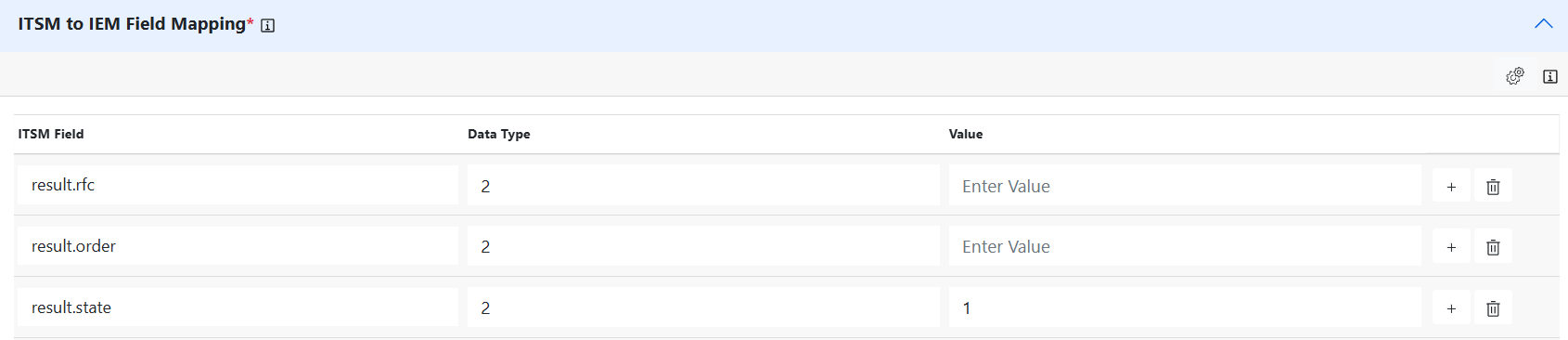
- In the “Base” section of “Map Columns” updates the values as below. Click the link
icon highlighted below.
Figure 13. Map Columns 
- Validate if the mapping is defined as below, if not update the mapping to reflect as
shown.
Figure 14. Validate Mapping 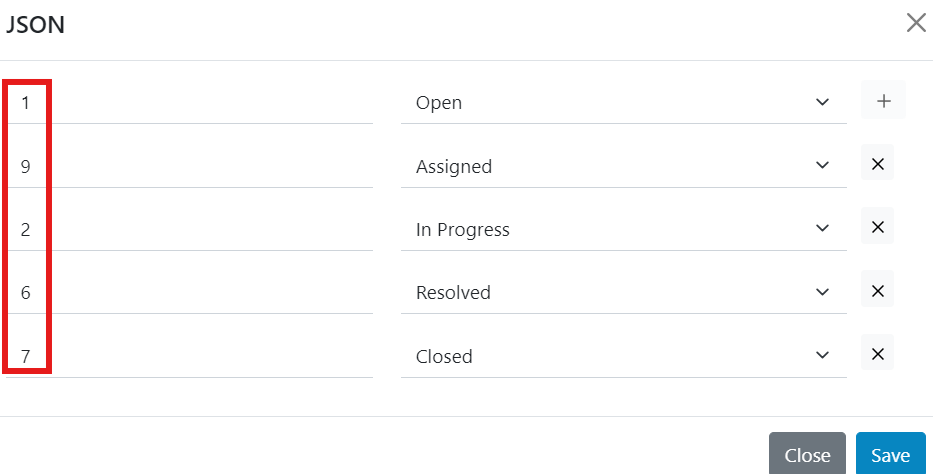
- Update the custom mapping section as below, save and submit.
Figure 15. Update Custom Mapping 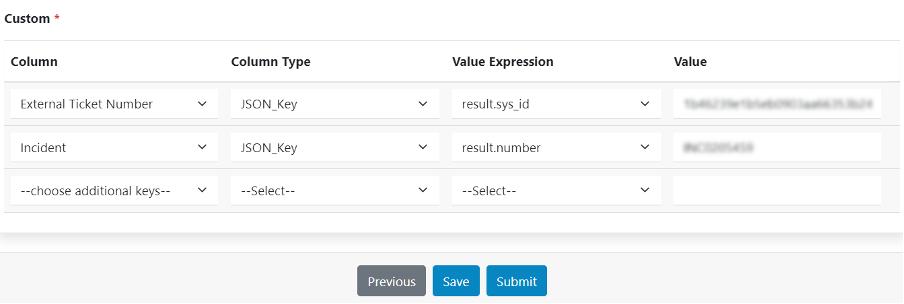
- The new integration for “Create Incident” has been added successfully.
- Click on the “Table Name” section.