Inventory Runbooks
This section describes the steps required to view inventory runbook metadata. Only a user with super admin rights can update any inventory runbooks, others can only access this in read-only mode.
To access and view the inventory runbook data, perform the following steps:
- On the main menu bar, click Runbooks and then Inventory Runbooks.
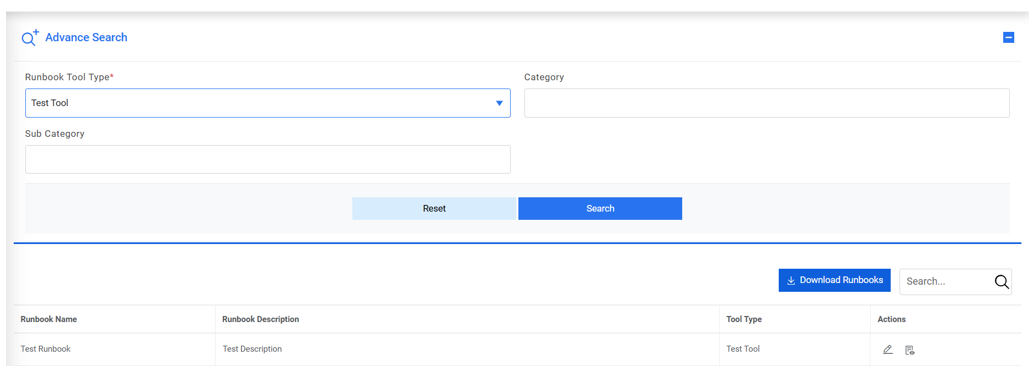
The Inventory Runbooks page appears.
Figure 1. Inventory Runbooks 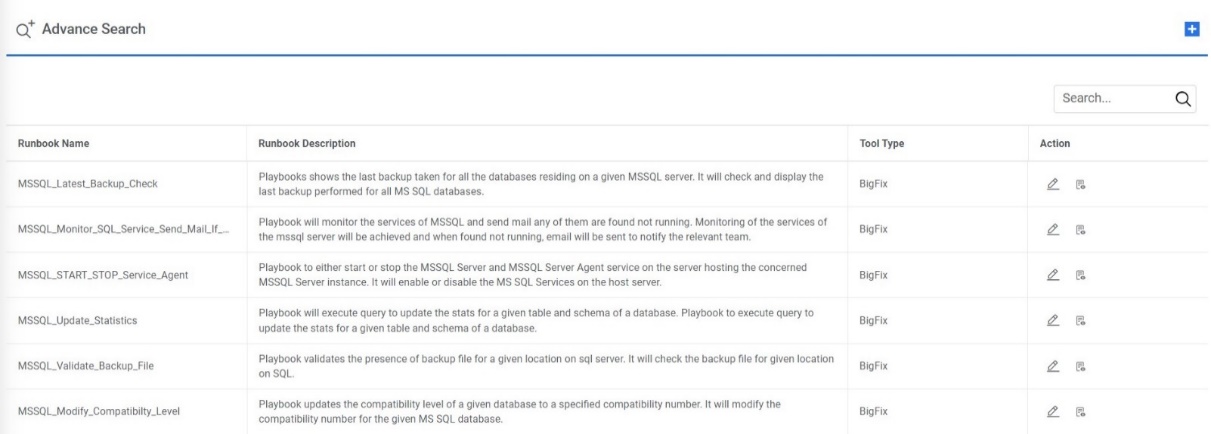
- Click on ‘Advance Search’ button to filter the Inventory Runbook based on Runbook Tool
Type, Category or Subcategory.
Figure 2. Inventory Runbooks (Cont.) 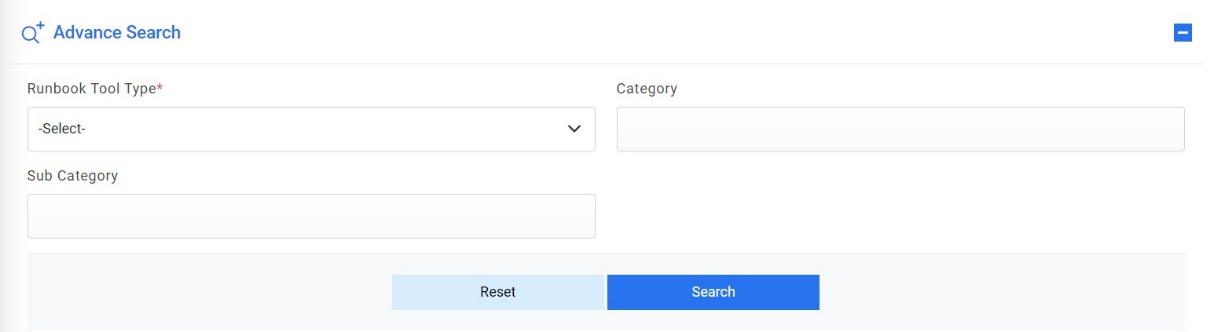
- Click on
 under the Action
tab to view or edit the Runbook details.
under the Action
tab to view or edit the Runbook details.Figure 3. Inventory Runbook (Cont.) 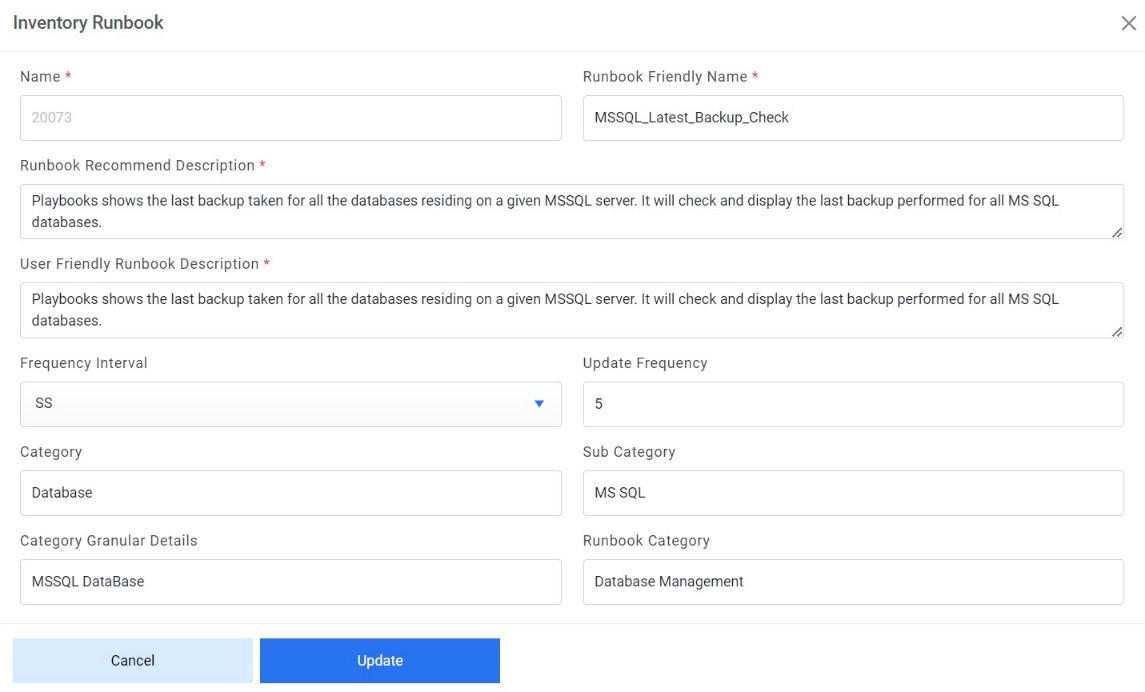
Figure 4. Inventory Runbook Parameters (Cont.) 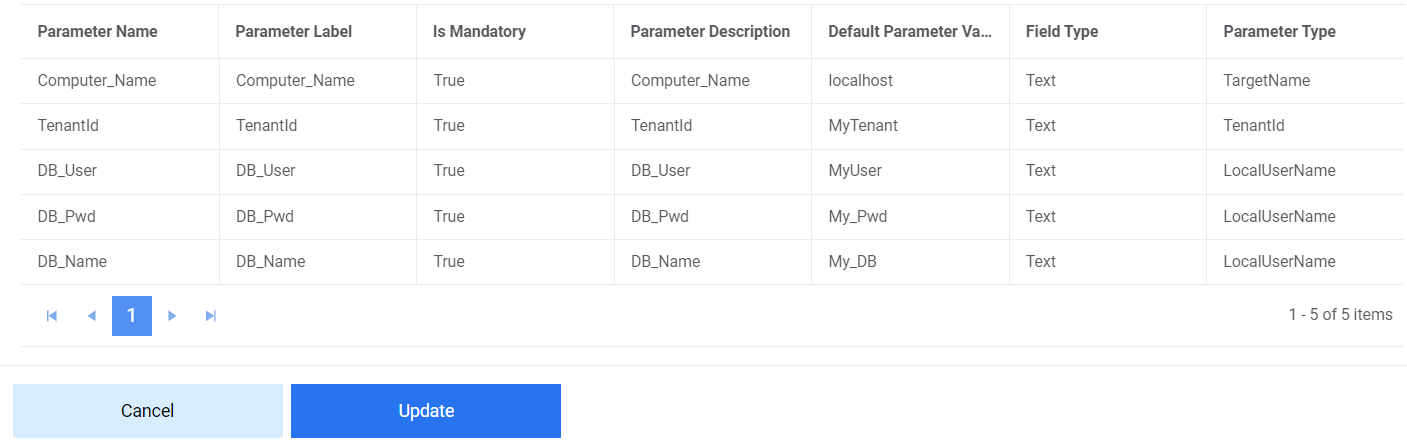
- Click on
 under the Action tab to
fill in a feedback questionnaire for the Runbook to improve the recommendation process. The
following screen appears:
under the Action tab to
fill in a feedback questionnaire for the Runbook to improve the recommendation process. The
following screen appears:Figure 5. Inventory Runbooks Parameters (Cont.) 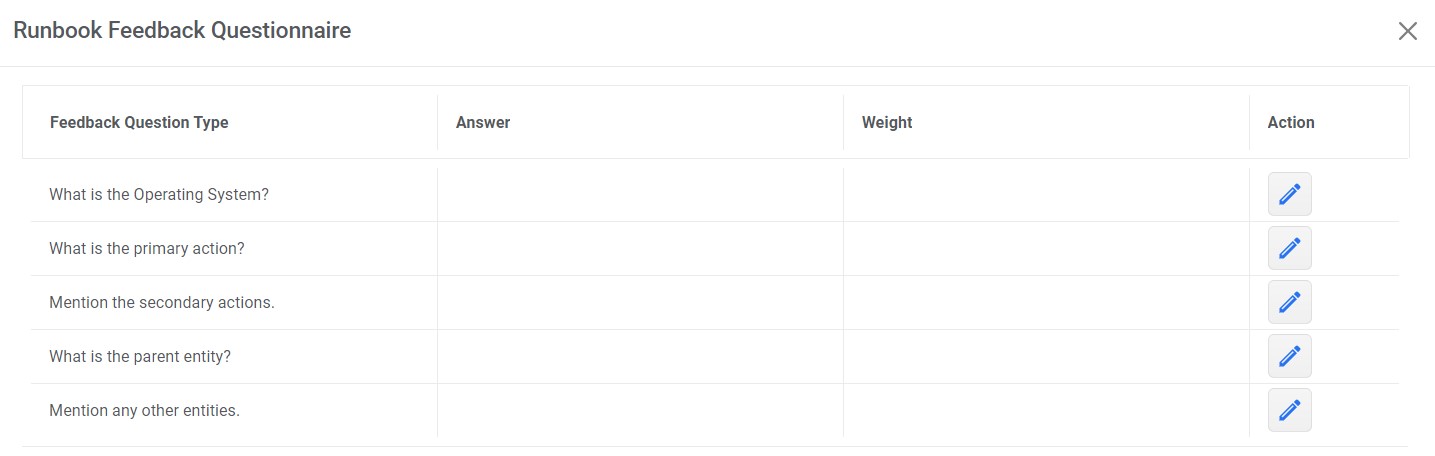
- Update the value of any field and click on the update button. A confirmation box appears on the screen.
- Type the search text in the Search here box to search for the Runbook.
Figure 6. Inventory Runbooks (Cont.) 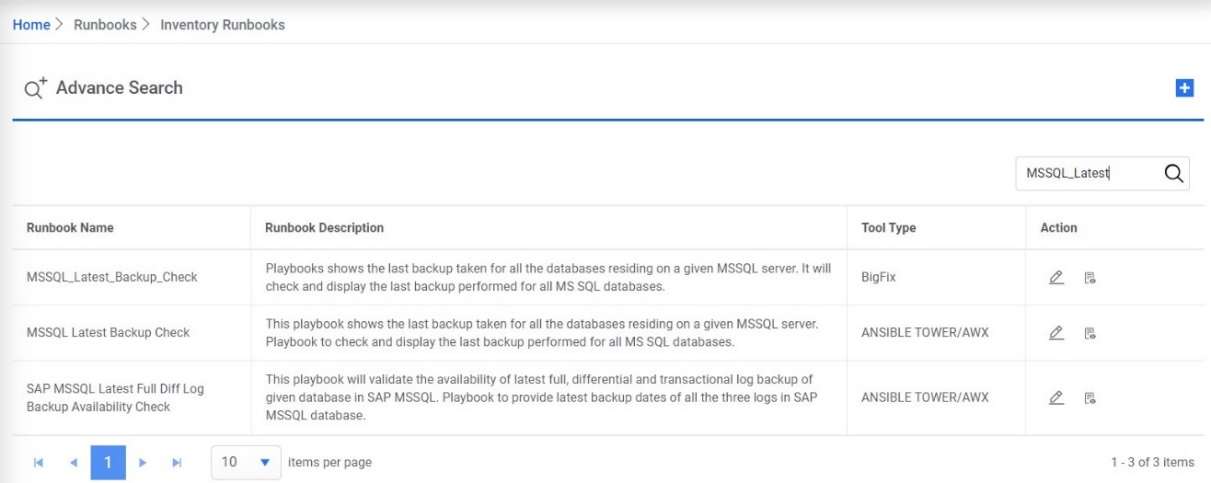
- A new action, "Send to Ansible repository," has been introduced for the AnsibleTower tool
type.
Figure 7. Inventory Runbooks (Cont.) 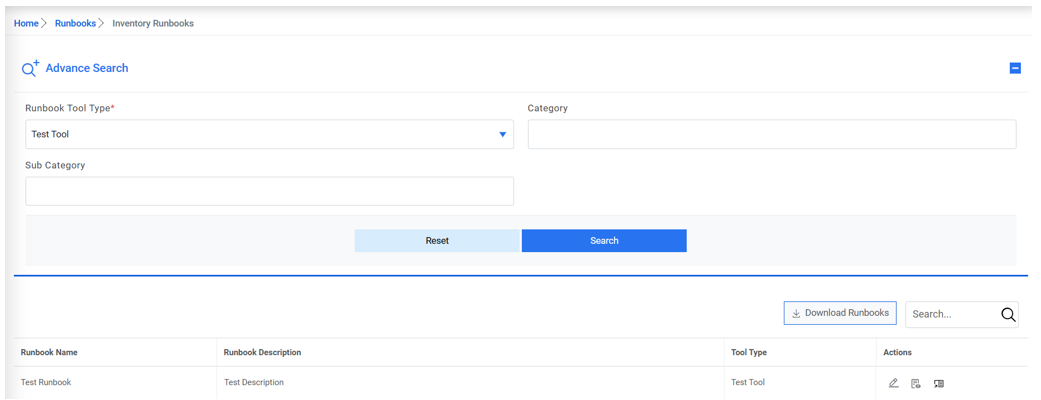
Click on
 (Send to ansible repo.) The following screen appears:
Figure 8. Inventory Runbooks (Cont.) 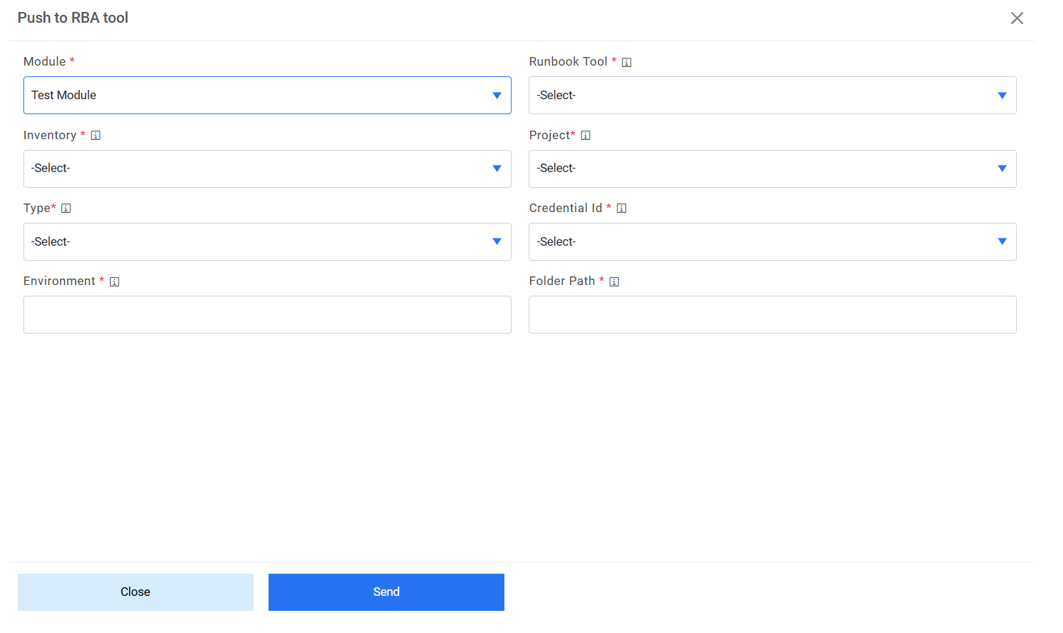
Figure 9. Inventory Runbooks (Cont.) 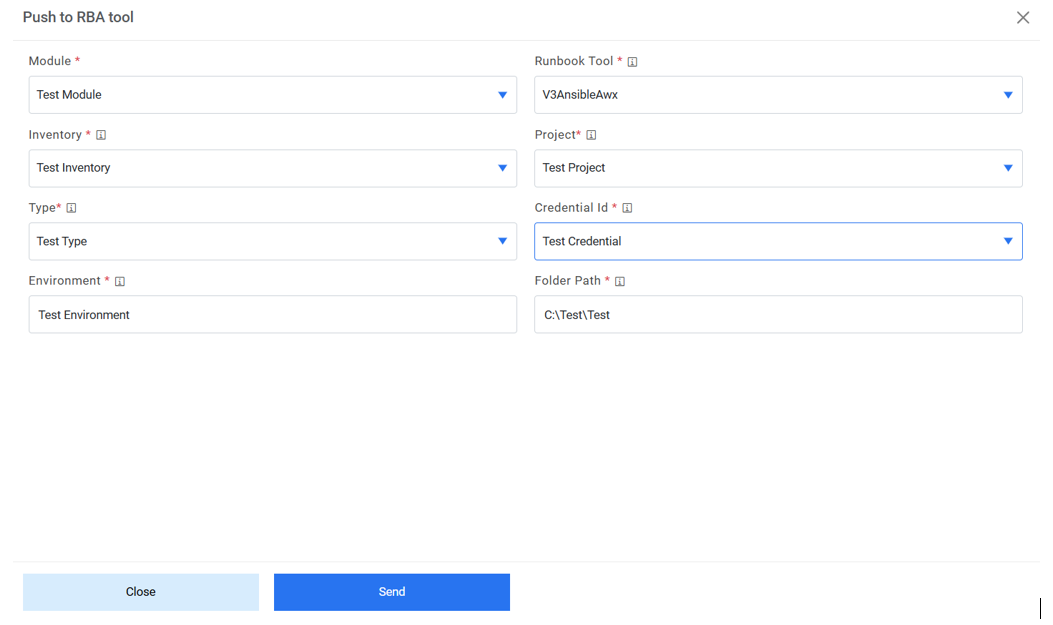
Upon completing the details, click the "Send" button. The following message will subsequently appear, and the file and folder will be pushed to the Ansible Tower server.
Figure 10. Inventory Runbooks (Cont.) 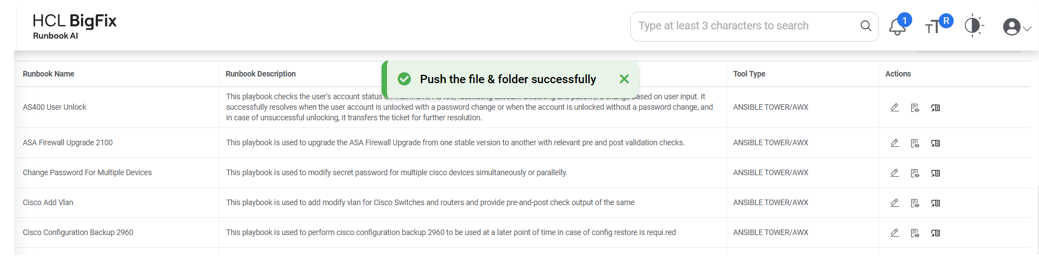
- Download Inventory Runbook in required formatAllows users to export inventory runbooks in multiple standardized formats for downstream consumption.
Figure 11. Inventory Runbooks (Cont.)