
Installation
This section lists all the configurations as entered (server and component wise). Review the details and verify that the responses provided are correct.
- Verify the Details which were provided and click on Run to start the Web
Components installation.
Figure 1. HCL BigFix CLM Installation 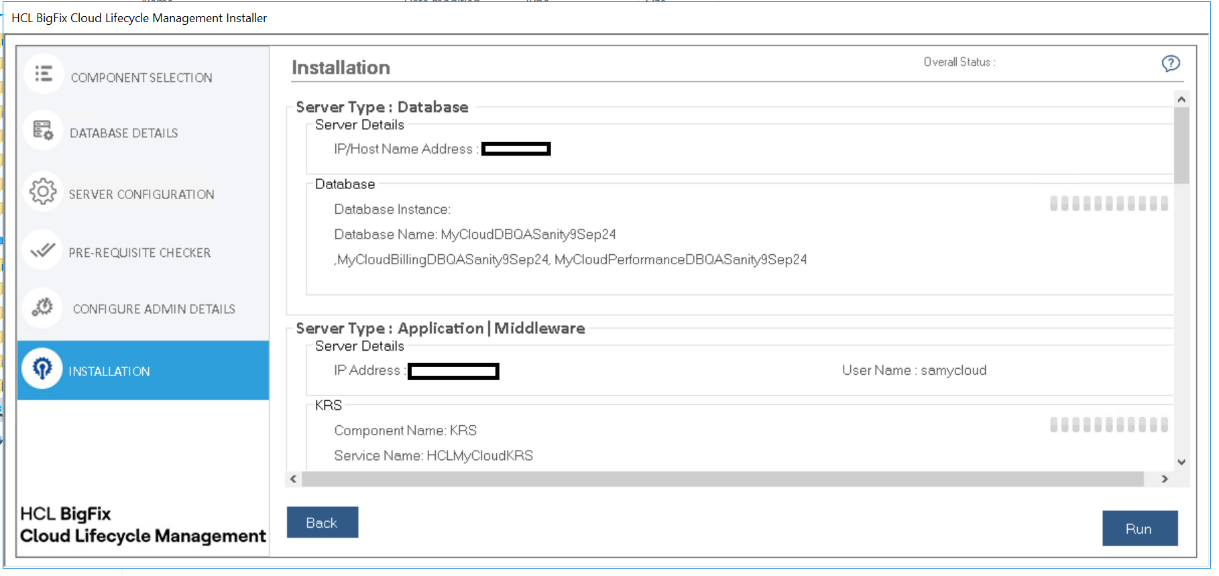
- Installation progress can be seen as shown below.
Figure 2. HCL BigFix CLM Installation Progress 
-
On successful installation of web components, below screen will appear with Launch Application Button.
Figure 3. HCL BigFix CLM Installer – Success 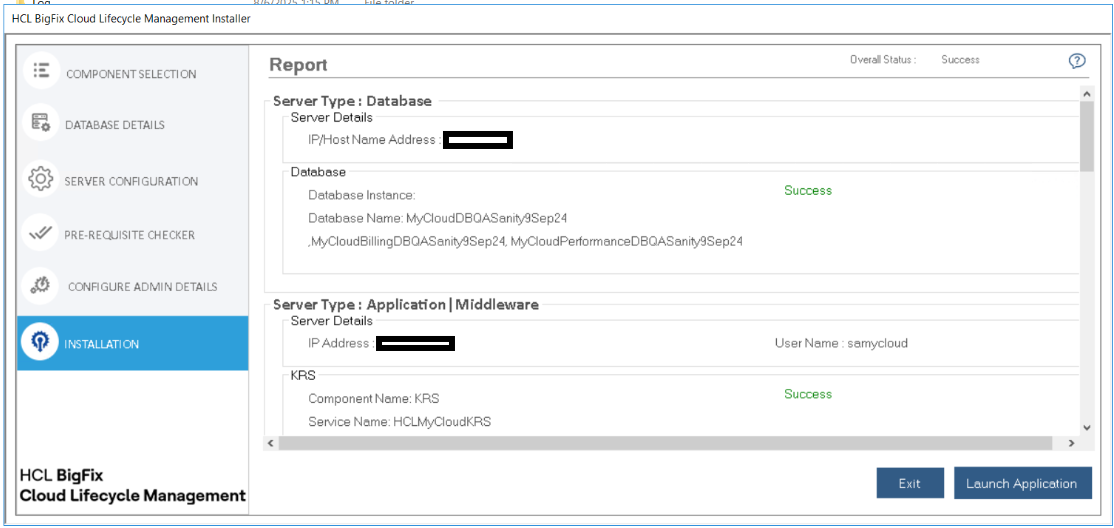
- Click on Launch Application to launch the HCL BigFix Cloud Life Cycle Management
Web portal.Note:HCL BigFix CLM takes some time to configure the website, below the screen will appear, click on OK.
Figure 4. HCL BigFix CLM Installer - Launch 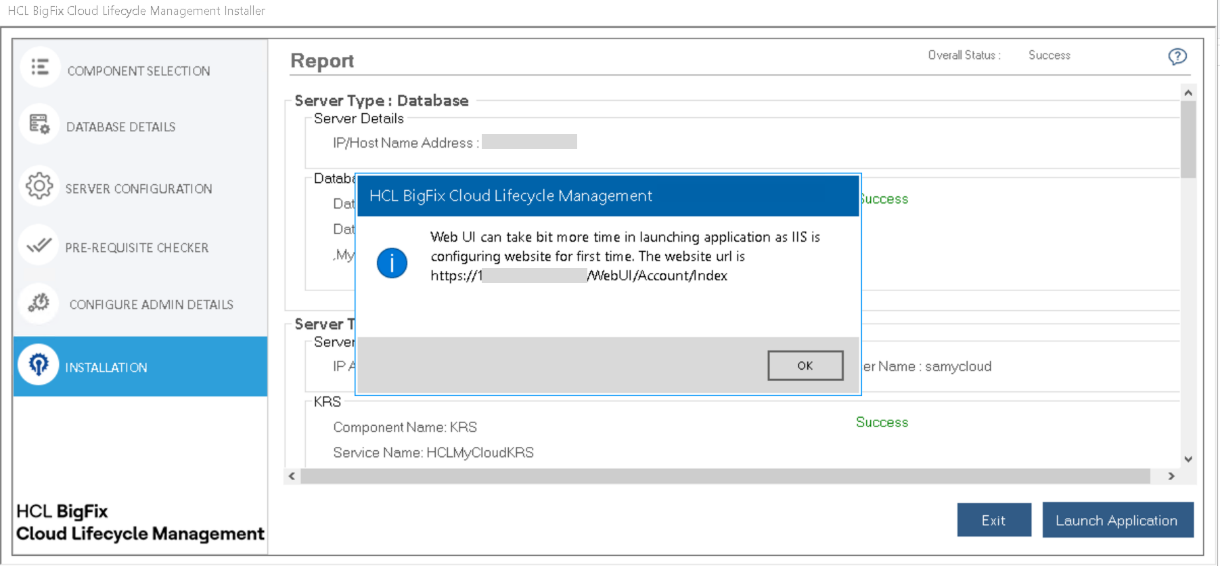
- Click OK.
- Copy the URL in your notepad for future reference and open the portal in browser.Note:In case of any failure the error is displayed in Red on the screen and it’s advisable to reach out to bigfixclm-prodsupport-team@hcl-software.com for further help.