This is the third section for each card and this section
contains the buttons to perform actions on the card or to be more
specific on the designed conversation flow. Buttons included in
this section are:
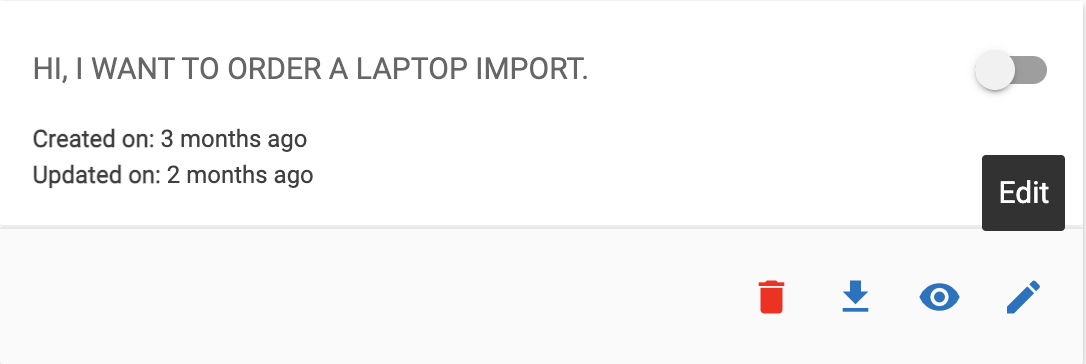
Edit Button:
This button redirects the user to the page where the user can edit a previously designed
conversation.
The detailed description on how to update a conversation is detailed further in this
document.
Figure 1. Edit Button
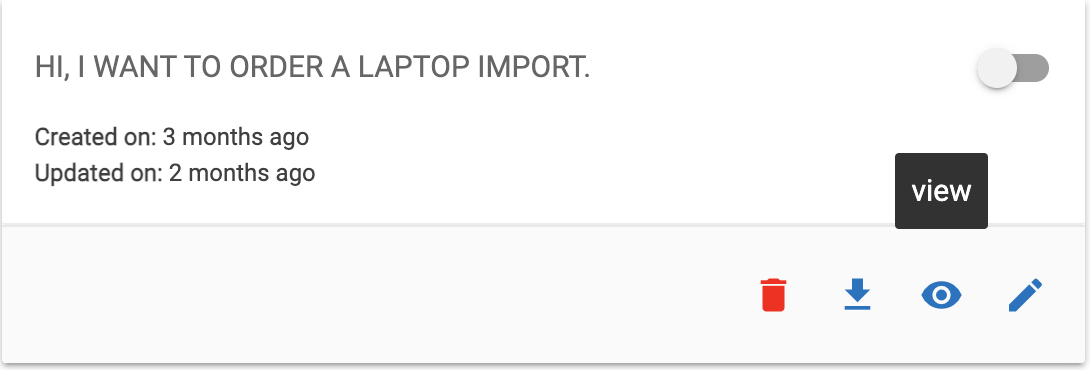
View Button:
Clicking this button results in a pop-up modal, in which the user can view the
conversation that was designed. Figure 2. View Button
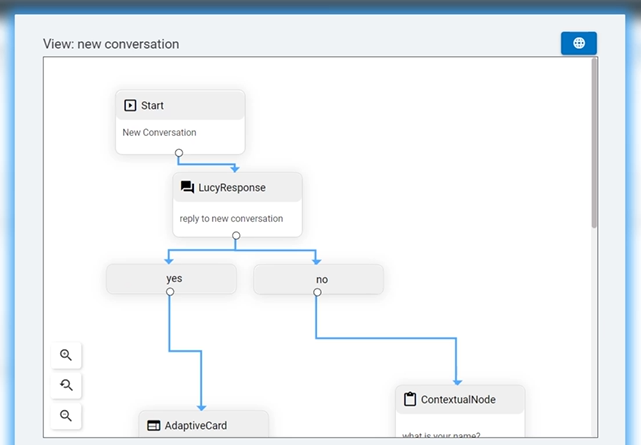
Once the user clicks on view conversation, a pop up appears, and all the dialog flow
related to the conversation is seen. Figure 3. User Views Dialog Flow
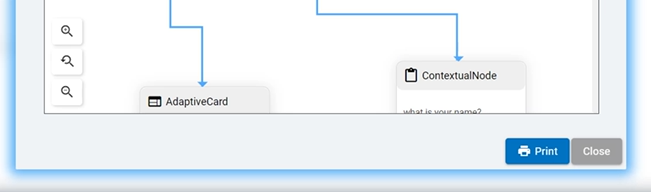
In the same pop-up modal, users can see a Print button at the footer of the pop-up
modal, which enables the user to print or download the conversation, with all its decision
flows, in PDF format.Figure 4. Print Button
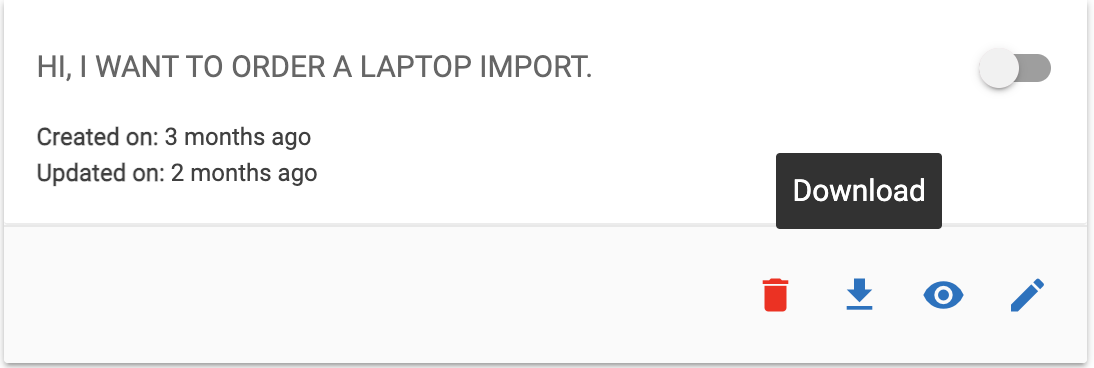
Download JSON Button:
This button allows the user to download the conversation flow in JSON format. Figure 5. Download JSON Button
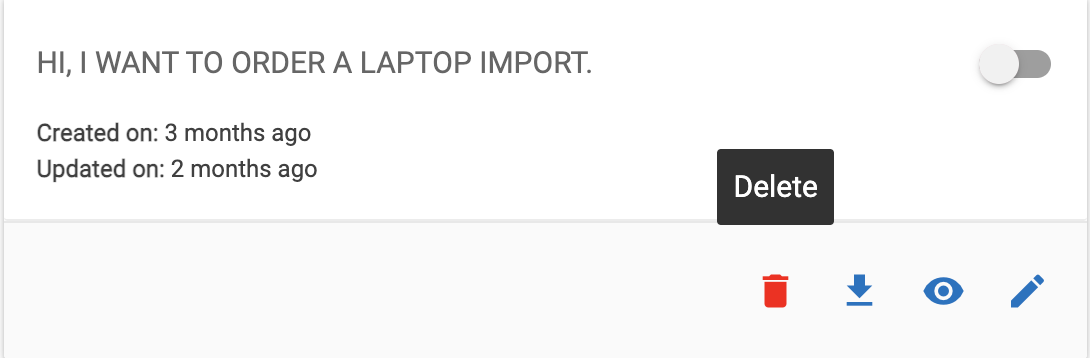
Delete Button:
This button allows the user to delete the card along with the designed conversation.
Figure 6. Delete Button
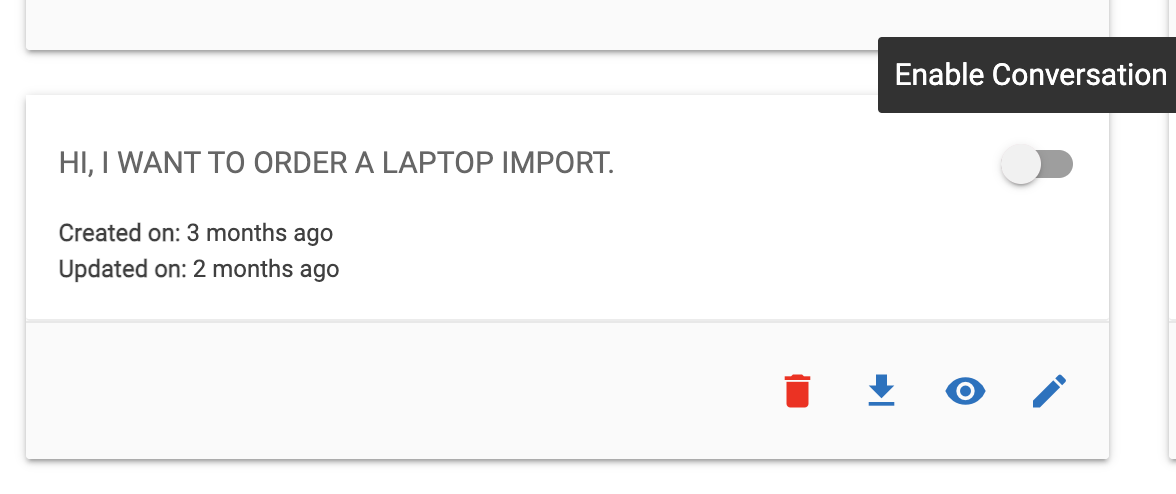
Enable Usecase Toggle:
At the top right corner of each card there is a toggle that, on one hand, notifies the
viewer whether the conversation is selected for training or not, on the other hand allows
the user to enable or disable the conversation for training based on the user’s sole
preference.Figure 7. Enable Usecase Toggle