
Editing an Event
When editing a running event, a duplicate of the event is made and saved as a draft without impacting the original event.
To edit an event, follow the steps below:
- In the Top navigation bar, click Events, and select the All Events option.
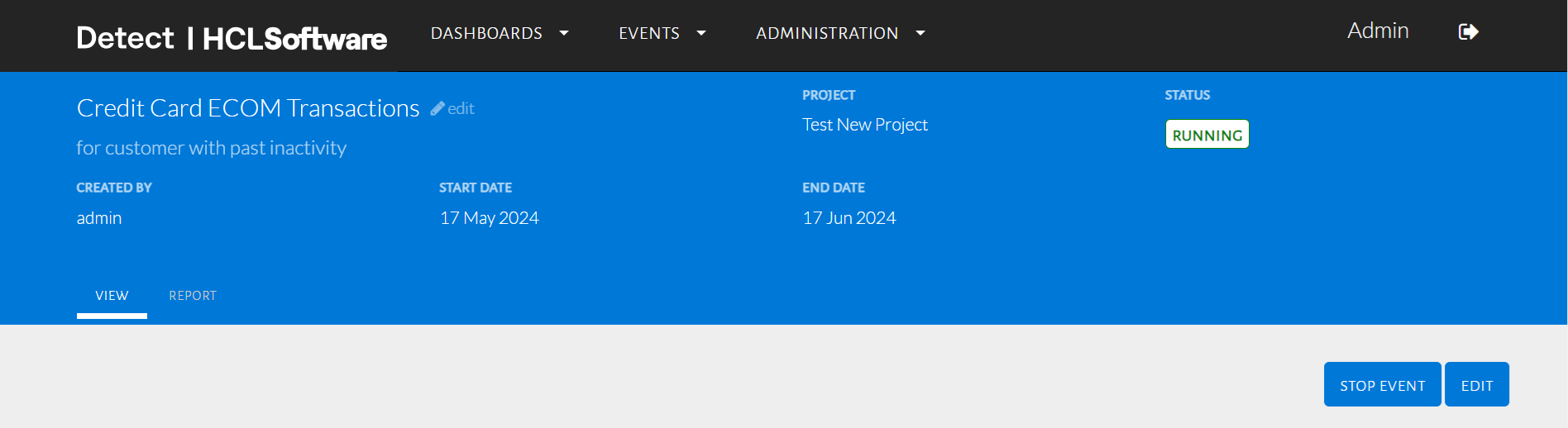
- Select a running event.
- On the top-right of the new page, next to the name of the event, click Edit.
- Click Create New Draft.
A pop up will inform the user that a new draft will be created as seen in the image below.
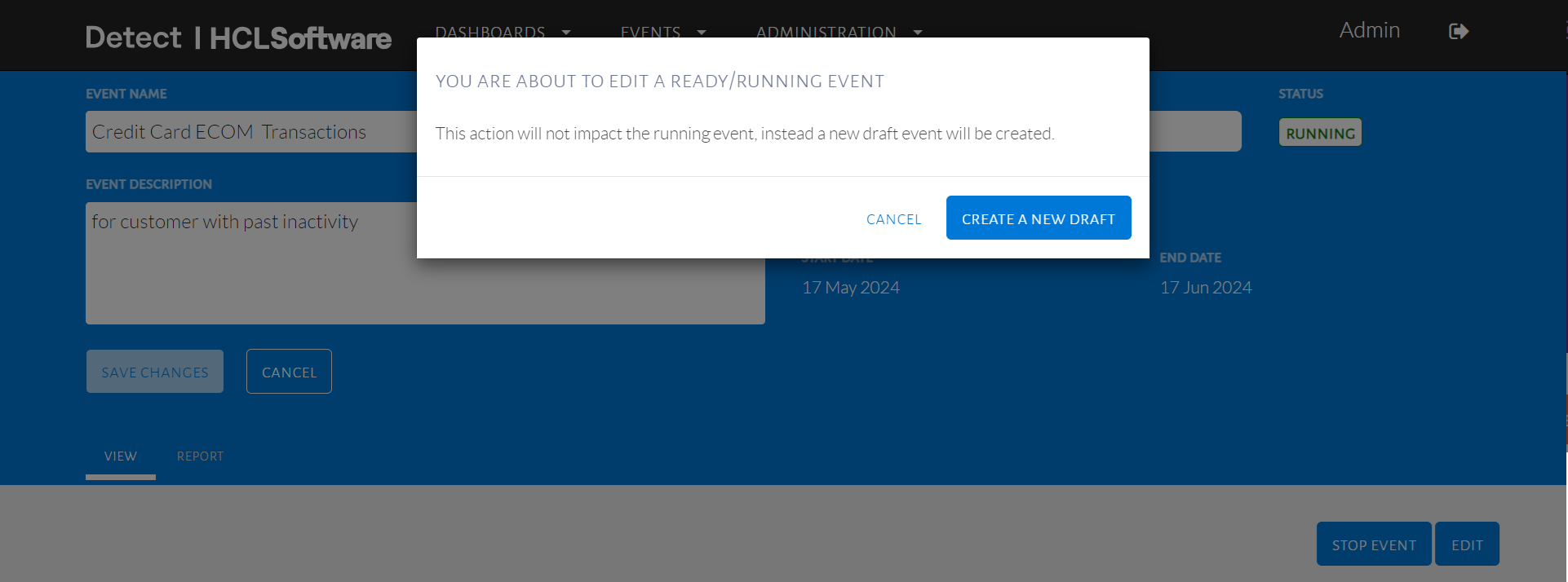
Creating an event draft
By clicking on Create a New Draft, a new tab titled Draft will be added as seen in the image below. Click on Draft to begin editing the event. Notice the status changes as well.
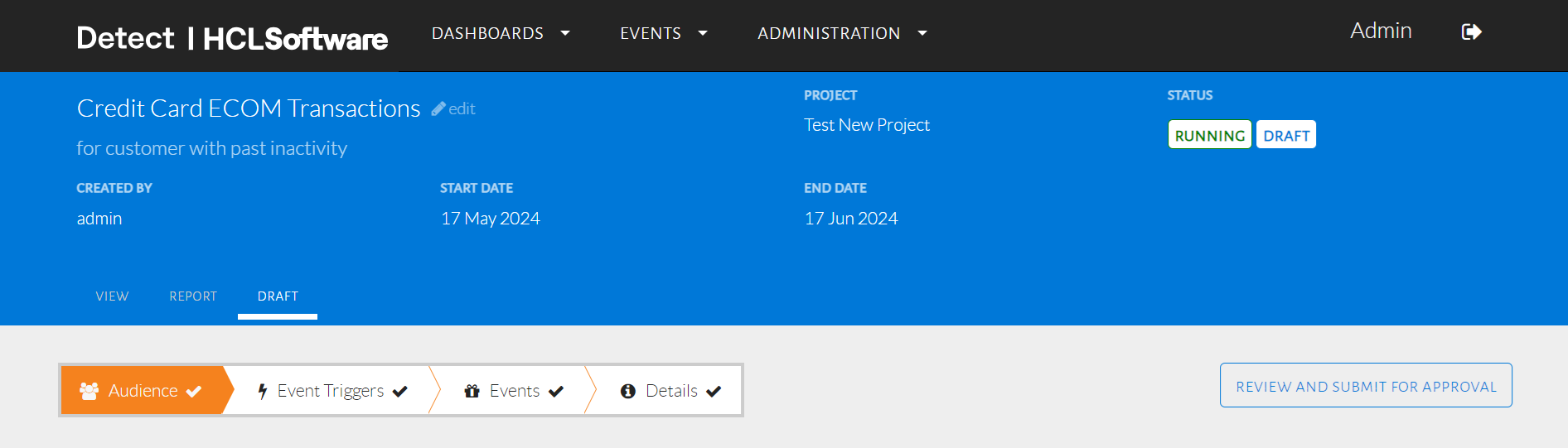
Editing the draft
Making any changes to the draft follows the same steps as creating an event and deploying it (based on the user permissions) as mentioned above. If the edited event is still running, deploying the draft version will replace the current running version.