
User & Role Management
The only user that comes pre-configured with HCL Detect is the
admin user.
admin user can add additional users, including other administrators,
as well as perform other user management tasks by accessing the
User And Role ManagementAdministration category in the top navigation bar.The user management screen is shown below:
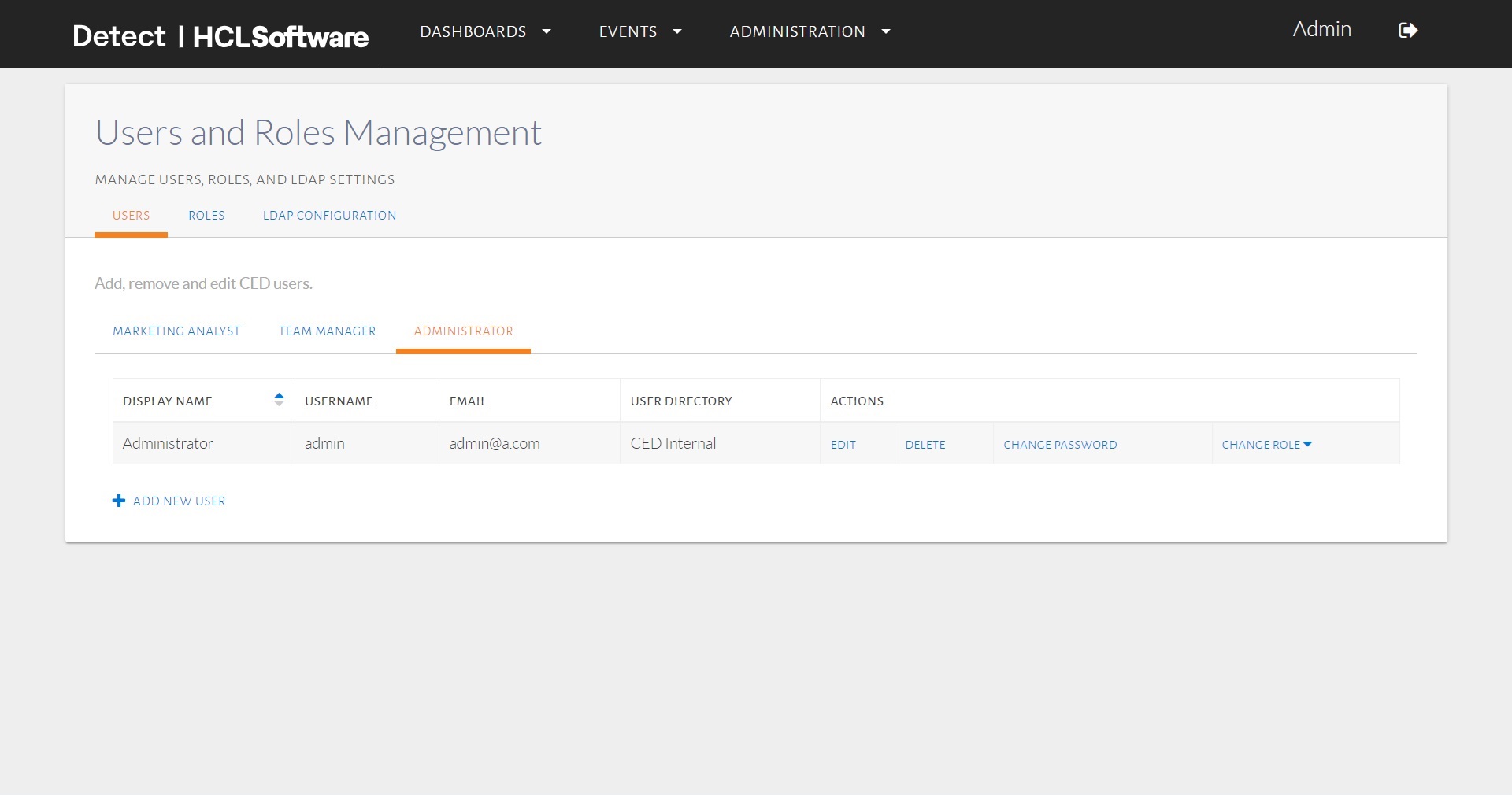
The UserAndRoleManagement page.
In the Users tab, the various roles that are configured in the system
and the users that exist for each such role are depicted.
To add a new user, the administrator must first decide the role for such a user, for
example, the MarketingAnalyst role can be selected by picking the
corresponding tab in the User Management page and by clicking on the
Add New User link:
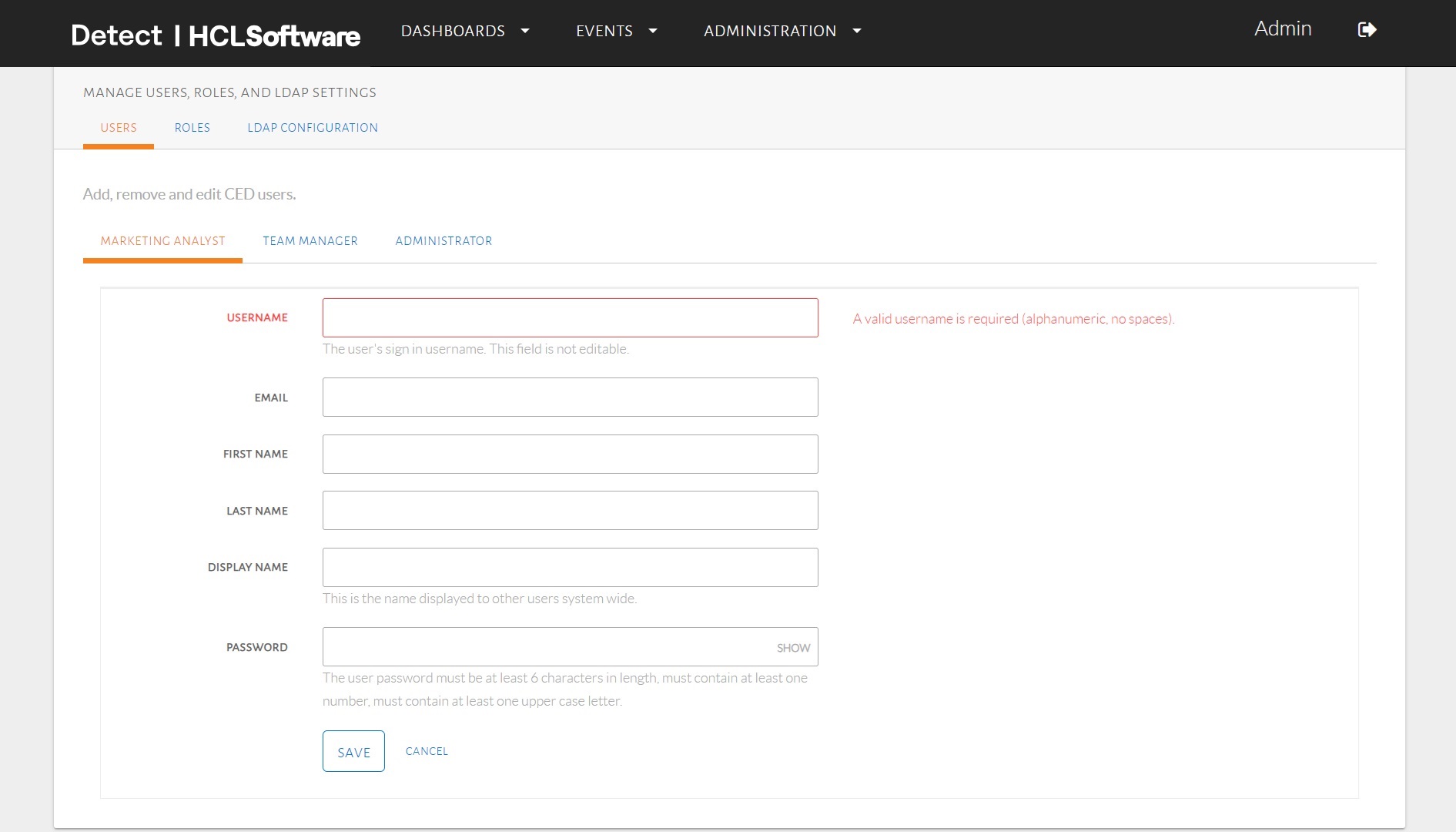
Adding a new user.
Subsequently, the Username, Email, First
Name, Last name, Display name and
Password attributes should be filled out. Finally, the
Save button can be pressed to store this data.
Once completed, the newly added user should be visible in the user interface:
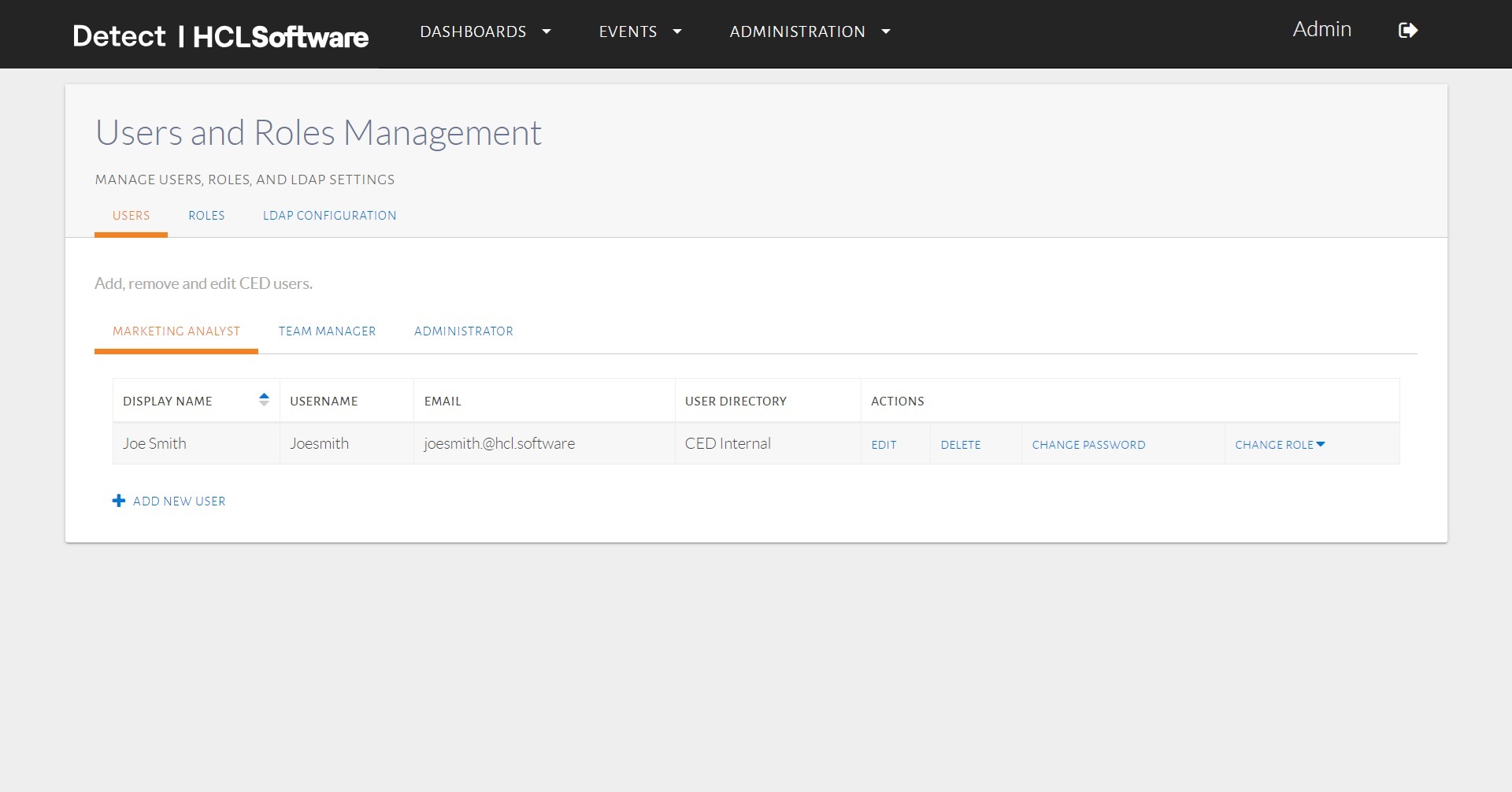
A newly added user.
The data for an existing user can be modified and the user itself can be removed by another user with user management entitlement.
The deletion and editing are performed using Delete and
Edit button under Actions head of the table:
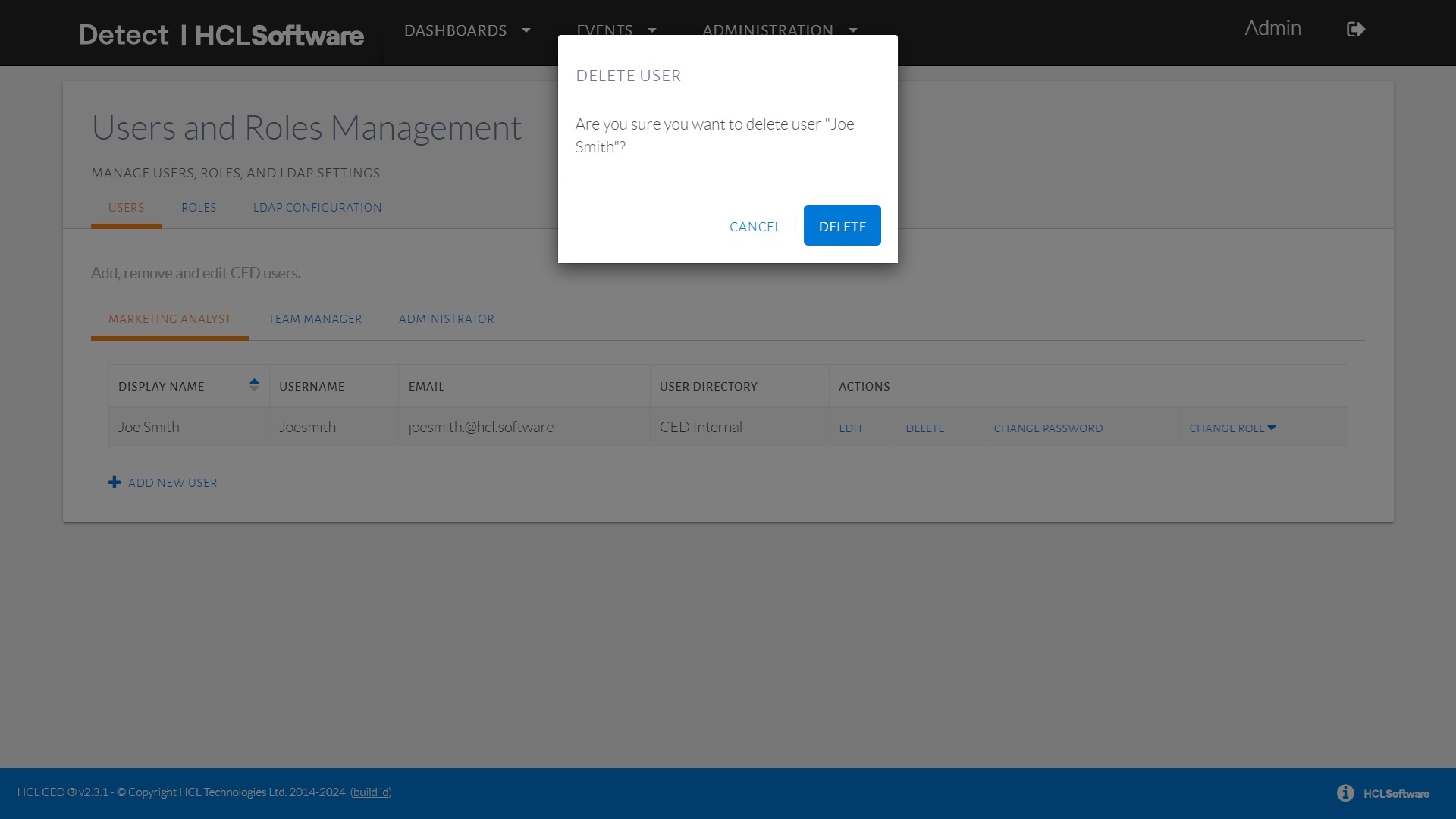
Removing or updating a user's data.
The Roles page can be accessed by accessing the Roles
tab in the navigation bar:
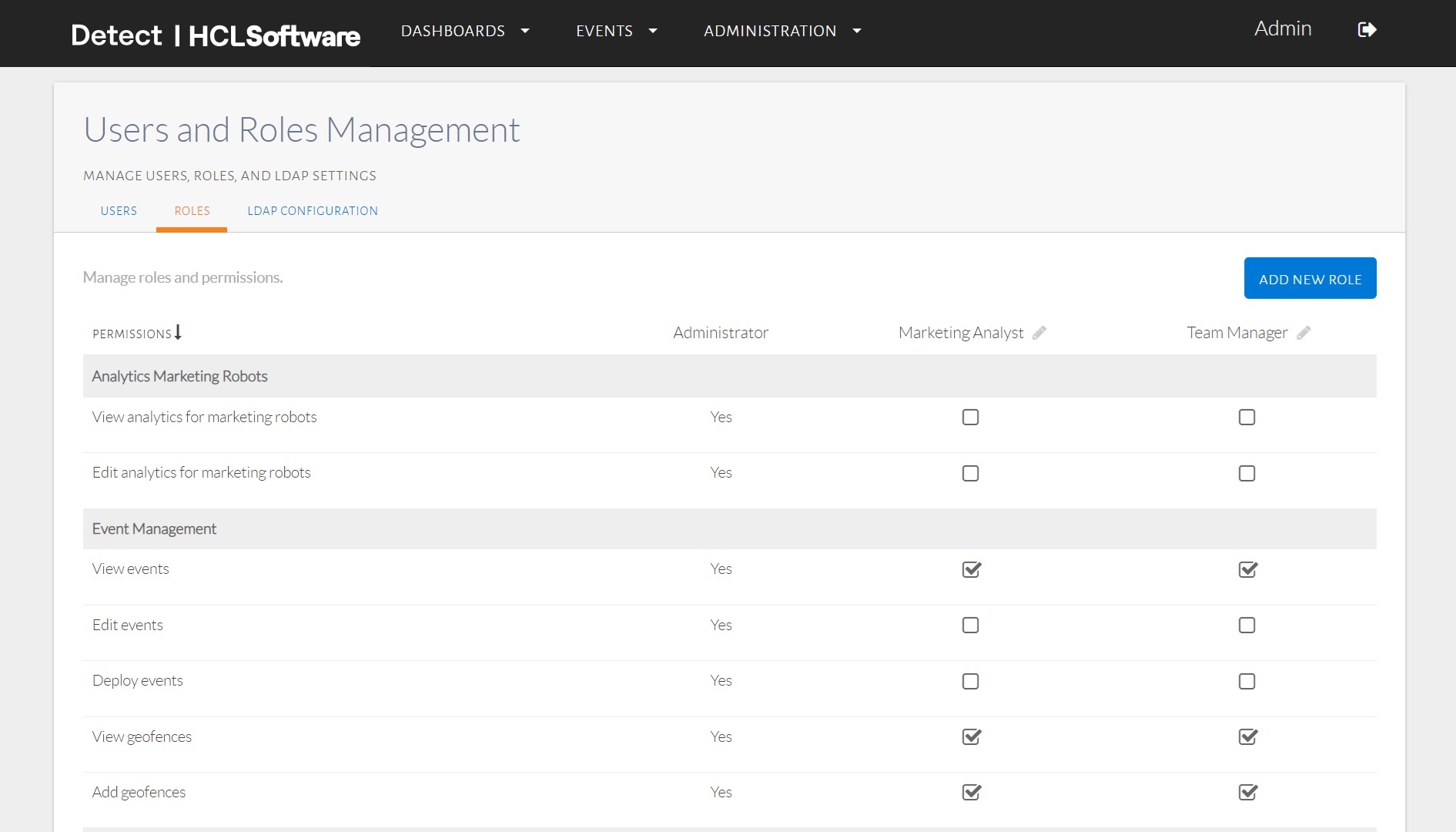
The Roles tab.
The HCL Detect, by default, comes with three default roles: the
Administrator, the Team Manager and the
Marketing Analyst:
- The
Administratorhas unrestricted permissions in HCL Detect. - The
TeamManagerdoes not have the permissions associated with user and role management, but has all the other permissions. - The
MarketingAnalysthas permissions that are a notch below aTeam Manager, excluding, for instance, the ability to edit the feeds.
Roles can be renamed and removed.
The removal of a role can only be accomplished if no user(s) with that role exists. The user interface shows an appropriate error when an attempt is made to delete a role that has user(s) assigned to it:
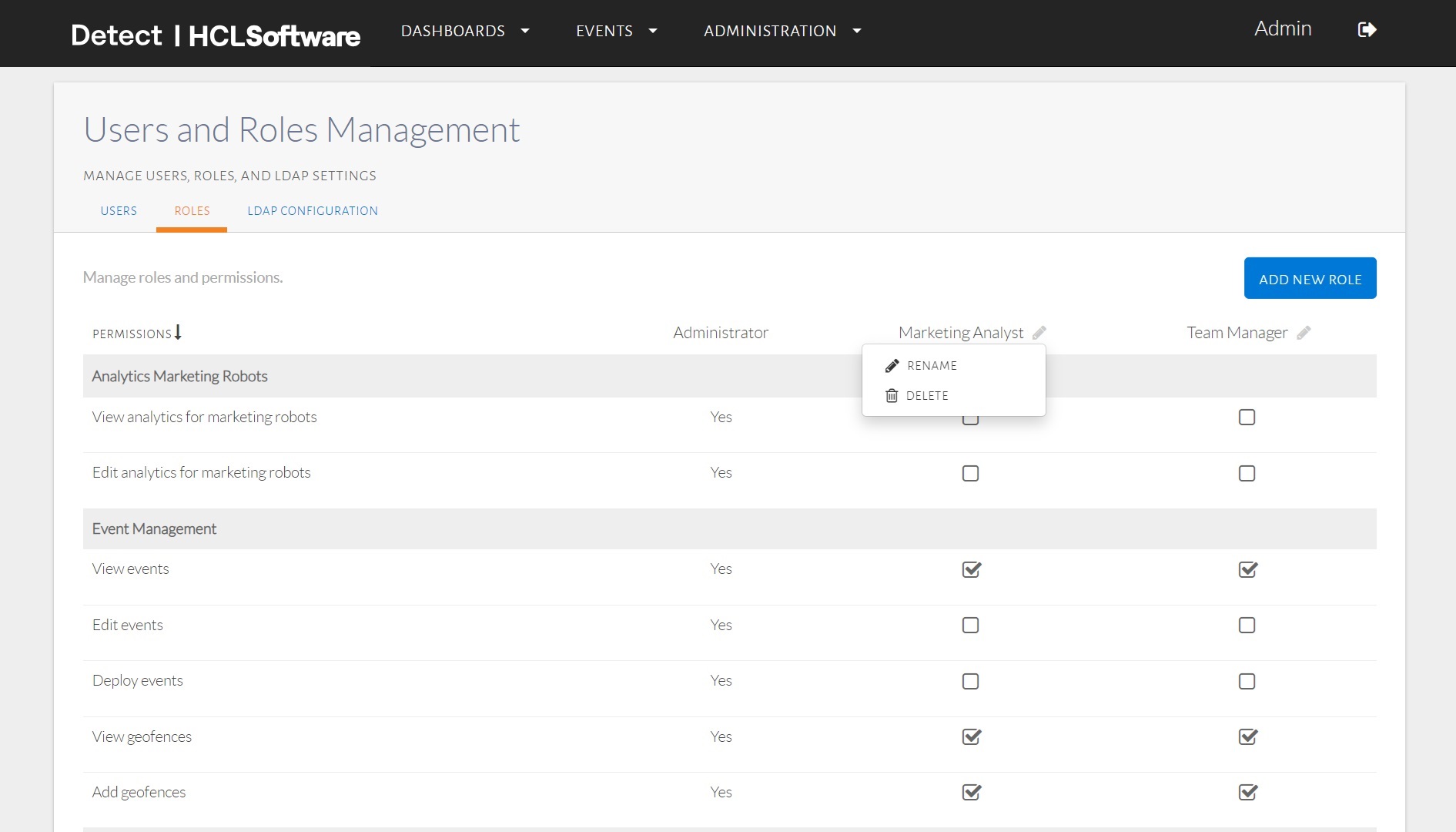
Renaming and deletion options for a role.
A new role can be created by clicking on the AddNewRole button located
at the top-right corner.
The resulting pop-up asks the user to enter the name of the new role and, upon clicking
on the Create button, the corresponding new role is created.
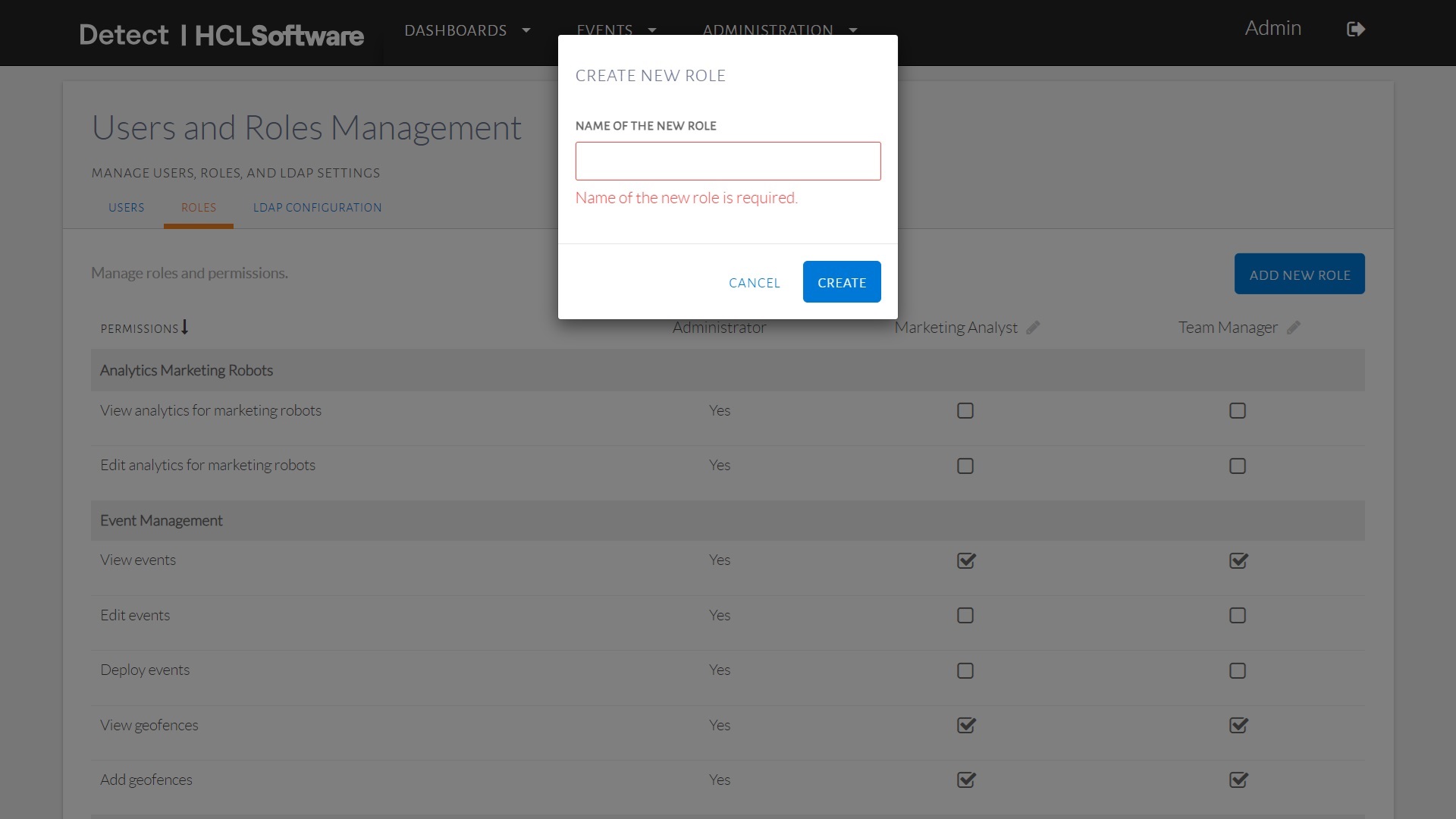
Adding a new role.
A new role is created without any permissions. Permissions can then be added to the newly created role by clicking on the corresponding check-boxes:
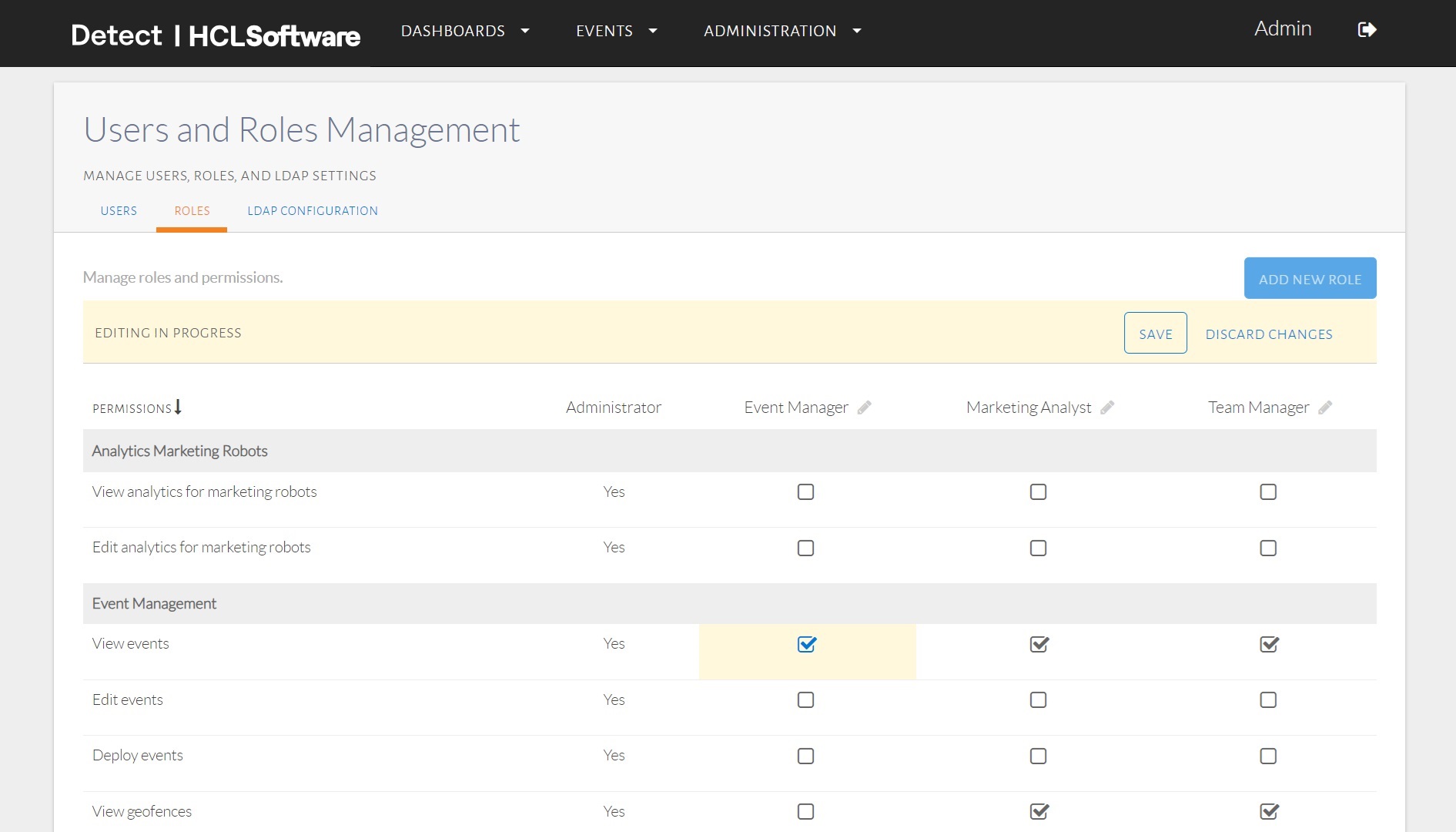
A newly created role (Event Manager) with View events permissions only.
HCL Detect can be optionally configured to do LDAP based authentication. The
LDAPConfiguration page can be used to configure the LDAP
Configuration tab in the navigation bar:
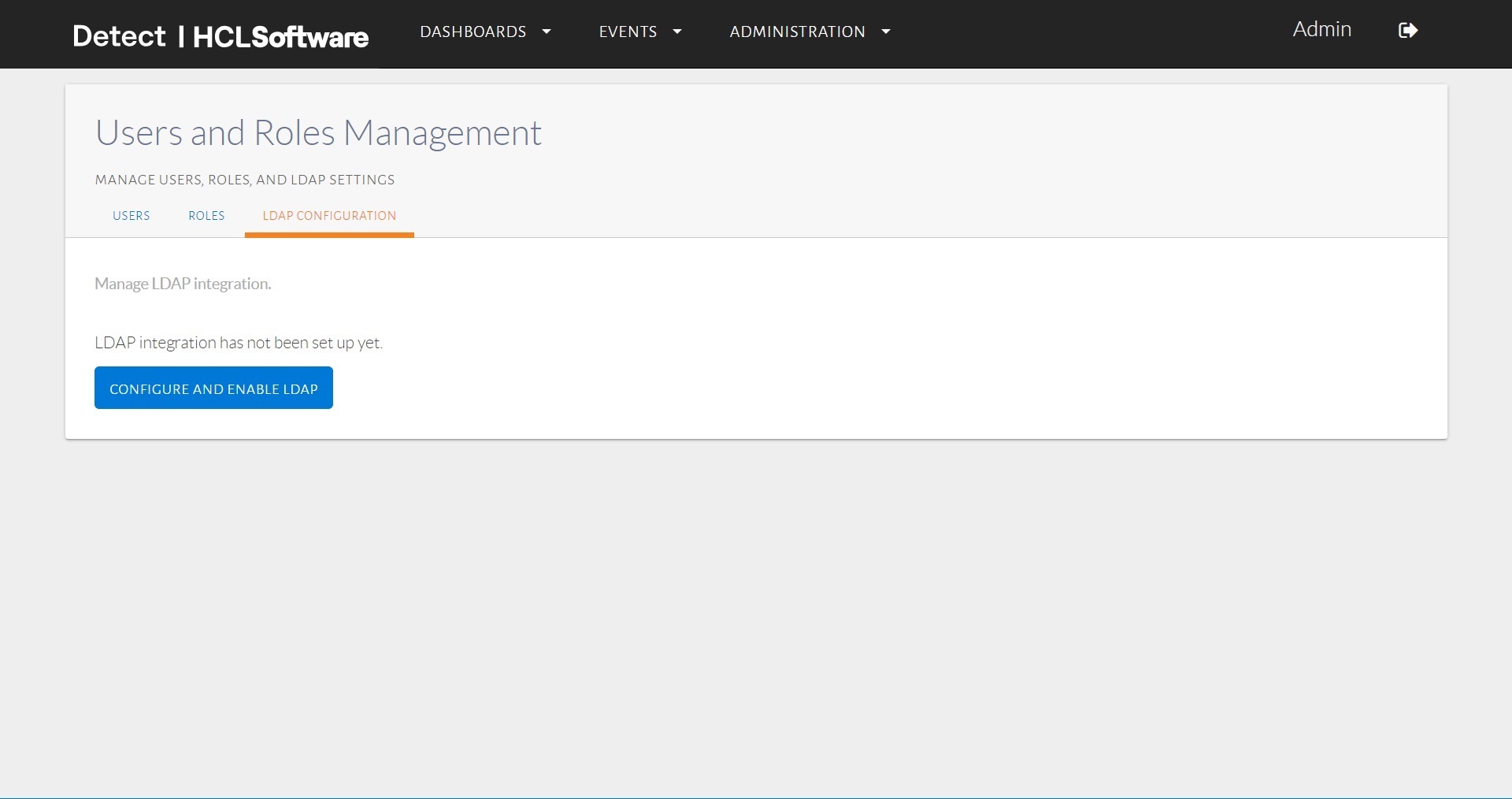
The LDAPConfiguration
tab.
To enable LDAP based authentication, we need to click on
ConfigureAndEnableLDAP button:
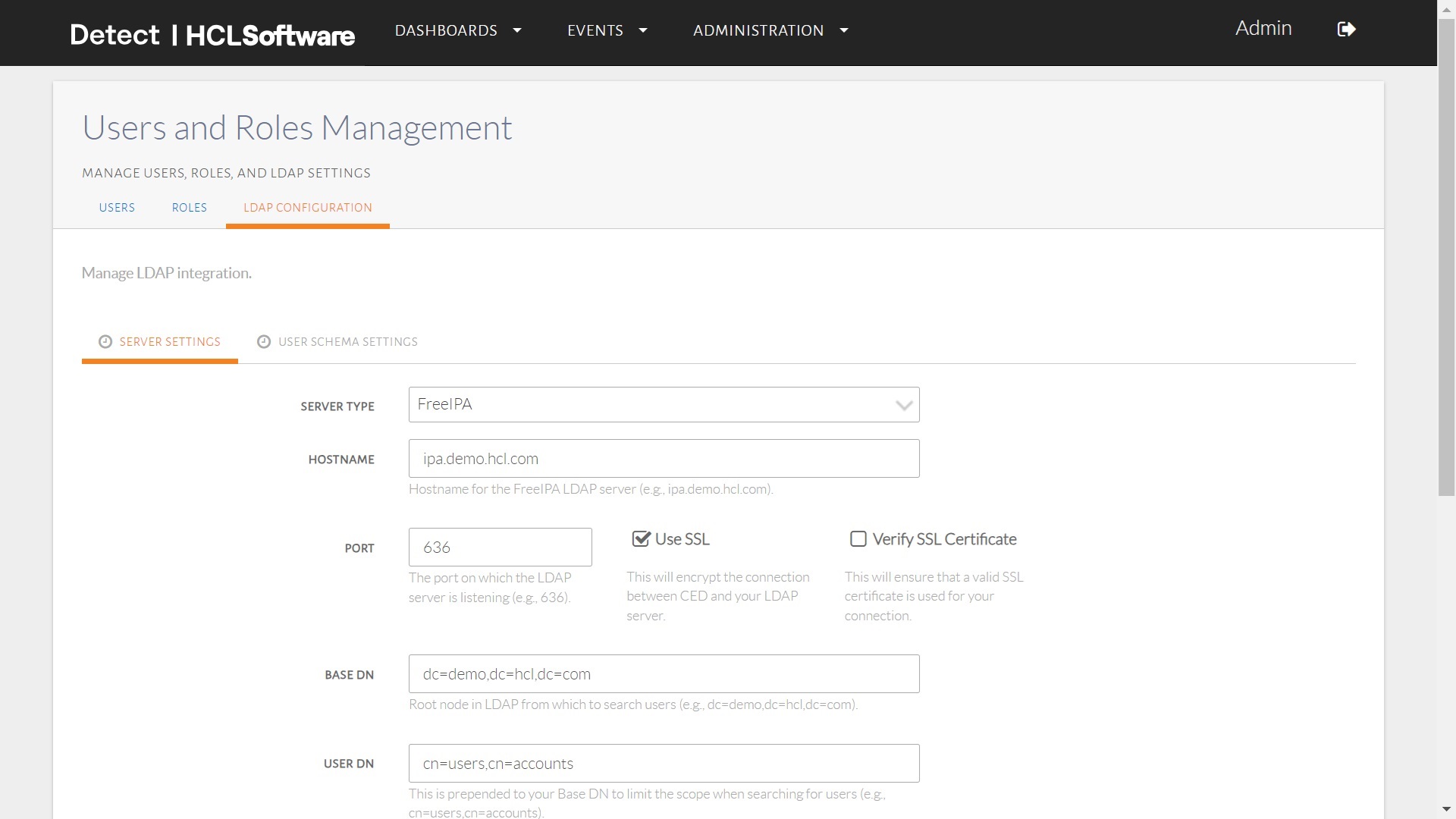
Configuring the LDAPConfiguration
tab.
Subsequently, the ServerType, Hostname,
Port, Base DN, User DN,
Group DN, Search User Name and Search User
Password attributes should be filled out. Current two type are servers are
supported, i.e., Free IPA and Active Directory.
Finally, the Test And Save button can be pressed to test the server
setting:
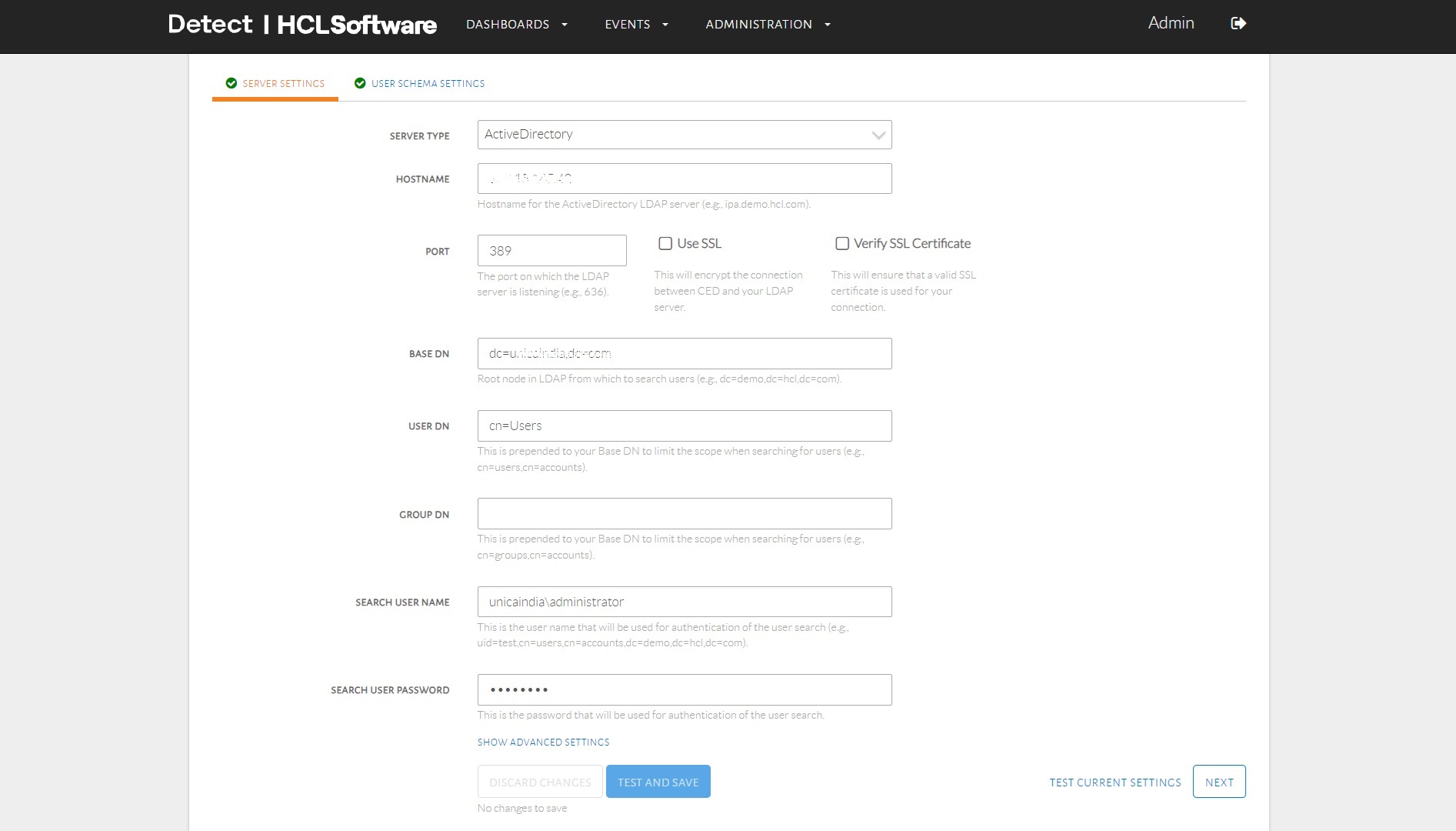
Testing the ServerSettings.
Press Next Button to start configuring the User Schema
Settings tab. Now user Object Class, User Object
Filter, Username Attrbute, User Name RDN
Attribute, User First Name Attribute, User
Lastname Attribute, User Display Name Attribute,
User Email Attribute and User Distinguished Name
Attribute attribute needs to be filled based on your organization's LDAP
configurations:
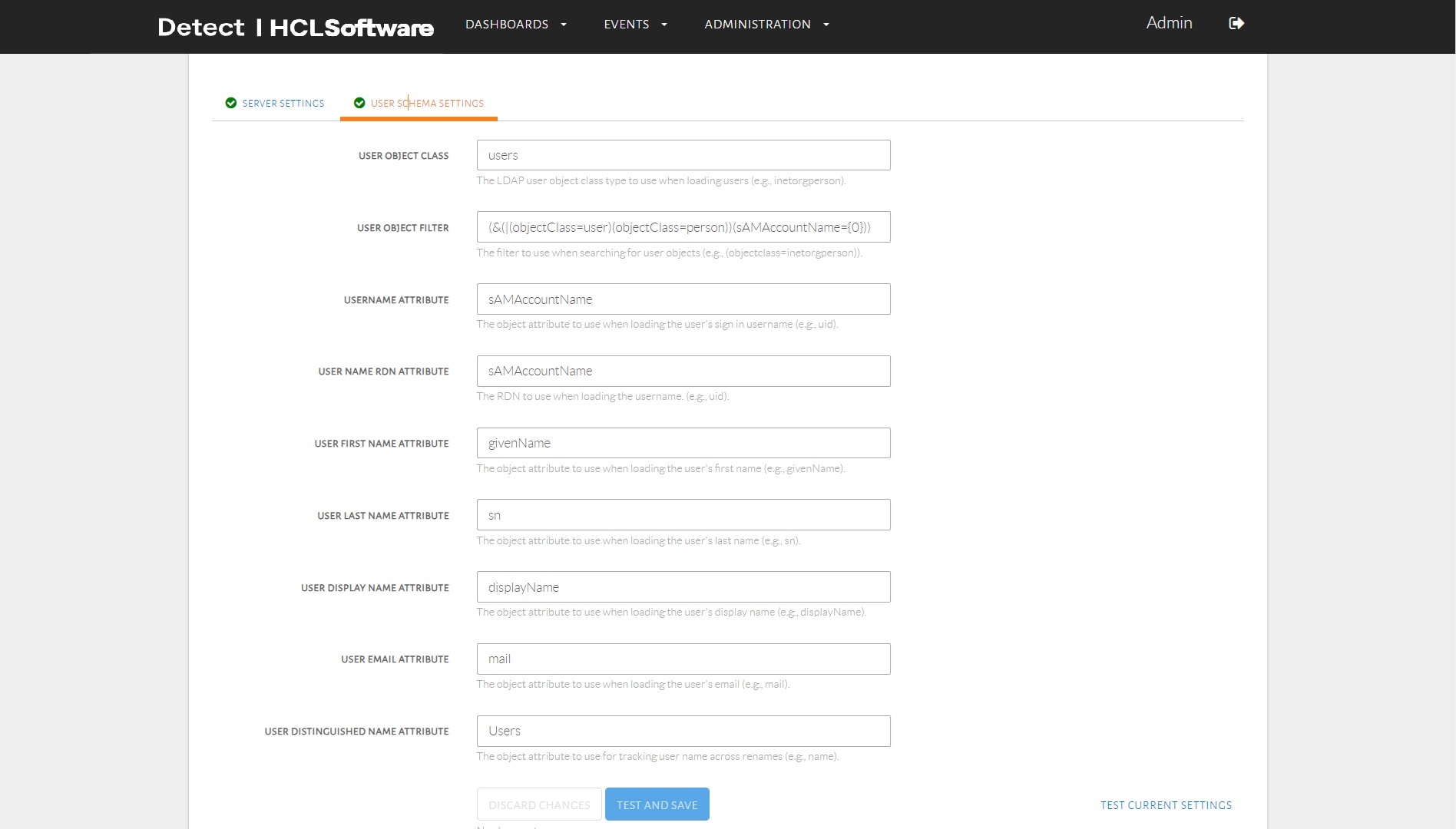
Configuring the UserSchemaSettings.
Now Click on TestAndSave button to test the configuration. Test it by
filling Username and Password for any existing LDAP
user and clicking `Test And Save on the pop-up display.
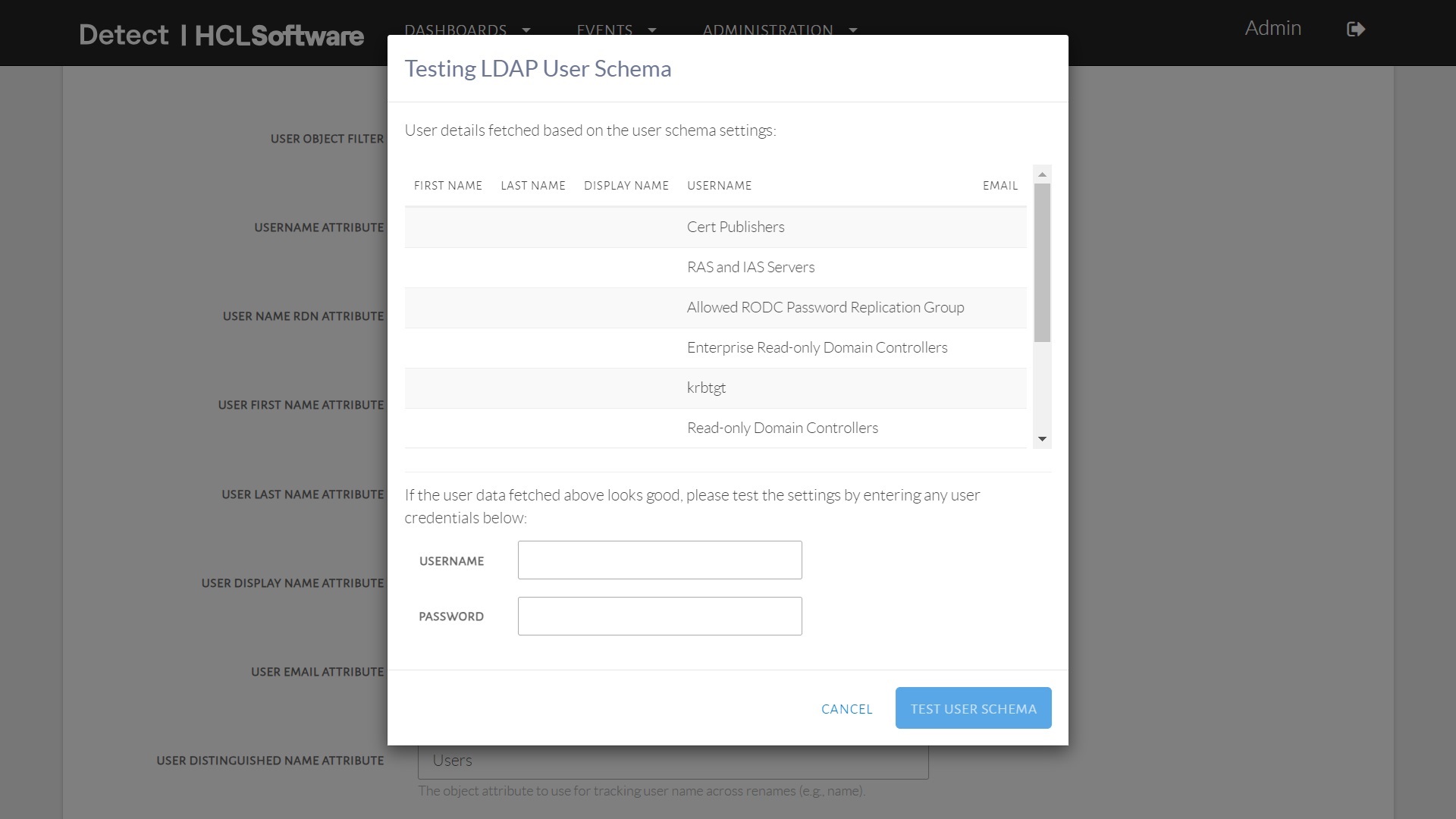
Testing the UserSchemaSettings.